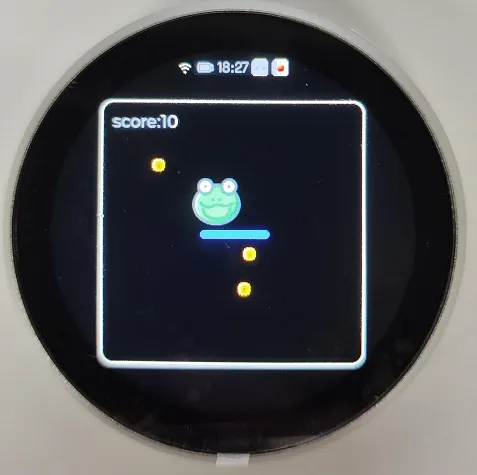
ESP32-S3-Touch-LCD-1.85B Factory Firmware Instructions
To help users quickly understand the various features of the product, we provide a factory test program that demonstrates the use of onboard screen, touch, audio, IMU, RTC, battery monitoring, TF card, and other functions. In addition to the ESP32-S3-Touch-LCD-1.85B main unit and the included cables, the following components are required to run all examples:
Required Components
- ESP32-S3-Touch-LCD-1.85B ×1
- USB Type-C cable ×1
- 3.7V Lithium Battery ×1 (optional, required for battery power and battery level measurement examples)
- TF card ×1 (optional, required for TF card and audio file playback examples)
- MP3 audio files should be placed in the
musicdirectory - AVI video files should be placed in the
videodirectory - JPG image files should be placed in the
photodirectory
- MP3 audio files should be placed in the
Firmware Download
- The factory firmware is located in the
Firmwaredirectory of the example repository. - The firmware file is named
ESP32-S3-Touch-LCD-1.85B-Factory.binand can be used to restore the factory demonstration program. - Use the Espressif Flash Download Tool to flash the firmware. The tool download link can be found in Resources and Documents.
USB Firmware Flashing Notes
The development board uses USB for programming.
If the port is not recognized or the board does not automatically enter download mode, manually enter Boot mode:
- Press and hold the BOOT button.
- Connect USB to the computer, or click download while already connected via USB.
- Release the BOOT button.
After programming, power cycle or reset the board to run the program.
App Example Introduction
An APP-style comprehensive application interface is shown using the Brookesia component, suitable for quickly verifying onboard LCD, touch, audio, voice, and peripheral functions.
tip
- To exit an APP, swipe upward from the bottom of the screen.
- Swipe up from the bottom and hold in the middle of the screen to view recently running APPs; swiping up closes the APP process.
- In the XiaoZhi AI APP, long-press the BOOT button to return to the Brookesia interface.
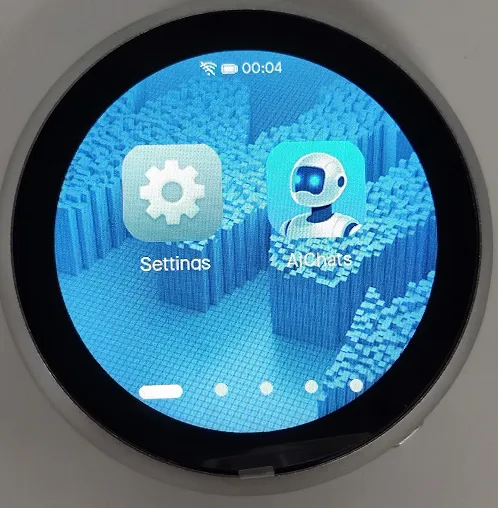
Settings App
- Supports Wi-Fi scanning and network configuration.
- Adjust screen brightness and volume.
- View battery status.
- View RTC time.
- View device information and MAC address, etc.
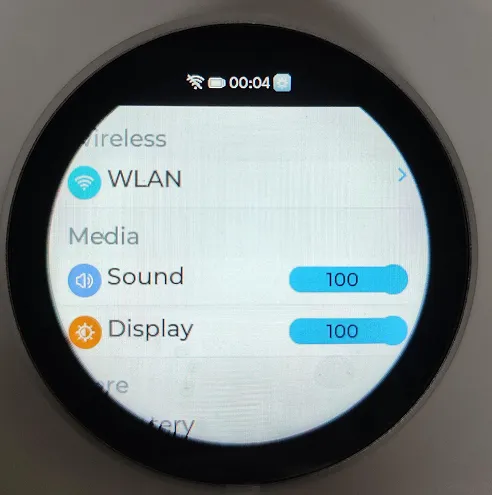
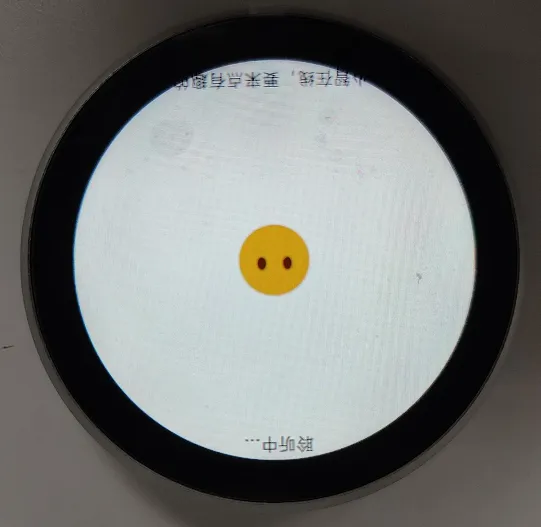
XiaoZhi APP
- Launches the native XiaoZhi application.
- Long-press the BOOT button to exit the XiaoZhi APP.
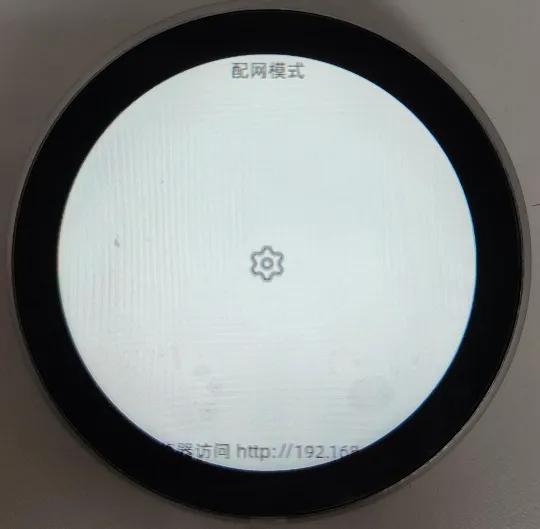
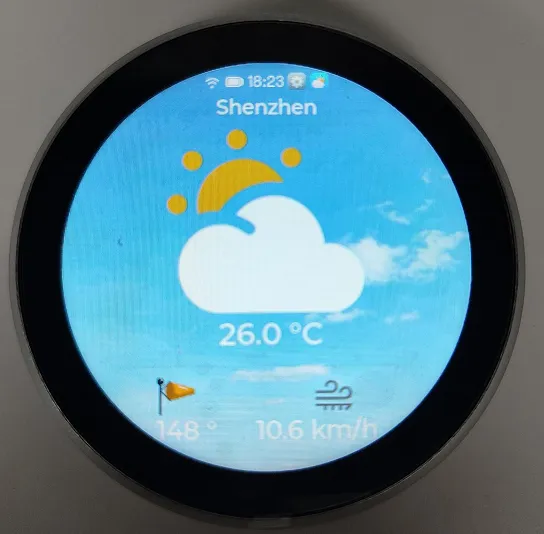
Weather APP
- Requires network connection and location.
- Displays the local weather interface.
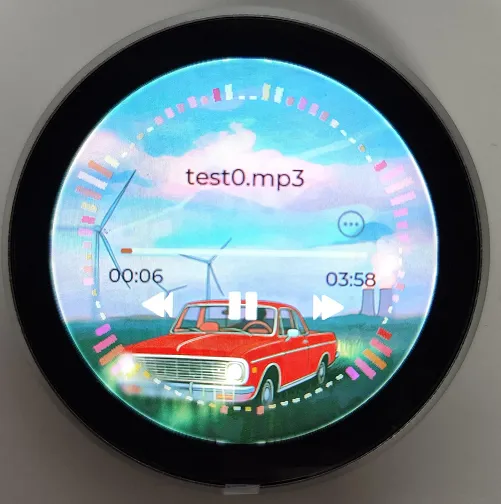
Music Player APP
- Simulates a music player interface.
- Requires a TF card with audio files placed as required for normal playback.
- Integrated FFT spectrum analysis display.
Squareline APP
- Displays the LVGL squareline editor interface.
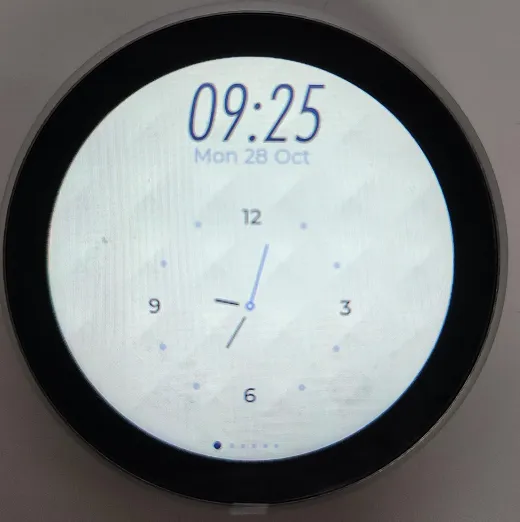
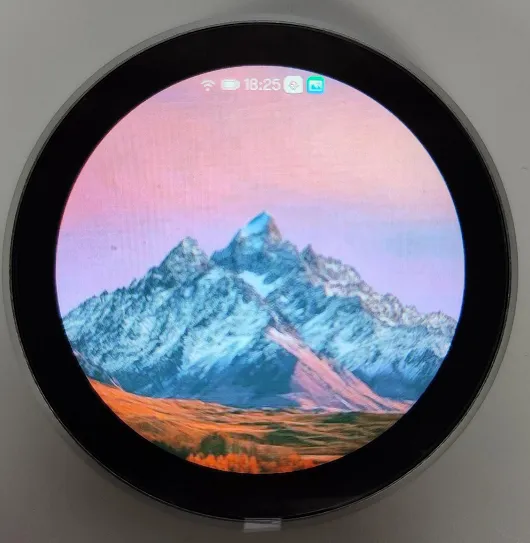
Photo Album APP
- Displays images from the TF card.
- Currently only supports JPG format; more formats will be supported in the future.
- Manual image zoom is required; currently only resolutions up to 360×360 are supported.
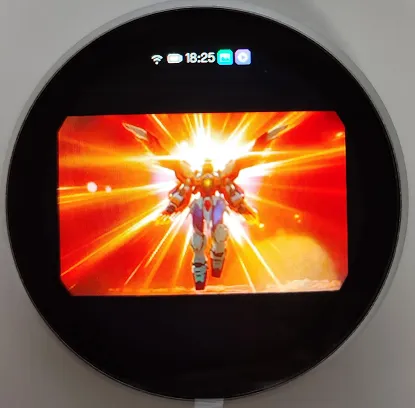
Video Player APP
- Plays AVI videos from the TF card.
- Currently only supports AVI videos with JPG encoding.
- Currently only supports resolutions up to 360×360; larger resolutions cannot be played.
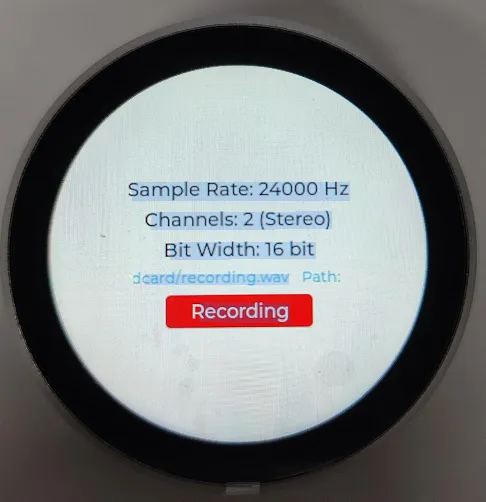
Recorder APP
- Used to test dual-microphone recording functionality.
- Recorded audio is saved to the TF card.
Chipmunk2d APP
- A small game combining the Chipmunk2d physics engine and gyroscope data.
- Before use, place the device flat to calibrate the gyroscope.