FAQ
Q: What size battery can fit inside the ESP32-S3-Touch-LCD-3.5-C case?
- The ESP32-S3-Touch-LCD-3.5-C supports battery power, but the current case design cannot accommodate a battery. Future revisions will optimize the case to support an internal battery.
Q: After flashing the XiaoZhi source code on the ESP32-S3-Touch-LCD-3.5, the camera cannot be opened?
- Open the ESP-IDF terminal and enter the
idf.py menuconfigcommand. - Configure as shown in the figure below, selecting the corresponding
OV5640camera model.
- Enable the DVP interface.

- Save the configuration, recompile, and flash the firmware.
Q: What platforms are supported by the AI voice conversation example?
- This product features an onboard ES8311 audio codec chip, a speaker, and a SMD microphone, enabling complete voice conversation functionality.
- Integration with several mainstream AI platforms has been verified, including Doubao, Wenxin Yiyan, ChatGPT, etc. Related example programs will be gradually released to the ESP32-AIChats repository.
Q: Why does compilation fail?
Arduino IDE compilation failure:
- If you encounter the error shown below, modify the partition scheme:
Partition Scheme->16M Flash (3MB APP/9.9MB FATFS).
ESP-IDF compilation failure:
- Delete the following files/folders:
build,managed_components, anddependencies.lock. - Recompile.
- If the error persists, check:
- Whether the
ESP-IDFversion is correct. - Whether the
CMakeLists.txtfile in the project directory is correctly recognized.
- Whether the
Q: The module keeps resetting?
- This issue is usually caused by a program crash that makes USB malfunction. To resolve it, press and hold the BOOT button while powering on to force the module into download mode, then re‑flash the firmware.
Q: The first program compilation is extremely slow. How to handle it?
- The first compilation downloads and builds all dependencies, which takes a long time – this is normal. Please wait patiently. Subsequent compilations will be significantly faster.
Q: After successful flashing in ESP‑IDF, the serial port shows 'waiting for download...'. What should I do?
- If the board has a reset button, press it; otherwise, power cycle the board.
Q: How can I measure the battery voltage on this product?
- This product features an onboard
AXP2101power management chip that can measure various battery parameters, including chip temperature, charging status, power connection status, battery voltage, charging voltage, battery level, etc.
Q: Why does the battery percentage reading fluctuate significantly on this product?
- The
AXP2101estimates the battery percentage based on battery voltage. Because the battery discharge curve is non‑linear, the measured percentage may fluctuate significantly, especially in the following situations:- When plugging/unplugging the charger
- When the load changes abruptly
- When the battery ages
It is recommended to use the percentage only as a reference. In practical applications, combine it with the battery voltage for a more accurate assessment.
Q: Can you provide the 3D CAD file of the case?
- The 3D CAD file of the case is not provided at this time.
Q: Are both buttons on this product programmable?
-
Yes. This product has two programmable buttons. Their functions are described below:
BOOT button:
- Download mode: Press and hold BOOT while powering on to enter download mode (useful when the program crashes or the USB GPIO is occupied).
- Programming use: Under normal operation, the button state can be detected via
GPIO0(low level indicates a press). Single‑click, double‑click, multiple‑click, and long‑press actions are supported.
PWR button:
- Power control: When powered on, press and hold for 6 seconds to power off. When powered off, a single click powers on (the battery can still be charged when the device is off).
- Programming use: Under normal operation, the button state can be detected via the expanded I/O
EXIO6(high level indicates a press). Single‑click, double‑click, multiple‑click, and long‑press actions are supported (the long press duration must not exceed 6 seconds, otherwise the device will power off).
Q: Does this product support Bluetooth?
- Yes. This product uses the ESP32-S3R8 chip, which supports 2.4 GHz Wi‑Fi and Bluetooth Low Energy 5.0 (BLE). The onboard chip antenna is optimized for best gain, allowing simultaneous use of Bluetooth and Wi‑Fi. For detailed specifications, refer to the ESP32-S3 Datasheet.
Q: Does this product support Chinese character display?
- Yes. This product uses the ESP32-S3R8 chip and drives the screen via SPI, fully supporting Chinese character display. The following conditions must be met:
- Character encoding: Strings must be in UTF‑8 encoding.
- Font file: A font file containing the required Chinese characters is needed.
- Display library: Use a graphics library that supports Chinese (e.g., LVGL or Arduino_GFX).
Q: Which chips are used for the screen on this product?
- Display driver chip: ST7796
- Touch controller chip: FT6336
Q: Is this product waterproof?
- No, it is not waterproof. Use in a dry environment and avoid contact with liquids.
Q: How can I check which COM port I am using?
Windows system:
-
Check via Device Manager:
- Press Windows + R to open the Run dialog.
- Type
devmgmt.mscand press Enter to open Device Manager. - Expand the "Ports (COM & LPT)" section to see all COM ports and their current status.
-
Check using Command Prompt:
- Open Command Prompt (CMD).
- Type the
modecommand; this will display status information for all COM ports.
-
Check by hardware connection:
- If unsure, plug/unplug the device and compare the port list; the newly appearing port is the one used by the device.
Linux system:
-
Use the
dmesgcommand:- Open a terminal and type
dmesg | grep ttyto view serial device information.
- Open a terminal and type
-
Use the
lscommand:- Type
ls /dev/ttyS*orls /dev/ttyUSB*to list all serial devices.
- Type
-
Use the
setserialcommand:- Type
setserial -g /dev/ttyS*to view detailed configuration information for serial devices.
- Type
Q: Why is there no output on the monitor after successful programming and running, even though the code is fine?
- The Type‑C interface of the ESP32-S3-Touch-LCD-3.5 is directly connected to the ESP32‑S3 USB. Serial output configuration differs between development environments:
Arduino IDE:
- The
printffunction works for output by default. - To use
Serialclass functions for printing, you need to enable theUSB CDC On Bootoption in the compilation settings, or declare anHWCDCobject in the code. - Refer to the provided example code for implementation details.
ESP-IDF:
- Typically, macros such as
ESP_LOGD,ESP_LOGI,ESP_LOGW, andESP_LOGEare used for log output. ESP_ERROR_CHECKcan be used for error checking and printing.
Q: Can you help me review or modify my code?
This product is positioned as a development board, not a finished product. Leveraging the mature ESP32 ecosystem and a developer‑friendly environment, we encourage makers and geeks to use their DIY skills to complete their projects.
Technical support and customization services:
- Technical support: We provide support for hardware and example‑related inquiries. We do not offer code rewriting or algorithm logic modification services.
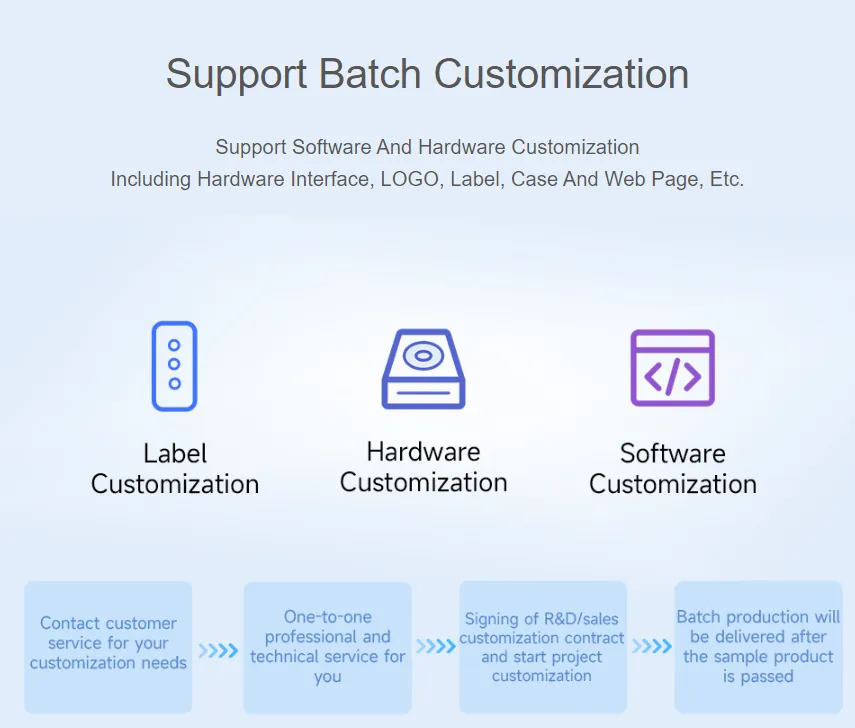
- Customization services: If you need batch customization of hardware, enclosures, or deep software development, please contact our Sales Team for further discussion.
Q: How do I design interfaces using `SquareLine Studio`?
- Please refer to the detailed tutorial: SquareLine Studio Tutorial.