Working with Arduino
This chapter includes the following sections. Please read as needed:
Arduino Getting Started
New to Arduino ESP32 development and looking for a quick start? We have prepared a comprehensive Getting Started Tutorial for you.
- Section 0: Getting to Know ESP32
- Section 1: Installing and Configuring Arduino IDE
- Section 2: Arduino Basics
- Section 3: Digital Output/Input
- Section 4: Analog Input
- Section 5: Pulse Width Modulation (PWM)
- Section 6: Serial Communication (UART)
- Section 7: I2C Communication
- Section 8: SPI Communication
- Section 9: Wi-Fi Basics
- Section 10: Web Server
- Section 11: Bluetooth
- Section 12: LVGL GUI Development
- Section 13: Comprehensive Project
Note: This tutorial uses the ESP32-S3-Zero as a reference example, and all hardware code is based on its pinout. Before you start, we recommend checking the pinout of your development board to ensure the pin configuration is correct.
Setting Up the Development Environment
1. Installing and Configuring the Arduino IDE
Please refer to the tutorial Installing and Configuring Arduino IDE to download and install the Arduino IDE and add ESP32 support.
2. Installing Libraries
To run the example, you need to install the corresponding library.
You can click this link to download the example package for the ESP32-S3-Touch-LCD-4.3B development board. The Arduino\libraries directory within this package contains all the necessary library files required for this tutorial.
| Library/File Name | Description | Version | Installation Method |
|---|---|---|---|
| ESP32_Display_Panel | Display panel control library for ESP32 microcontrollers | v0.1.4 or higher | "Online Installation" or "Offline Installation" |
| ESP32_IO_Expander | I/O expander library for ESP32 | v0.0.4 or higher | "Online Installation" or "Offline Installation" |
| lvgl | LVGL graphics library | v8.4.0 | Install via library manager or manually |
| lv_conf.h | LVGL configuration file | —— | Install manually |
There are strong dependencies between versions of LVGL and its driver libraries. For example, a driver written for LVGL v8 may not be compatible with LVGL v9. To ensure that the examples can be reproduced reliably, it is recommended to use the specific versions listed in the table above. Mixing different versions of libraries may lead to compilation failures or runtime errors.
Board Installation Instructions for ESP32-S3-LCD-4.3B
| Board Name | Installation Requirement | Version Requirement |
|---|---|---|
| ESP32 by Espressif Systems | "Offline" / "Online" installation | 3.0.7 |
Installation Steps:
- Unzip the downloaded example package.
- Copy all folders from its
Arduino\librariesdirectory to your Arduino libraries folder.
The path to the Arduino libraries folder is typically: c:\Users\<username>\Documents\Arduino\libraries.
You can also locate it in the Arduino IDE by going to File > Preferences and checking the "Sketchbook location". The libraries folder is the libraries subfolder within this path.
- For other installation methods, please refer to: Arduino Library Management Tutorial.
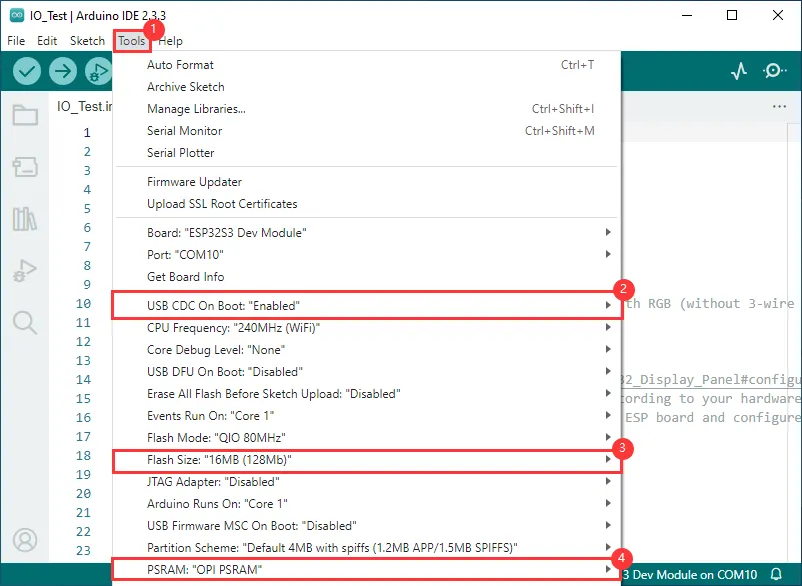
3. Arduino Project Settings
Example
The Arduino examples are located in the example package.
| Example | Basic Program Description | Dependency Library |
|---|---|---|
| 01_I2C_Test | Test I2C header | - |
| 02_RS485_Test | Test RS485 header | - |
| 03_SD_Test | Test TF card slot | - |
| 04_RTC_Test | Test RTC clock | - |
| 05_IO_Test | Test the I/O expansion/isolation | - |
| 06_TWAItransmit | Test CAN header | - |
| 07_TWAIreceive | Test CAN header | - |
| 08_DrawColorBar | Test RGB screen | ESP32_Display_Panel |
| 09_lvgl_v8_demo | Test LVGL V8 porting | LVGL, ESP32_Display_Panel |
| 10_lvgl_v9_demo | Test LVGL V9 porting | LVGL, ESP32_Display_Panel |
01_I2C_Test
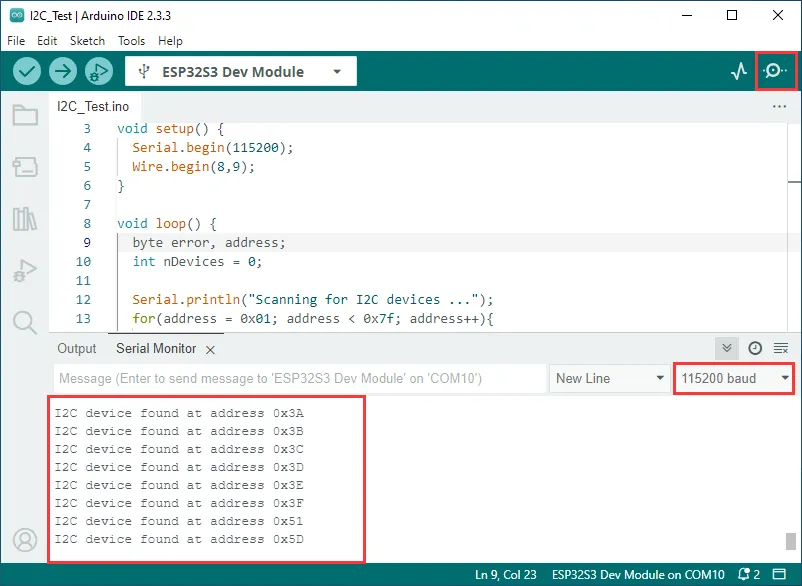
This example tests if the I2C header is working properly: it scans for device addresses on the I2C bus and outputs the scan results.
Hardware Connection
- Connect the board to the computer using a USB cable.
Code Analysis
-
setup():- Initializes the serial port (115200) for logging output
- Initializes I2C (SDA=8, SCL=9)
-
loop():- Scans addresses from
0x01to0x7E, performingWire.beginTransmission()andWire.endTransmission()for each address. error == 0indicates that a device responds at that address; the address is printed and counted.- After scanning, prints the number of devices found and repeats the scan every 5 seconds.
- Scans addresses from
Expected Behavior
-
The screen shows nothing, and the connected LED light flashes at a frequency of 1 Hz..
02_RS485_Test
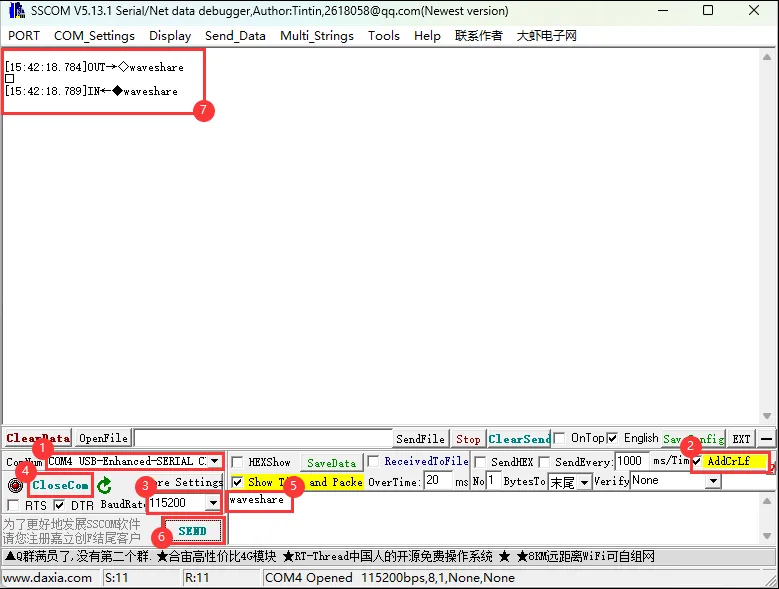
This example demonstrates how to perform a serial loopback test using RS485 (it echoes back whatever is sent).
Hardware Connection
-
Connect the board to the computer using a USB cable.
Code Analysis
-
setup():- Initializes the RS485 serial port using
Serial1with baud rate 115200, 8N1 - Specifies the RS485 RX/TX pins as
GPIO43/GPIO44
- Initializes the RS485 serial port using
-
loop():- Polls
RS485.available(): when data is received, reads 1 byte and immediatelywrite()it back, implementing a loopback test.
- Polls
Expected Behavior
-
Data sent to the development board via the RS485 interface is echoed back.
03_SD_Test
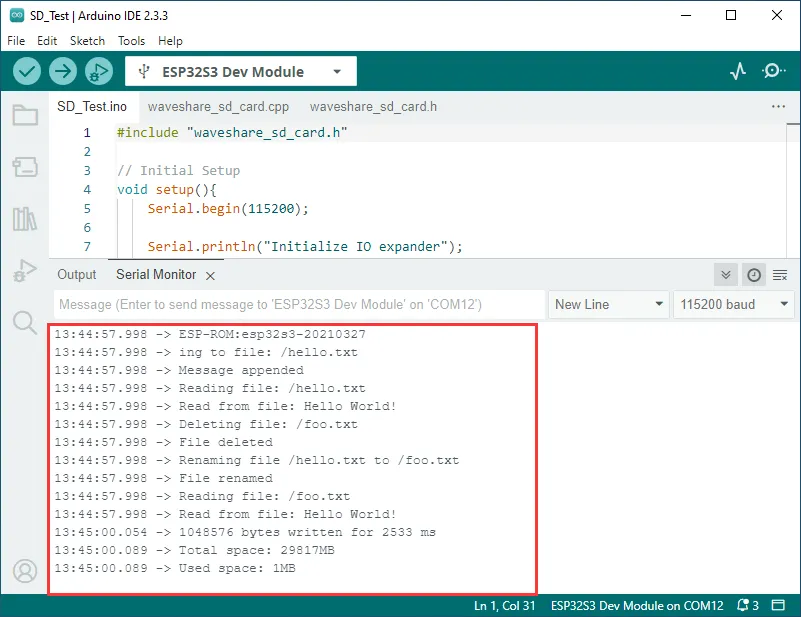
This example demonstrates how to mount a TF card and perform basic read/write and directory traversal tests.
Hardware Connection
- Connect the board to the computer using a USB cable.
Code Analysis
setup():- Initializes the CH422G I/O expander and configures relevant control pins (touch reset, LCD reset, backlight, USB_SEL, SD_CS)
- Initializes SPI and calls
SD.begin()to mount the TF card - Reads and prints the TF card type and capacity
- Performs a series of file system read/write tests using
listDir/createDir/removeDir/writeFile/appendFile/readFile/deleteFile/renameFile/testFileIO
Expected Behavior
-
Serial output shows the TF card type, capacity, and file system read/write test logs; if no card is inserted, a mount failure message is displayed.
04_RTC_Test
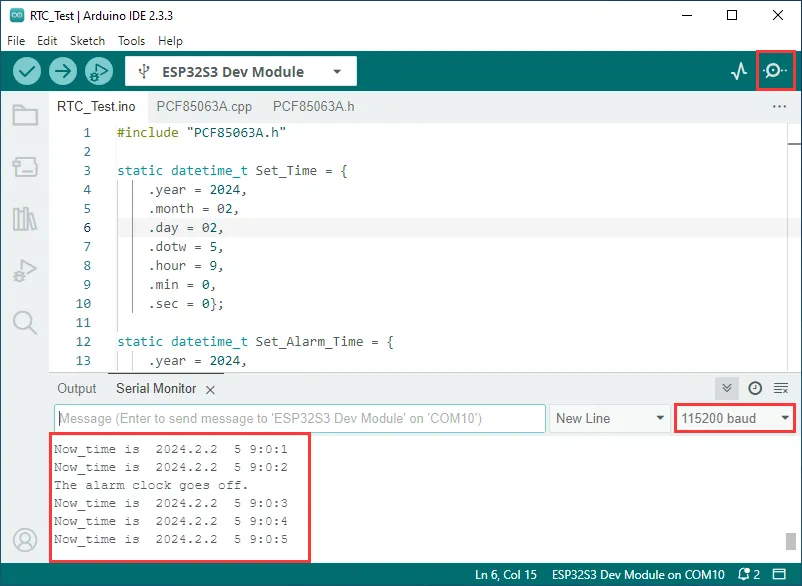
This example demonstrates how to use the PCF85063A real-time clock module for time setting and alarm function testing.
Hardware Connection
- Connect the board to the computer using a USB cable.
Code Analysis
-
setup():- Initializes the serial port (115200)
- Calls
PCF85063A_Init()to initialize the RTC and set the current time and alarm time. - Configures the RTC interrupt pin as a pull-up input and registers an interrupt callback with
attachInterrupt().
-
loop():- Periodically reads the current time, converts it to a string, and outputs it to the serial port.
- Checks the
Alarm_flagand prints a notification when the alarm is triggered, then re-enables the alarm.
Expected Behavior
-
The serial port periodically outputs the current time, and prints an alert when the alarm triggers.
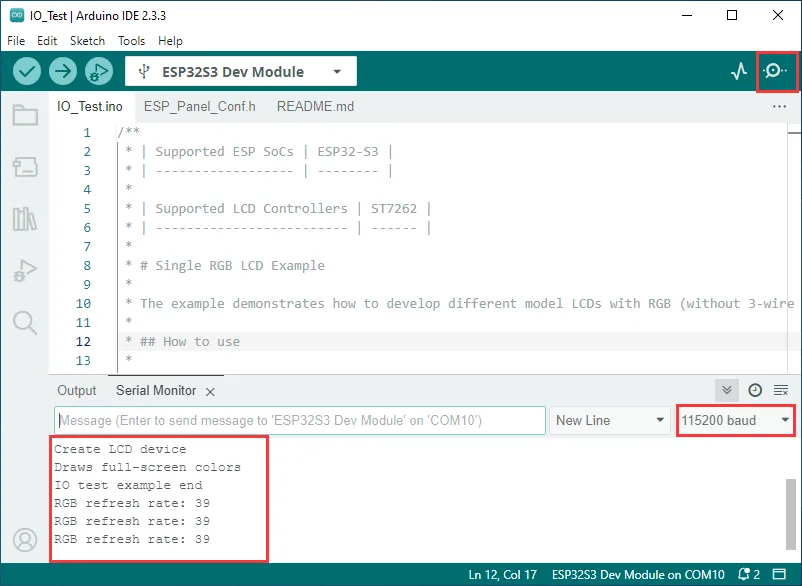
05_IO_Test
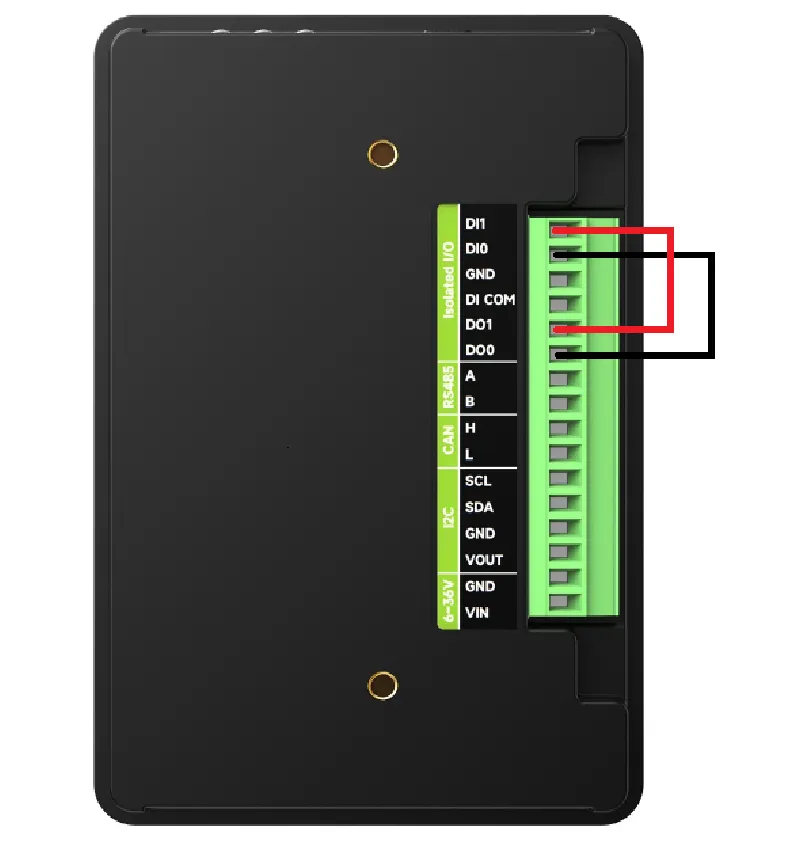
This example tests the I/O expansion/isolation functionality: it drives isolated DO/DI via the CH422G expansion chip and performs a simple self-test.
Hardware Connection
-
Connect the board to the computer using a USB cable.
Code Analysis
-
setup():- Initializes the serial port (115200)
- Calls
waveshare_io_test()to perform the isolated I/O self-test. - Calls
waveshare_lcd_init()to initialize the LCD for displaying test interfaces or status.
-
loop():- Prints a log every second; if
EXAMPLE_ENABLE_PRINT_LCD_FPSis enabled, outputs the LCD refresh frame rate.
- Prints a log every second; if
Expected Behavior
-
Upon program start, the I/O test is automatically performed, and the corresponding status is output on the serial port/screen.
06_TWAItransmit
This example tests the CAN header: initializes the TWAI driver and periodically sends CAN frames.
Hardware Connection
- Connect the board to the computer using a USB cable.
Code Analysis
-
setup():- Initializes the serial port (115200)
- Initializes the CH422G I/O expander and configures the relevant control pin states.
- Calls
waveshare_twai_init()to initialize the TWAI (CAN) driver and stores the initialization result indriver_installed.
-
loop():- If driver initialization fails, waits 1 second and retries.
- If the driver is ready, calls
waveshare_twai_transmit()to send a CAN frame.
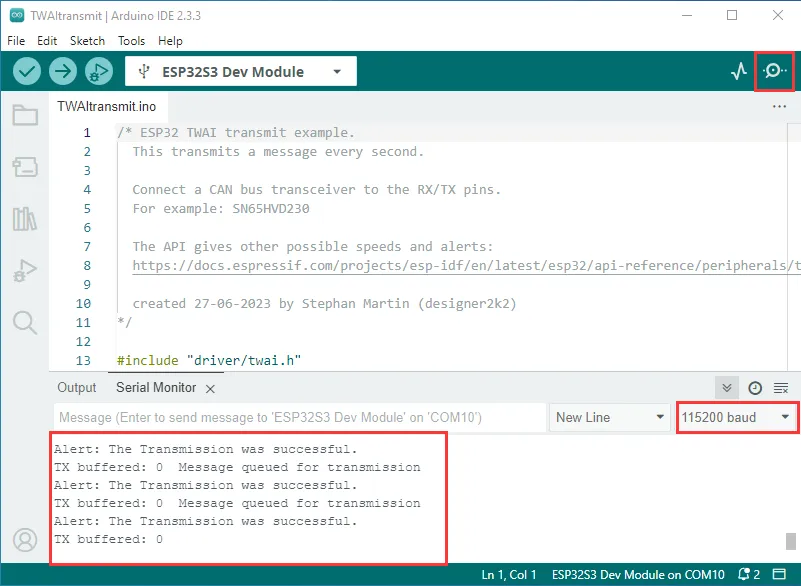
Expected Behavior
-
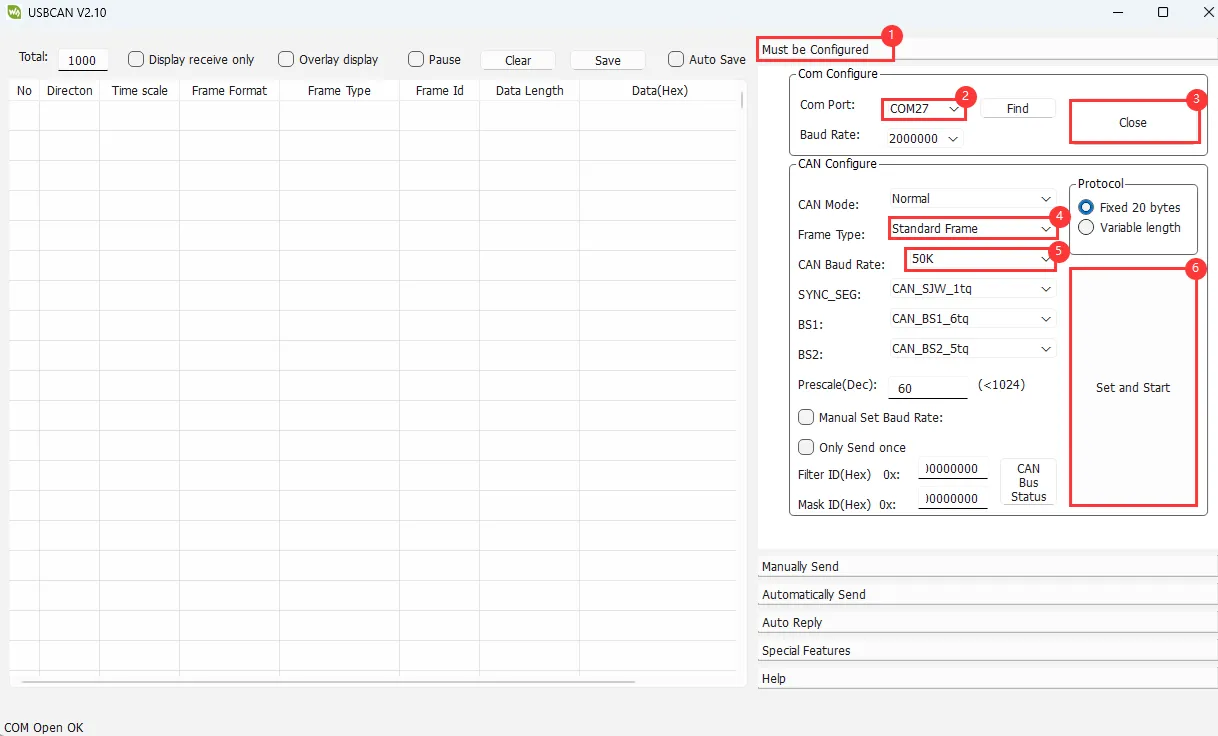
Serial output shows transmission logs; after connecting to a CAN bus and a peer device, the CAN data can be received on the peer side.
07_TWAIreceive
This example tests the CAN header: initializes the TWAI driver and receives CAN frames.
Hardware Connection
-
Connect the board to the computer using a USB cable.
-
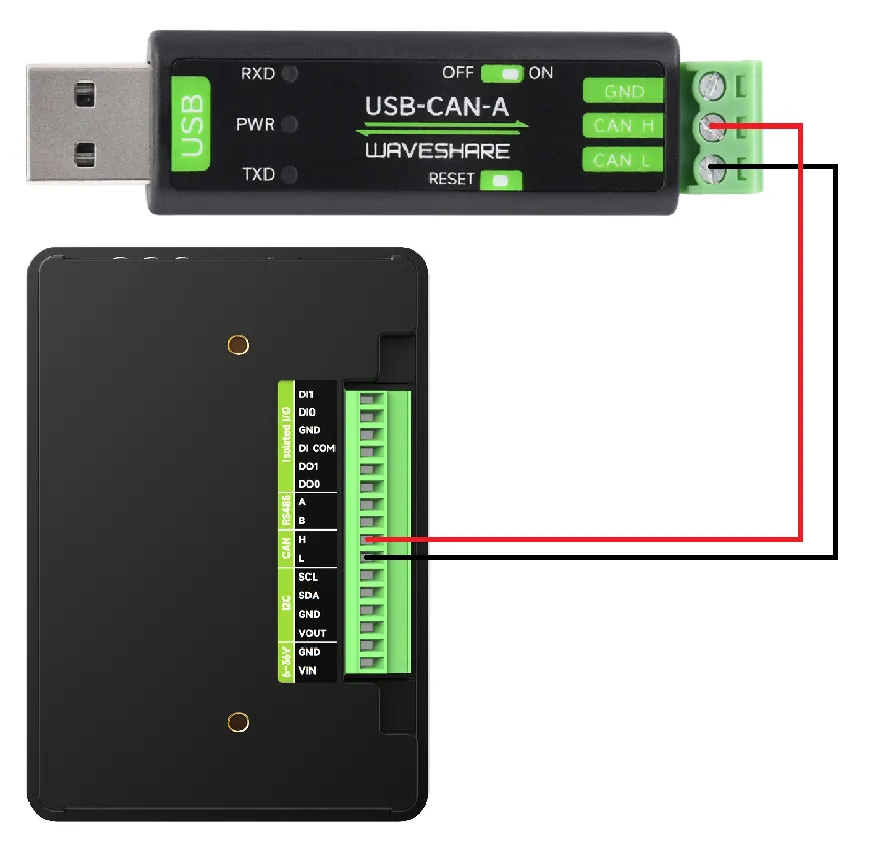
Connect the CAN interface (CANH, CANL) to a CAN bus
Code Analysis
-
setup():- Initializes the serial port (115200)
- Initializes the CH422G I/O expander and configures the relevant control pin states.
- Calls
waveshare_twai_init()to initialize the TWAI (CAN) driver and stores the initialization result indriver_installed.
-
loop():- If driver initialization fails, waits 1 second and retries.
- If the driver is ready, calls
waveshare_twai_receive()to read and print received CAN frames.
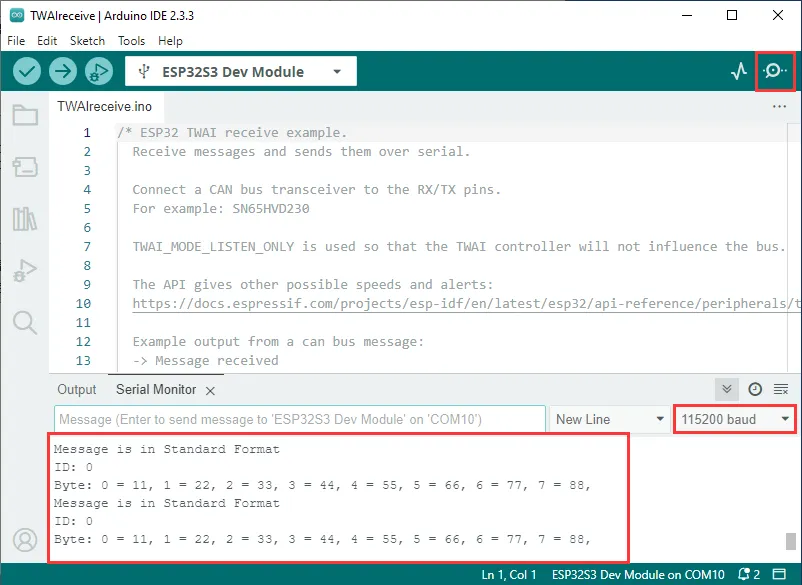
Expected Behavior
-
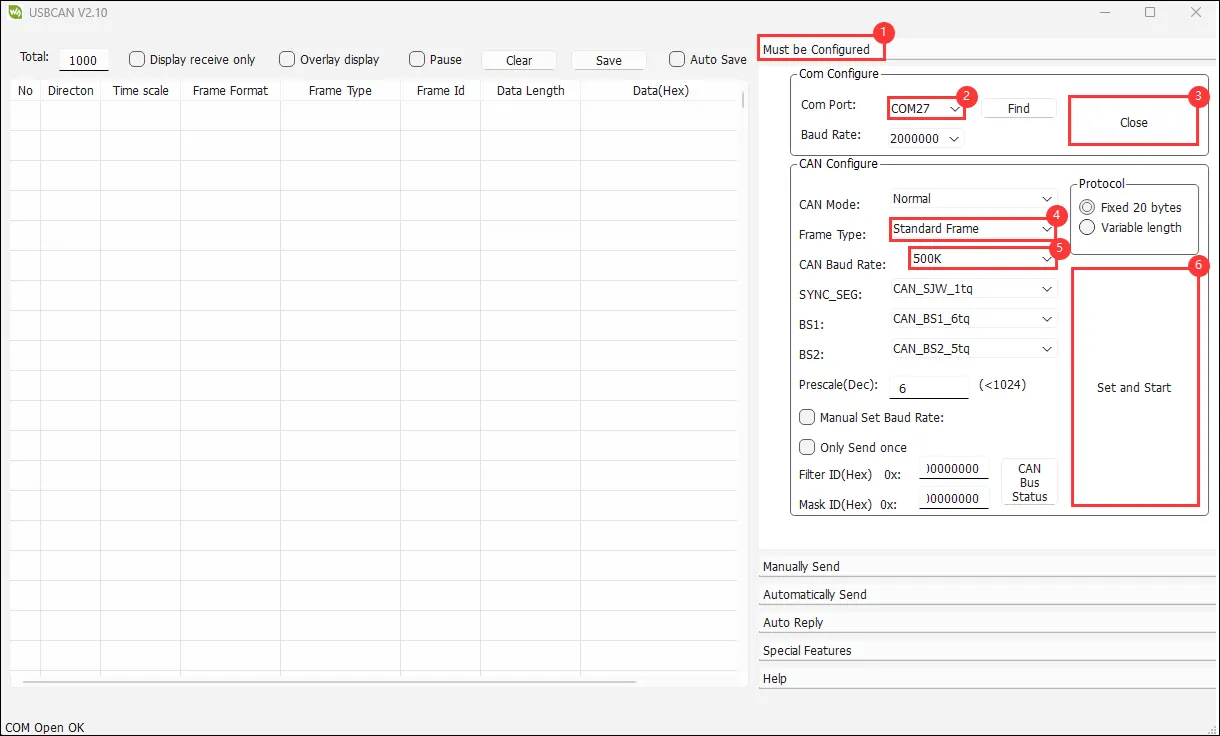
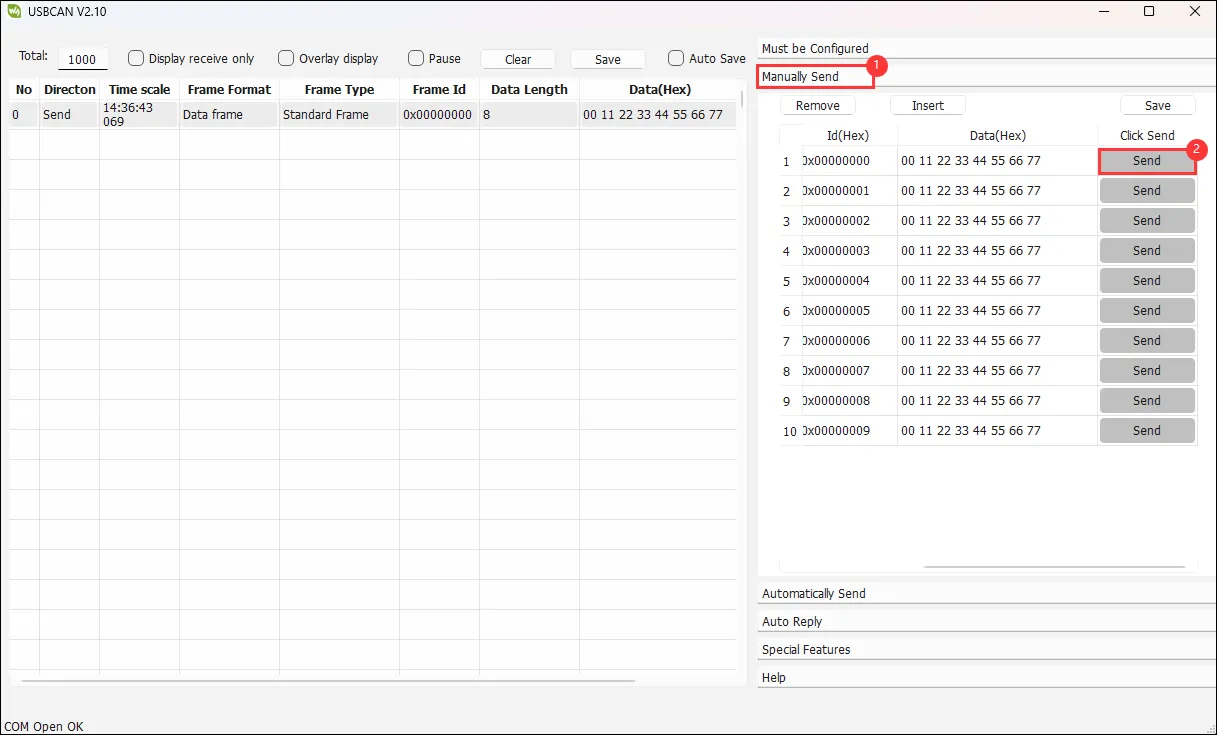
Serial output shows received CAN data; after connecting to a CAN bus and a peer device, received frames can be observed.
08_DrawColorBar
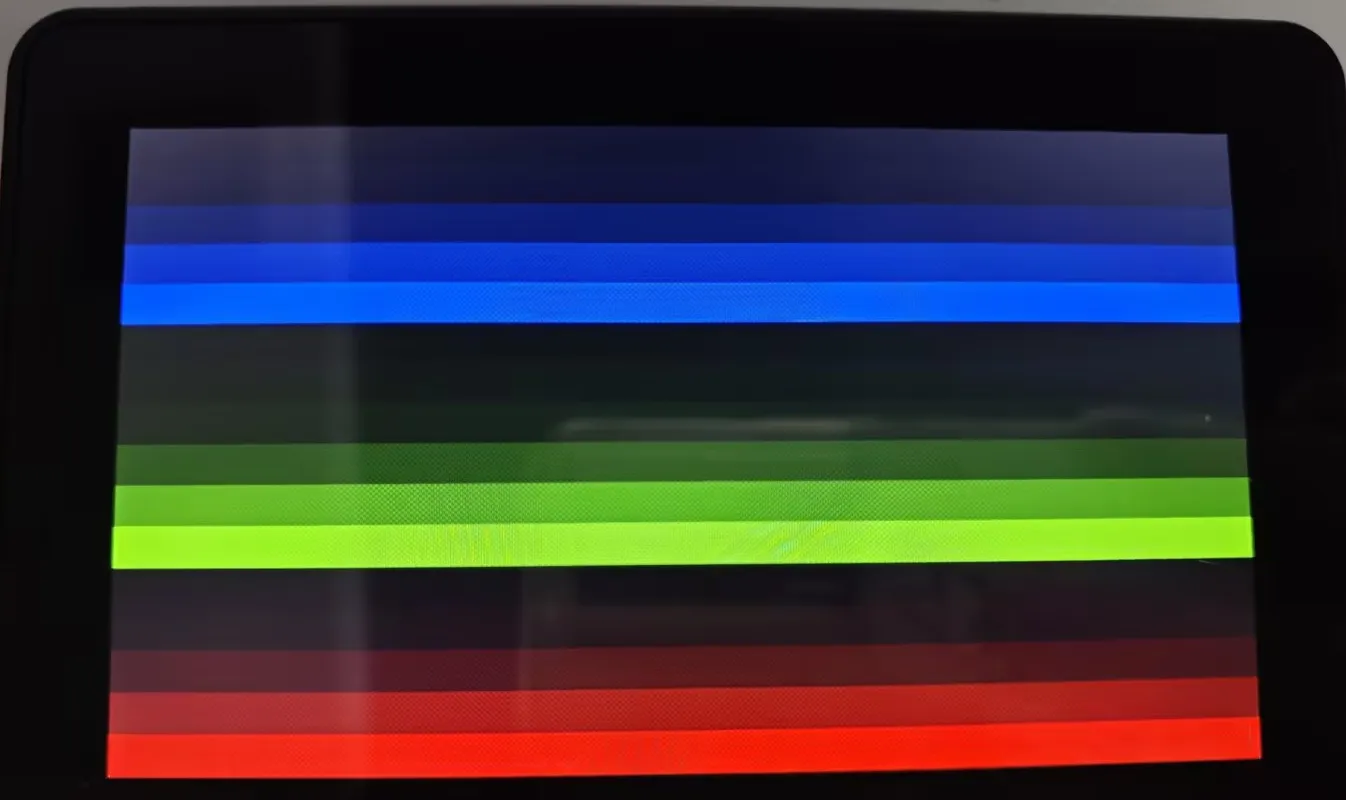
This example tests the RGB screen: initializes the LCD and displays a color bar / test pattern.
Hardware Connection
- Connect the board to the computer using a USB cable.
Code Analysis
-
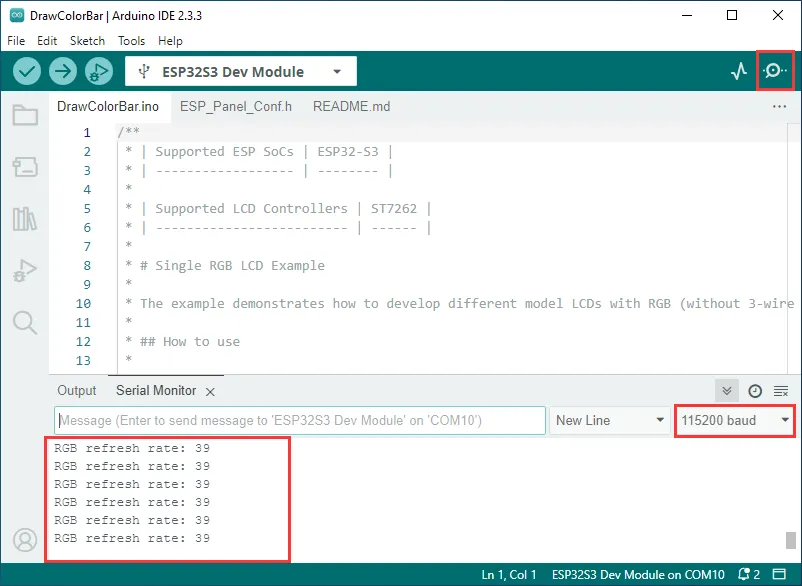
setup():- Initializes the serial port and outputs logs.
- Calls
waveshare_lcd_init()to initialize the RGB LCD and display the test pattern.
-
loop():- Outputs a log every second to confirm that the program is running.
Expected Behavior
-
After programming, the LCD displays a color bar/test pattern.
09_lvgl_v8_demo
This example tests LVGL V8 porting: initializes ESP32_Display_Panel + LVGL and runs the LVGL example.
Hardware Connection
- Connect the board to the computer using a USB cable.
Code Analysis
-
setup():- Initializes the serial port and creates a
Boardobject to initialize board-level peripherals (LCD/Touch/bus). - Initializes the LVGL port (
lvgl_port_init()) and useslvgl_port_lock()/lvgl_port_unlock()to protect LVGL API calls. - Creates three labels to display basic information and calls
lv_demo_widgets()to run the built-in LVGL example.
- Initializes the serial port and creates a
-
loop():- Prints a log every second to confirm the main loop is running (UI refresh is handled by the LVGL port's internal task).
Expected Behavior
-
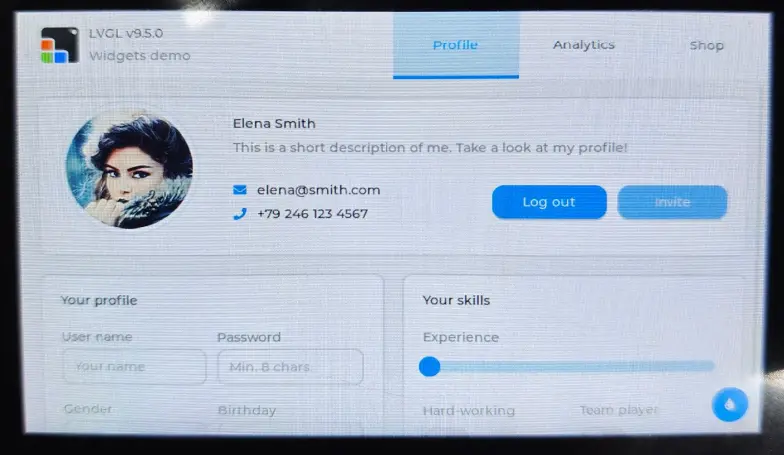
After programming, the LVGL Demo interface (Widgets Demo) is displayed.

10_lvgl_v9_demo
This example tests LVGL V9 porting: initializes ESP32_Display_Panel + LVGL and runs the LVGL example.
Hardware Connection
- Connect the board to the computer using a USB cable.
Code Analysis
-
setup():- Initializes the serial port and creates a
Boardobject to initialize board-level peripherals (LCD/Touch/bus). - Creates three labels to display basic information and calls
lv_demo_widgets()to run the built-in LVGL example.
- Initializes the serial port and creates a
-
loop():- Prints a log every second to confirm the main loop is running (UI refresh is handled by the LVGL port's internal task).
Expected Behavior
-
After programming, the LVGL Demo interface (Widgets Demo) is displayed.