Using Factory Firmware
This firmware is intended to demonstrate related features and will continue to be iterated and improved. If you encounter any abnormalities during use, feedback is welcome. We will address them promptly and update the version.
This chapter includes the following sections:
Test Preparation
- Type-C data cable
- Card reader
- TF card
- Factory firmware files — download from GitHub
Program Overview
The application includes: squareline example, handwriting test, image display, music playback, AI chat, Settings (WLAN, sound adjustment, backlight adjustment, battery voltage & CPU temperature reading, and isolation I/O test), and microphone test.
Program Usage
A brief explanation of the usage and functionality of each program.
For the image display and music playback tests, you need to copy the two folders from .\firmware\sdcard to the TF card. The TF card's file system must be formatted as FAT32; otherwise, clicking the icon will restart the system.
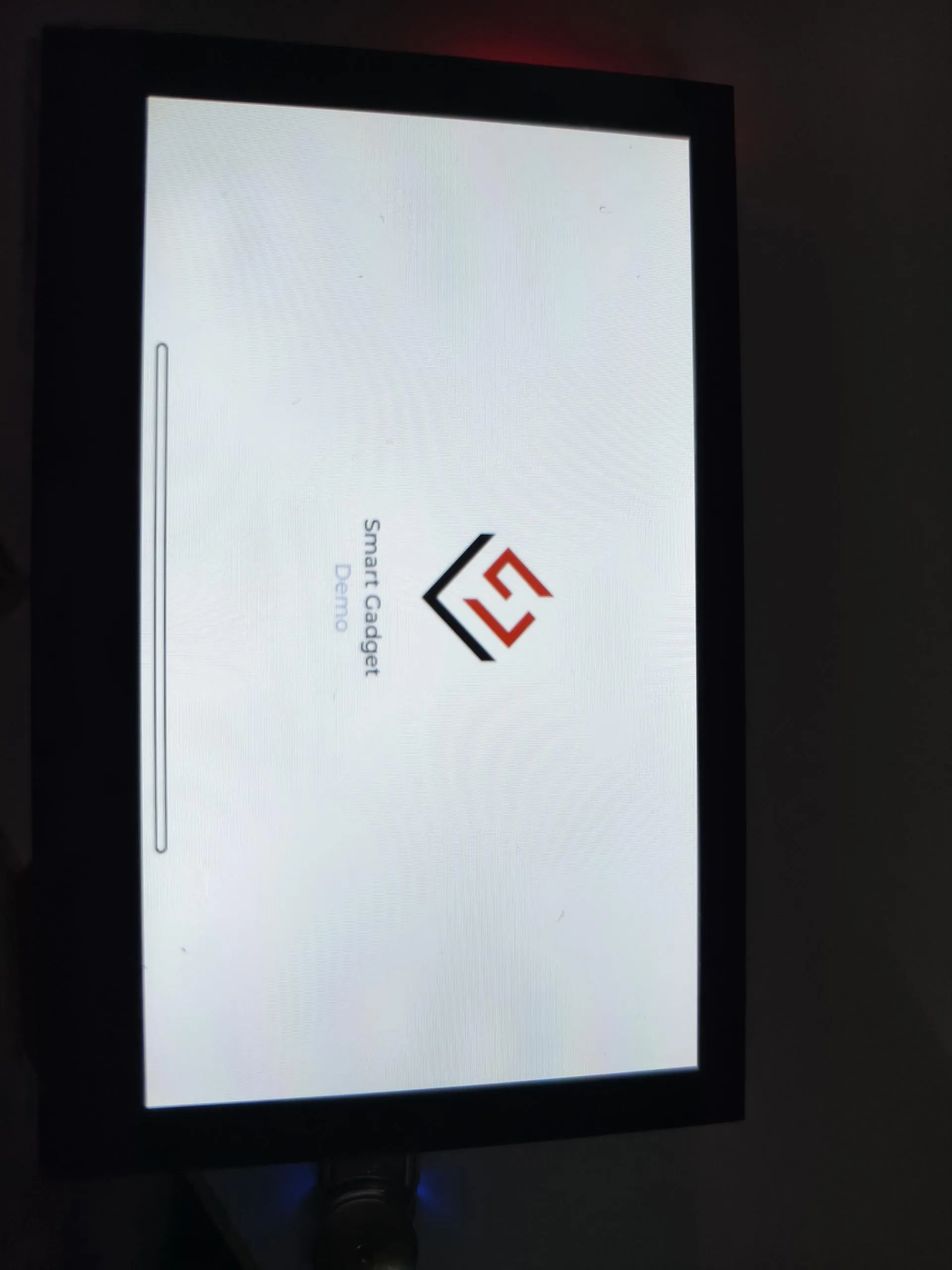
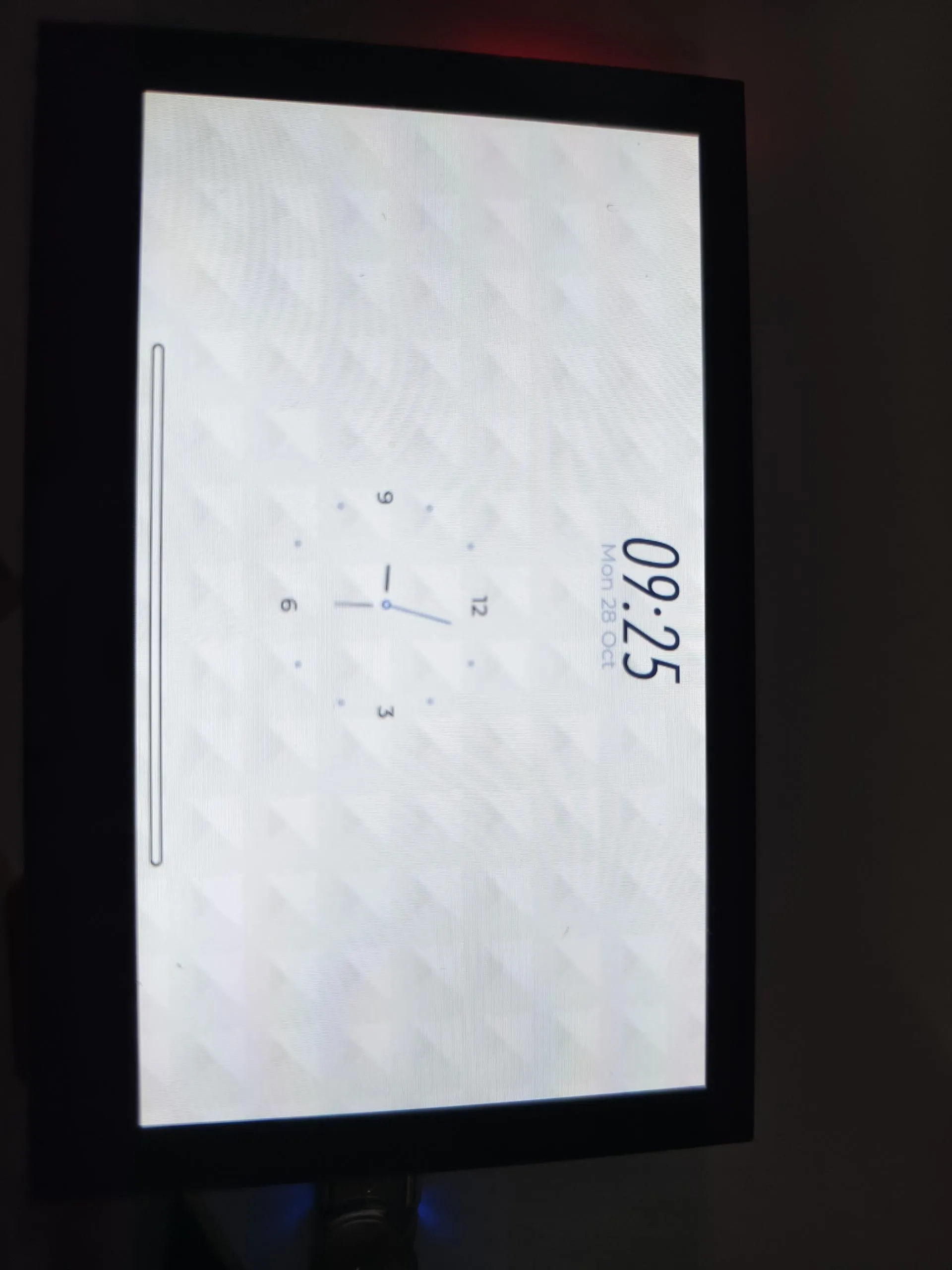
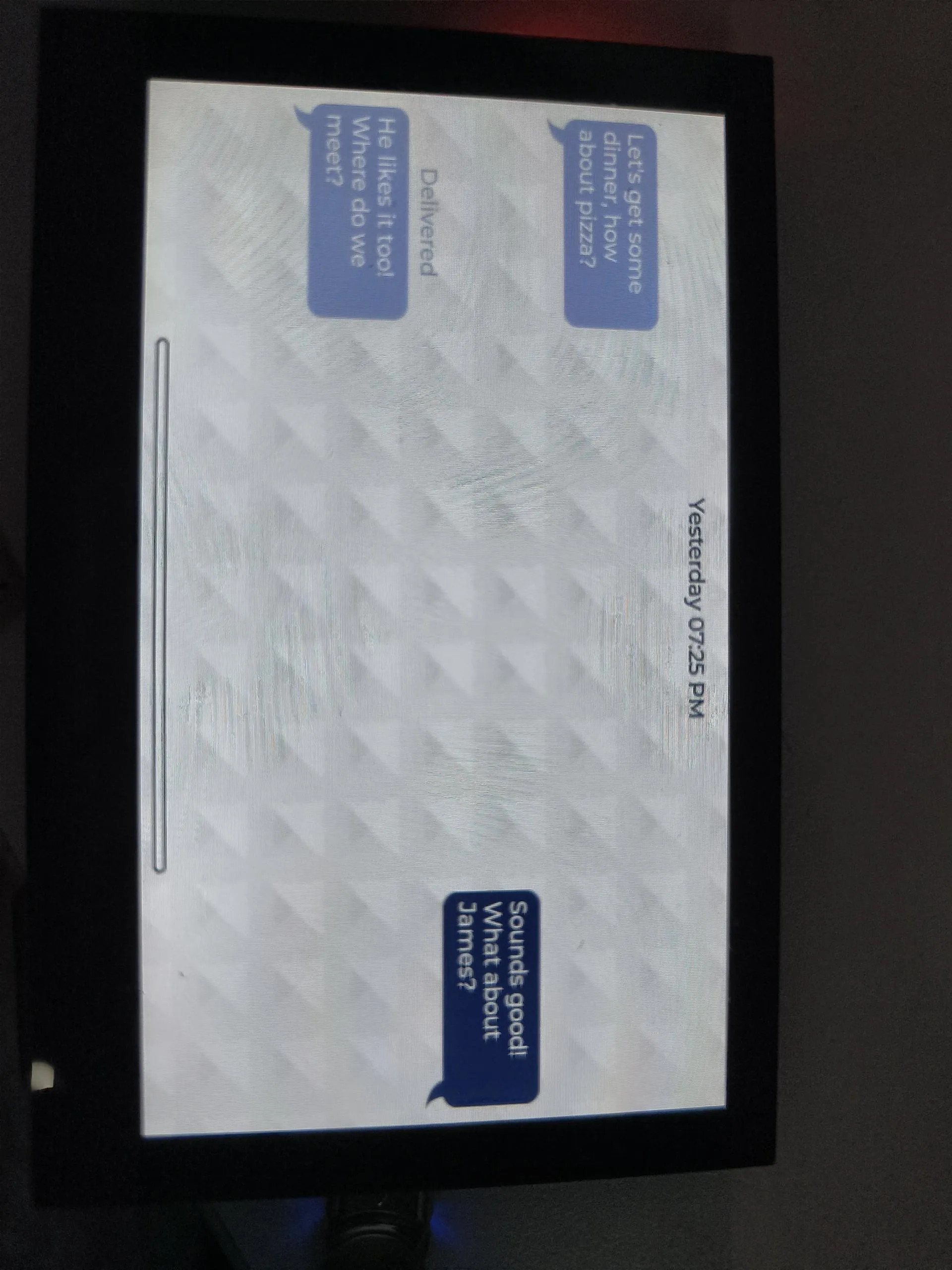
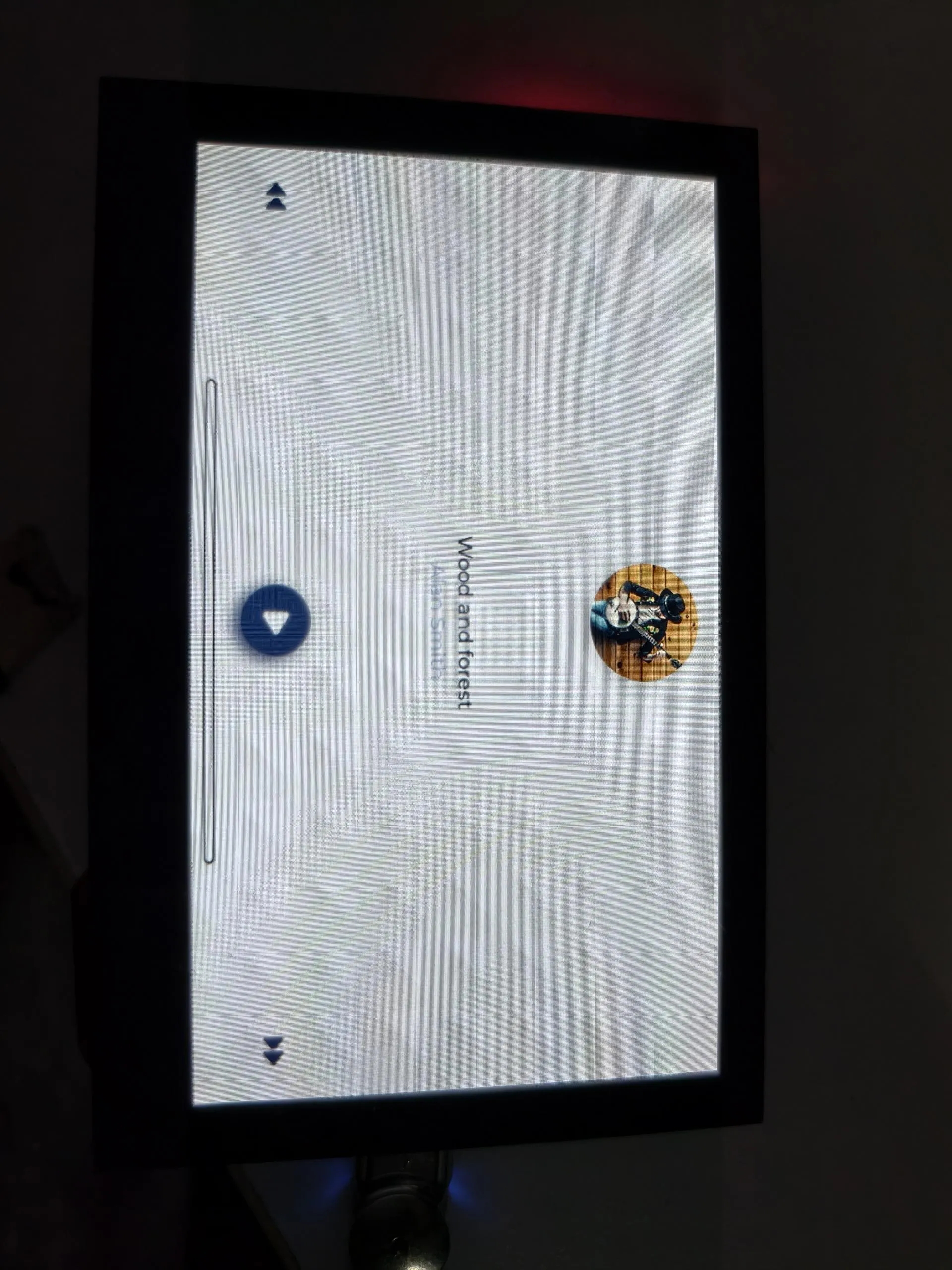
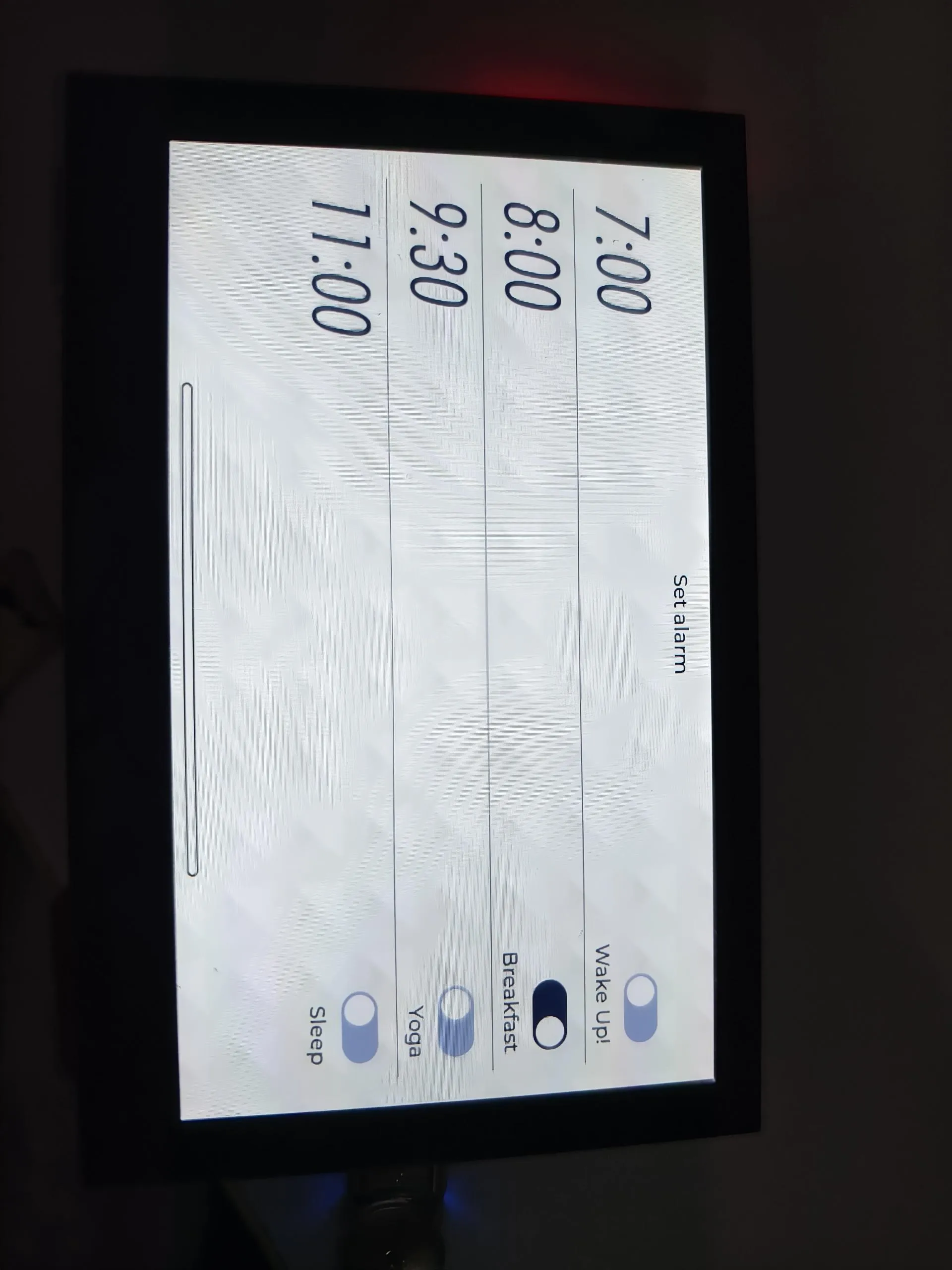
squareline
This example directly runs a squareline demo.
Operation Result
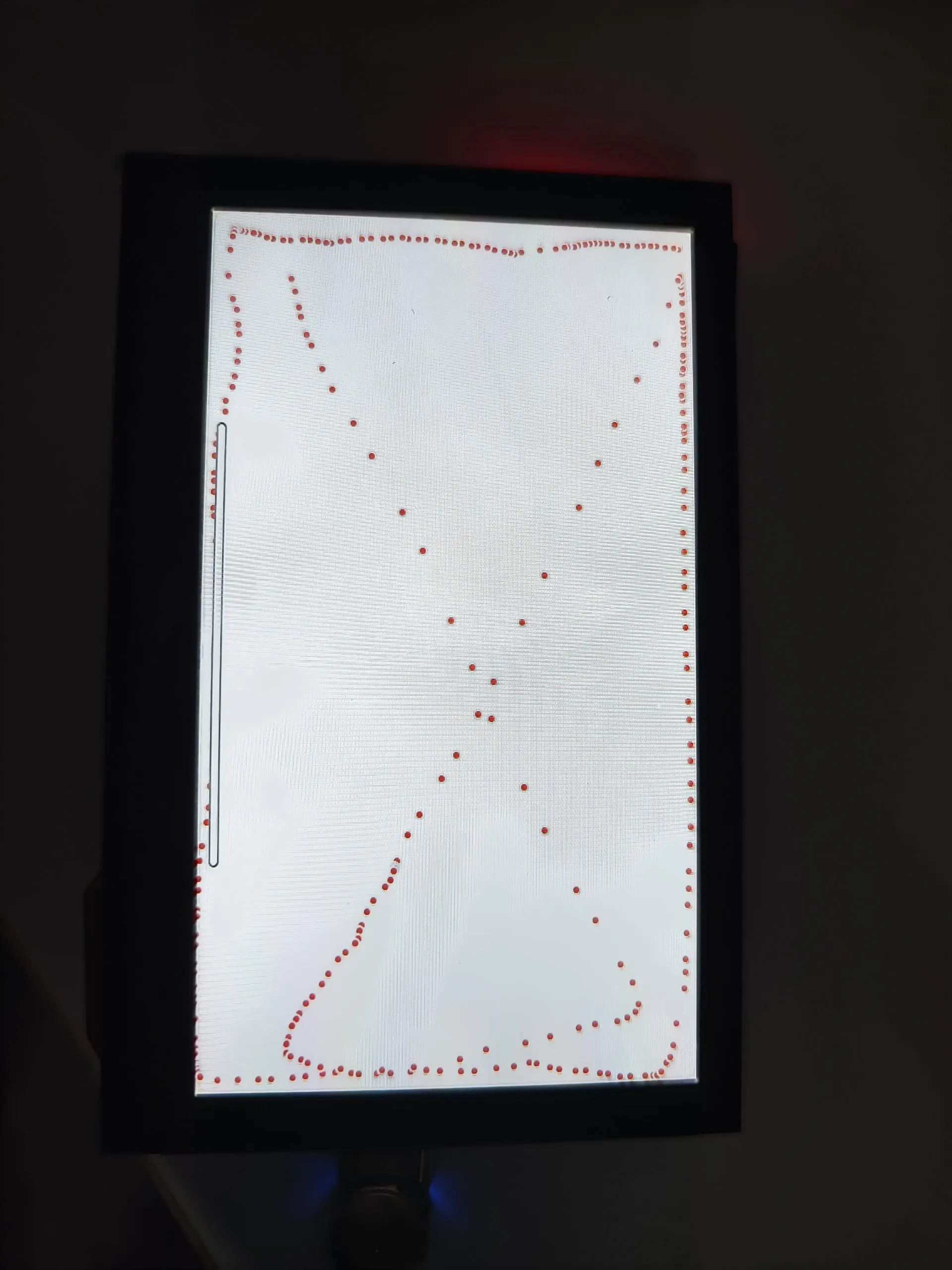
DrawPanel
This example tests if the touchscreen is functioning properly.
Operation Result
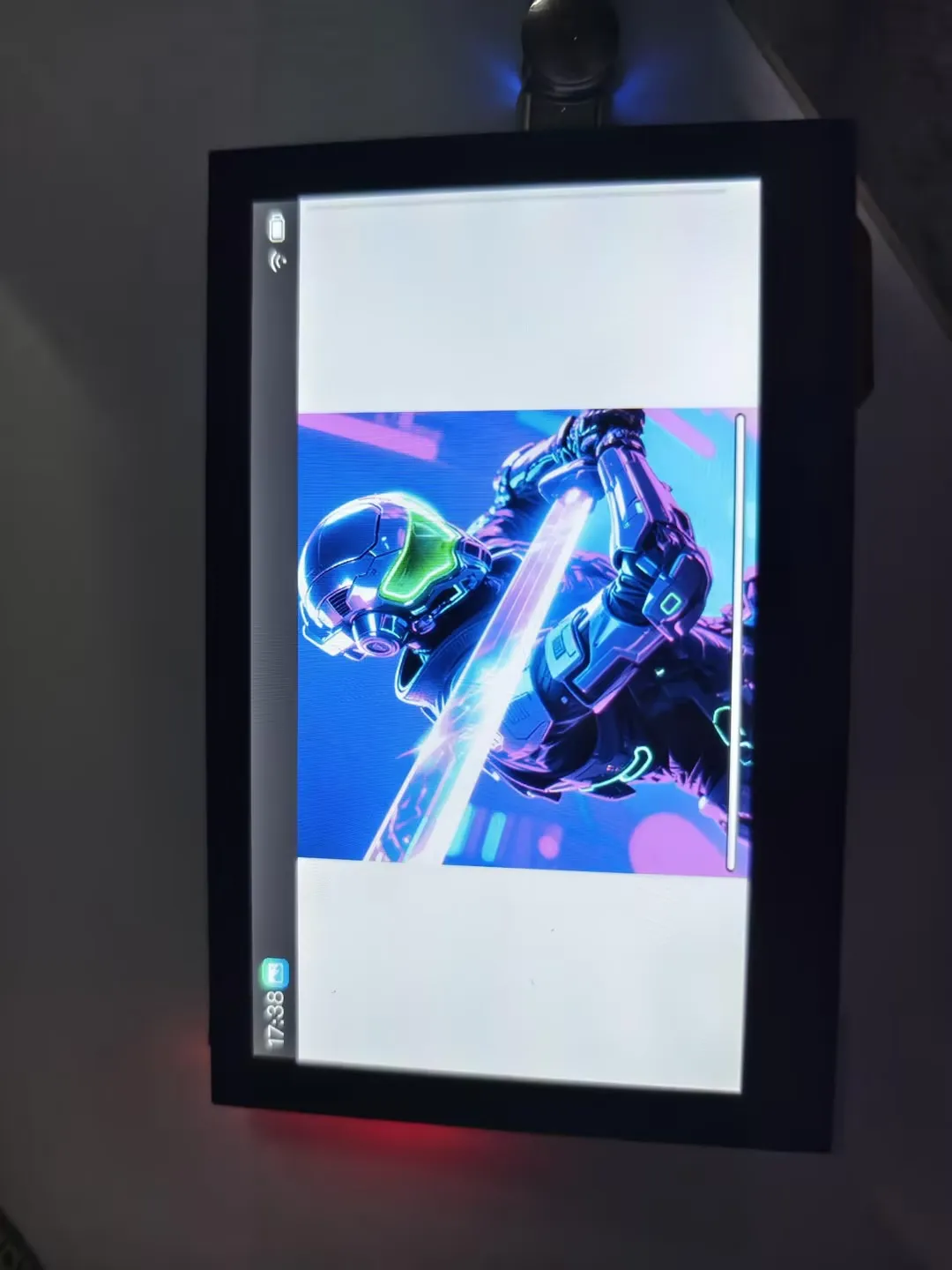
Gallery
This example reads and displays image files from the TF card.
Operation Result
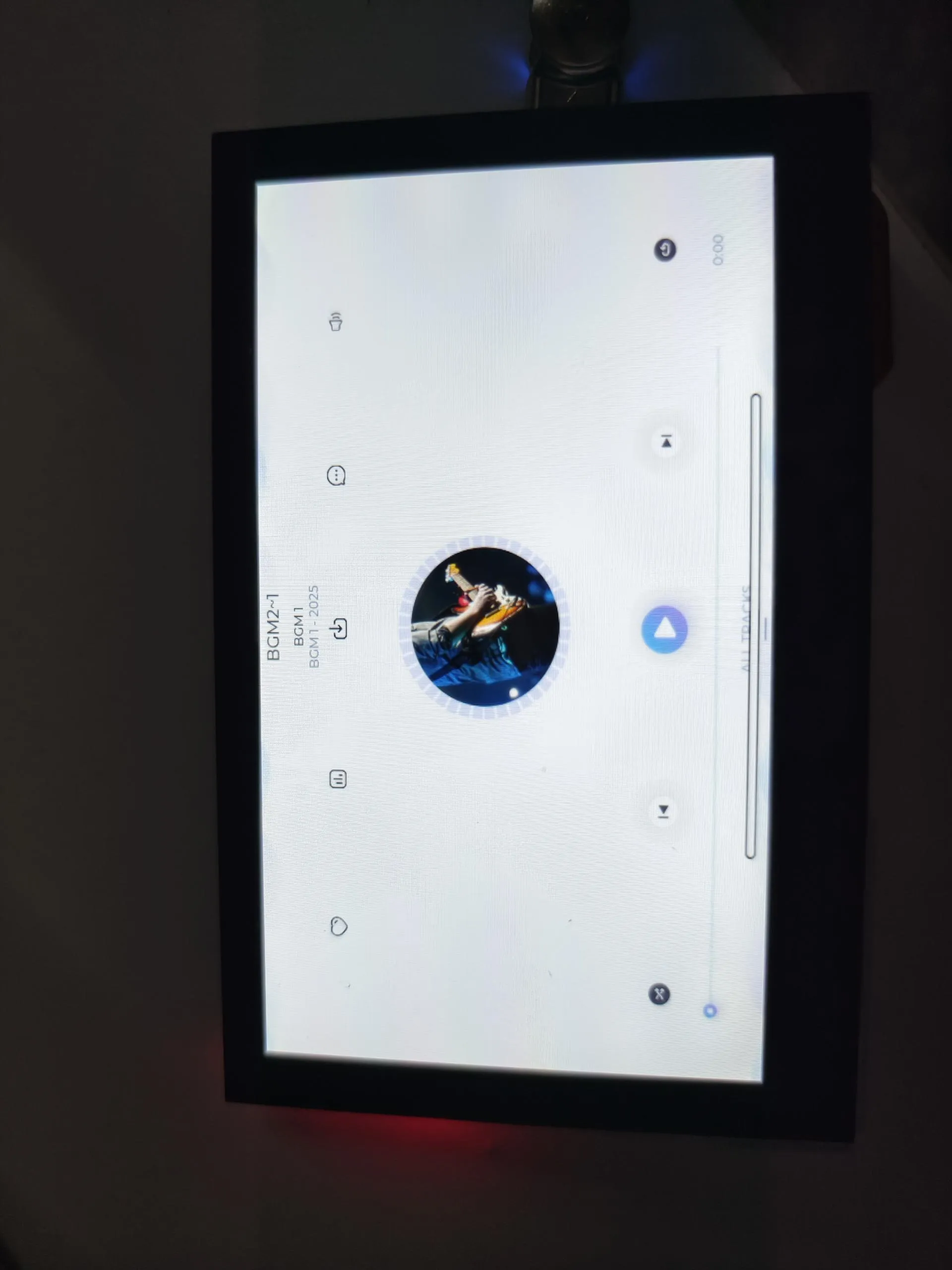
MusicPlayer
This example plays music from the TF card. The volume can be adjusted using the speaker button on the right.
Operation Result
AIChats
This example runs XiaoZhi AI. After configuring XiaoZhi, you can say "Return to the application interface" to go back to the desktop.
Operation Result
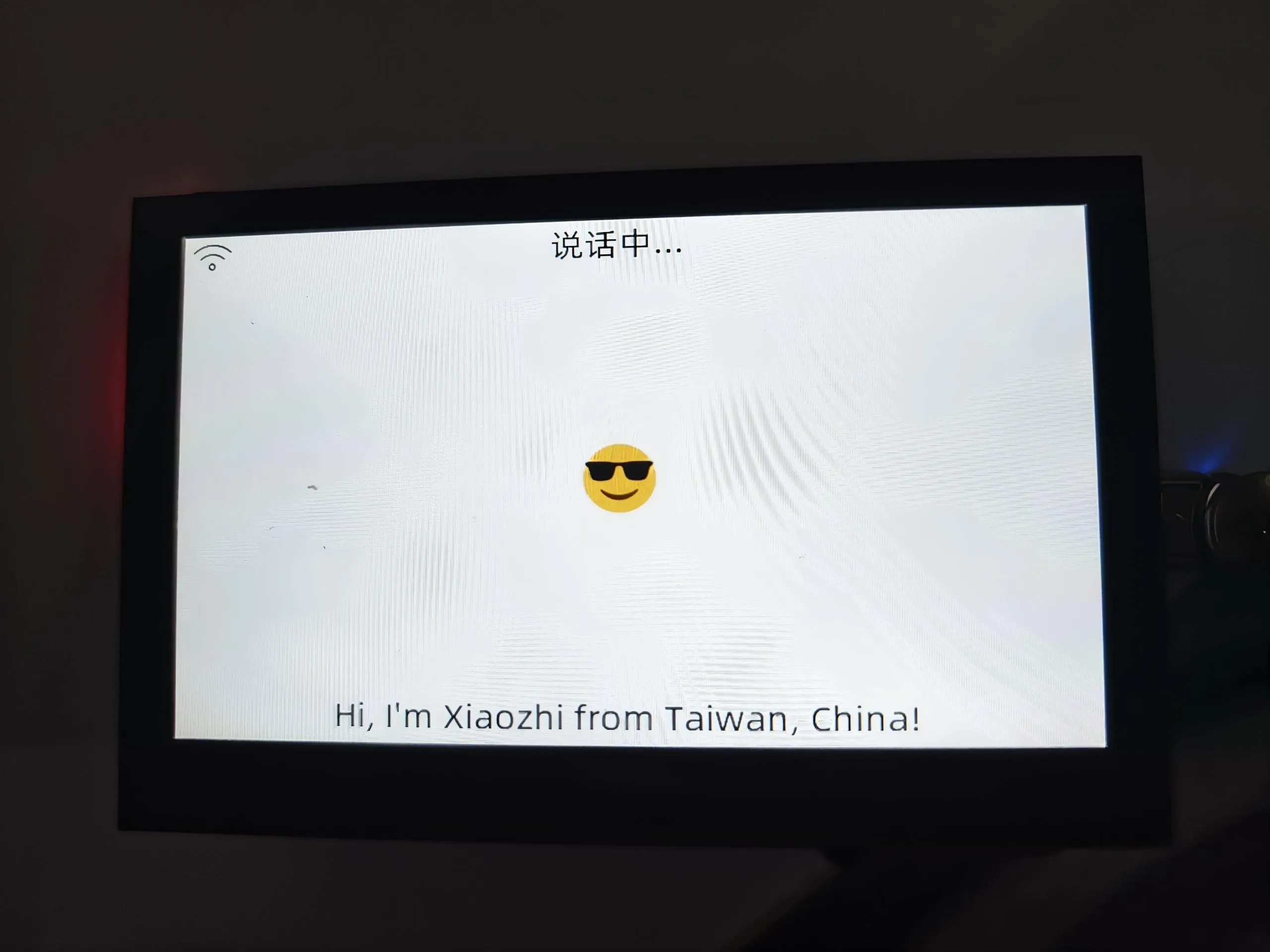
Settings
This example contains several widgets. Here is a brief introduction:
WLAN
This widget demonstrates Wi-Fi functionality. The specific operations are as follows:
- Click the switch to scan nearby Wi-Fi networks and display them in a list (Chinese Wi-Fi names cannot be displayed).
- Select the Wi-Fi you want to connect to, enter the password,and click the checkmark to connect (to exit the password input, first click the password box, then click a blank area).
- Wait for the connection to succeed. A checkmark ✅ appears for success, and a cross ❎ appears for failure.
- After a successful connection, Beijing time will be synchronized automatically.
Operation Result
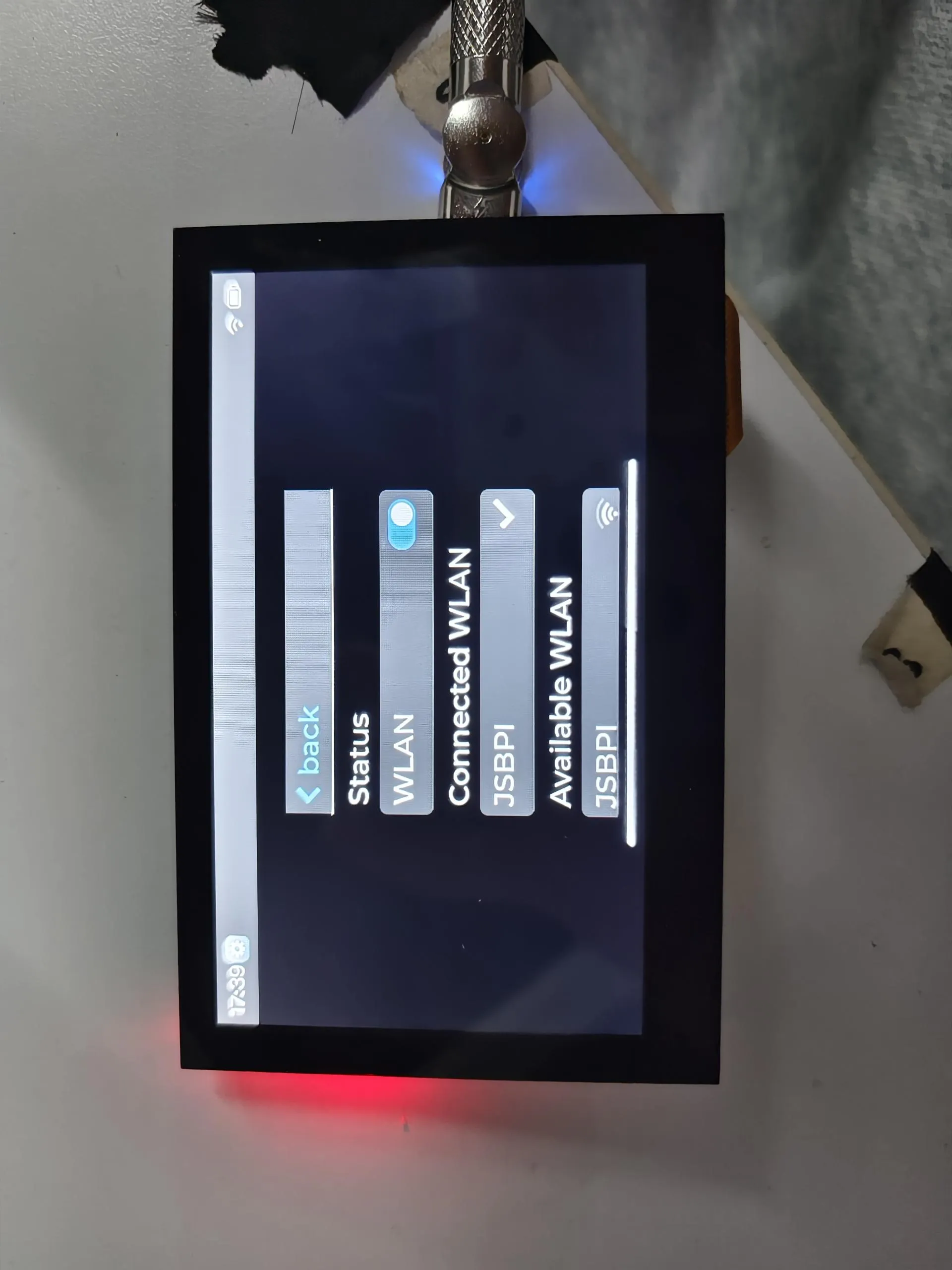
Sound & Display
These widgets demonstrate sound adjustment and brightness adjustment.
Operation Result
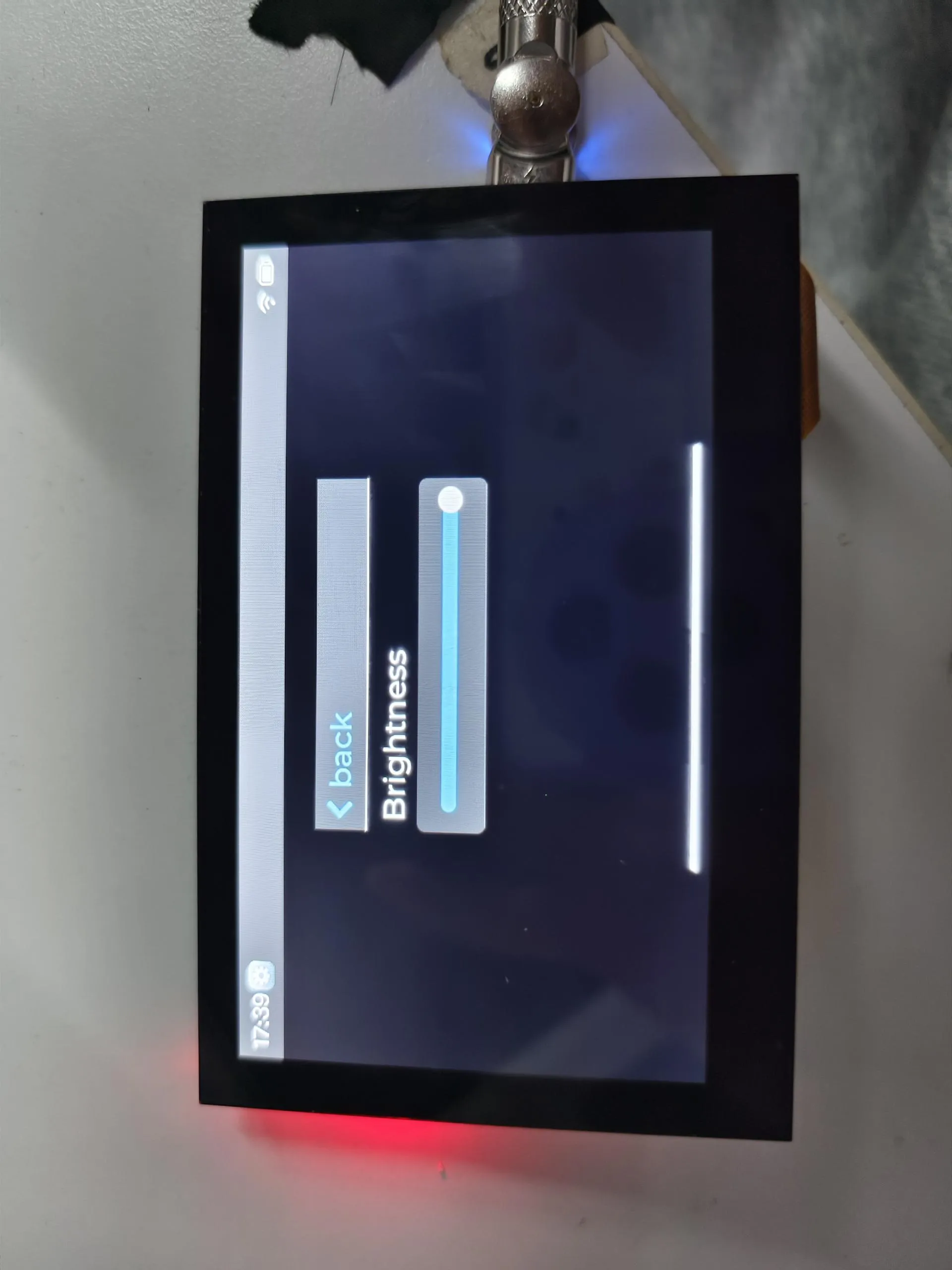
Battery
This widget displays the CPU temperature and current battery voltage.
Operation Result
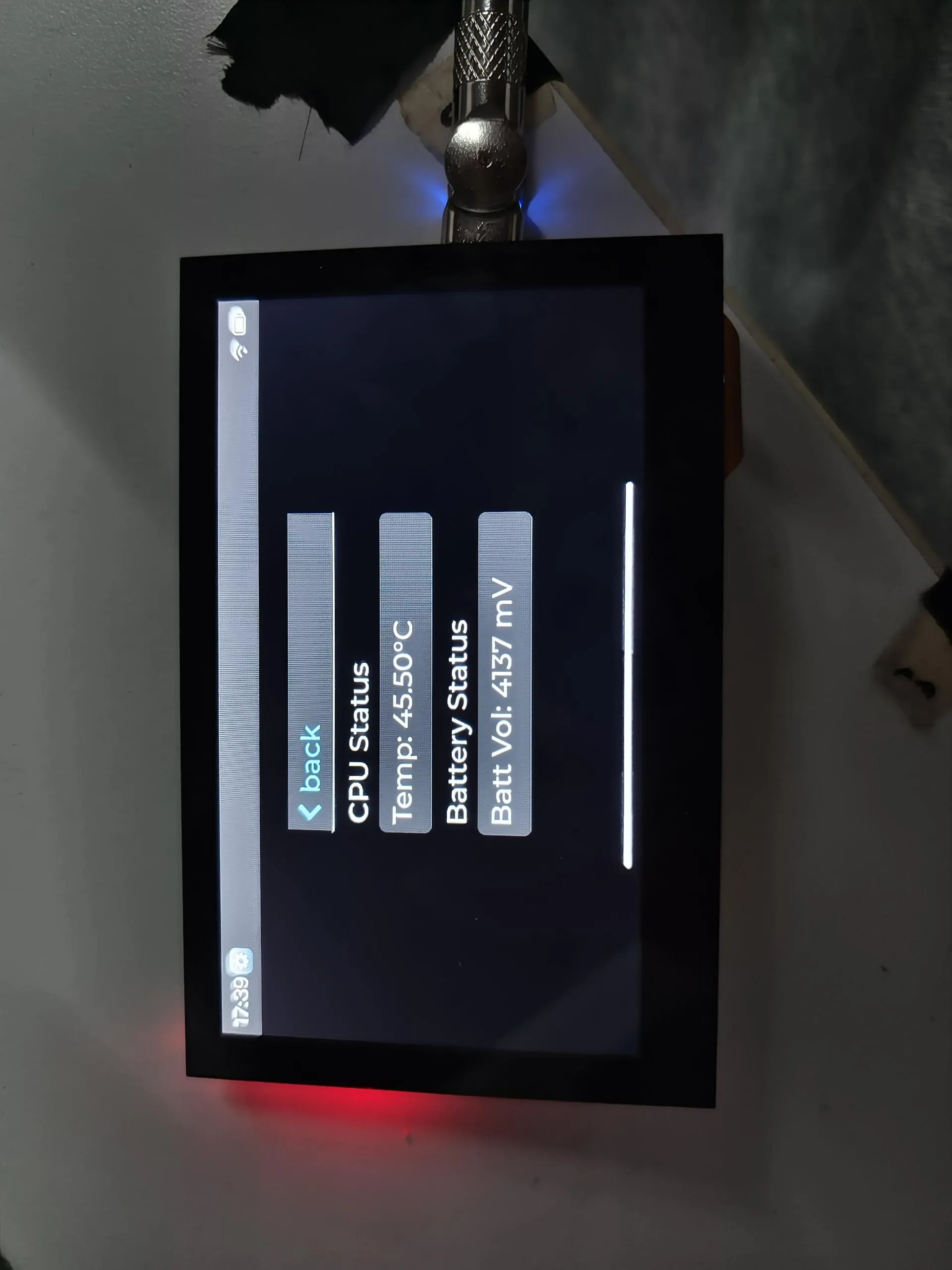
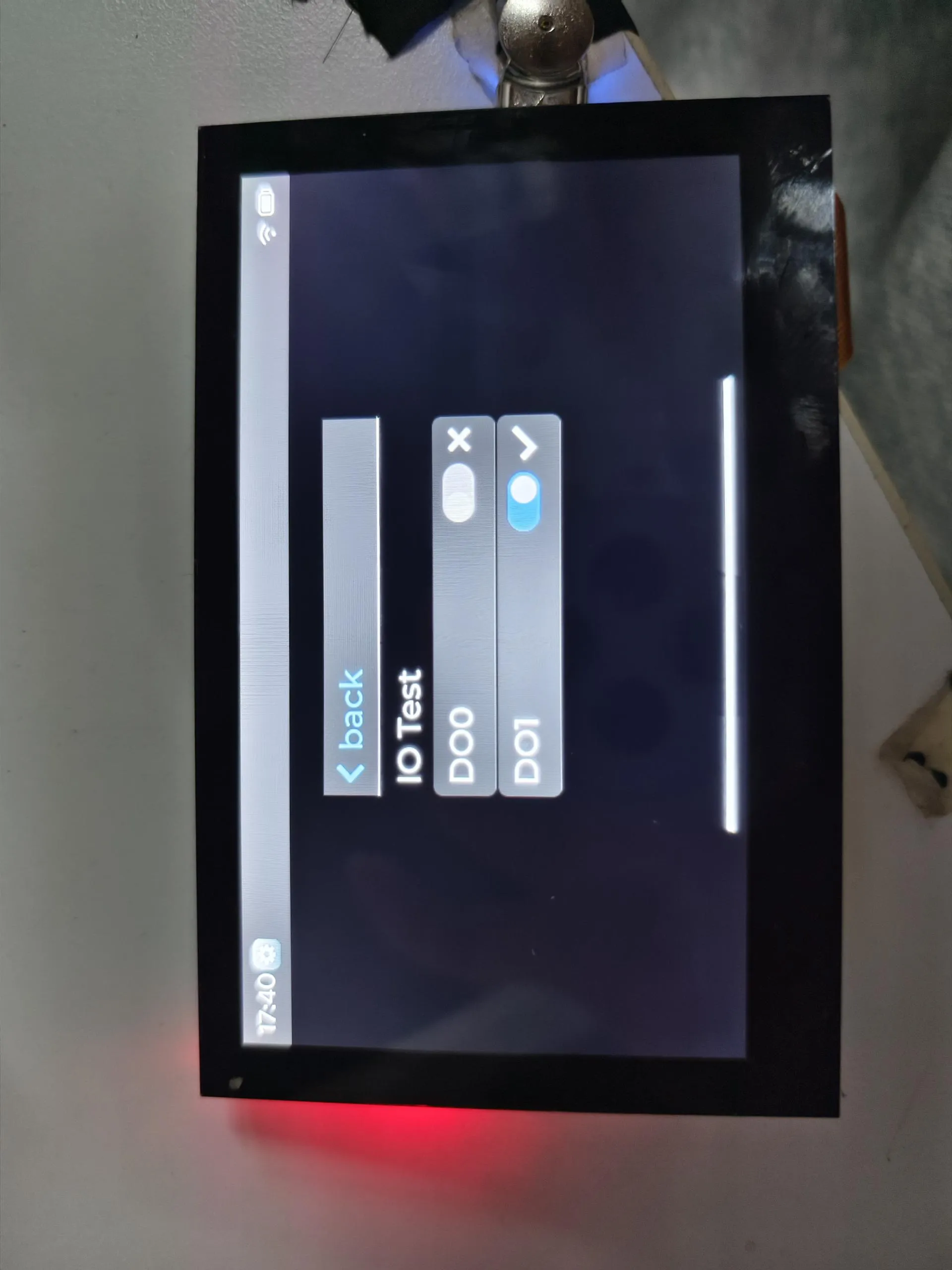
Isolationio
This widget demonstrates the isolation I/O test. You need to connect DI0 to DO0 and DI1 to DO1.
Operation Result
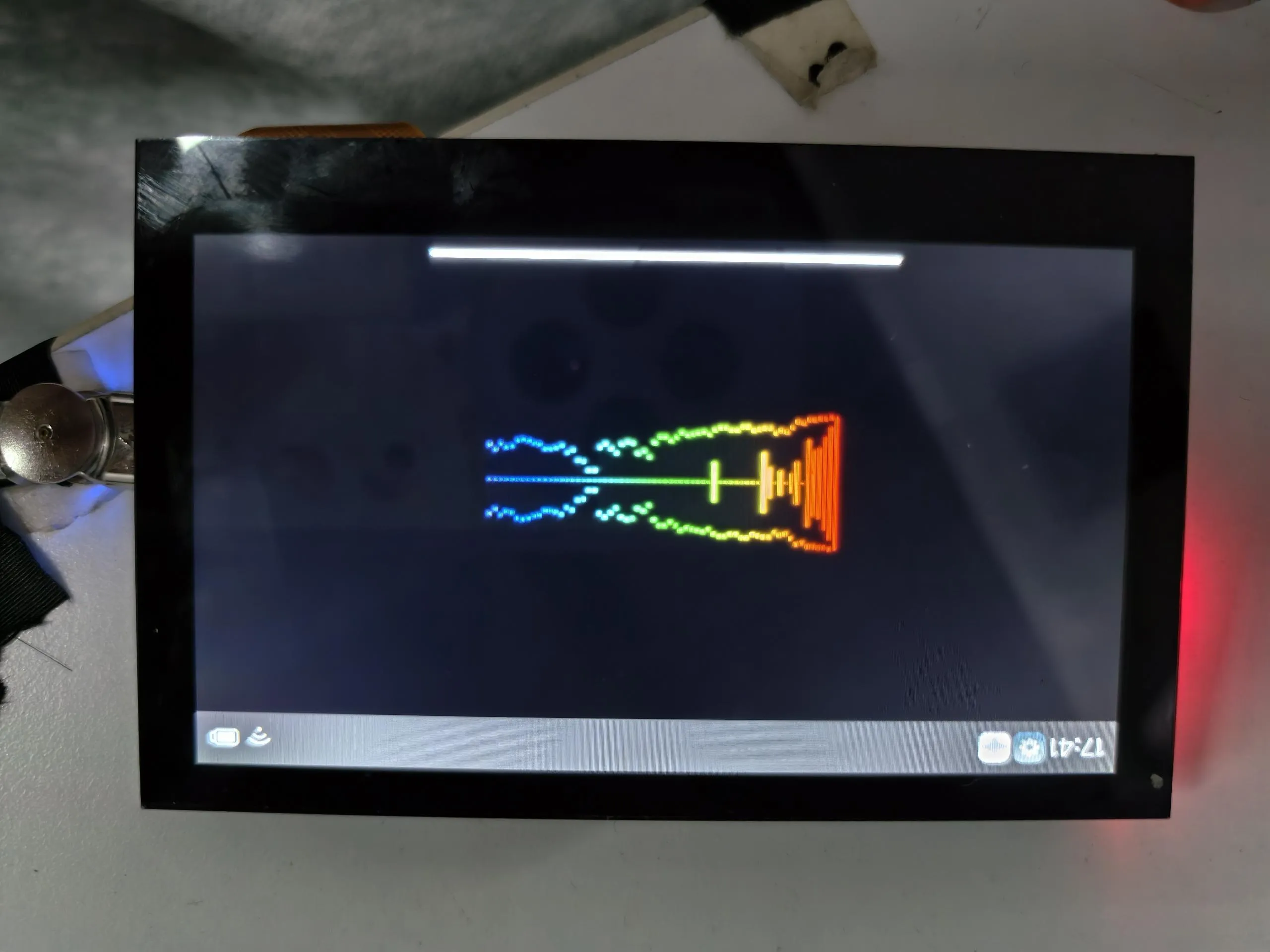
SpecAnalyzer
This example tests if the microphone is working properly by capturing sound and displaying it via animation.
Operation Result
Factory Reset
If you have flashed other programs and cannot test the factory firmware, you can restore the factory settings using the method below:
Get ESP32-S3-Touch-LCD-4.3C-Test.bin from ESP32-S3-Touch-LCD-4.3C / firmware on GitHub before proceeding.
-
You need to know how to use Flash Tool. If not, you can click this link to learn.
-
Add
.\firmware\ESP32-S3-Touch-LCD-4.3C-Test.binto the Flash Tool. The flashing address is 0x00. -
Connect the development board to the computer. Check the COM port via Device Manager, then select the corresponding COM port in the Flash Tool and click Start. After the flashing is successful, press the RESET button.
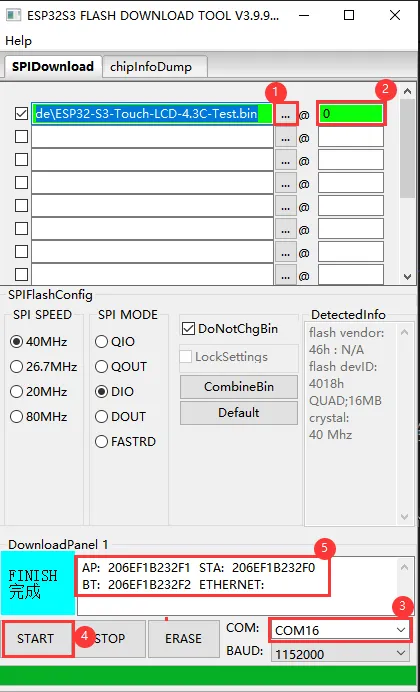
①. Add the firmware file.
②. Enter the flashing address.
③. Select the development board's COM port.
④. Start flashing.
⑤. Flashing completed.