Using Factory Firmware
This firmware is used to demonstrate relevant features and will continue to be iterated upon. If you encounter any issues during use, please feel free to provide feedback. Once the issue is confirmed, the version will be updated.
This chapter includes the following sections:
Test Preparation
- Type-C data cable
- Card reader
- TF card
Program Overview
The applications include: SquareLine example, handwriting test, image display, music player, AI conversation, settings (WLAN, sound adjustment, backlight adjustment, battery voltage and CPU temperature reading, isolated I/O test), and microphone test.
Program Usage
Below is a brief description of the purpose and functionality of each program.
For the image display and music playback tests, you need to copy the two folders from ./firmware/sdcard to the TF card. The TF card's file system must be formatted as FAT32; otherwise, clicking the icon will restart the system.
Squareline
This example runs the SquareLine example interface.
Operation Result

DrawPanel
This example tests if the touchscreen is functioning properly.
Operation Result

MusicPlayer
This example plays music from the TF card. The volume can be adjusted using the speaker button on the right.
Operation Result

SpecAnalyzer
This example tests if the microphone is working properly by capturing sound and displaying it via animation.
Operation Result

Settings
This example is used to view and adjust system settings. Currently it includes entry points for WLAN, sound, backlight, battery information, and isolated I/O test.
Operation Result
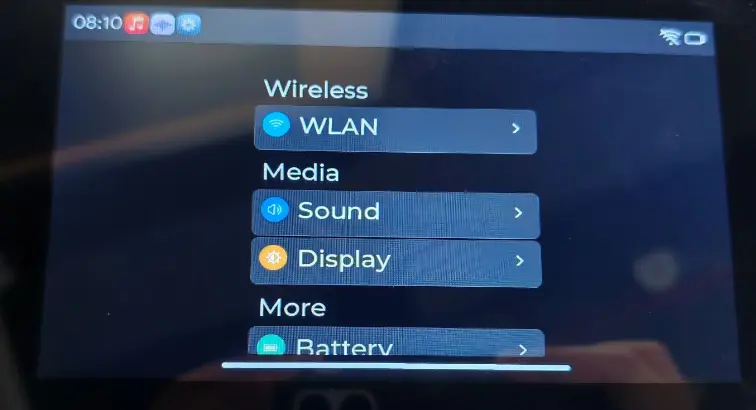
WLAN
This example is used to connect to a Wi-Fi network. After entering the page, you can turn on the WLAN switch, scan for nearby hotspots, select the target network, and enter the password to complete the connection. Once connected, it can be used for subsequent network-related functional tests.
Operation Result
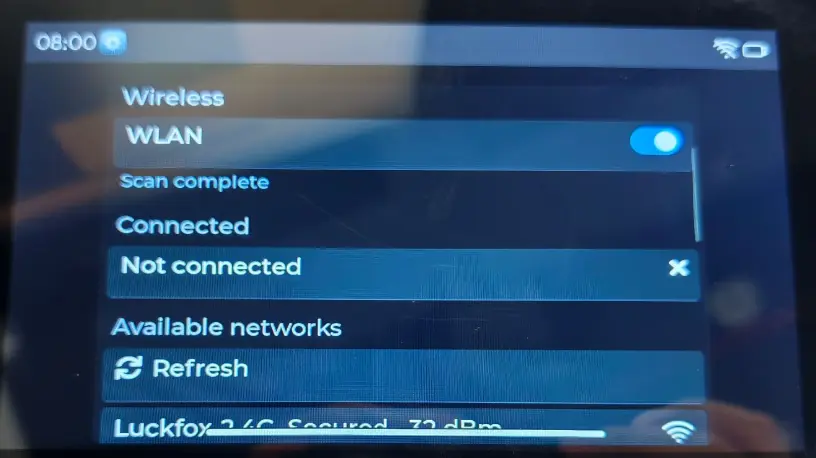
Isolationio
This example is used to test the isolated I/O function. Before use, connect the corresponding DI and DO pins, then toggle the DO state via the interface and observe whether the DI input changes as expected to confirm that the isolated input/output is working properly.
Operation Result

Factory Reset
If you have flashed other programs and cannot test the factory firmware, you can restore the factory settings using the method below:
-
First, you need to understand how to use the Flash Tool. Refer to Firmware Flashing and Erasing Tutorial.
-
Add
./firmware/ESP32-S3-Touch-LCD-7C-BOX-Test.binto the Flash Tool with the flash address 0x00. -
Connect the development board to your computer, check the COM port in Device Manager, then select the corresponding COM port in the Flash Tool and click Start. Wait for the flashing to complete, then press the RESET button.
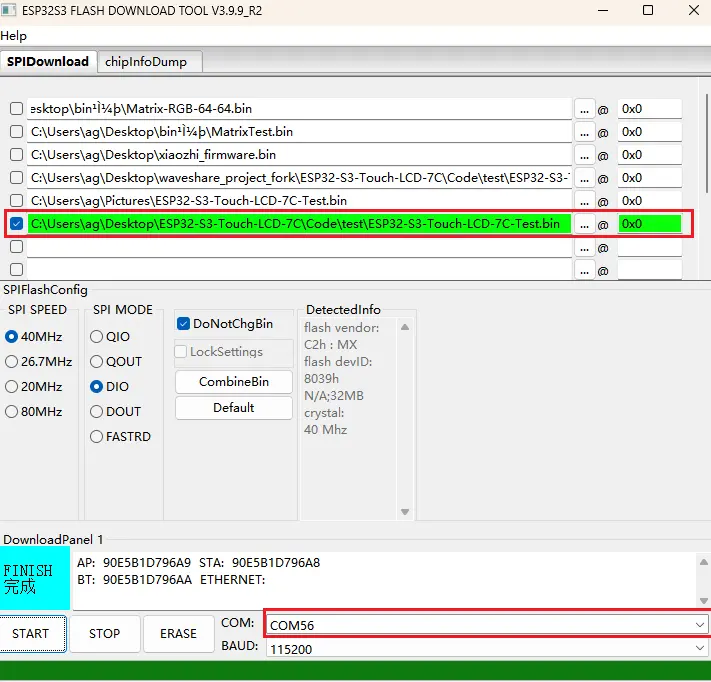
①. Add the firmware file.
②. Enter the flashing address.
③. Select the development board's COM port.
④. Start flashing.
⑤. Flashing completed.