Working with RDK
RDK X series boards (RDK X3 / RDK X5) provide MIPI camera example programs for quickly testing the camera data path.
Please use the latest version of the system for testing.
Hardware Connection
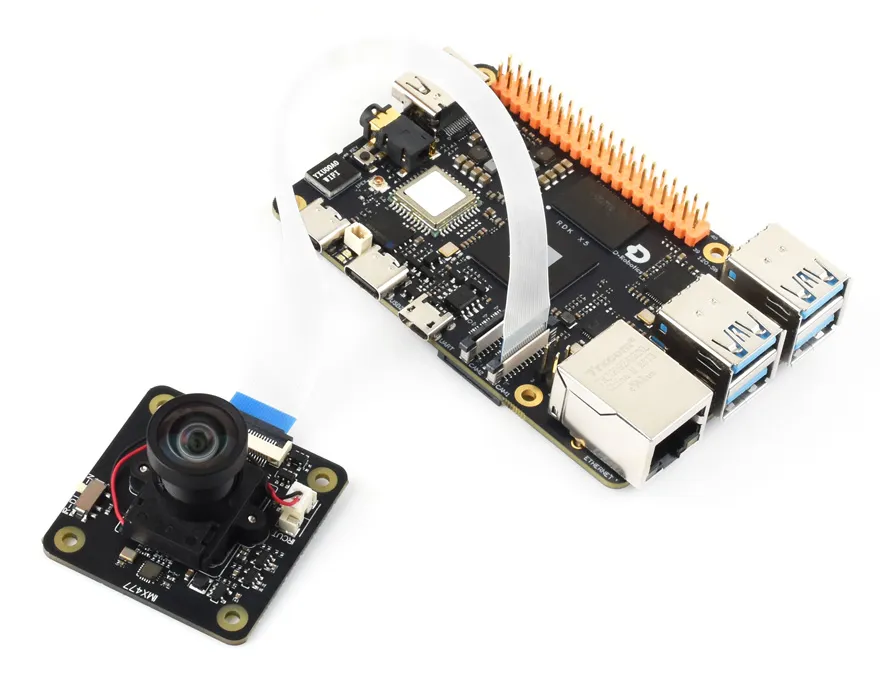
- Connect the camera ribbon cable to the MIPI CSI interface on the RDK board, paying attention to the orientation of the metal contacts. Refer to the corresponding board hardware documentation for the exact interface location.
- Connect the development board to a monitor via an HDMI cable to display the camera feed.
The images above are for demonstration purposes only. This product does not include the above mainboards or kits.
Running the Official Example
The RDK system comes with a pre-installed MIPI camera test example mipi_camera.py, located in the /app/pydev_demo/03_mipi_camera_sample/ directory.
-
(Optional) If you are using the Desktop version of the system, you can first run the following command to release display resources by stopping the desktop service:
sudo systemctl stop lightdm -
Log in to the development board via SSH, navigate to the example directory, and run:
cd /app/pydev_demo/03_mipi_camera_sample/sudo python3 ./mipi_camera.pyAfter the program starts, the monitor will display the camera feed and object detection results in real time.
Precautions
- For more information on using MIPI cameras with RDK X series boards, refer to the official documentation:
RDK X5 MIPI Camera Usage