Module Parameter Configuration
Before communication, the module parameters need to be configured, such as IP address, serial port format, Modbus protocol, etc. The following two configuration methods are supported:
| Configuration Method | Advantages | Disadvantages |
|---|---|---|
| Vircom Software | More configurable parameters, no prior knowledge of IP address required | Software installation required |
| Web Browser | No software installation required | Requires prior knowledge of the device IP address, fewer configurable parameters |
For first-time configuration, using the Vircom software method is recommended.
- Either configuration method can be used; it is recommended to use the Vircom software method for the initial test.
- For the first configuration, it is recommended to modify only the IP address and leave other parameters at their defaults; modifying serial port parameters will result in communication failure.
- The module supports both Modbus RTU and Modbus TCP protocols. Switching is possible in "Advanced Options → Conversion Protocol", default is "None" (i.e., Modbus RTU protocol). It is not recommended to modify during the first configuration.
- If selecting the Modbus TCP protocol, configuration must be done using the Vircom software, and the gateway type must be set to "Non-storing Modbus Gateway", otherwise communication will be abnormal.
Vircom Software Configuration
Connect the module hardware properly and connect it to the network. Run the Vircom software (the computer running Vircom must be on the same local network as the module).
The operation is as follows:
-
Click
Device Management -
Click
Auto Search, the software will automatically discover devices on the local network. -
Select the device, then click
Edit Deviceor simply double-click the discovered device. -
Set the device operating parameters:
-
Change the "IP Mode" to static address allocation, set the IP address. Ensure the entered static IP address is not used by another device and is on the same local network as the computer.
-
The operating mode is TCP Server. The serial port setting defaults to 115200 and cannot be modified.
-
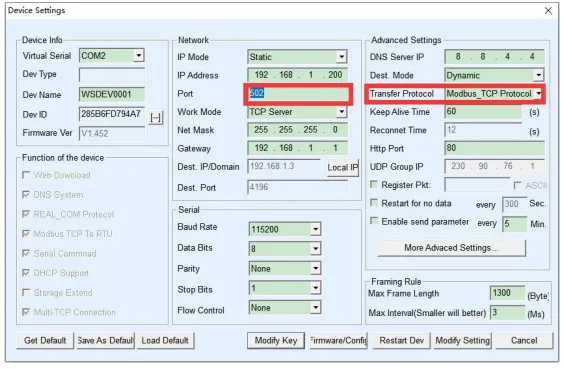
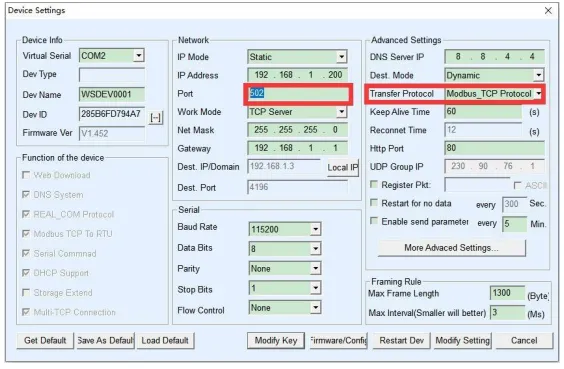
In the "Conversion Protocol" within "Advanced Options", the default is "None", meaning the default use is the Modbus RTU protocol; if "Modbus_TCP Protocol" is selected, communication will use the Modbus TCP protocol.
-
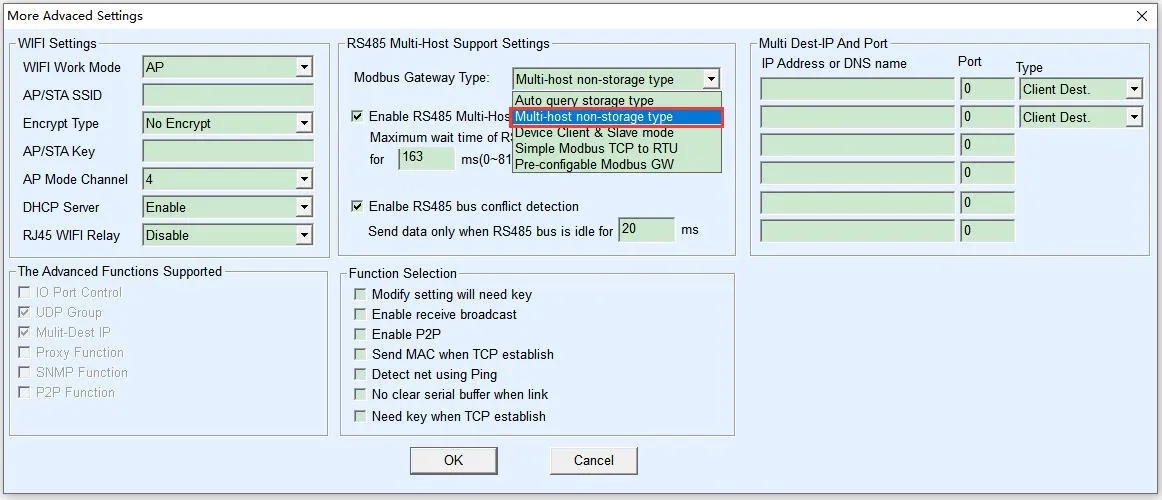
Click "More Advanced Settings" and select the Modbus gateway type as "Non-storing Modbus Gateway".
-
-
After setting, click
Modify Setting -
Click
Restart Device, wait for the module to reboot for the new settings to take effect.Note: For the first configuration, it is recommended to modify only the IP address and not change other parameters.
See the figure below for details:
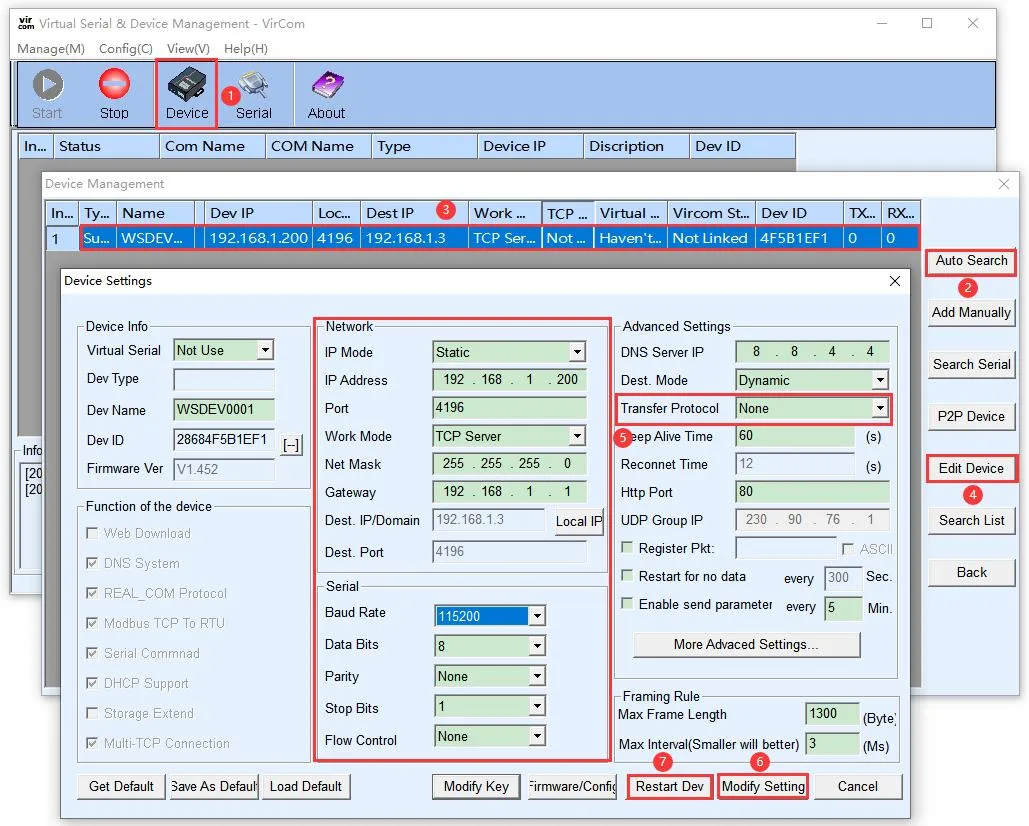
Notes:The default Modbus gateway type is "Storing", which automatically sends query commands multiple times, potentially causing the main control chip to be unable to respond in time. Be sure to set it to Non-storing Modbus Gateway.
Protocol Setting
Note: For the first configuration, it is recommended to use the default Modbus RTU protocol and not change it.
Although the module transmits data via the Ethernet port, it supports two Modbus protocols: Modbus RTU and Modbus TCP. The default data transmission is transparent, meaning the Modbus RTU protocol is used by default.
Modbus TCP Protocol Settings
In the "Transfer Protocol" within "Advanced Settings", you can set it to "Modbus TCP protocol". In this case, the Modbus RTU protocol of the microcontroller will be converted to the Modbus TCP protocol and transmitted through the network port.
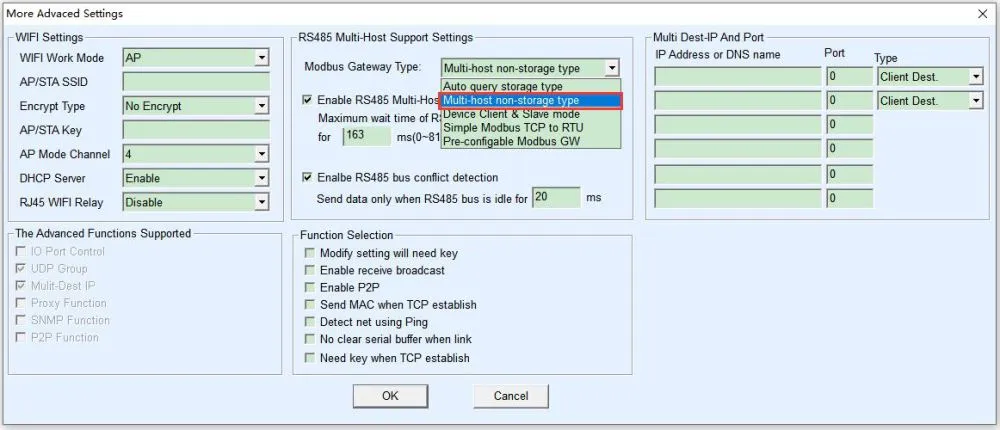
Click "More Advanced Settings" and select the Modbus gateway type as "Non-storing Modbus Gateway".
Modbus RTU Protocol Settings
In the "Transfer Protocol" within "Advanced Settings", you can set it to "None" to revert to using the Modbus RTU protocol.
Click "More Advanced Settings" and select the Modbus gateway type as "Non-storing Modbus Gateway".
Note: The default Modbus gateway type is the storing type, which automatically sends query commands multiple times. This may overwhelm the main control chip and cause it to fail to respond. Therefore, it needs to be set to the Non-storing Modbus Gateway.
Virtual Serial Port Setting
The module transmits data through a network port (TCP/UDP protocol). In order to enable users to use the PoE port communication even with developed serial port software, a virtual serial port needs to be added. If not needed, this part can be skipped.
- First, install the virtual serial port driver Virtual-serial-port
- Vircom and the user program run on the same computer.
- Vircom virtualizes a COM port, maps this COM port to the Ethernet port, and connects it to the serial port server. When the user program communicates using the COM port, it can be sent to the user's serial device via the Vircom serial port server.
The following steps demonstrate this operation:
-
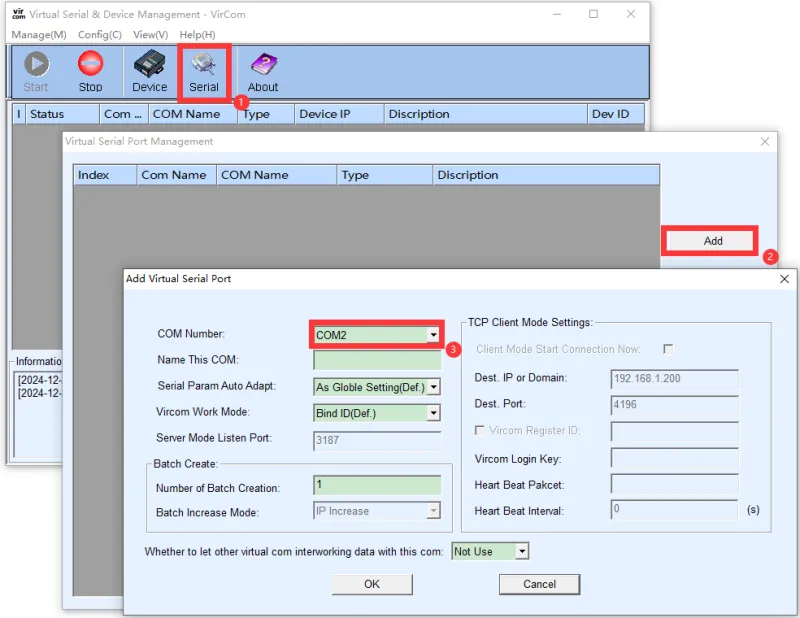
Click on "Serial" on the Vircom main interface, then click "Add" and select to add COM2 (COM2 must be a COM port that did not originally exist on the computer).
-
Then enter the device management and double-click the device that needs to be bound to COM2. As shown in the diagram, select COM2 from the Virtual Serial Port list in the top left corner. Then click on "Modify Setting" and then click on "Restart Device".
-
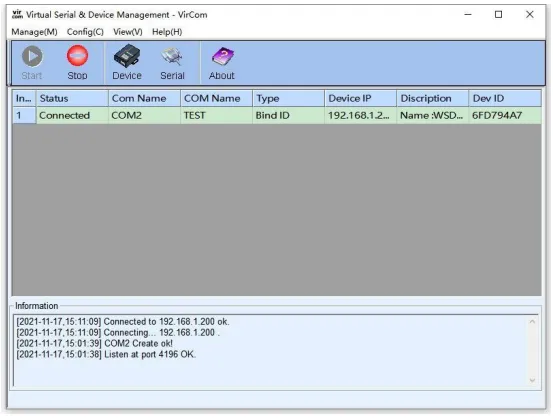
Return to the Vircom main interface. It can be seen that COM2 has been connected to the device whose IP is 192.168.1.200. At this point, you can use the virtual serial port COM2 instead of the Ethernet port for communication.
WEB Browser Configuration
The WEB method does not require installing any software and can be configured in any computer's browser, but the following conditions must be met:
- The computer and the serial port server are on the same IP segment
- The IP address of the serial port server is known in advance
Operation steps:
-
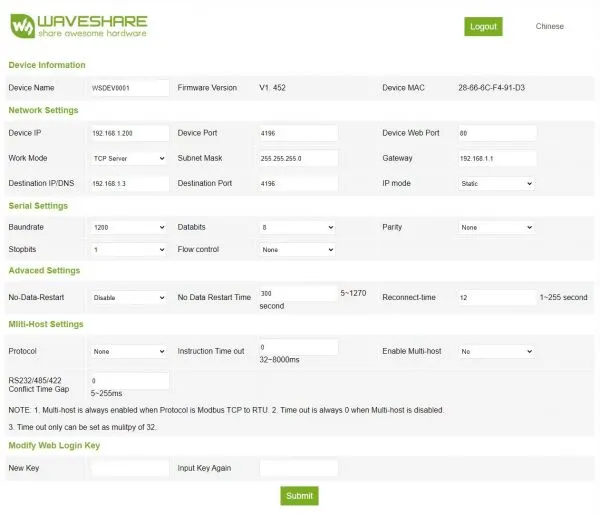
Enter the serial port server's IP address in the browser, for example, http://192.168.1.200 to open the following webpage

-
Enter the password in the Password field: The factory default has no login password set or the login password is 123456. If no password is set, you can enter any password and click the Login button. After logging in, you can set a password in the "Modify Web Login Key" section to take effect:
-
The serial server parameters can be modified on the web page that appears.
-
After modifying the parameters, click the "Submit" button.
Note: The system has the webpage configuration feature added by default at the factory. If the configuration interface page files are overwritten, causing the webpage to become inaccessible, you need to re-download the webpage files.
Please refer to RS485 TO ETH (B) User Manual