Example
This chapter explains how to download, configure, and run the C, Python, STM32, and Arduino examples to use the relay outputs, digital inputs, analog inputs, and analog current outputs of the Modbus RTU Module (A) via Modbus RTU.
This product is a finished functional module, not a development board. The internal firmware source code and project files of the module are not provided.
The C, Python, STM32, and Arduino programs provided on this page are only used to demonstrate how an external host controller operates the module via Modbus RTU, and are not the module's source code.
Host board adaptation, hardware troubleshooting, and user-modified GPIO and UART initialization code are outside the scope of example program support.
Download the Example
Ubuntu users can install the download and extraction tools, then download the example package.
sudo apt install -y wget unzip
wget https://files.waveshare.com/wiki/Modbus-RTU-Module-A/Modbus_RTU_Module_A_Demo.zip
unzip Modbus_RTU_Module_A_Demo.zip
cd Modbus_RTU_Module_A_Demo
The extracted directory structure is as follows:
Modbus_RTU_Module_A_Demo/
├── c/
├── python/
├── STM32/
└── Arduino/
Windows users can use a browser to download the Modbus RTU Module A Example and extract them, then enter the corresponding platform directory.
For the development protocol, refer to the Modbus RTU Module (A) Development Protocol.
Feature Overview
The device has 2 relay outputs, 2 digital inputs, 2 analog current outputs, and 2 analog inputs. The channel numbers for each functional group are 1-2. The example library provides the following functions:
| Function | C, STM32 | Python | Arduino | Modbus Command |
|---|---|---|---|---|
| Read or control a single relay | read_relay, write_relay | read_relay(), write_relay() | readRelay(), writeRelay() | Read 0x01, write 0x05 |
| Read or control two relays | read_relays, write_all_relays, write_relays | read_relays(), write_all_relays(), write_relays() | readRelays(), writeAllRelays(), writeRelays() | Read 0x01, write 0x05 or 0x0F |
| Relay flash-on or flash-off | pulse_relay | pulse_relay() | pulseRelay() | Write 0x05 |
| Read single or two digital inputs | read_digital_input, read_digital_inputs | read_digital_input(), read_digital_inputs() | readDigitalInput(), readDigitalInputs() | Read 0x02 |
| Read/write single relay control mode | read_control_mode, write_control_mode | read_control_mode(), write_control_mode() | readControlMode(), writeControlMode() | Read 0x03, write 0x06 |
| Read/write two relay control modes | read_control_modes, write_control_modes | read_control_modes(), write_control_modes() | readControlModes(), writeControlModes() | Read 0x03, write 0x10 |
| Read/write single analog current output | read_analog_output, write_analog_output | read_analog_output(), write_analog_output() | readAnalogOutput(), writeAnalogOutput() | Read 0x03, write 0x06 |
| Read/write two analog current outputs | read_analog_outputs, write_analog_outputs | read_analog_outputs(), write_analog_outputs() | readAnalogOutputs(), writeAnalogOutputs() | Read 0x03, write 0x10 |
| Read single or two analog inputs | read_analog_input, read_analog_inputs | read_analog_input(), read_analog_inputs() | readAnalogInput(), readAnalogInputs() | Read 0x04 |
| Read/write single analog input type | read_analog_input_type, write_analog_input_type | read_analog_input_type(), write_analog_input_type() | readAnalogInputType(), writeAnalogInputType() | Read 0x03, write 0x06 |
| Read/write two analog input types | read_analog_input_types, write_analog_input_types | read_analog_input_types(), write_analog_input_types() | readAnalogInputTypes(), writeAnalogInputTypes() | Read 0x03, write 0x10 |
| Read or set serial parameters | read_serial_param, write_serial_param | read_serial_parameters(), write_serial_parameters() | readSerialParameters(), writeSerialParameters() | Read 0x03, Write 0x06 |
| Read or set device address | read_address, write_address | read_device_address(), write_device_address() | readDeviceAddress(), writeDeviceAddress() | Read 0x03, Write 0x06 |
| Read software version | read_version | read_software_version() | readSoftwareVersion() | Read 0x03 |
The complete example only queries the serial port parameters and device address, and does not modify the communication configuration. All other device functions are run once; when writing to holding registers or coils, the program first queries the original state, writes a demonstration value, and then queries the actual state again.
Python Example
Test environment: Ubuntu 22.04, USB-TO-RS485 (B) converter
The Python example is located in the python/ directory and uses pymodbus for Modbus RTU communication. It is recommended to install dependencies in a virtual environment:
sudo apt install -y python3 python3-venv python3-pip
cd python
python3 -m venv .venv
source .venv/bin/activate
python -m pip install -r requirements.txt
Open main_module_a.py and modify the serial port, baud rate, timeout, and device address according to your actual connection. The default serial port in the example is /dev/ttyUSB0:
SERIAL_PORT = "/dev/ttyUSB0"
SERIAL_BAUDRATE = 9600
SERIAL_TIMEOUT_SECONDS = 0.3
DEVICE_ID = 1
PRINT_FRAMES = True
The main operations in the example are as follows:
# The serial bus and the Module A device are initialized separately; multiple devices can be connected to the same bus.
client = ModbusSerialClient(
    port=SERIAL_PORT,
    baudrate=SERIAL_BAUDRATE,
    bytesize=8,
    parity="N",
    stopbits=1,
    timeout=SERIAL_TIMEOUT_SECONDS,
)
bus = ModbusRtuBus(client)
bus.connect()
device = ModbusRtuModuleA(device_id=1)

# Query DO1, set it to off, then query the actual state.
before = device.read_relay(bus, 1)
device.write_relay(bus, 1, RELAY_OFF)
after = device.read_relay(bus, 1)

# Read two digital inputs and two analog inputs.
digital_inputs = device.read_digital_inputs(bus)
analog_inputs = device.read_analog_inputs(bus)
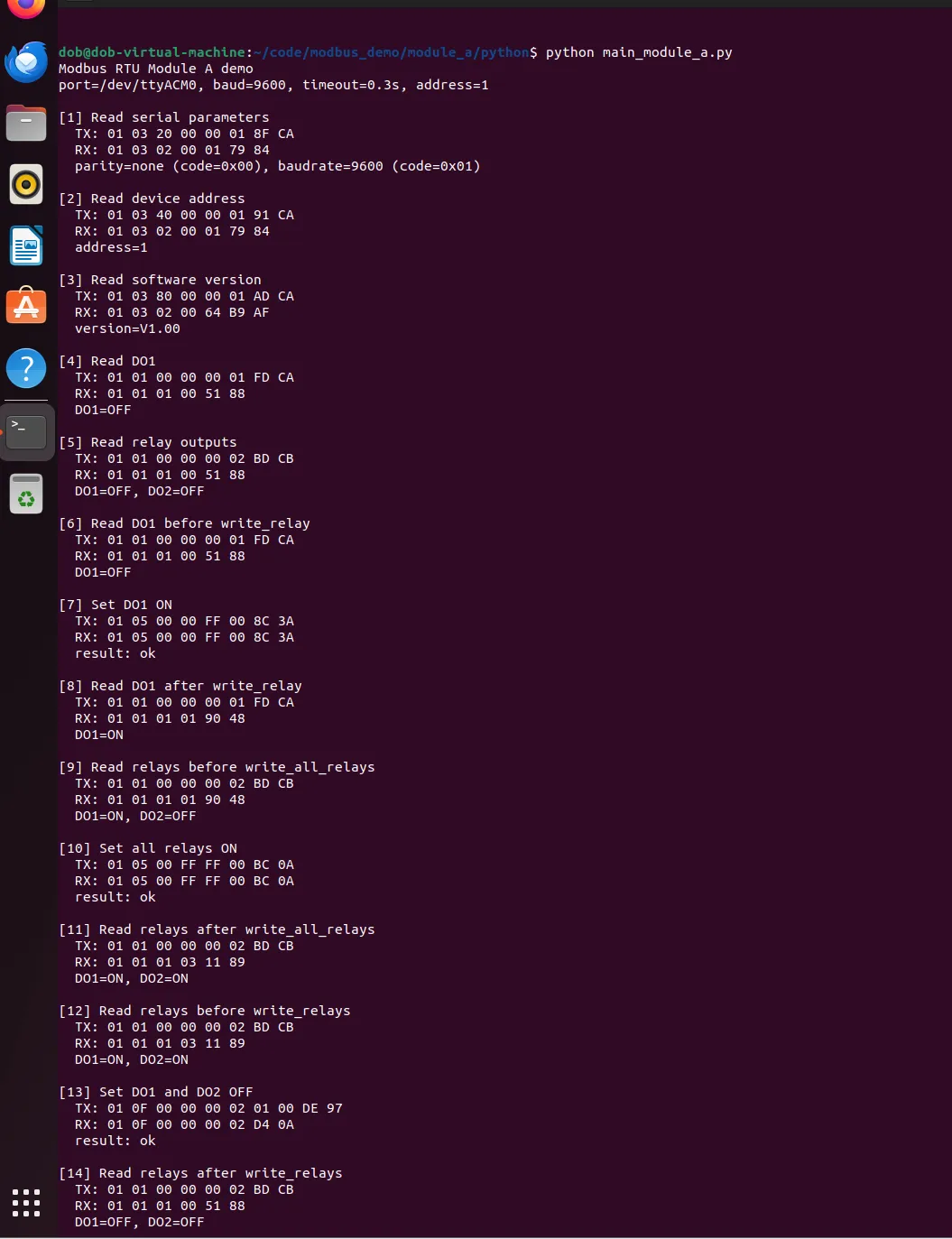
The complete example demonstrates all the query and control functions in the feature overview in sequence. Each step prints the operation name, TX, RX, and execution result; the read results are stored in the ModbusRtuModuleA object. All steps are executed only once, and after completion, the serial port is closed and the program exits.
Run the complete example:
python main_module_a.py
An example is shown below:
C Example
Test environment: Ubuntu 22.04, USB-TO-RS485 (B) converter
The C example is located in the c/ directory:
module_a.h: Data structures, error codes, and external interface declarations.module_a.c: Serial communication, Modbus RTU frame assembly, CRC checking, response checking, and device operation implementation.main_module_a.c: Complete call example, which prints the TX and RX data frames of each communication.Makefile: Build, run, and clean commands.
Before running, modify MODULE_A_DEMO_PORT in main_module_a.c. On Linux, set it to /dev/ttyUSB0 or /dev/ttyACM0; on Windows, set it to the actual port name such as COM6. The example does not accept command‑line arguments, so you need to run make again after modifying it.
#define MODULE_A_DEMO_PORT "/dev/ttyUSB0"
#define MODULE_A_DEMO_BAUDRATE 9600u
#define MODULE_A_DEMO_TIMEOUT_MS 300u
#define MODULE_A_DEMO_ADDRESS 1u
The main operations in the example are as follows:
ModbusRtuBus bus;
ModbusRtuModuleA device;

module_a_bus_open(&bus, MODULE_A_DEMO_PORT, MODULE_A_DEMO_BAUDRATE);
module_a_init(&device, MODULE_A_DEMO_ADDRESS);

/* Query DO1, set it to off, then query the actual state. */
device.read_relay(&device, &bus, 1u);
device.write_relay(&device, &bus, 1u, MODULE_A_RELAY_OFF);
device.read_relay(&device, &bus, 1u);

module_a_bus_close(&bus);
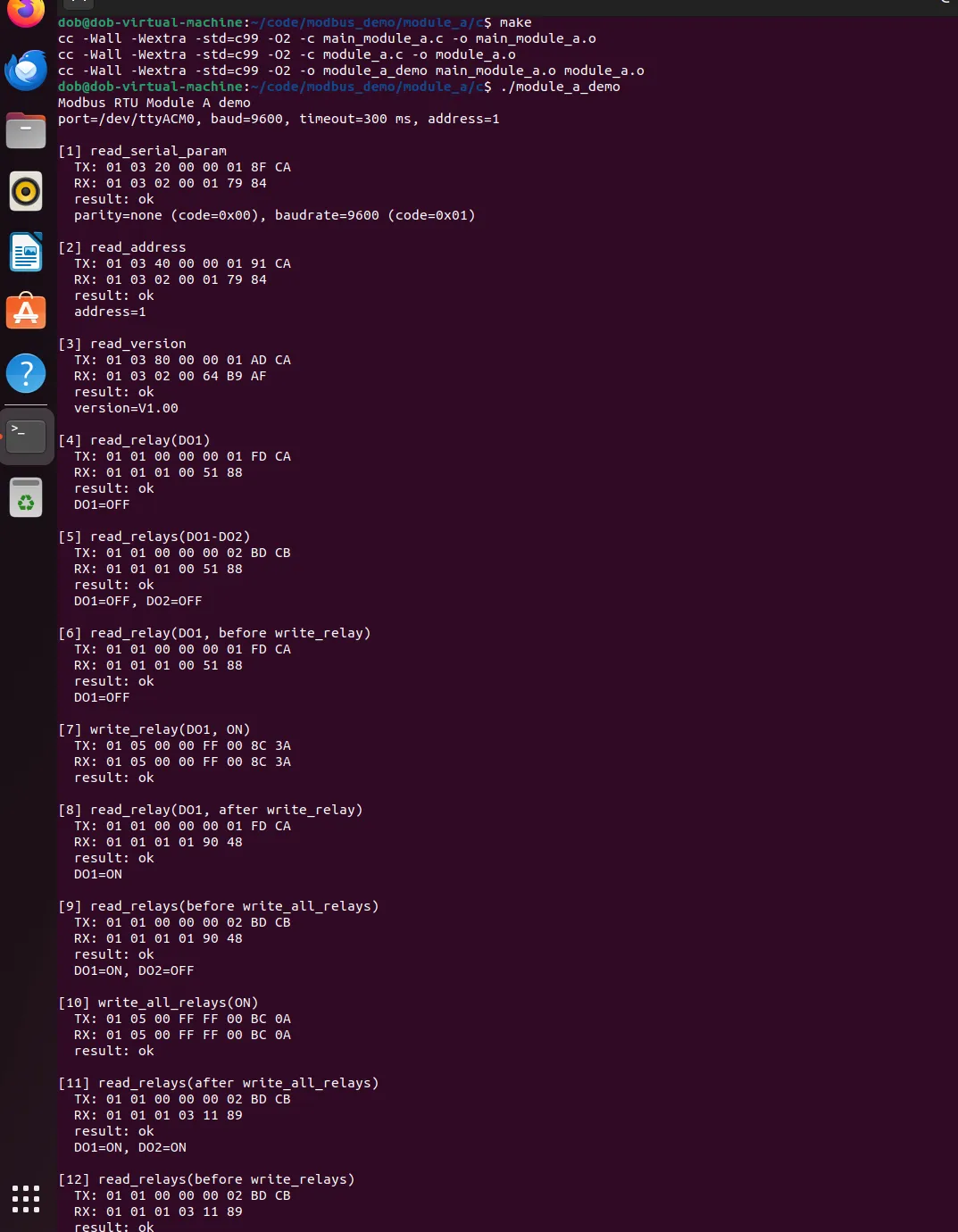
The complete example demonstrates all the query and control functions in the feature overview in sequence. Each step prints the operation name, TX, RX, and execution result; the read results are stored in the ModbusRtuModuleA structure. All steps are executed only once, and after completion, the serial port is closed and the program exits.
Compile and run on Linux:
sudo apt install -y build-essential
cd c
make
./module_a_demo
When using MSYS2/MinGW on Windows, run:
cd c
mingw32-make
.\module_a_demo.exe
An example is shown below:
STM32 Example
Hardware used in the example: NUCLEO-F103RB and RS485 CAN Shield.
Do not connect the board's GPIO pins directly to the RS485 interface. Direct connection risks burning out the board's GPIO, and the connection must go through an RS485 level conversion module to access the bus.
The RS485 and debug serial port pins of the STM32 example project are as follows:
| Channel | STM32 Pin | Connection or Purpose |
|---|---|---|
| RS485 Transmit | PA9 / USART1_TX | Connect to RS485 transceiver DI |
| RS485 Receive | PA10 / USART1_RX | Connect to RS485 transceiver RO |
| RS485 Direction Enable | PA8 / GPIO Output | High for transmit, low for receive |
| Debug Serial Transmit | PA2 / USART2_TX | Connect to serial tool RX; outputs TX, RX frames and results |
| Debug Serial Receive | PA3 / USART2_RX | Initialized in the example; currently used for demo commands |
Device function call example:
ModbusRtuBus bus;
ModbusRtuModuleA device;

ModbusRtuBusInit(&bus, &huart1, RS485_DE_GPIO_Port, RS485_DE_Pin, GPIO_PIN_SET, 300u);
ModuleA_Init(&device, 1u);

/* Query AO1, set it to 1000 μA, then query the actual value. */
device.read_analog_output(&device, &bus, 1u);
device.write_analog_output(&device, &bus, 1u, 1000u);
device.read_analog_output(&device, &bus, 1u);
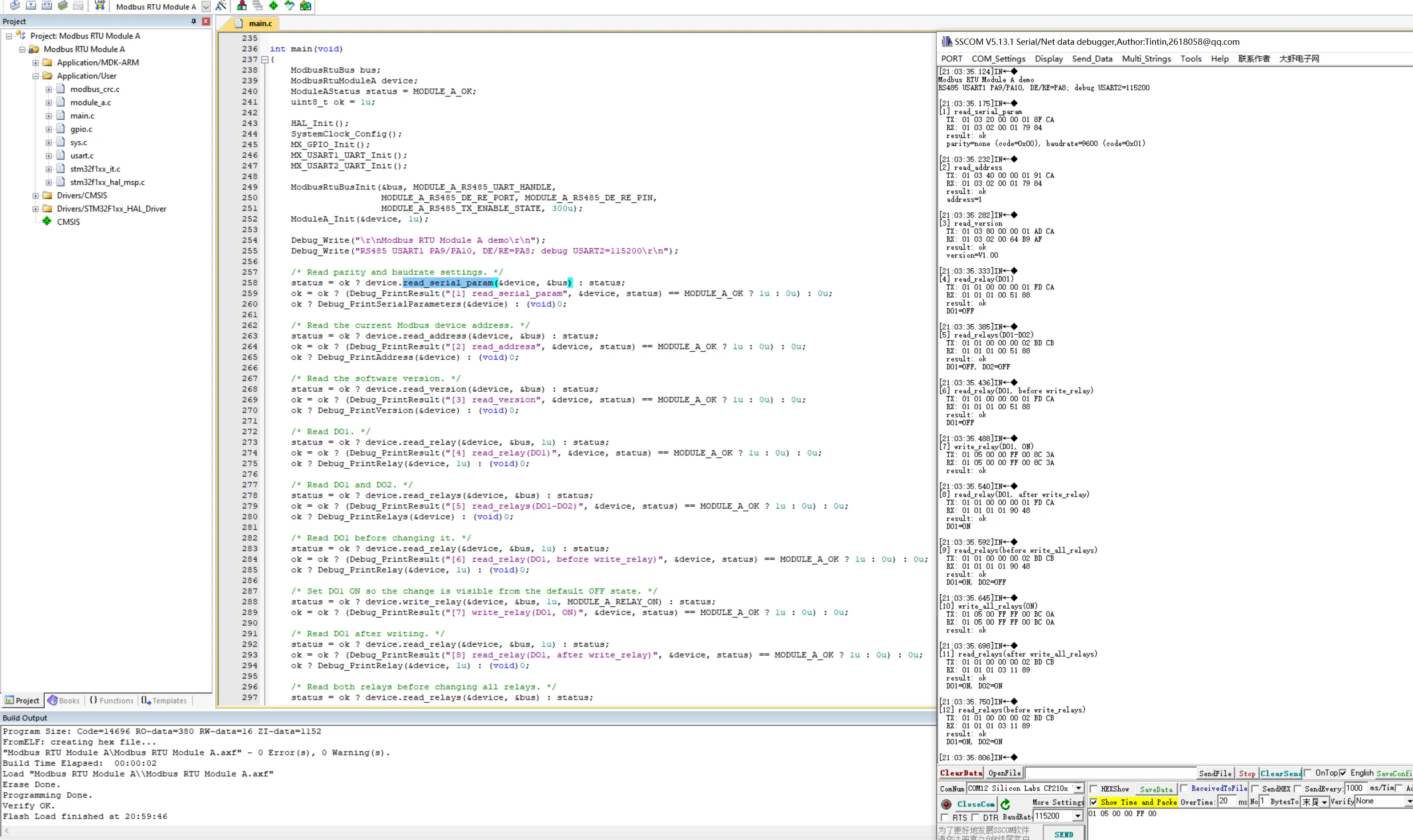
After the development board is reset, the complete example demonstrates all the query and control functions in the feature overview in sequence. Each step prints the operation name, TX, RX, and execution result via USART2; the read results are stored in the ModbusRtuModuleA structure. All steps are executed only once, and after completion, the main program enters an idle loop and no longer sends control commands to the module.
Use Keil MDK to compile and flash:
- Double‑click to open
STM32/MDK-ARM/Modbus RTU Module A.uvprojx. - In Keil, select the target
Modbus RTU Module Aand clickRebuildto recompile the project. - Connect the programmer and click
Downloadto flash the program.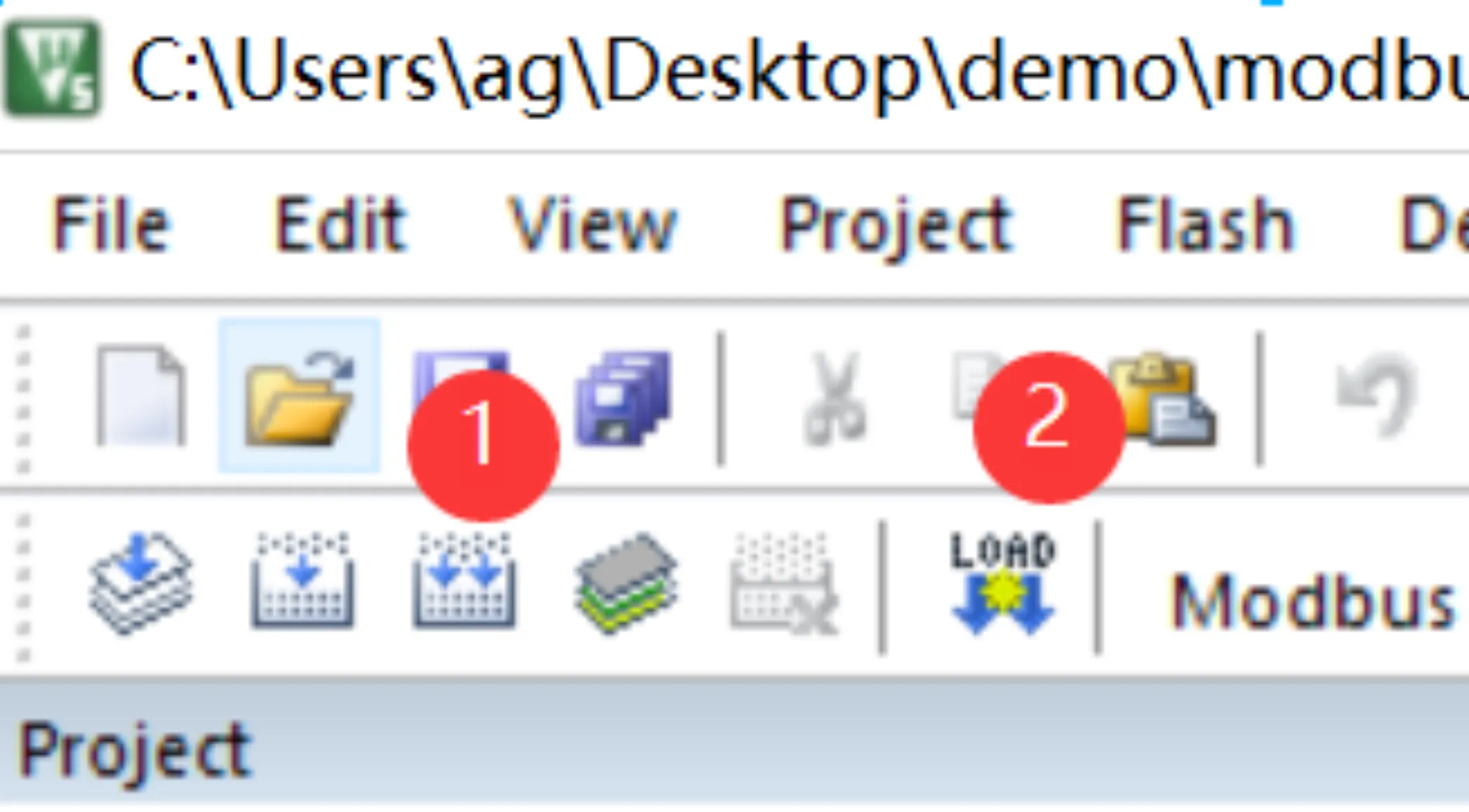
- Use a serial debug tool to open the USART2 debug serial port with the parameters
115200, 8N1. - Reset the board and view the device operations, TX, RX, and results.
An example is shown below:
Arduino Example
Hardware used: UNO PLUS and RS485 CAN Shield.
Do not connect the board's GPIO pins directly to the RS485 interface. Direct connection risks burning out the board's GPIO, and the connection must go through an RS485 level conversion module to access the bus.
The serial ports and pins used in the example are as follows:
| Function | Host Pin |
|---|---|
| RS485 RX | D2 |
| RS485 TX | D8 |
| RS485 DE and /RE | D7 |
| Serial Monitor | 115200 |
Device function call example:
SoftwareSerial rs485(2, 8);   // RX, TX
ModbusRtuBus bus(rs485, 7); // Serial port and RS485 direction control
ModbusRtuModuleA device(1); // Module A device address

/* Query DO1, set it to off, then query the actual state. */
device.readRelay(bus, 1u);
device.writeRelay(bus, 1u, MODULE_A_RELAY_OFF);
device.readRelay(bus, 1u);
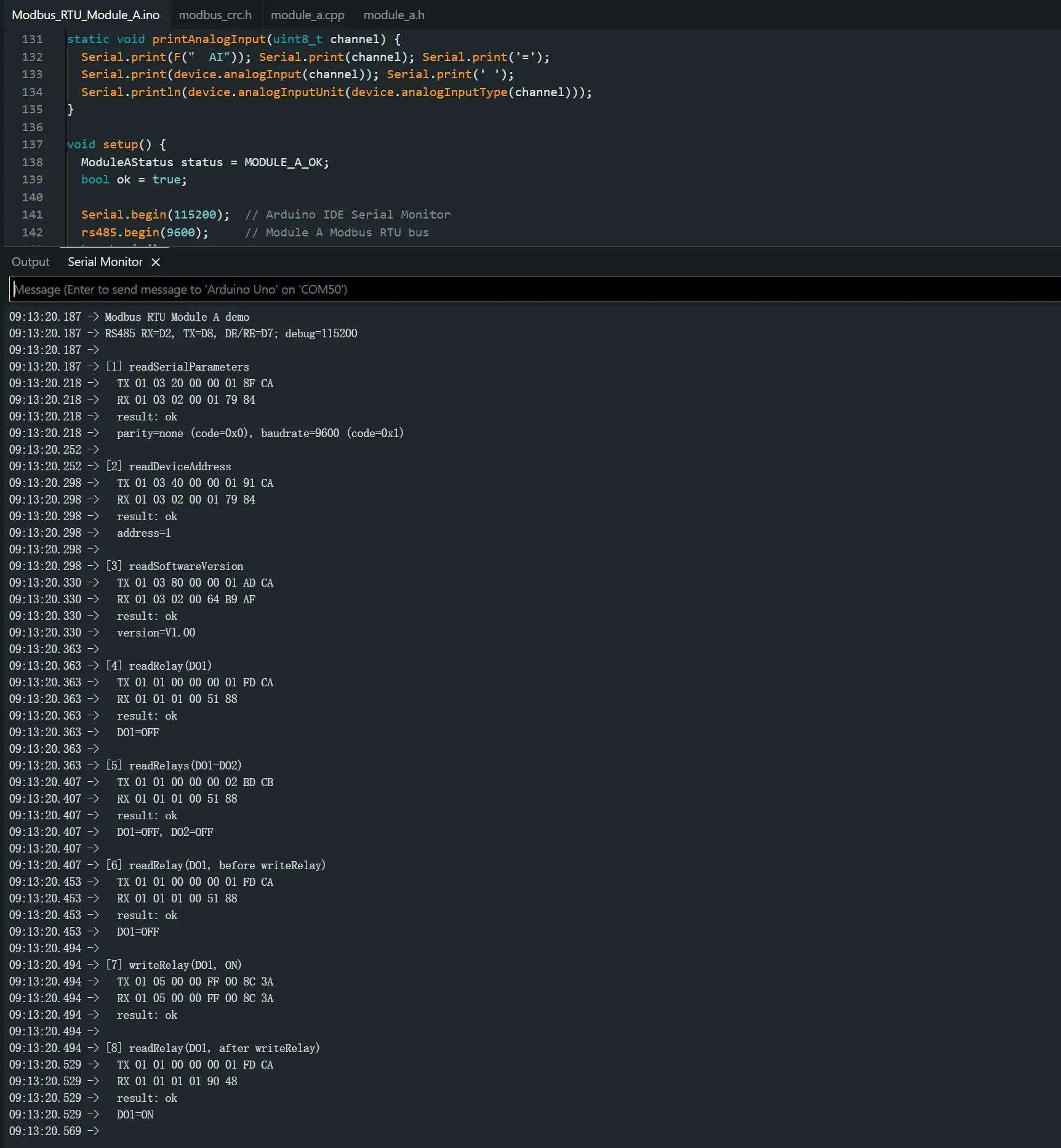
After the development board starts, the complete example demonstrates all the query and control functions in the feature overview in sequence. Each step prints the operation name, TX, RX, and execution result via the Arduino IDE serial monitor; the read results are stored in the ModbusRtuModuleA object. All steps are executed only once, and loop() remains empty and does not repeatedly control the device.
Compile and upload using the Arduino IDE:
- Open
Arduino/Modbus_RTU_Module_A/Modbus_RTU_Module_A.ino. - In the Arduino IDE, select
Arduino Unoor the compatible development board actually in use, and select the corresponding serial port. - Click "Verify" to compile the example program.
- Click "Upload" to upload the program to the development board.

- After uploading is complete, open the "Serial Monitor" and set the baud rate to
115200. - Reset the board and view the device operations, TX, RX, and results.
An example is shown below:
Precautions
- The module's default communication parameters are
9600, N, 8, 1, and the default device address is1. - The complete example only queries the serial port parameters and device address, and does not modify the module's communication configuration.
- If communication fails, check power supply, RS485 A/B wiring, serial port permissions, device address, and baud rate in order.