Working with ESP32
-
Connect the Q43 NEO-F9P GNSS Helical RTK Module to the ESP32 via UART. Also attach the antenna and place the setup in an open outdoor area, or at least position the GNSS antenna with a clear view of the sky. The pin connections are shown in the table below:
ESP32-S3 Q43 NEO-F9P GNSS Helical RTK Module GND GND GPIO17 SDA GPIO18 SCL GPIO9 TX1 GPIO8 RX1 3V3/5V VCC -
This guide uses the ESP32-S3 for testing. Set up the ESP32-S3 environment, and modify the following parameters in the example code.
//Connect ESP to WiFi to enable access to base station server dataconst char* ssid = "mate60"; // Wi-Fi SSIDconst char* wifiPassword = "131433"; // Wi-Fi password// ---------- NTRIP (using Hi-Target CORS as an example; modify accordingly) ----------const char* ntripHost = "120.253.226.97";const int ntripPort = 8001;const char* mountpoint = "RTCM33_GRCEJ";const char* ntripUser = "cvmh11286";const char* ntripPass = "fyxxx"; -
Download the example. Locate
GetGPS-RTK.inoin theQ43_NEO-F9P_GNSS_Helical_RTK_Module/ESP32/GetGPS-RTKfolder, compile and flash the program to the ESP32-S3. The RTK rover positioning test result is shown in the figure below: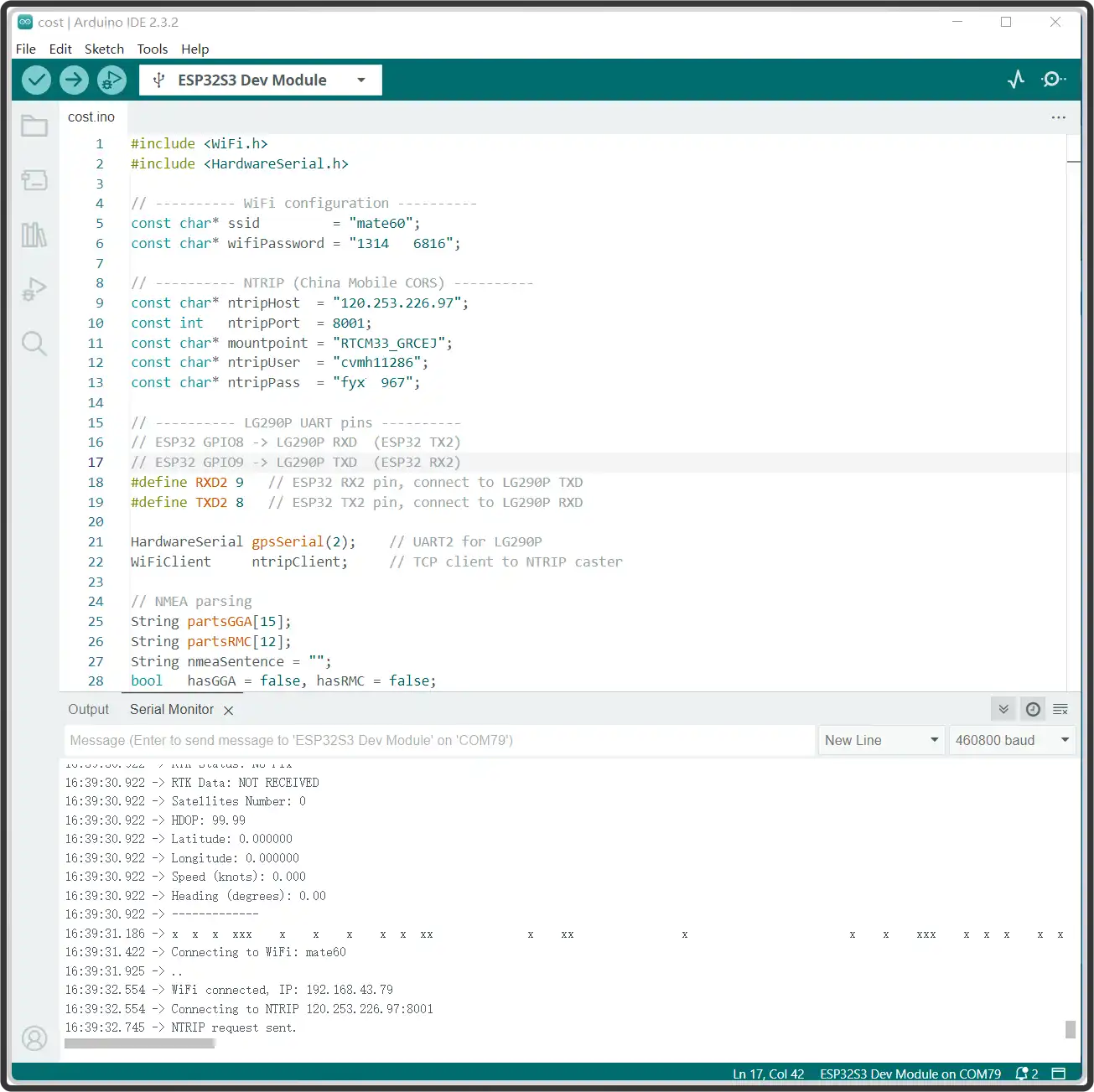
-
Running the
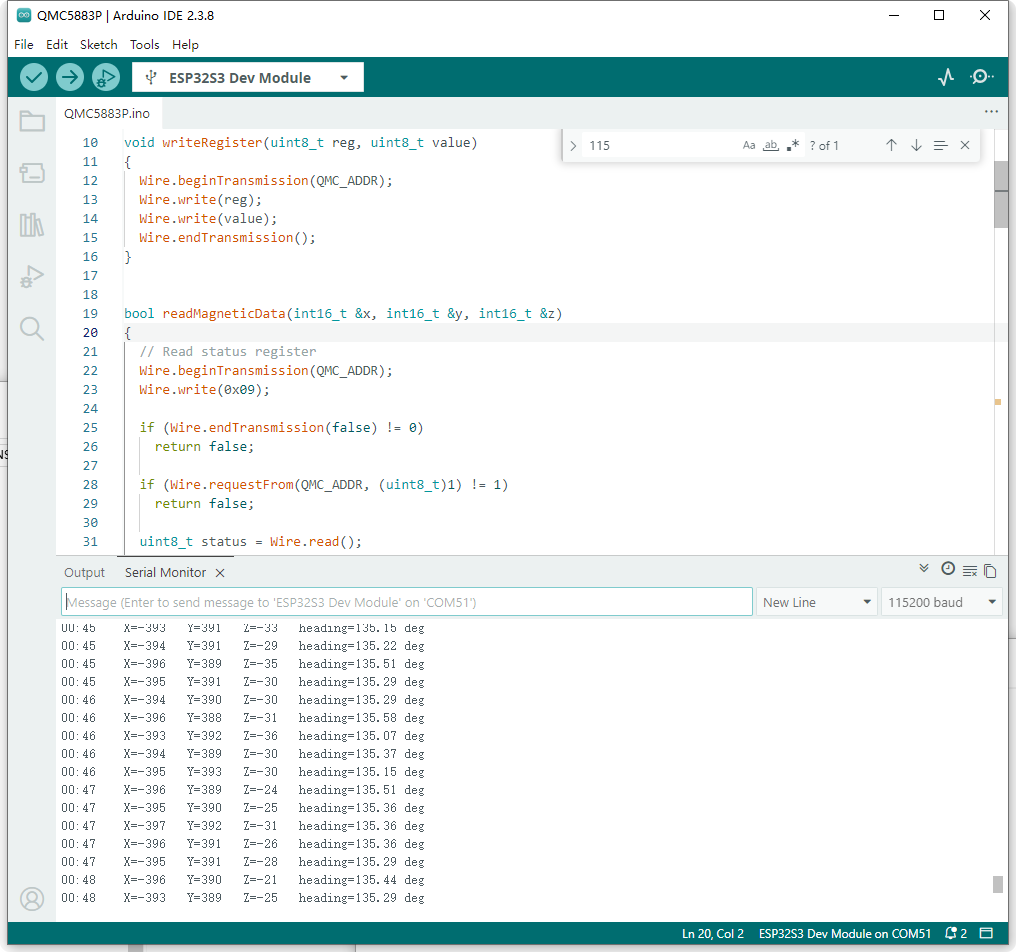
QMC5883P.inoexample provides the magnetic field intensity along the X, Y, and Z axes in the environment, as shown below: