Working with MicroPython
This chapter contains the following sections. Please read as needed:
MicroPython Getting Started Tutorial
New to Pico MicroPython development and want to get started quickly? We have prepared a general introductory tutorial for you. These tutorial is designed to help developers quickly become familiar with Thonny IDE and start developing. It covers environment setup, project creation, component usage, and peripheral programming, helping you take the first step in MicroPython programming.
- Section 1 Basic Introduction
- Section 2 GPIO
- Section 3 PWM
- Section 4 ADC
- Section 5 UART
- Section 6 I2C
- Section 7 SPI
- Section 8 PIO
Setting Up the Development Environment
Please refer to the Install and Configure Thonny IDE Tutorial to download and install the Thonny IDE.
Example
The MicroPython examples are located in the examples\MicroPython directory of the example package.
| Example | Basic Program Description | Dependency Library |
|---|---|---|
| 01_SD | Mount TF card | - |
| 02_RTC | Get RTC data | - |
| 03_GUI | GUI display program | - |
| 04_KEY | Button test | - |
| 05_SHTC3 | Temperature and humidity sensor test | - |
| 06_TOUCH | Touch screen test | - |
| 07_ES8311 | ES8311 audio recording and playback test | - |
01_SD
Example Description
- Uses SPI to communicate with the TF card and mounts the TF card to the development board. After successful mounting, you can view and modify the contents of the TF card via Thonny.
Hardware Connection
- Insert a TF card
- Connect the board to the computer using a USB cable.
Code Analysis
sdcard.SDCard(spi, cs, baudrate): Creates a TF card object and binds the initialized SPI interface and CS pin to the TF card driver.uos.mount(sd, '/sd'): Mounts the TF card file system to the/sddirectory. After successful mounting, users can perform file read/write operations on the TF card via the/sdpath, such as creating, reading, or deleting files.
Operation Result
-
Upload all py files from the
01_SDfolder to the development board via Thonny and reset the board. After resetting, the development board will automatically mount the TF card to thesddirectory according to the boot.py program.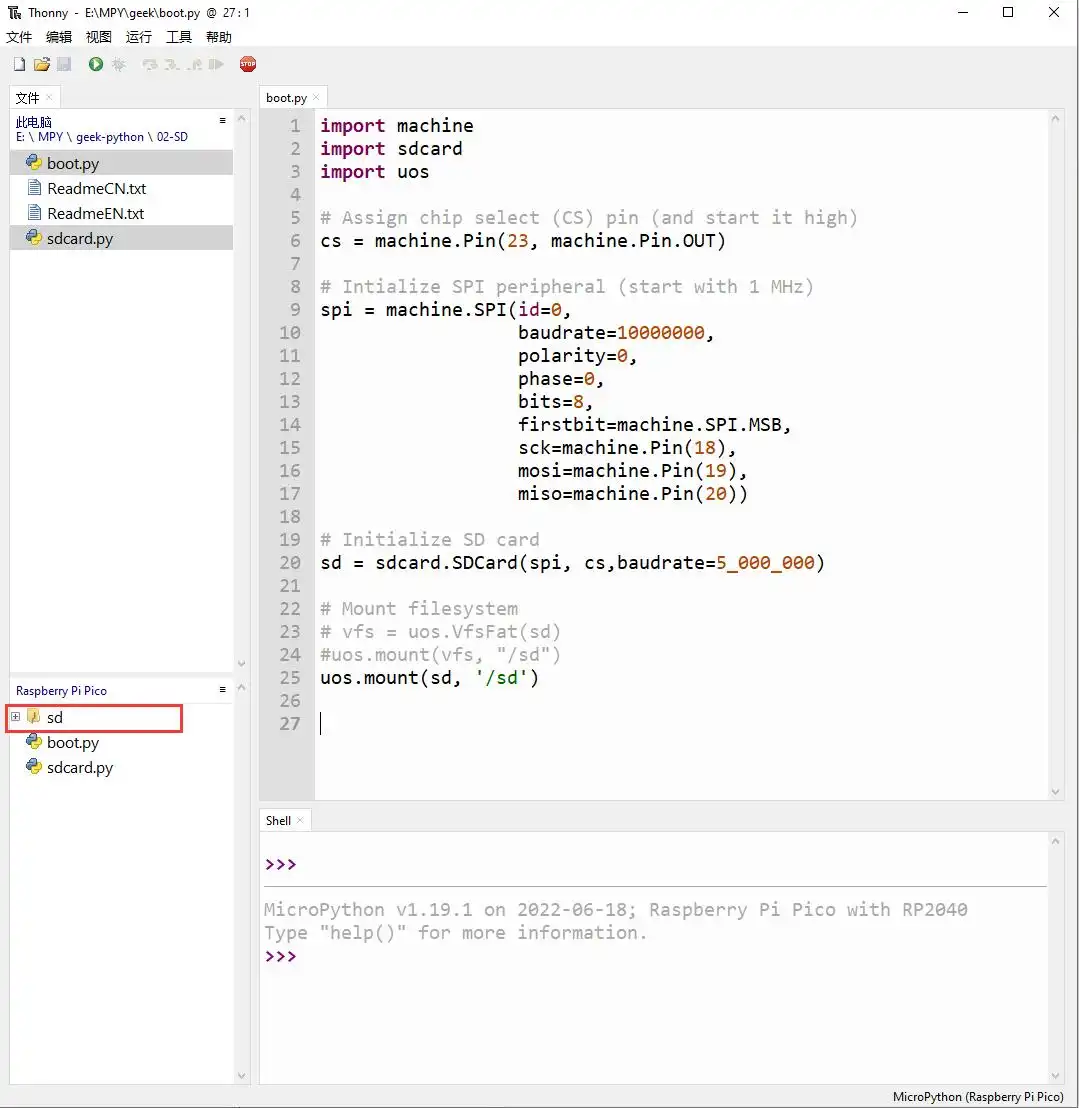
02_RTC
Example Description
- Uses I2C to communicate with the onboard RTC chip, sets and reads RTC time data, and tests if the RTC interrupt is functioning correctly.
Hardware Connection
- Connect the board to the computer using a USB cable.
Code Analysis
RTC = PCF85063(): Creates an RTC object.RTC.setDate(weekday, day, month, year): Sets the RTC date.RTC.setTime(hour, minute, second): Sets the RTC time.RTC.readTime(): Reads the RTC time.RTC.setAlarm(second, minute, hour, day, weekday): Sets the RTC alarm.RTC.enableAlarm(): Enables the RTC alarm.
Operation Result
-
Run the py files in the
02_RTCfolder using Thonny.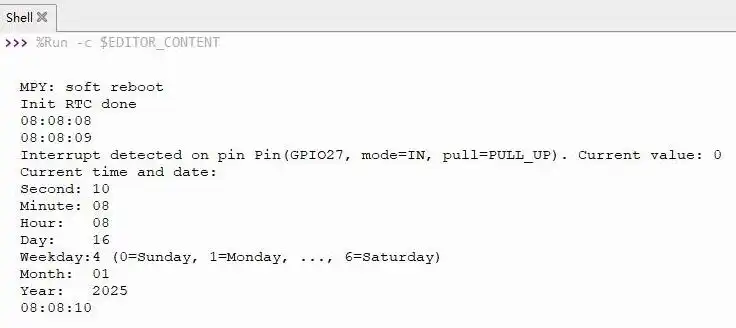
03_GUI
Example Description
- Drives the display via SPI communication, uses GUI drawing functions to draw text, borders, and color blocks, and refreshes the screen to complete the display.
Hardware Connection
- Connect the board to the computer using a USB cable.
Code Analysis
epd = EPD_1in54: Creates an LCD object.epd.Clear(0xff): Clears the entire screen.epd.fill(0xff): Fills the entire screen with a color.epd.text("RP2350-Touch-ePaper-1.54", 0, 30, 0x00): Writes text on the screen.epd.hline(10, 150, 80, 0x00): Draws a horizontal line.epd.vline(10, 90, 60, 0x00): Draws a vertical line.epd.display(epd.buffer): Refreshes the screen (makes it visible).
Operation Result
-
Run the py files in the
03_GUIfolder using Thonny.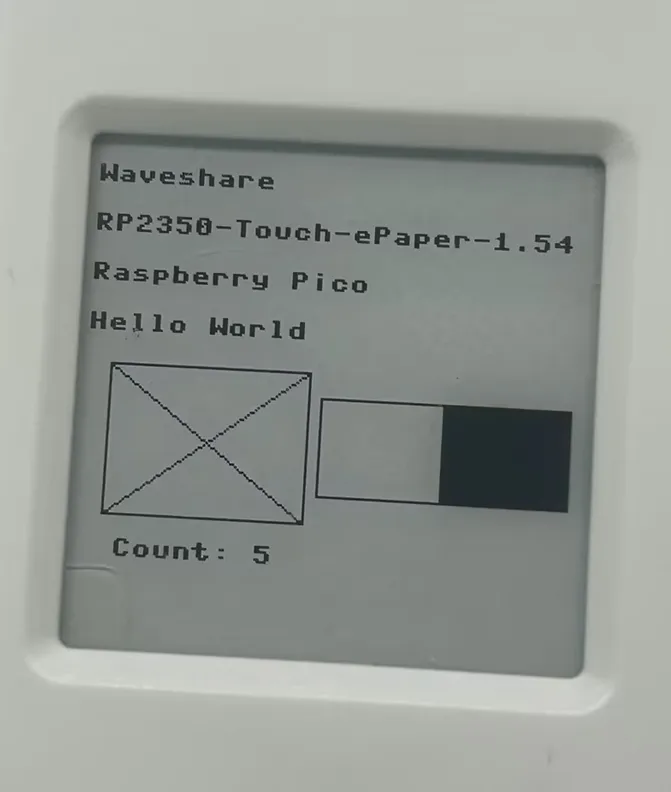
04_KEY
Example Description
- Demonstrates two-button input and common button event recognition under RP2350 MicroPython: BOOT (BOOTSEL special button) and POWER (regular GPIO24).
- Supported events:
down,up,click(single click),double(double click),long(long press), printing event logs to the serial port/Thonny Shell. - Example code file:
key_events.py(can be used as an importable library or run directly as a main script).
Hardware Connection
- BOOT: Use the onboard BOOTSEL button.
- POWER: Use the onboard POWER button (internally connected to GPIO24).
- Connect the board to the computer via a USB cable and connect the MicroPython interpreter via Thonny.
Code Analysis
BootKey: BOOTSEL read wrapper- BOOTSEL is not a regular GPIO; MicroPython generally provides a reading interface via
rp2.bootsel_button()(ormachine.bootsel_button()in some versions). pressed(): Returns whether the button is currently pressed (True means pressed).
- BOOTSEL is not a regular GPIO; MicroPython generally provides a reading interface via
GpioKey: Regular GPIO button read wrapperPin(pin, Pin.IN, pull): Configure the specified GPIO as input with pull-up/pull-down.active_low=True: Means pressed is 0, released is 1 (common configuration).
Key: Button event state machine (polling-based)debounce_ms: Debounce time. Only when the level change remains stable for longer than this time is the state considered truly changed.double_ms: Double-click detection window. A single-click event is only emitted after waiting fordouble_msto confirm no second click occurred.long_ms: Long press threshold. When pressed and held for longer thanlong_ms, alongevent is triggered immediately (without waiting for release).poll(now): Called periodically; internally:- Reads the raw level
- Debounces to obtain a stable state, sending
down/upon stable press/release - Long press detection: if stable press exceeds
long_ms, sendslong - Single/double click aggregation: on release, counts clicks; after timeout, converts 1 click to
click, 2 clicks todouble
main(banner=False, poll_ms=10): Program entry- When
banner=True, prints operation tips (suitable for guiding beginners when run as a main script). poll_msis the polling interval; smaller values are more responsive but consume more CPU (commonly 5–20ms).
- When
Operation Result
- Run the
.pyfiles in the04_KEYfolder directly via Thonny.- Open
key_events.pyin Thonny, ensure the interpreter is set to the MicroPython port of the development board. - Click the green Run button; Thonny will send the script to the board for execution.
- In this case, the script will run as
__main__, thus automatically enteringmain(banner=True), showing prompts and key event output. - If you want to use it as a library (import without automatic execution), upload the file to the board and explicitly call
key_events.main(...)in your ownmain.py.
- Open
- Run as main script (auto-execute on power-up)
- Upload
key_events.pyto the board root directory and rename it tomain.py. - After reset, it will first print banner information, then output events on key presses, e.g.:
power down/power up/power clickpower doublepower longboot down/boot up/boot click...
- Upload
- Run as reusable library (recommended)
- Keep the filename
key_events.pyunchanged and upload to the board. - Explicitly call in your own
main.py:import key_eventskey_events.main(banner=True)(orbanner=False)
- Keep the filename
- Stop running
-
Click the Stop button in Thonny, or press
Ctrl+Cin the Shell/REPL to end the polling loop and return to the interactive prompt.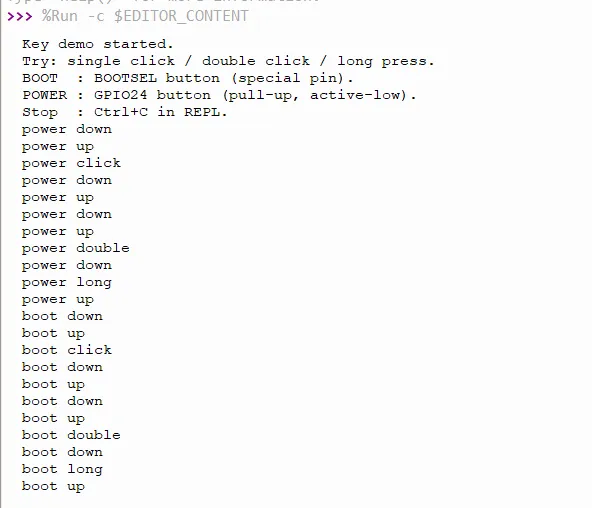
-
05_SHTC3
Example Description
- Demonstrates reading the SHTC3 temperature and humidity sensor via I2C under RP2350 MicroPython.
- Supports reading:
- Temperature (°C)
- Relative humidity (%RH)
Hardware Connection
- Sensor is built-in: SHTC3 (I2C). I2C address: default
0x70 - Connect the board to the computer via a USB cable and connect the MicroPython interpreter via Thonny.
Code Analysis
-
Constants
-
I2C default parameters (see constants at the top of
shtc3.py):SHTC3_I2C_NUM: I2C controller numberSHTC3_I2C_SCL / SHTC3_I2C_SDA: Default pinsSHTC3_I2C_ADDR: I2C addressSHTC3_I2C_FREQ: I2C frequency
-
SHTC3 command set:
SHTC3_REG_WAKEUP / SHTC3_REG_SLEEP / SHTC3_REG_SOFTRESET / SHTC3_REG_READIDSHTC3_MEAS_ALL: Combinesstretch/low_power/hum_firstto select measurement command
-
SHTC3: Sensor driver class -
__init__(..., i2c=None, crc_fail_return=(None, None))i2c: Allows externally passing an already createdI2Cobject for sharing the bus with multiple devicescrc_fail_return: Return value when CRC check fails (default(None, None))- During initialization, executes:
wakeup(): Wake upsoft_reset(): Soft reset
-
crc8(buffer)- Used to verify CRC-8 returned by SHTC3 (polynomial
0x31, initial value0xFF)
- Used to verify CRC-8 returned by SHTC3 (polynomial
-
read_id()- Reads device ID and verifies CRC; returns
Noneif CRC fails
- Reads device ID and verifies CRC; returns
-
measurement(hum_first=False, low_power_meas=False, stretch=False, ...)- Reads temperature and humidity once and returns
(temperature_c, humidity_rh) - Parameter description:
low_power_meas=True: Low-power measurement (more power efficient, but repeatability/accuracy is slightly affected, more noticeable on temperature)stretch=True: Enable clock stretching (depends on your I2C bus/driver implementation)hum_first: Which of the two data blocks (temperature/humidity) comes first from the sensor
- Compatible parameter:
hum_frist: retains the typo for compatibility with older examples
- Reads temperature and humidity once and returns
-
read(low_power=False, stretch=False, ...)- More user-friendly alias: equivalent to
measurement(hum_first=False, ...)
- More user-friendly alias: equivalent to
-
main(...): Example entry (single-file integrated) -
When
shtc3.pyis run directly as a script, it will:- Execute
main(): loop reading and printing temperature/humidity Ctrl+Cto break the loop
- Execute
-
Parameter description:
interval_s: Print interval (seconds)crc_fail_return: Override the driver's default CRC failure return value
Operation Result
-
Method A: Run the
.pyfiles in the05_SHTC3folder directly via Thonny. -
Open
shtc3.pywith Thonny on your computer, and ensure the interpreter is set to the MicroPython port of the development board. -
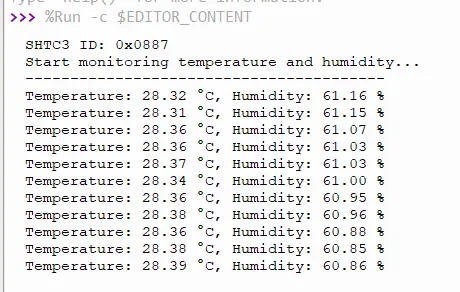
Click Run; by default it enters
main(), with output similar to:SHTC3 ID: 0x....Temperature: 25.12 °C, Humidity: 45.67 %
-
Stop: Click Stop in Thonny, or press
Ctrl+Cin the REPL. -
Method B: Use as importable library (recommended)
- Upload
shtc3.pyto the board's file system (same directory asmain.pyis most convenient). - Use in your own
main.py:
import time
from shtc3 import SHTC3

shtc3 = SHTC3()
while True:
    t, rh = shtc3.read()
    if t is not None and rh is not None:
        print(t, rh)
    time.sleep(1)
06_TOUCH
Example Description
- This example is only for
RP2350-Touch-ePaper-1.54. - This is a "touch test interface" example: draws 4 touch areas (Area A~D) on the 1.54inch 200×200 e-Paper screen. When touched, the coordinates and area name are displayed at the bottom of the screen and the touch coordinates are printed to the serial port.
- Screen display uses: first a full refresh to display the "base image", then switches to partial refresh mode for interactive updates (faster, saves time).
- The touch controller is FT6336U: reads touch point coordinates via I2C, triggers an interrupt via the INT pin to read data, and the main loop retrieves the touch point.
- Example code files:
- main.py
- FT6336U.py
Hardware Connection
- Connect the board to the computer via a USB cable and connect the MicroPython interpreter via Thonny.
Code Analysis
-
EPD_1in54: E-paper driver + FrameBuffer drawing wrapper (main.py)- Inherits
framebuf.FrameBuffer: usesbufferas a 200×200 monochrome canvas, then pushes the buffer to the screen. send_command()/send_data(): Write command/data to the screen controller via SPI.ReadBusy(): Poll the BUSY pin to wait for the screen to become idle (must wait during e-Paper refresh).displayPartBaseImage(): Writes the "base image" to both buffers (0x24/0x26) for more stable partial refresh (common practice to reduce ghosting).init(update): Two refresh mode initializationsFULL_UPDATE: Full refresh, slow but cleanPART_UPDATE: Partial refresh, fast but may have ghosting; requires base image coordination
- Inherits
-
touch_ft6336u: FT6336U touch driver (FT6336U.py)- I2C initialization (
__init__)machine.I2C(id=1, scl=Pin(7), sda=Pin(6), freq=400_000): Use I2C1, 400kHz.int = Pin(8, IN, PULL_UP): Touch interrupt pin, falling edge triggers callback.rst = Pin(16, OUT): Reset pin; pulls high/low at power-up to reset the chip.
init_chip(): Initialize and read ID- Read register
0xA3to get chip ID; example expects0x64, prints "init ok" or "ID error".
- Read register
- Interrupt reading of touch (
int_cb/read_touch_data)int_cb()triggersread_touch_data(), which first readsTD_STATUS(0x02)to get the number of touch points, then reads 4 bytes fromTOUCH1_X(0x03)to reconstruct x/y.- Supports single-touch: only Touch1 is parsed.
- Main loop point retrieval (
get_touch_xy)- Returns
[{"x":..., "y":...}]when new point is available, then clearspoint_countso a touch is taken only once (more like an "event" than continuous coordinate stream).
- Returns
- I2C initialization (
-
Main program flow (main.py)
- Initialize screen and clear screen:
epd = EPD_1in54(),epd.Clear(0xff)(0xff means white). - Initialize touch:
touch = touch_ft6336u(), will see FT6336U ID-related output on the serial port. - Draw static UI: title, dividing lines, 4 rectangular button areas (Area A~D), coordinate display area.
- Full refresh to show base image:
epd.displayPartBaseImage(epd.buffer), thenepd.init(epd.part_update)to switch to partial refresh mode. - Touch debounce and polling:
touch_debounce = 500: only respond to one touch within 500ms to avoid repeated triggers due to interrupts/jitter.touch.get_touch_xy(): when a touch point is obtained:- Update the coordinates and area name displayed at the bottom of the screen
- Highlight the corresponding area with "black background, white text"
displayPartial()for partial refresh- After 1 second, restore the button appearance and do another partial refresh
- Initialize screen and clear screen:
Operation Result
-
Method A: Run the
.pyfiles in the06_TOUCHfolder directly via Thonny.- Select the correct MicroPython interpreter port in Thonny.
- Upload
FT6336U.pyto the root directory of the RP2350's built-in MicroPython file system. - Open and run main.py.
- Serial port/Thonny Shell expected output includes:
Initializing e-Paper...Initializing touch screen...FT6336U ID = 0x64,FT6336U init ok!- On touch, prints:
Touch detected: (x, y)
- Screen expected display:
- "Touch Test" at the top
- 4 area buttons (Area A~D)
- Real-time update of
Touch:area name andPos:coordinates at the bottom
-
Method B: Run as power-on auto-start program
-
Upload
main.pyandFT6336U.pyto the root directory of the RP2350's built-in MicroPython file system. -
The program will run automatically after reset.

-
07_ES8311
Example Description
- Demonstrates driving the ES8311 audio Codec on RP2350 MicroPython: configure registers via I2C, transmit/receive audio data via I2S using PIO, and output MCLK using PIO; DMA is enabled when the firmware supports
rp2.DMA. - Reference default parameters (can be modified in
main.py):- Sample rate: 24 kHz (
SAMPLE_FREQ = 24000; supported sample rate combinations are determined by theCOEFF_DIVtable ines8311.py) - Bit width: ADC 16-bit (
res_in=16), DAC 16-bit (res_out=16) - Recording: mono int16 (PIO RX only collects one 16-bit channel for easier DMA alignment and stability)
- Playback: can be configured as mono duplicated to stereo (example defaults to
channel_count = 2)
- Sample rate: 24 kHz (
- Example code files:
main.py: directly runnable loopback test (record and play)es8311.py: ES8311 I2C register driver (clock/format/volume/mute/microphone gain)audio_pio_mpy.py: PIO I2S + MCLK output (optional DMA interface)
Hardware Connection
- Connect the product to the computer via a Type-C cable and connect Thonny to the MicroPython interpreter for testing and debugging.
Code Analysis
-
es8311.py: ES8311 register driver (I2C)write_reg()/read_reg(): single-register write/read wrappers.COEFF_DIV+sample_frequency_config(mclk, rate): look up table to configure clock division based on MCLK and sample rate (example usesMCLK = SAMPLE_FREQ * 256).fmt_config(res_in, res_out): set I2S data width and operating mode (example uses I2S format and enables related mode bits).init(...): chip reset → clock configuration → format configuration → ADC/DAC related register initialization → set volume and microphone gain.volume_set()/volume_get(),mute(),microphone_gain_set(): common control interfaces.
-
audio_pio_mpy.py: PIO I2S transceiver + MCLK output (DMA optional)mclk_pio(): simplest square wave output, uses a StateMachine to generate MCLK.audio_pio_out(): waits for LRCLK/BCLK from ES8311, then outputs data synchronously; eachpull()takes a 32-bit frame (left 16-bit + right 16-bit).audio_pio_in(): waits for LRCLK/BCLK, samples input data synchronously;autopush=True, push_thresh=16collects only one 16-bit channel and pushes it into the RX FIFO.AudioPIO:mclk_pio_init()/dout_pio_init()/din_pio_init(): initialize each StateMachine and pin directions.audio_in_into(): polls samples from the RX FIFO (with timeout hints to help diagnose BCLK/LRCLK/DIN connections).dma_record_into()/dma_play_from_i16(): when the firmware supportsrp2.DMA, uses DMA to move data directly to/from PIO FIFOs, improving real-time performance and reducing CPU load.
-
main.py: recording-playback loopback example- Parameter section:
SAMPLE_FREQ,MCLK_FREQ,RECORD_DURATION_MS,DAC_VOLUME,MIC_GAIN,USE_DMA, etc. init_hardware(): enable the power amplifier control pin (PA_CTRL_PIN) and initialize I2C.init_es8311(): read Chip ID, callcodec.init(...), unmute.init_audio_pio(): configure PIO pins and StateMachine IDs (defaultSM_DOUT_ID=0,SM_DIN_ID=5,SM_MCLK_ID=2).- Main loop: record (DMA / non-DMA) → print min/max/clipped →
condition_mic_samples()DC removal and attenuation → play (DMA / non-DMA).
- Parameter section:
Operation Result
- Run via Thonny
- Upload all .py files in the
07_ES8311folder to the device root directory using Thonny. - Open
main.pyin Thonny on your computer and click Run. - When running normally, the serial port will print I2C scan results, ES8311 Chip ID, and statistics for each loopback cycle (cycle count, recording duration, min/max, clipped, etc.).
- Upload all .py files in the
- Upload and run on device
- Upload all .py files in the
07_ES8311folder to the device root directory using Thonny. - Reset / power-cycle the device; it will automatically execute
main.pyin the root directory (ensure all 3 files are uploaded:main.py,es8311.py,audio_pio_mpy.py).
- Upload all .py files in the
- Stop execution
-
Click the Stop button in Thonny, or press
Ctrl+Cin the Shell/REPL to exit the loop and return to the interactive prompt.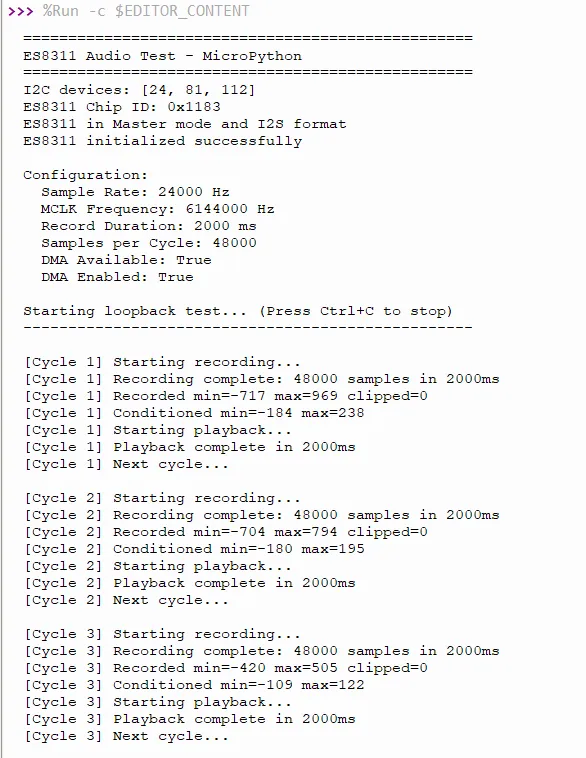
-