Raspberry Pi Pico C/C++ Getting Started
This tutorial will introduce how to use the Pico VS Code extension for C/C++ development and guide you through configuring a C/C++ development environment based on the Pico SDK.
The core logic of this tutorial applies to all RP2040 and RP2350 series boards, but all steps are demonstrated using the Raspberry Pi Pico 2 as an example. If you are using a development board of another model, please modify the corresponding settings according to the actual situation.
1. What is Pico C/C++ Development
Raspberry Pi Pico C/C++ development is based on the official Pico SDK, a C/C++ software development kit designed for RP2040, RP2350, and other series chips. The Pico SDK provides a rich set of API libraries for controlling peripherals such as GPIO, I2C, SPI, PWM, and ADC, as well as advanced features like multi-core processing, timers, and DMA.
To simplify the setup and use of the C/C++ development environment, the Raspberry Pi team has released the Pico VS Code extension. This extension integrates the following features:
- One-Click Installation: Automatically installs and manages development dependencies such as the Pico SDK, CMake, and compiler toolchain.
- Project Management: Quickly create, import, and configure C/C++ projects through a graphical wizard.
- Compilation and Building: Integrates CMake and Ninja build systems for one-click compilation and UF2 firmware generation.
- Flashing and Debugging: Supports UF2 firmware flashing and enables breakpoint debugging, single-step execution, and variable inspection via OpenOCD.
- Cross-Platform Support: Provides a unified development experience on Windows, macOS, and Linux.
- This tutorial is applicable to the Raspberry Pi Pico, Pico 2, and all RP series development boards developed by Waveshare Electronics.
- The installation tutorial uses Windows 11 as the default example. For other operating systems, please refer to the official Raspberry Pi tutorial.
2. Installing the Visual Studio Code Editor
-
Download and install Visual Studio Code.
-
During installation, it is recommended to check the option Add "Open with Code" action to Windows Explorer file context menu to easily open project folders.
tipIf VS Code is already installed, please check if the version is v1.87.0 or higher.
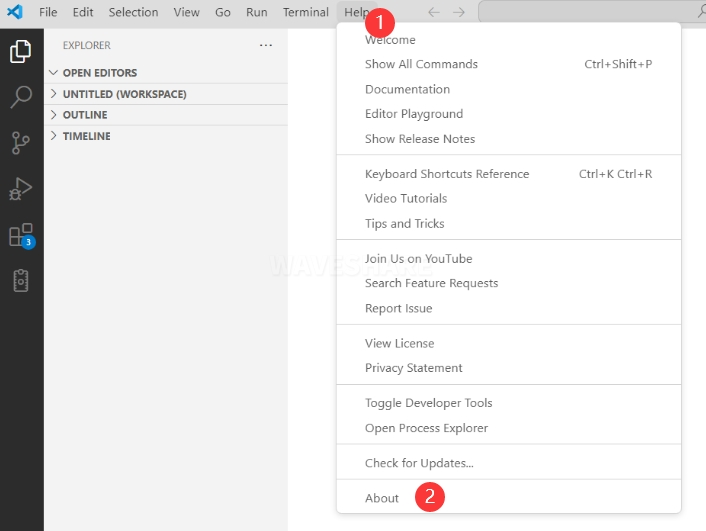
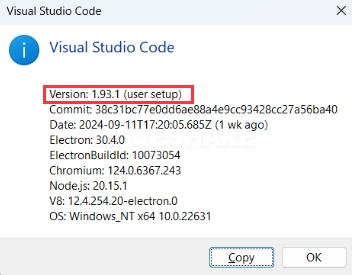
3. Installing the Pico Extension
-
Download and extract the pico-vscode installation package.
-
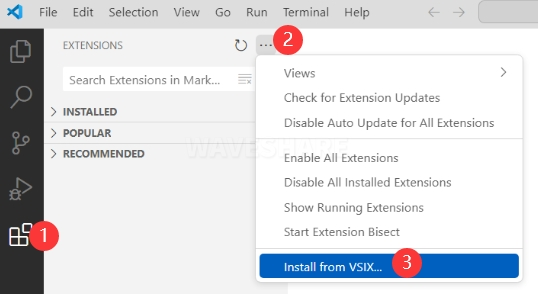
Open VS Code, go to the Extensions view, and select "Install from VSIX".
-
Select the
.vsixfile from the pico-vscode package and click "Install".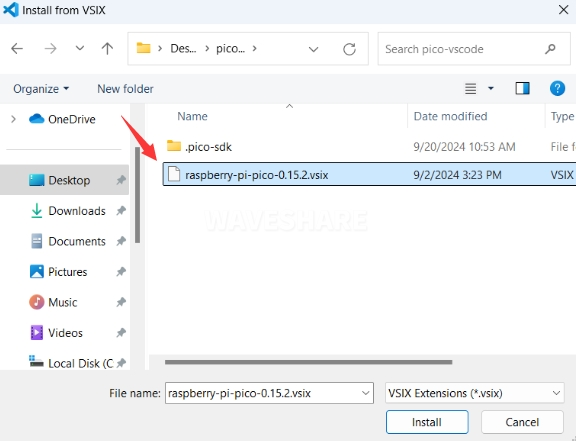
-
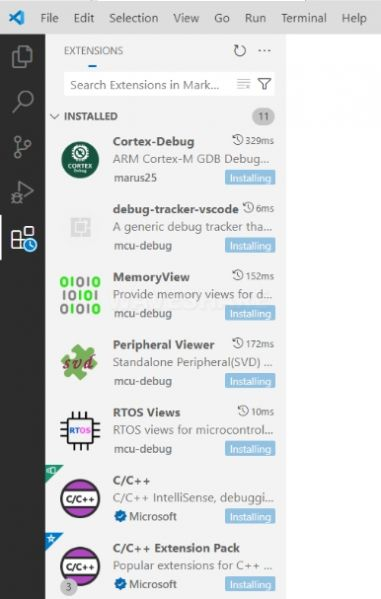
VS Code will then automatically install the Raspberry Pi Pico extension and its dependencies. You can click the refresh icon to view the installation progress.
-
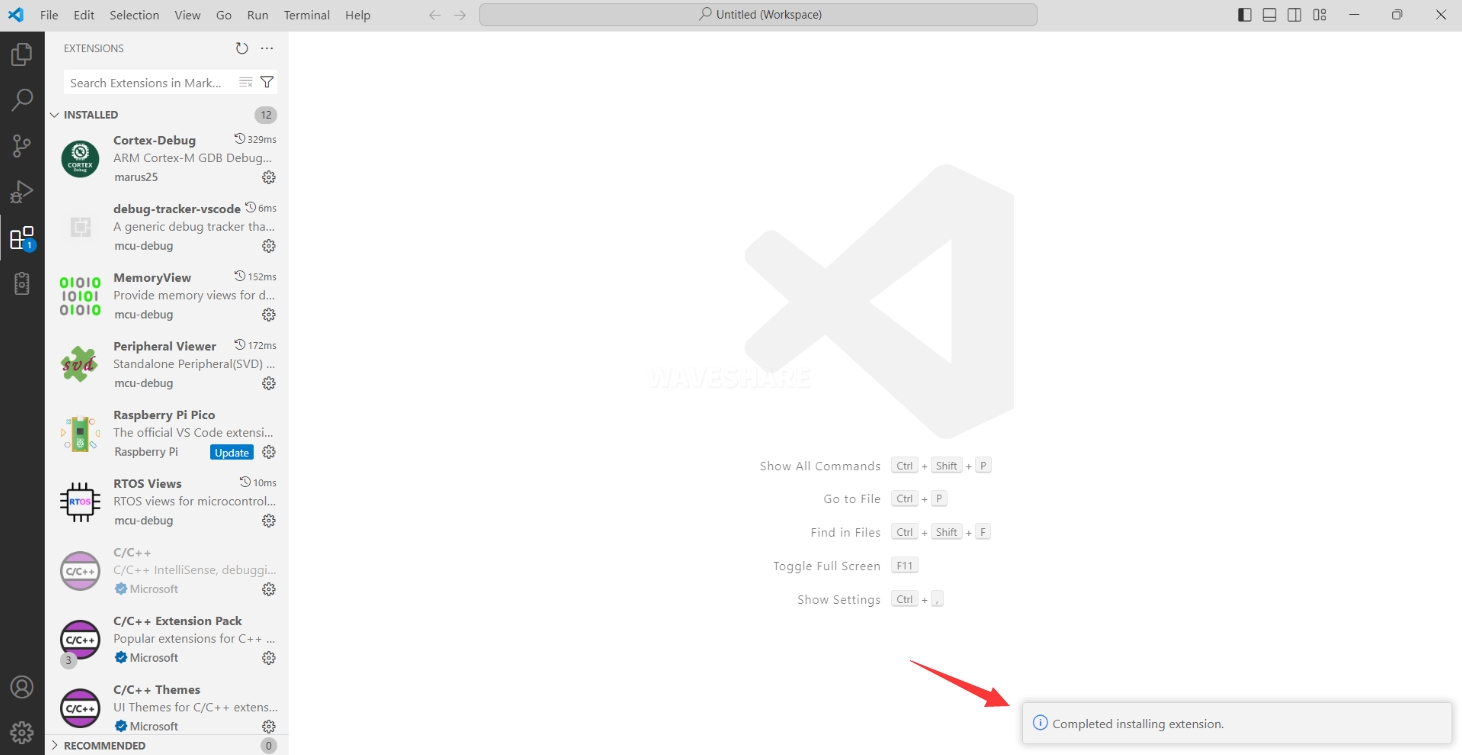
After installation completes, a notification will appear in the lower-right corner.
-
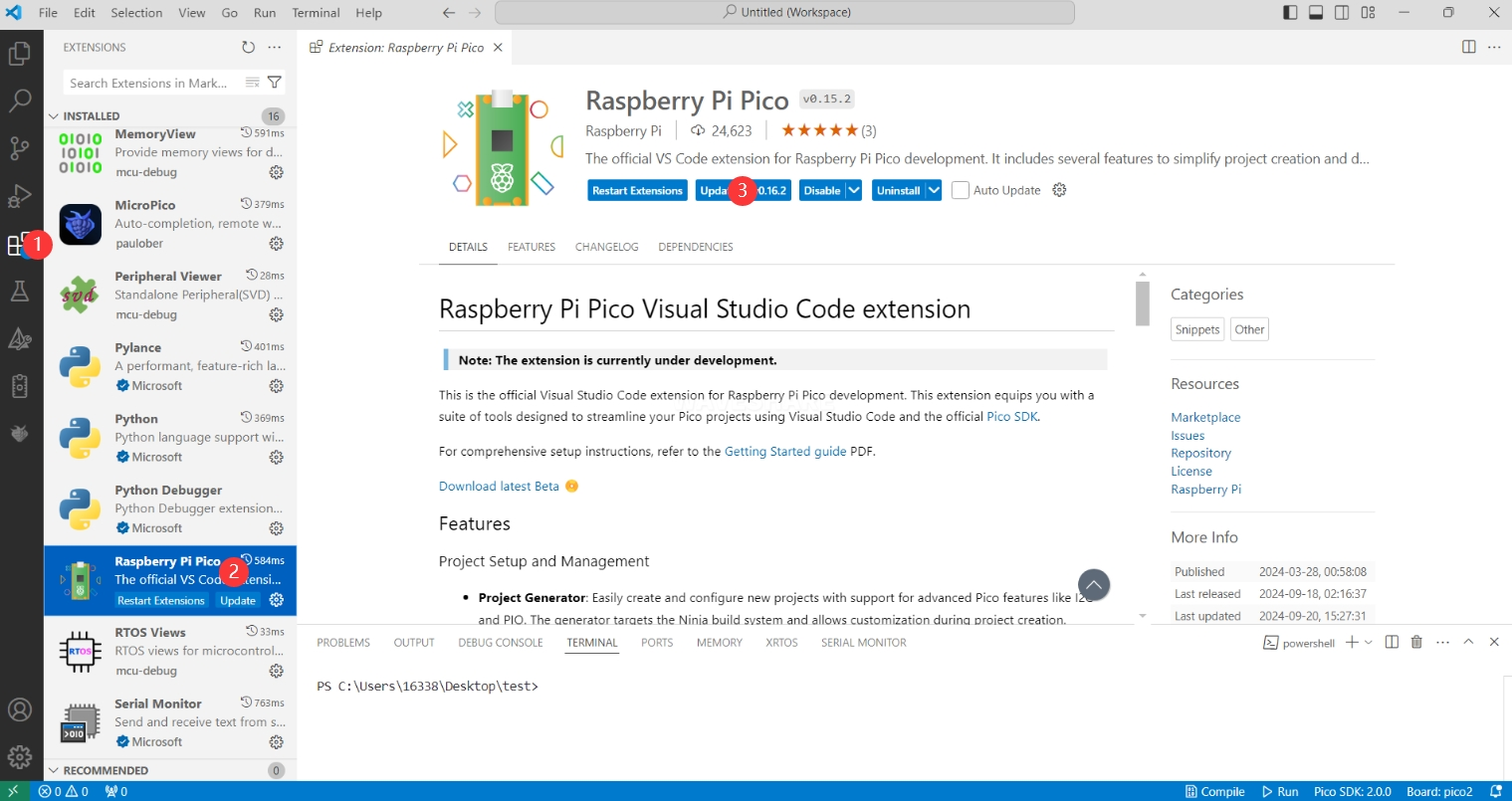
The provided extension version is 0.21.0; you can update it to the latest version as needed.
4. Configuring the C/C++ Development Environment
-
Navigate to
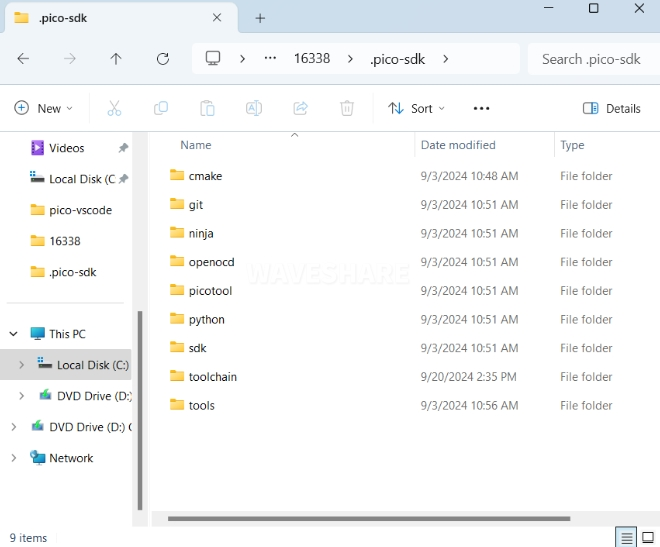
C:\Users\usernameand copy the entire.pico-sdkfolder from the installation package into this directory.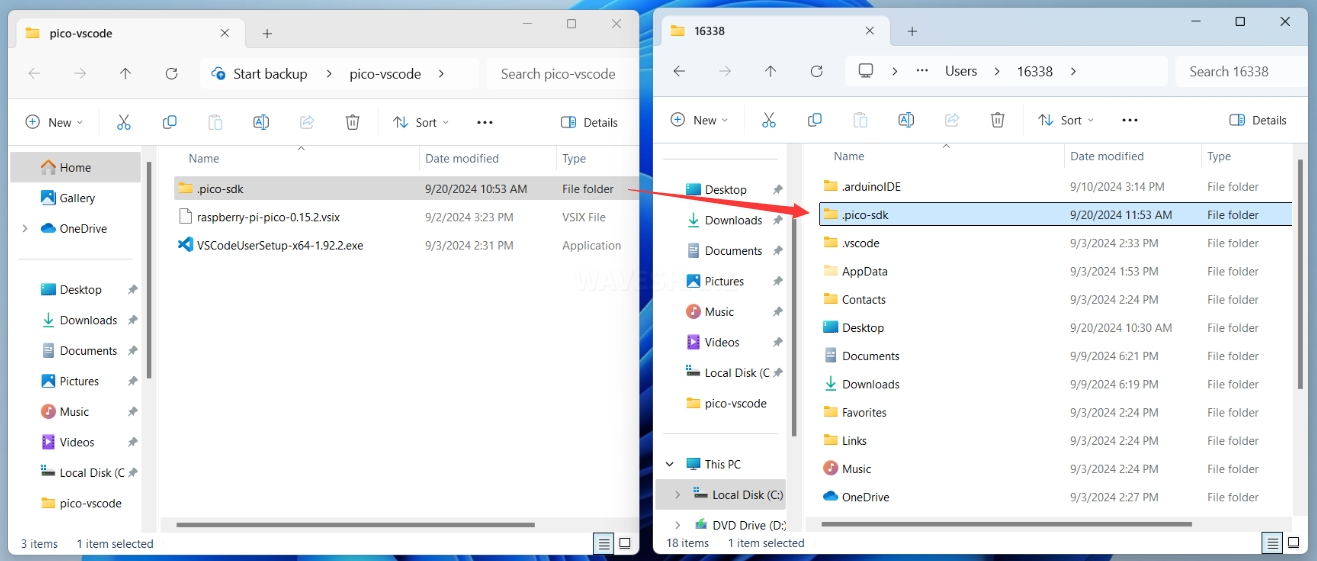
-
After copying, the directory should appear as follows:
-
Open VS Code and configure the various paths in the Raspberry Pi Pico extension settings.
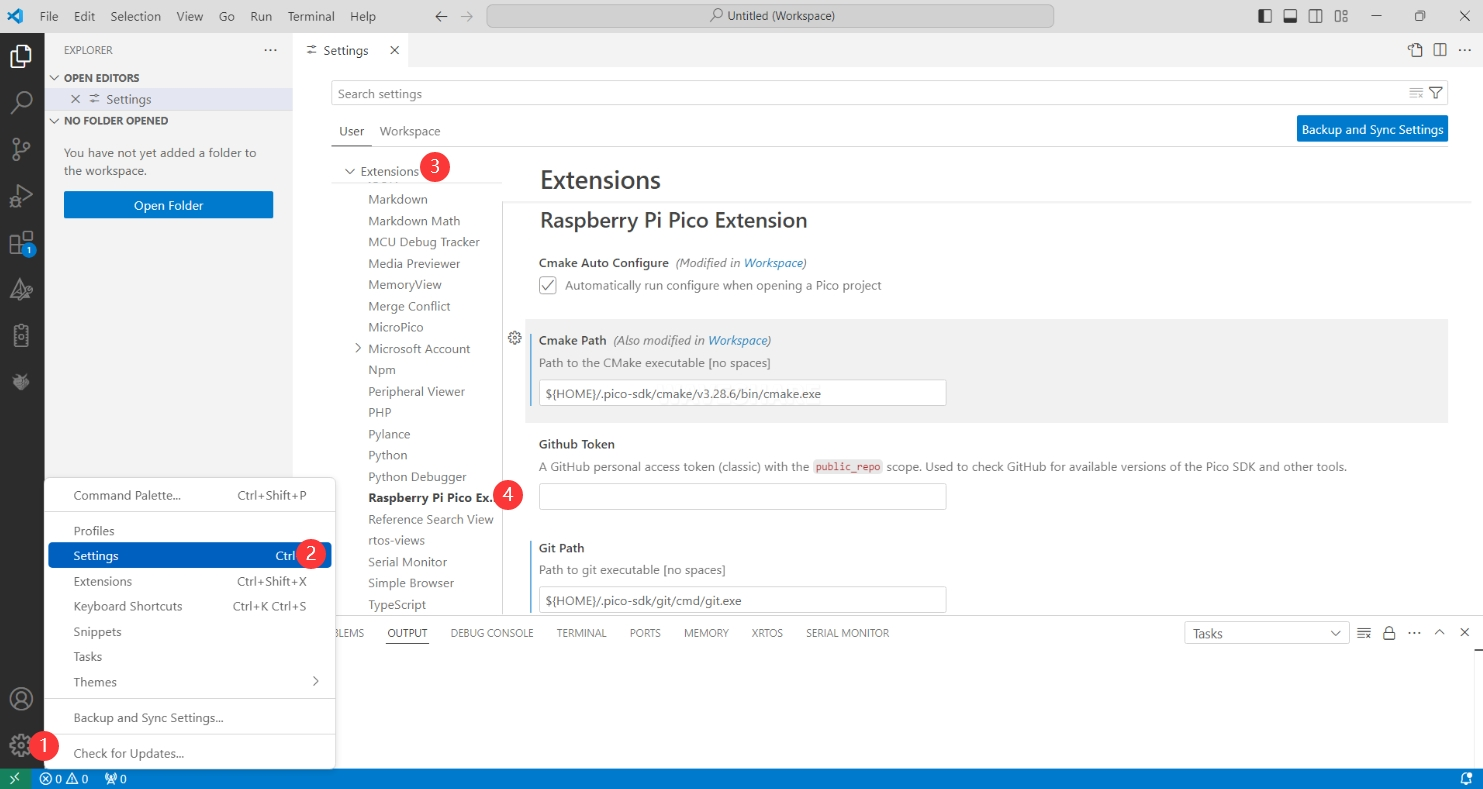
The configuration is as follows:
Cmake Path:${HOME}/.pico-sdk/cmake/v3.28.6/bin/cmake.exeGit Path:${HOME}/.pico-sdk/git/cmd/git.exeNinja Path:${HOME}/.pico-sdk/ninja/v1.12.1/ninja.exePython3 Path:${HOME}/.pico-sdk/python/3.12.1/python.exe
5. Creating a New Project
-
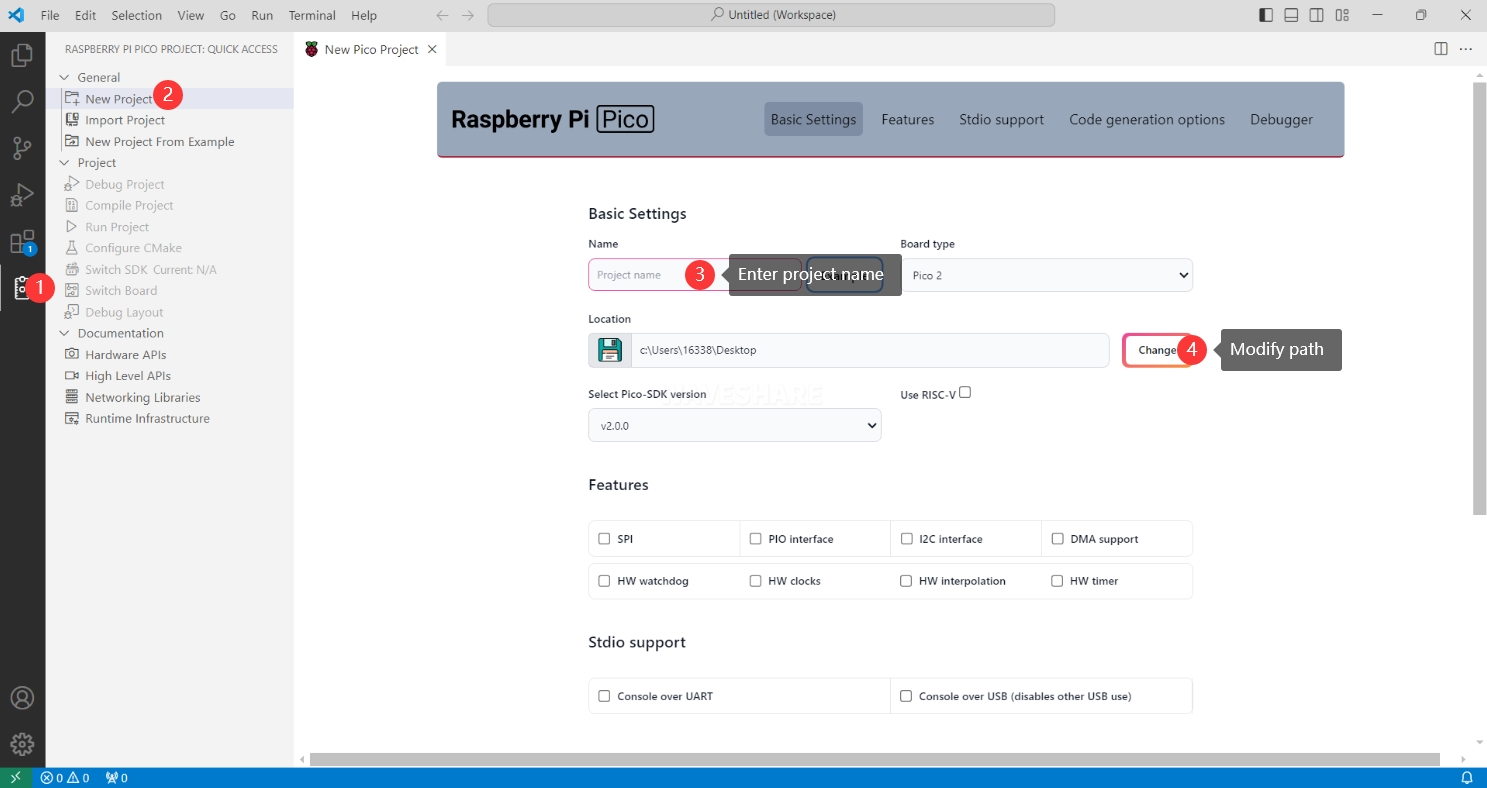
After the configuration is complete, you can create a new project for testing. Enter the project name, select the save path, and then click Create to create the project. If you want to use the official example code, you can click Example next to the project name to select it.
-
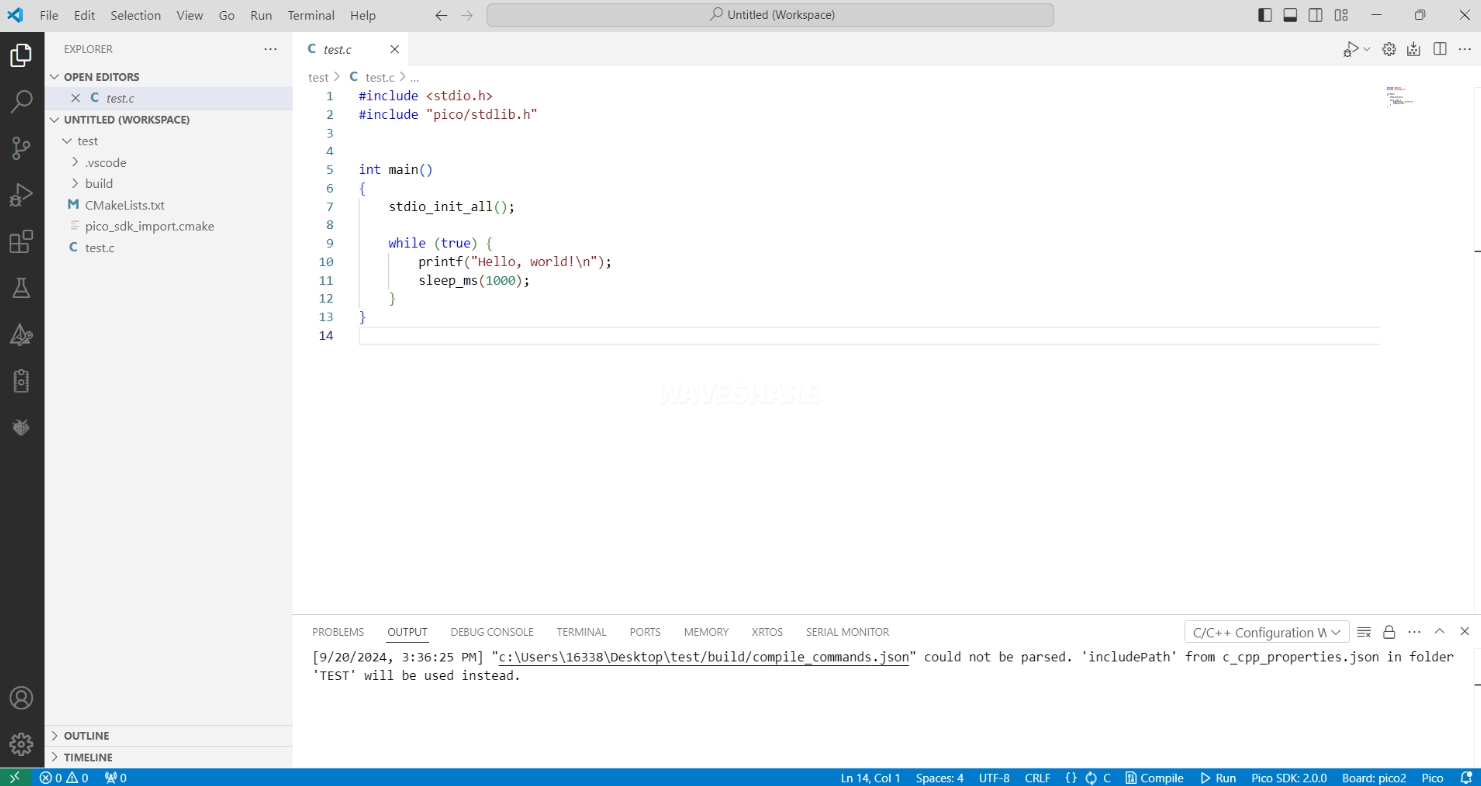
A project successfully created.
6. Compiling the C/C++ Project
-
On first compilation, you need to select the Pico SDK version. The installation package includes Pico SDK versions 2.0, 2.2, and 2.3.
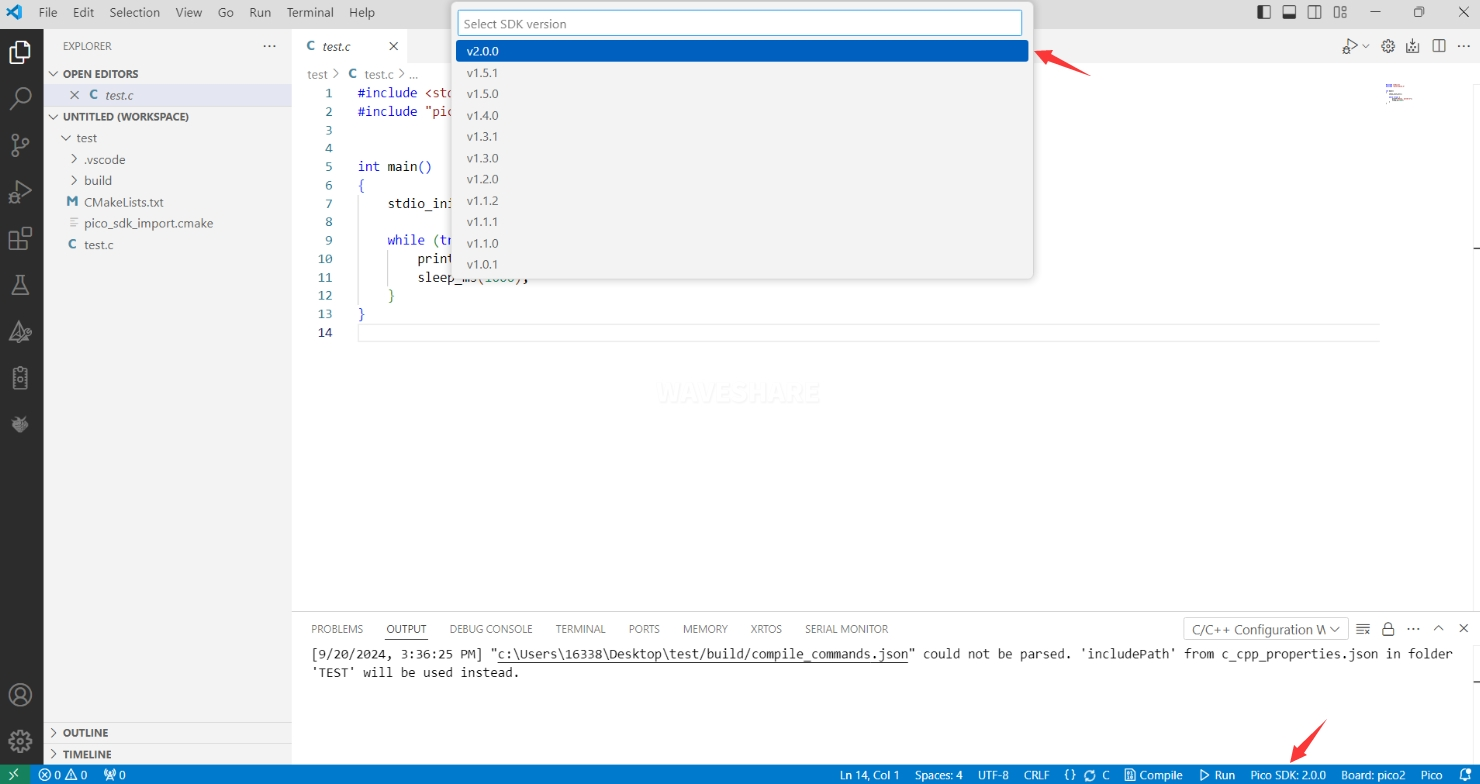
-
Select Yes for advanced configuration.

-
Select the cross-compilation toolchain:
- ARM core toolchains (support RP2040 and RP2350 series boards):
- 13.2.Rel1
- 14_2_Rel1
- 15_2_Rel1
- RISC-V core toolchains (support RP2350 series boards):
- RISCV.13.3
- RISCV_ZCB_RPI_2_2_0_3
- RISCV_ZCB_RPI_2_3_0_0
Choose the appropriate toolchain based on your development board and requirements.
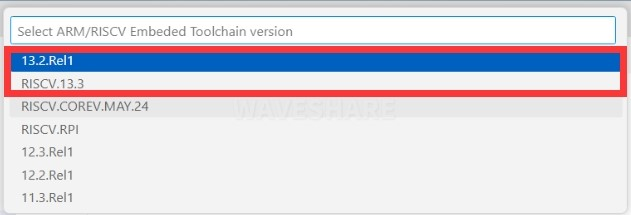
- ARM core toolchains (support RP2040 and RP2350 series boards):
-
For the CMake version, select Default (using the path configured earlier).

-
For the Ninja build tool version, select Default (using the path configured earlier).
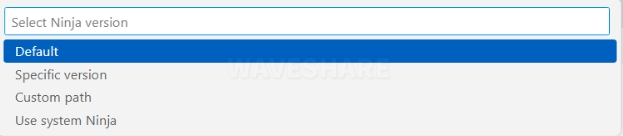
-
Select the development board.
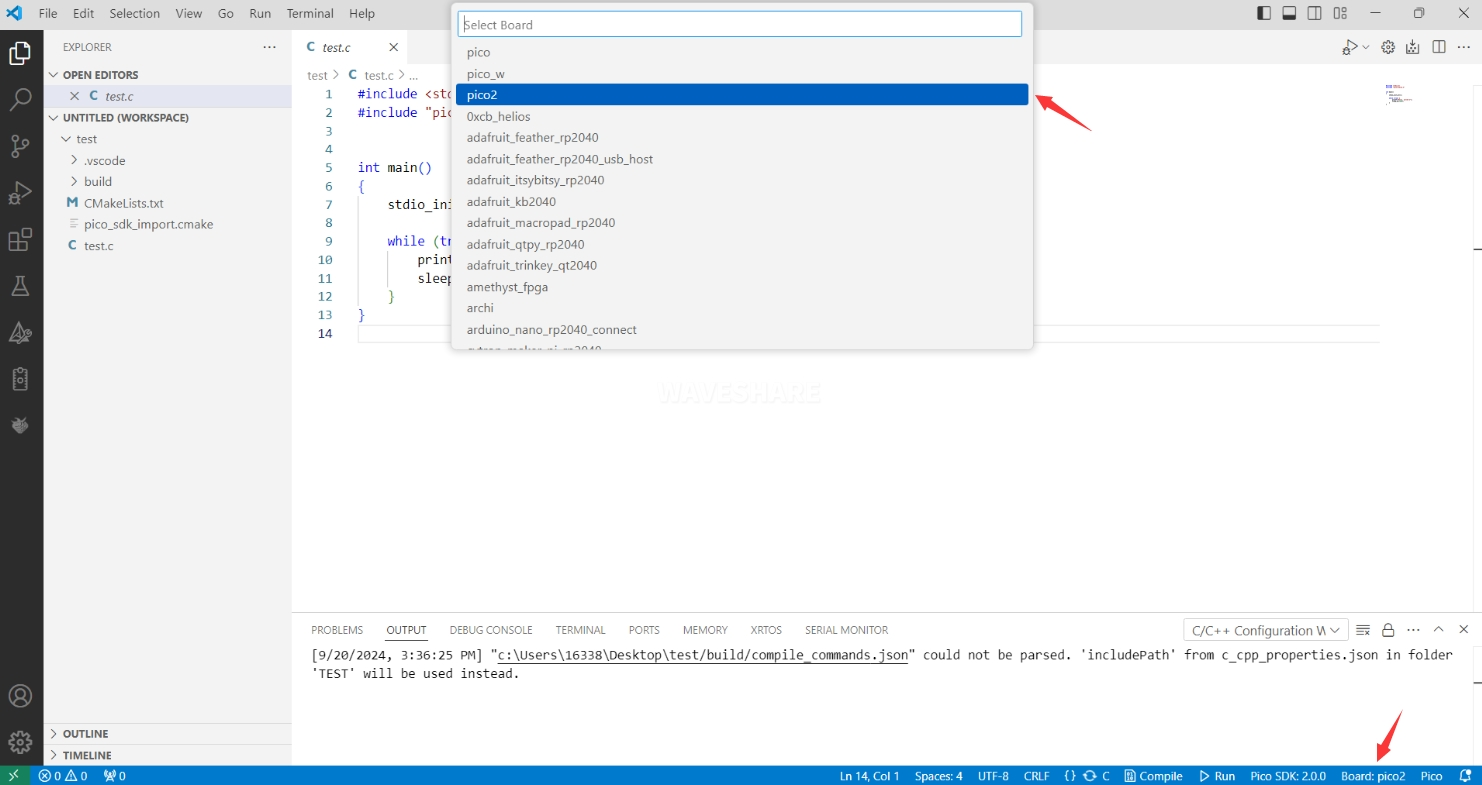
-
After completing the configuration, click the Compile button to start compiling.
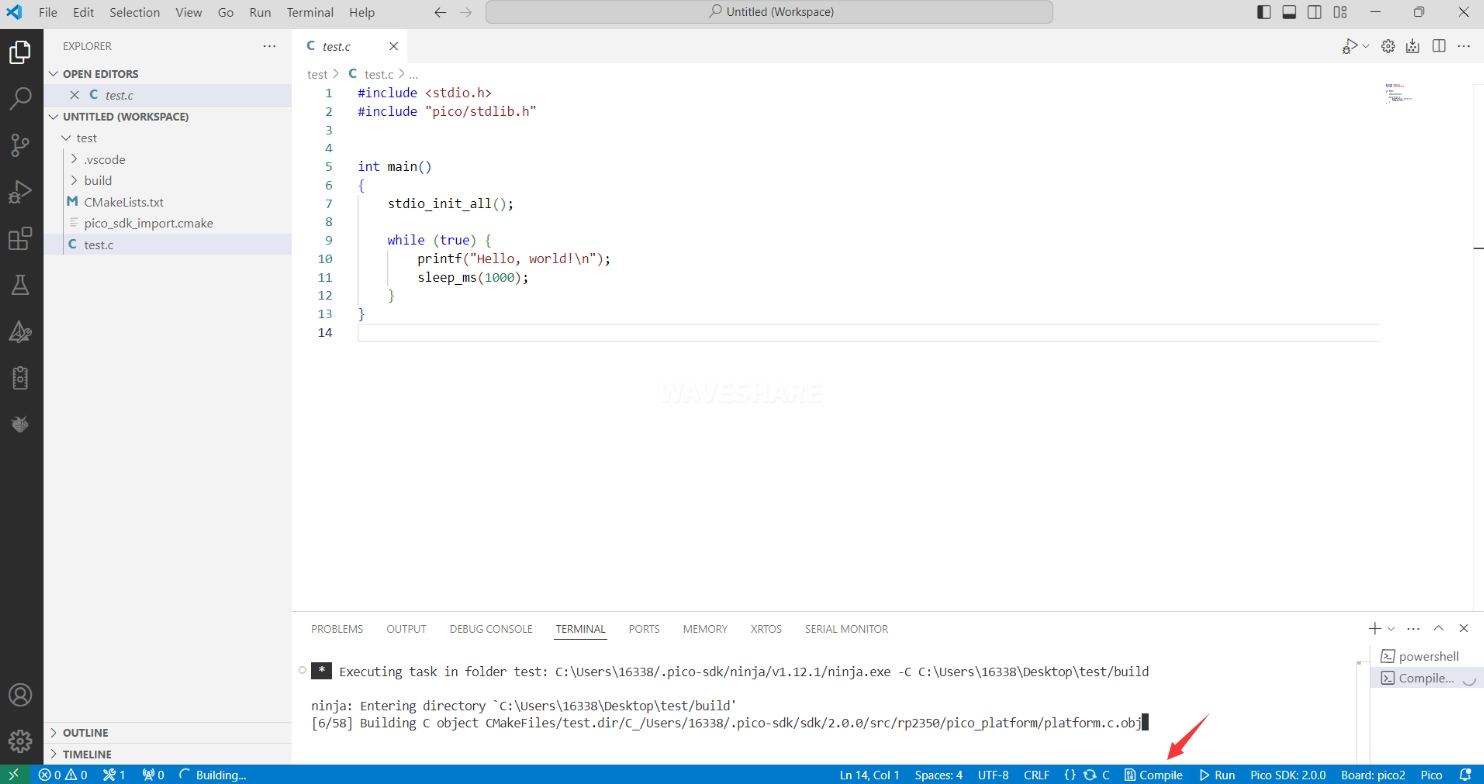
-
After successful compilation, a firmware file in
uf2format will be generated in thebuilddirectory of the project.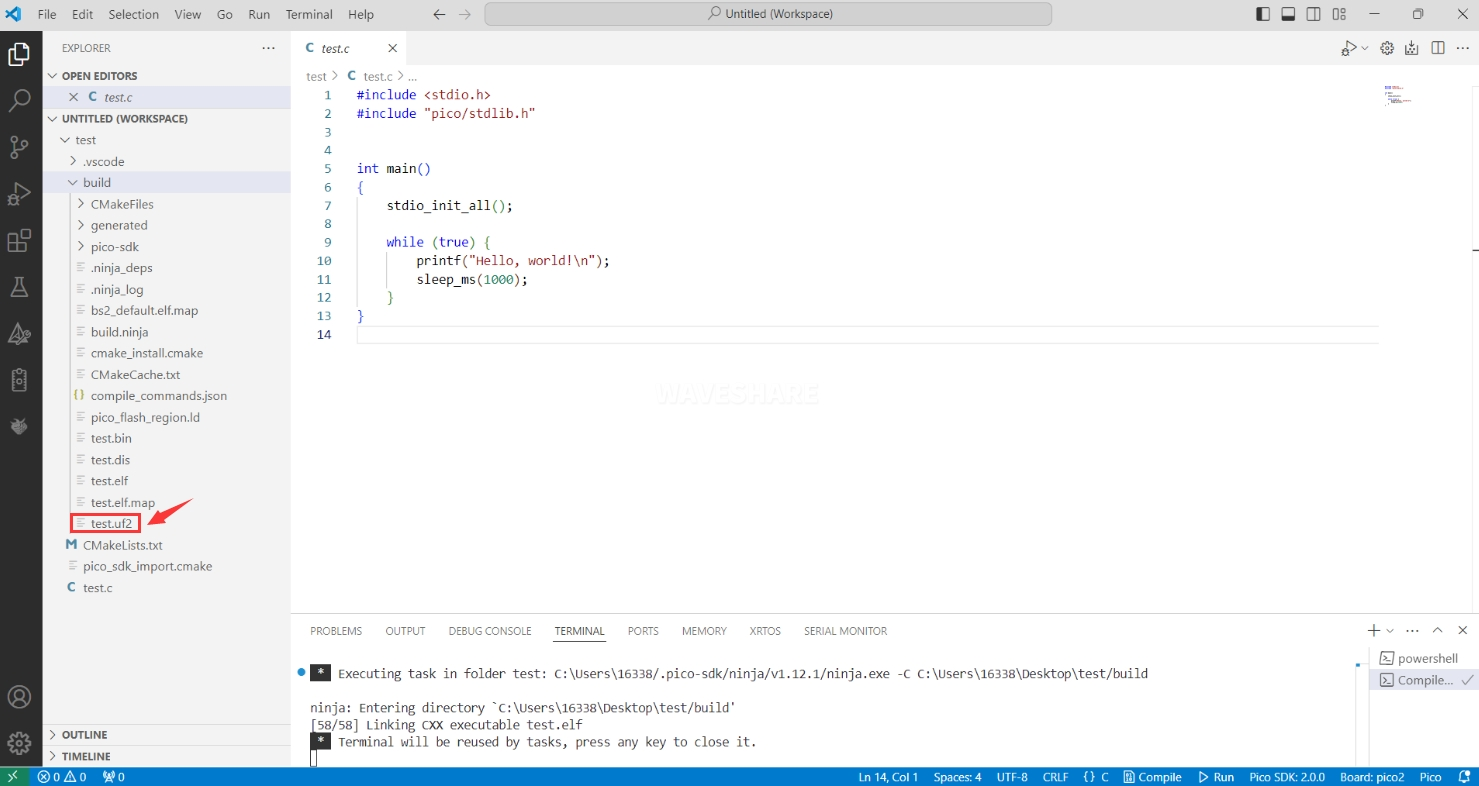
7. Flashing the Firmware
Two methods are available for flashing the compiled firmware onto the development board:
-
Flashing using the Pico VS Code plugin
Connect the board to your computer via USB, then click the Run button to flash the firmware directly.
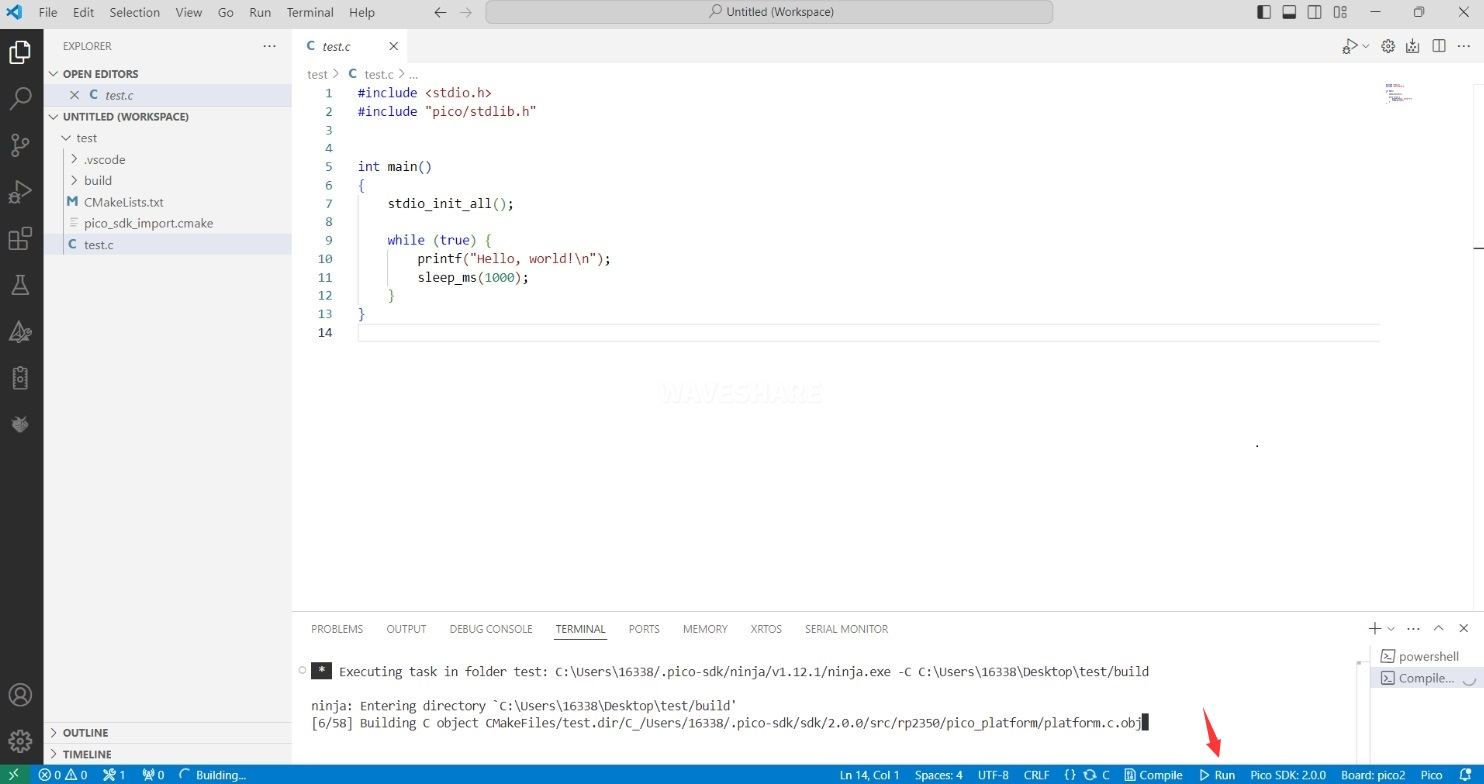
-
Manually flashing the firmware
1. Press and hold the BOOT button on the board.2. Connect the board to your computer via USB.3. The computer will recognize the development board as a USB device.4. Drag and drop the `.uf2` firmware file into the USB drive.5. The device will automatically reboot and complete the firmware flashing.
8. Importing a C/C++ Project
-
In the Pico VS Code extension, select "Import Project", then choose the directory where your project is located.
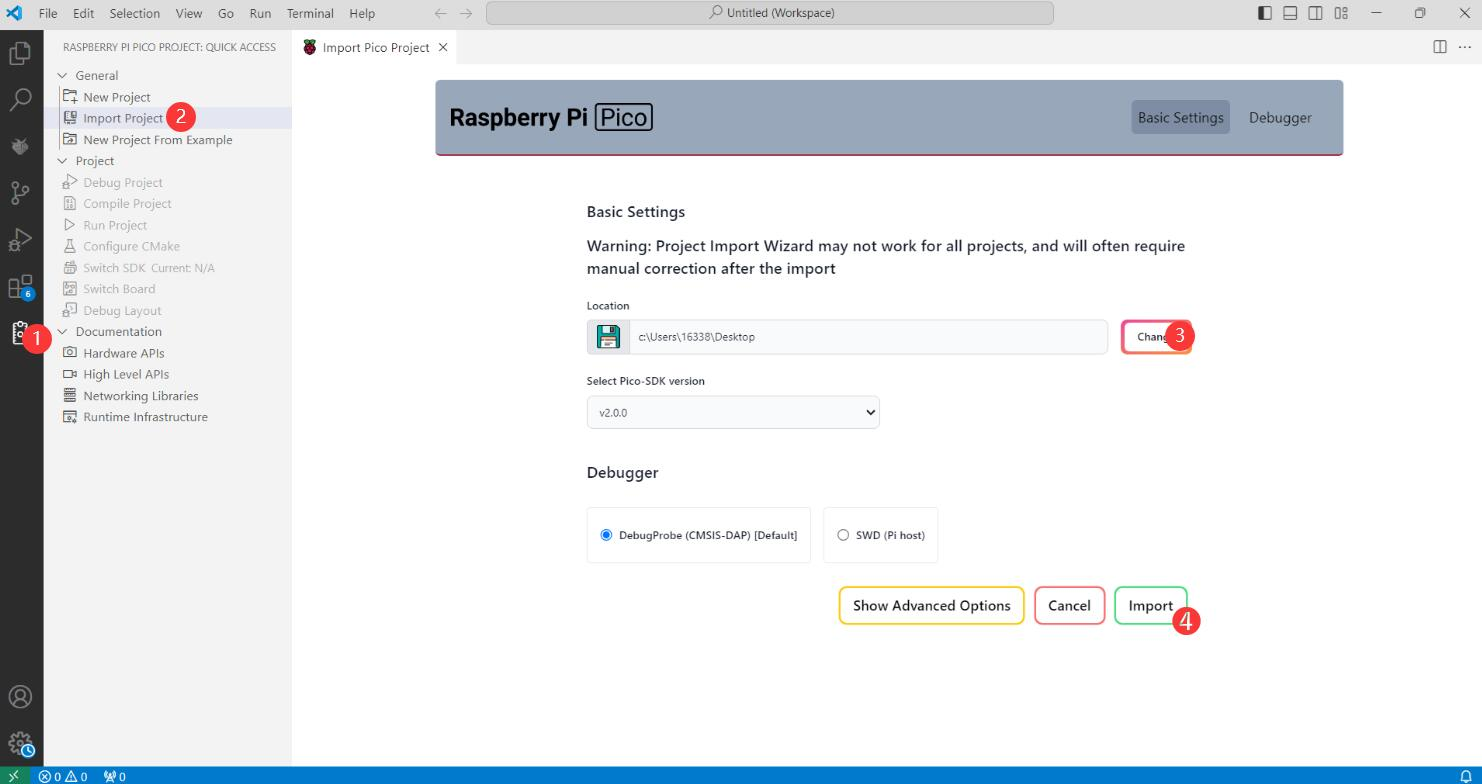
-
Important Note: The
CMakeLists.txtfile in the imported project must not contain any Chinese characters (including in comments), otherwise the import may fail. -
Development Board Configuration: After importing the project, you need to check if the
CMakeLists.txtfile contains the development board configuration code. The following configuration is required for proper switching between Pico and Pico 2: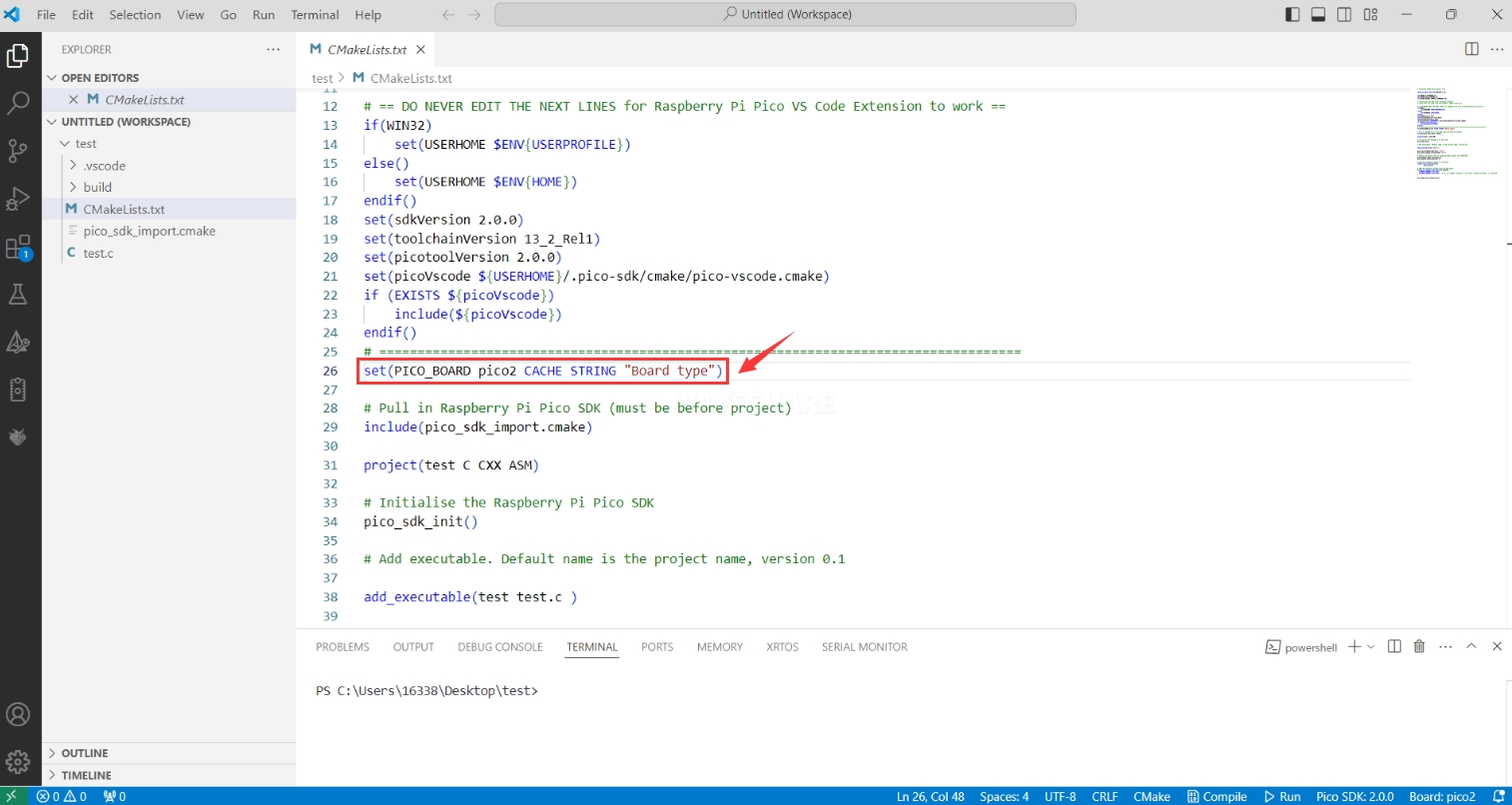 set(PICO_BOARD pico2 CACHE STRING "Board type")tip
If this configuration is not present in
CMakeLists.txt, even if Pico 2 is selected in VS Code, the compiled firmware will still be for the original Pico.
9. Debugging a C/C++ Project
The Pico/Pico 2 supports an external debugger for program flashing and debugging, allowing breakpoint analysis and runtime status inspection. Debugging the Pico/Pico 2 requires using the SWD (Serial Wire Debug) interface together with an external debugger.
You can use an RP2350-GEEK, Raspberry Pi Debug Probe, or another Pico/Pico 2 board as an external debugger. Below we describe the steps for connecting the different debuggers to the Pico/Pico 2 debugging interface for program flashing and debugging.
-
Hardware connection
- RP2350-GEEK
- Raspberry Pi Debug Probe
- Pico/Pico 2
The RP2350-GEEK is a development board designed by Waveshare for geeks. It features a USB-A male connector, a 1.14inch LCD screen, a TF card slot, and other peripherals, and breaks out SWD, UART, and I2C interfaces. After flashing the corresponding Debugprobe firmware, the RP2350-GEEK becomes a USB → SWD and UART bridge. Connect it to the Pico/Pico 2 for debugging as shown below.
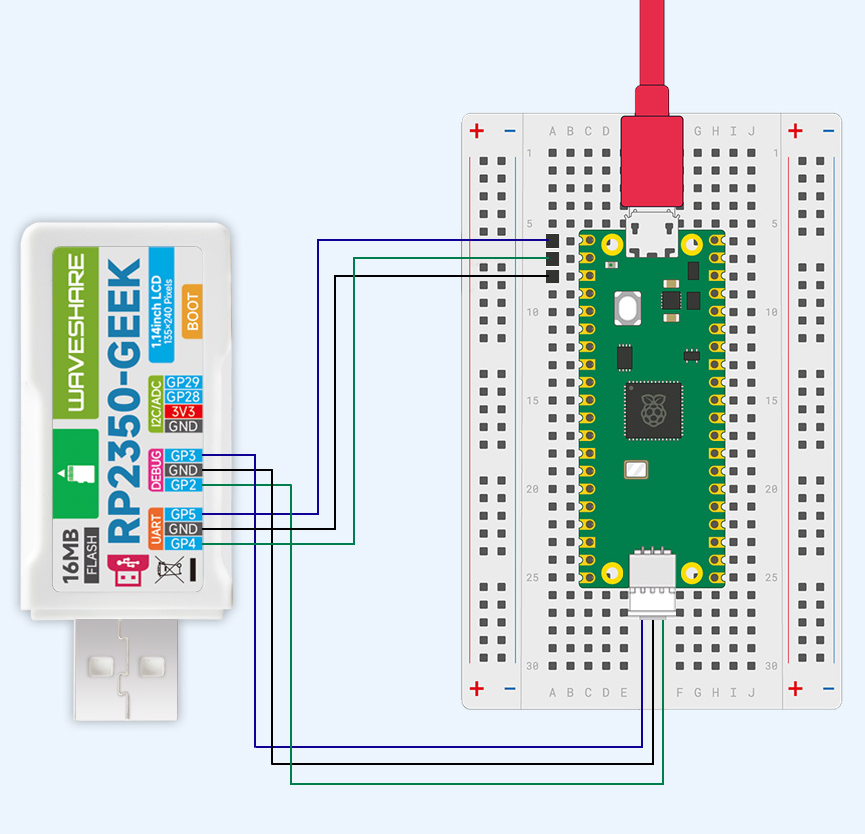
RP2350-GEEK (left) to Pico (right). Detailed connections:
RP2350-GEEK GND -> Pico GNDRP2350-GEEK GP2 -> Pico SWCLKRP2350-GEEK GP3 -> Pico SWDIORP2350-GEEK GP4/UART1 TX -> Pico GP1/UART0 RXRP2350-GEEK GP5/UART1 RX -> Pico GP0/UART0 TXThe Raspberry Pi Debug Probe is an official USB hardware debugger and programmer designed by Raspberry Pi specifically for the Pico/Pico 2. It features an integrated, solder-less, plug-and-play design. It connects to the target board via the SWD interface for debugging. Connect it to the Pico/Pico 2 as shown below.
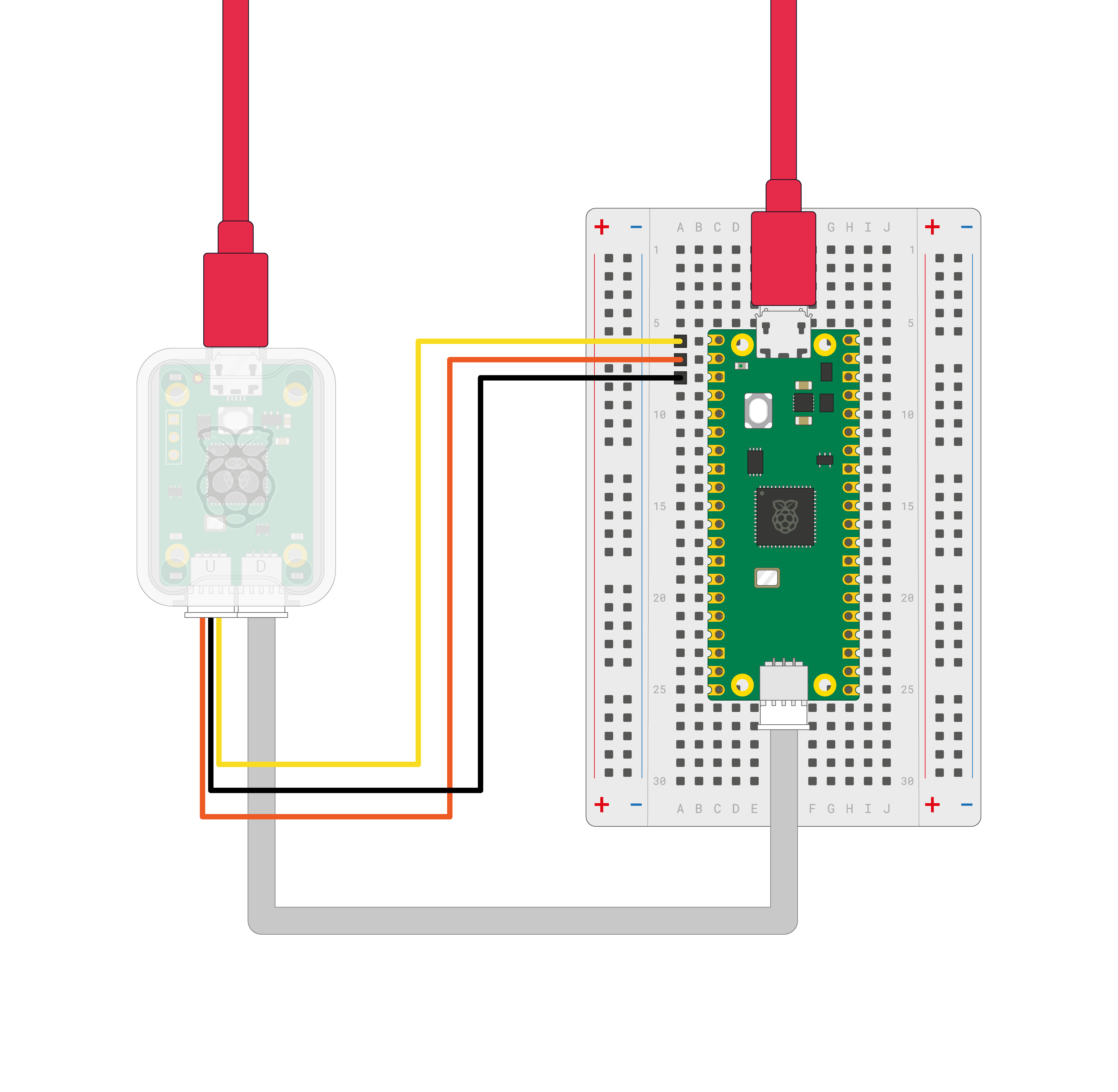
Raspberry Pi Debug Probe (left) to Pico (right). Detailed connections:
D port- Connect to Pico DEBUG SWD JST-SH connectorU port- Debug Probe RX (yellow) -> Pico GP0/UART0 TX- Debug Probe TX (orange) -> Pico GP1/UART0 RX- Debug Probe GND (black) -> Pico GNDAnother Pico/Pico 2 can also be used to flash and debug a Pico/Pico 2. After flashing the corresponding Debugprobe firmware, the Pico/Pico 2 becomes a USB → SWD and UART bridge. Connect it to the Pico/Pico 2 for debugging as shown below.
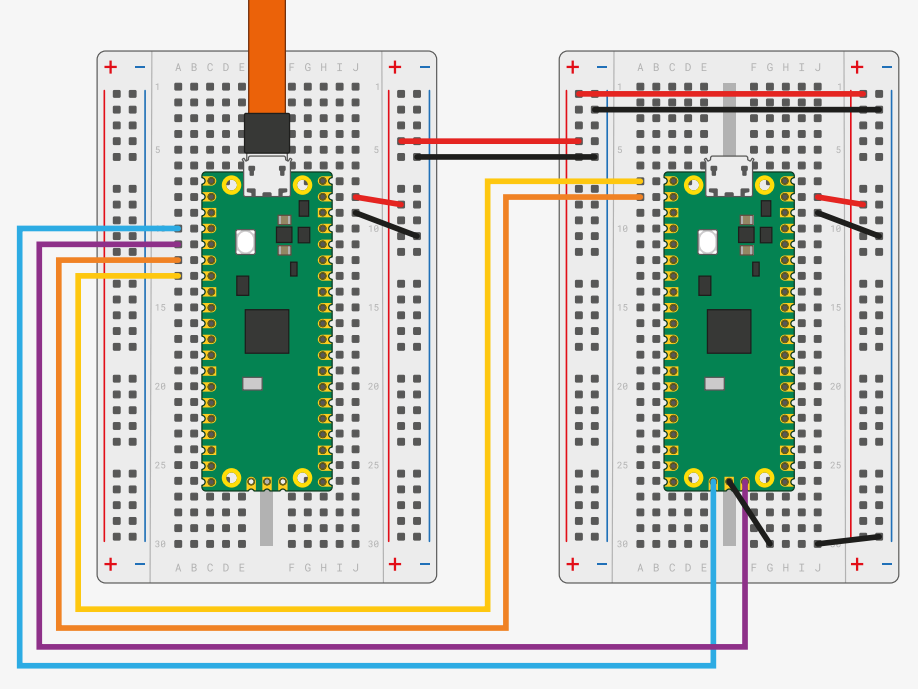
Pico A (left) acts as the debugger, Pico B (right) is the target device. Detailed connections:
Pico A GND -> Pico B GNDPico A GP2 -> Pico B SWCLKPico A GP3 -> Pico B SWDIOPico A GP4/UART1 TX -> Pico B GP1/UART0 RXPico A GP5/UART1 RX -> Pico B GP0/UART0 TX -
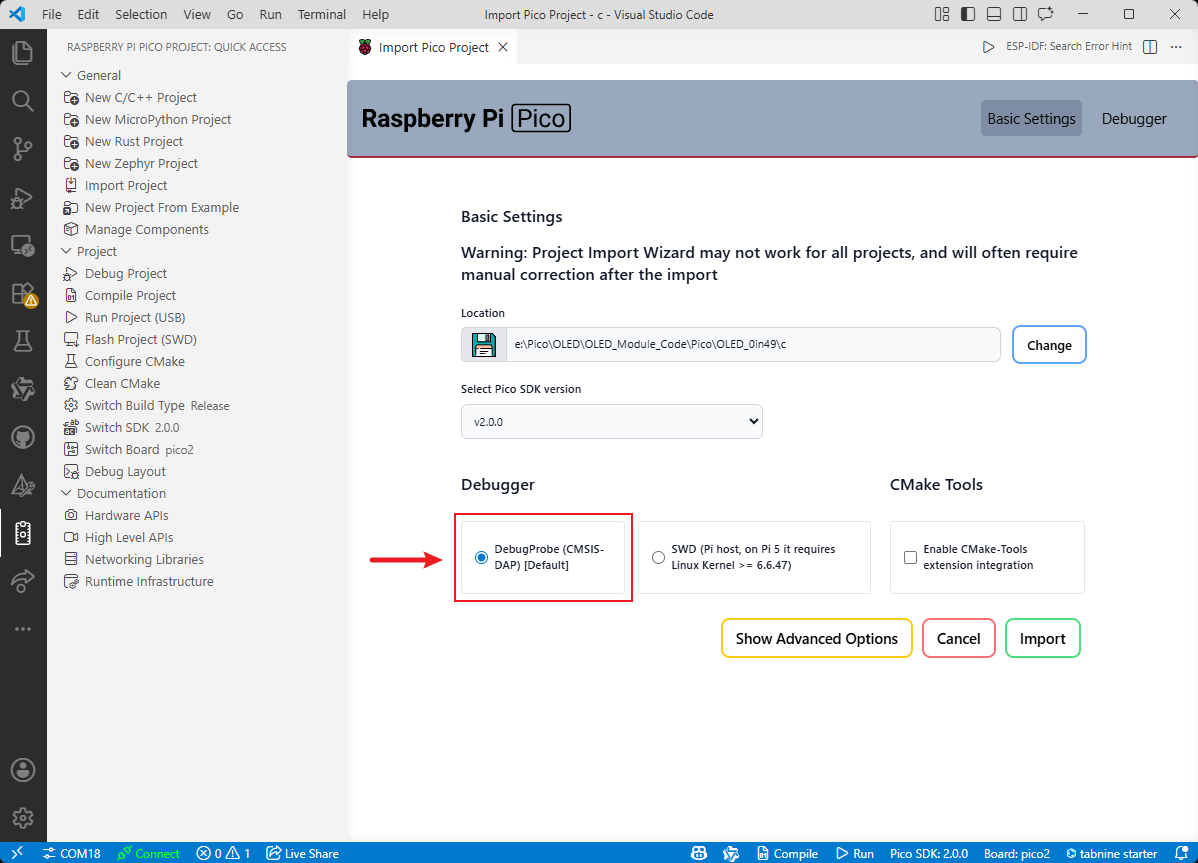
Importing the project
When creating or importing a project, select the DebugProbe debugging method.
-
Flashing the program
After connecting the debugger, you can directly use the debugger to flash the program.
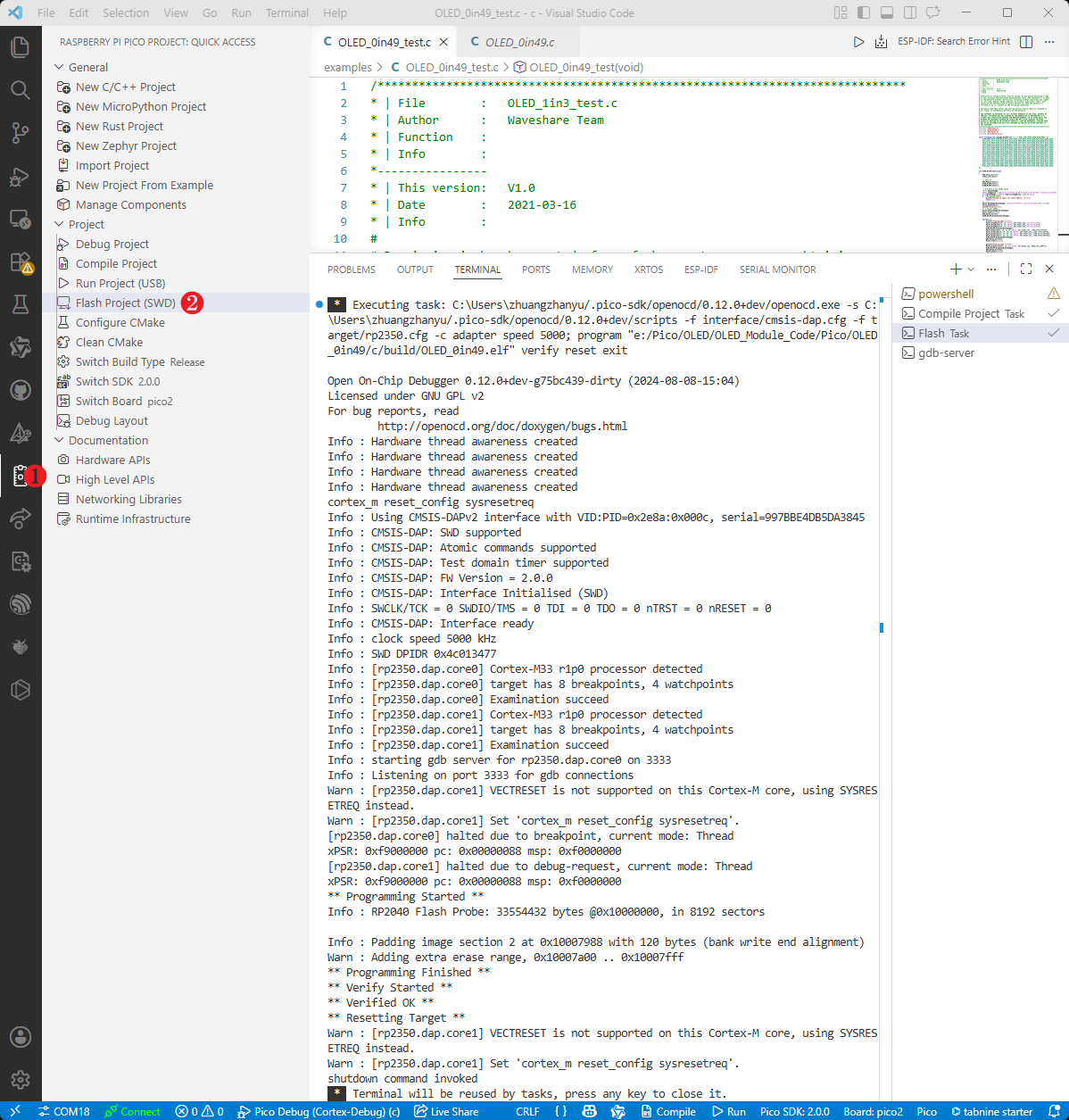
- ① Go to the Pico VS Code extension page
- ② Click SWD to flash the program
-
Debugging the program
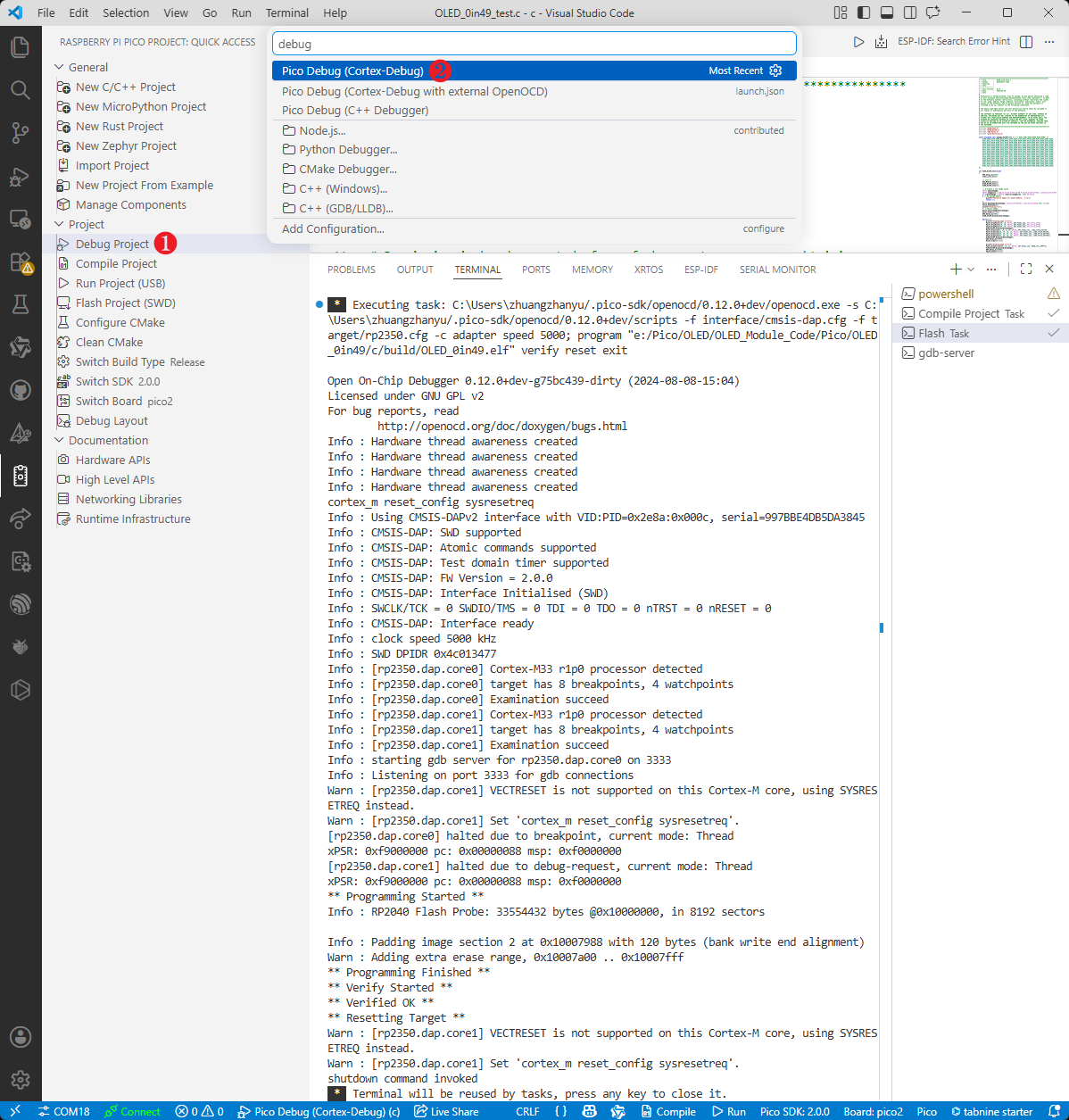
- ① Click Debug Project
- ② Select Pico Debug
-
Interface description
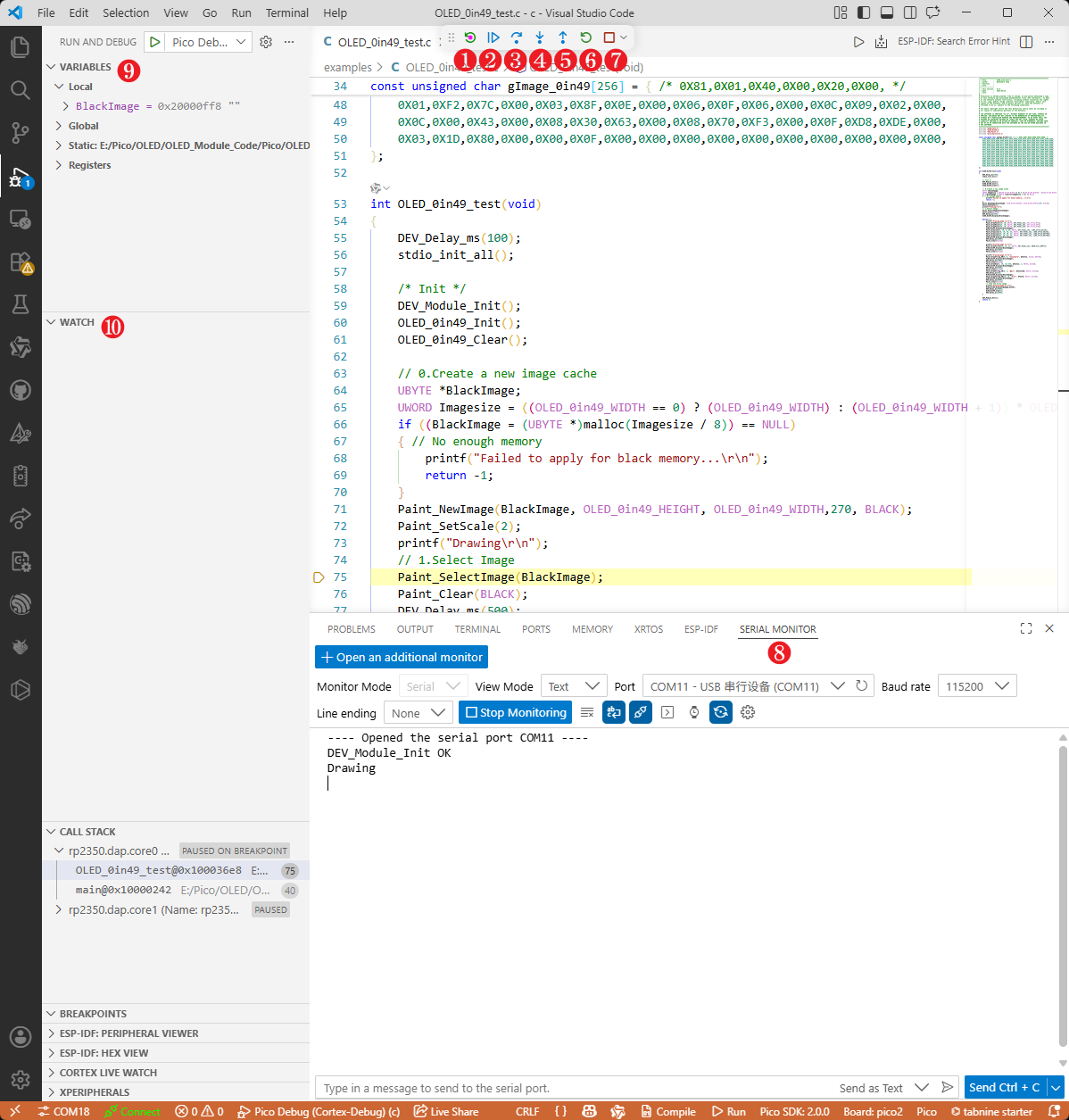
- ① Restart the device
- ② Continue running the program
- ③ Step over
- ④ Step into
- ⑤ Step out
- ⑥ Restart debugging
- ⑦ Stop debugging
- ⑧ Serial monitor
- ⑨ Variables window
- ⑩ Watch window
-
Breakpoint debugging
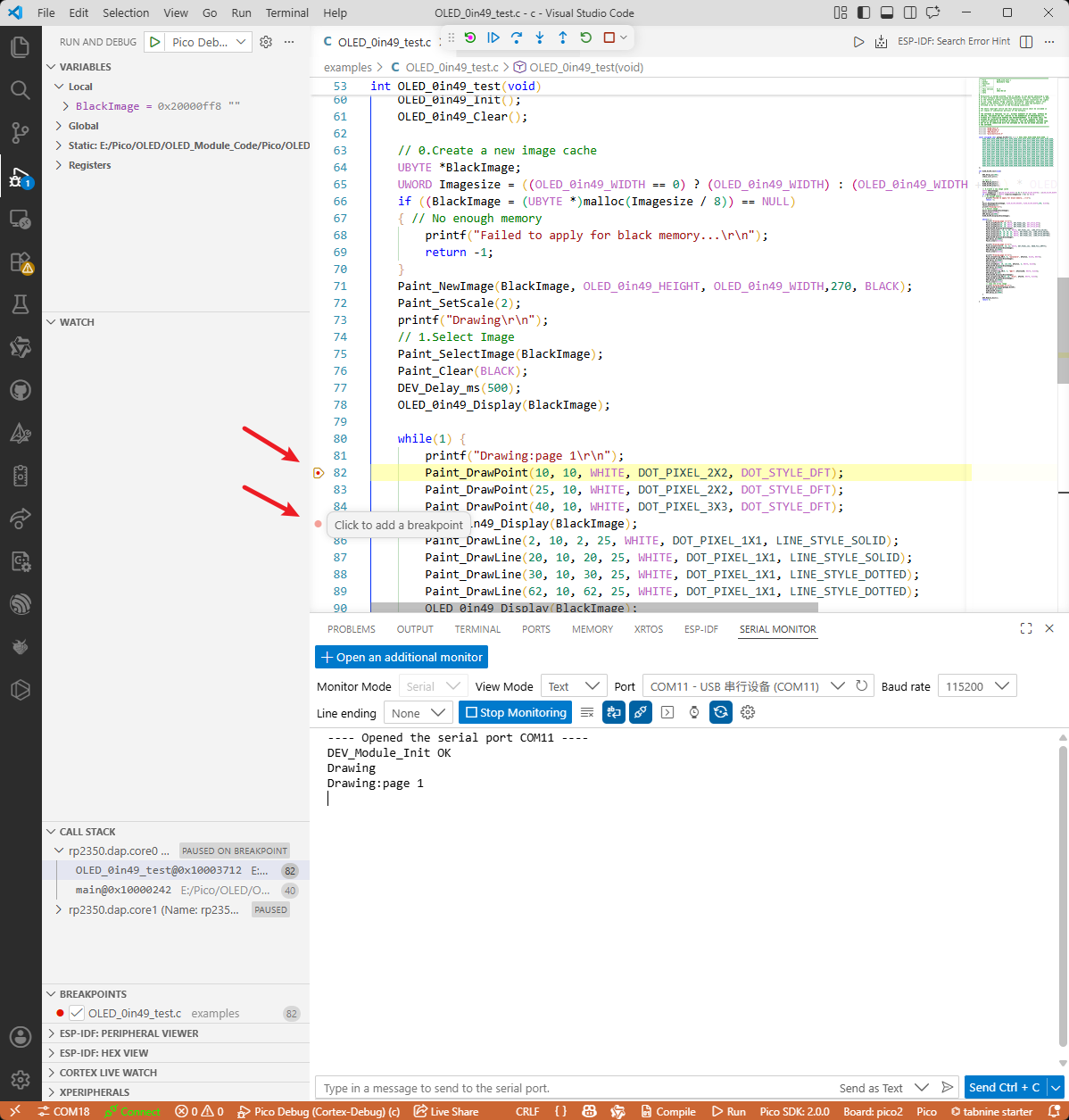
- ① Click in front of a line number to add/remove a breakpoint
- ② Breakpoints can be added or removed at any time during debugging
- ③ In multicore debugging, breakpoints can be used to switch between cores