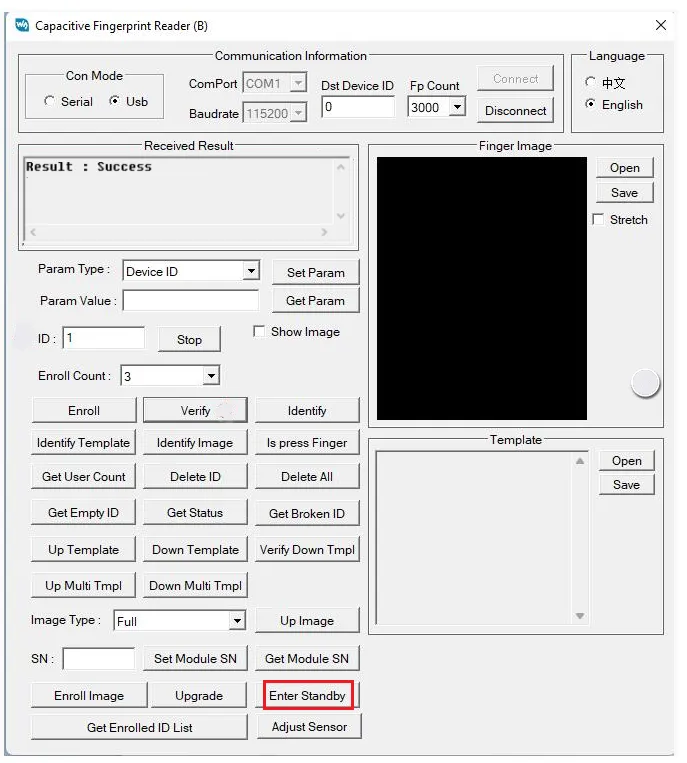
Working with Windows
The PC software can only run on a Windows PC. Serial and USB operation are identical, so the following demonstration uses USB.
For the PC software, see Resources and Documents.
Hardware Connection
UART Serial Connection
Use a USB-to-UART serial module such as the FT232 to connect to the module (other USB-to-serial modules work similarly, but you need to prepare them yourself), and install the driver corresponding to the serial module you are using.
| Module | Target Board | Notes |
|---|---|---|
| GND | GND | Power ground |
| RX | TX | UART data transmission pin, requires crossover wiring |
| TX | RX | UART data transmission pin, requires crossover wiring |
| VIN | 3.3 V | 3.3 V power input |
| IRQ | GPIO | Fingerprint touch detection pin, outputs a high level when a finger touches it, must be used together with the VT pin; can be connected to a regular GPIO pin, configured as an input |
| VT | GPIO | Touch power supply pin, used together with the IRQ pin; can be connected to a regular GPIO |
After connecting, plug the USB-to-serial module into the PC and check the corresponding COM port in Device Manager.
USB Connection
You can connect directly to the PC using the supplied USB cable. When designing your own cable, be sure to handle level conversion; the module only supports 3.3 V levels.
Finger Placement
A finger only needs to lightly touch the capture window for recognition; there is no need to press hard on the capture window.
Correct finger placement:

Wrong finger placement:

Open the Software
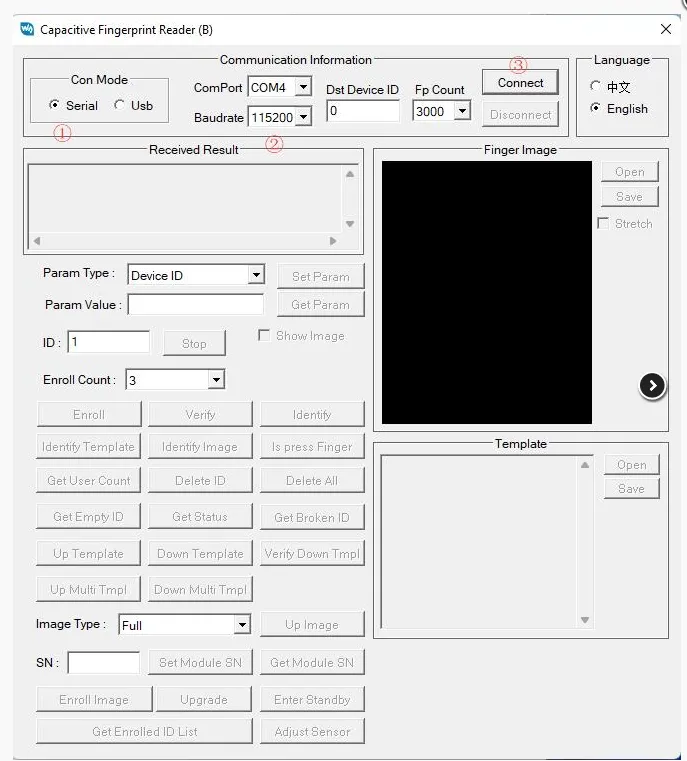
Open the PC software and select the communication method:
- Serial: Serial communication, requires selecting the baud rate and port number matching the module in the software
- Usb: USB communication
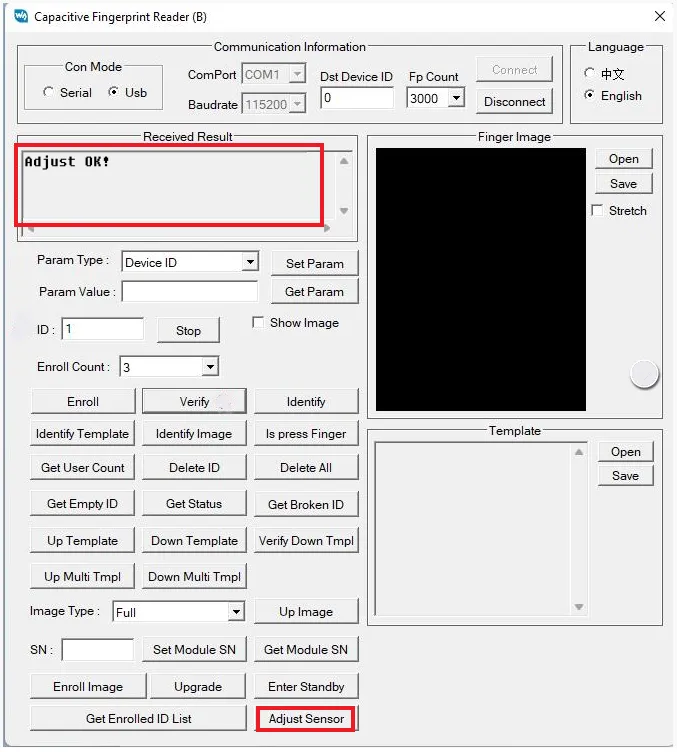
Check Communication
Click Initialize Sensor. When the connection is successful, the receive area displays "Adjust OK!".
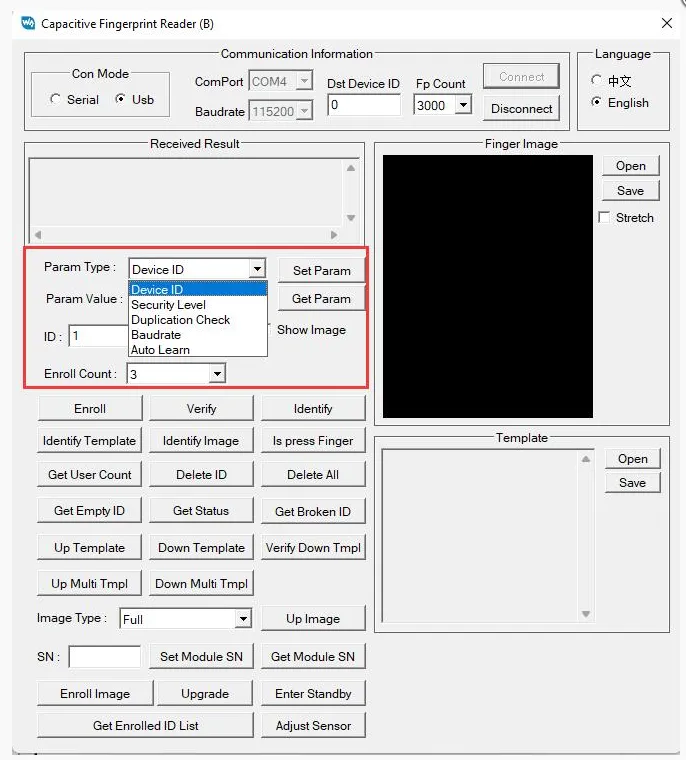
Set Parameters
Types of parameters that can be set:
- Device ID: Module device number, settable range 1 - 255
- Security Level: Security level, settable 1 - 5. The larger the value, the lower the false acceptance rate (FAR) and the higher the false rejection rate (FRR)
- Duplication Check: Fingerprint duplication check status, on / off (1 / 0)
- Baudrate: Index of the baud rate
- Auto Learn: Fingerprint template self-learning status, on / off (1 / 0)
Select the parameter type, fill in the parameter value, and click Set Param to modify the module parameters; click Get Param to read the module's current parameters.
User Enrollment
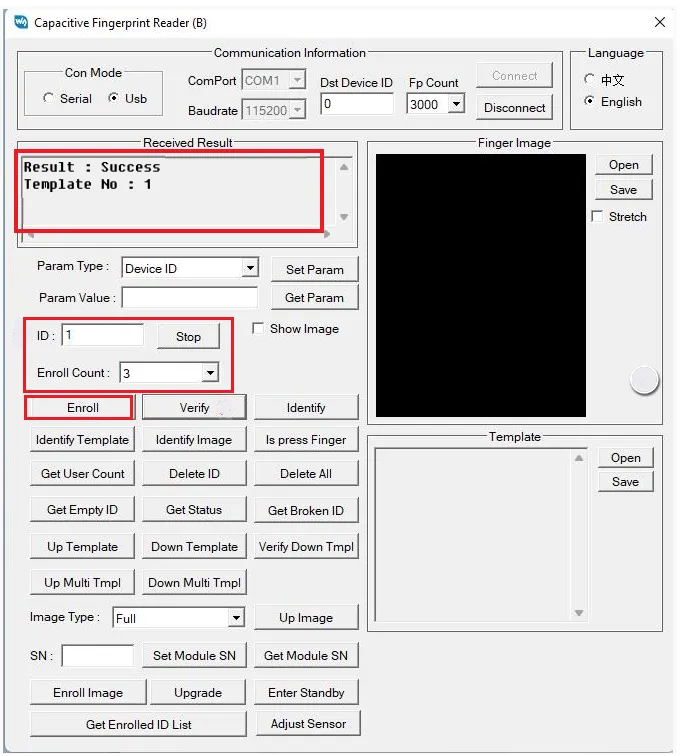
First set ID (the number under which the fingerprint is stored) and Enroll Count (how many times the finger needs to be enrolled), then click Enroll and follow the prompts step by step. On success, the receive area returns the result.
If you are unsure which ID to use, you can query available numbers via Get Empty ID, Get Status, and Get Enrolled ID List.
Fingerprint Recognition
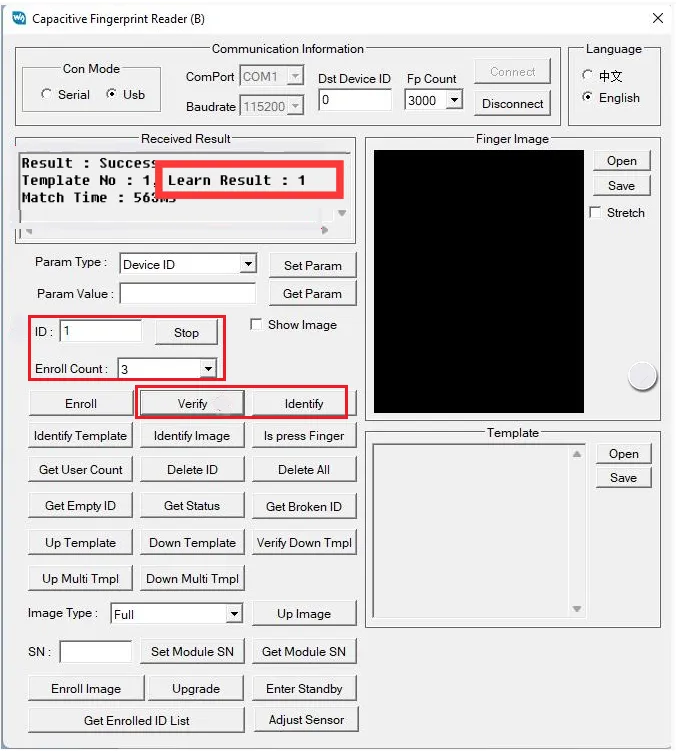
After specifying the template fingerprint ID to compare against, click Verify (1:1). When the self-learning feature is enabled, the comparison time is slightly longer than 0.5 s, and the unsaved portion of the fingerprint on the finger will be saved.
Clicking Identify (1:N) continuously compares fingerprints within the registered number range, which matches the configured fingerprint capacity; after a successful comparison, it pauses for about 0.5 s before automatically proceeding to the next comparison.
View Total User Count
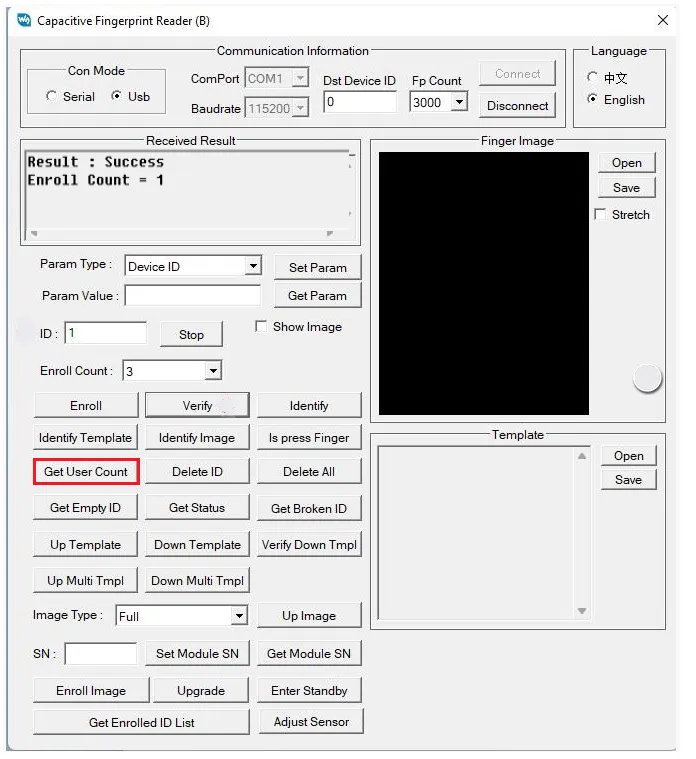
- Click Get User Count to query the number of fingerprints registered on the module; the query range matches the configured fingerprint capacity.
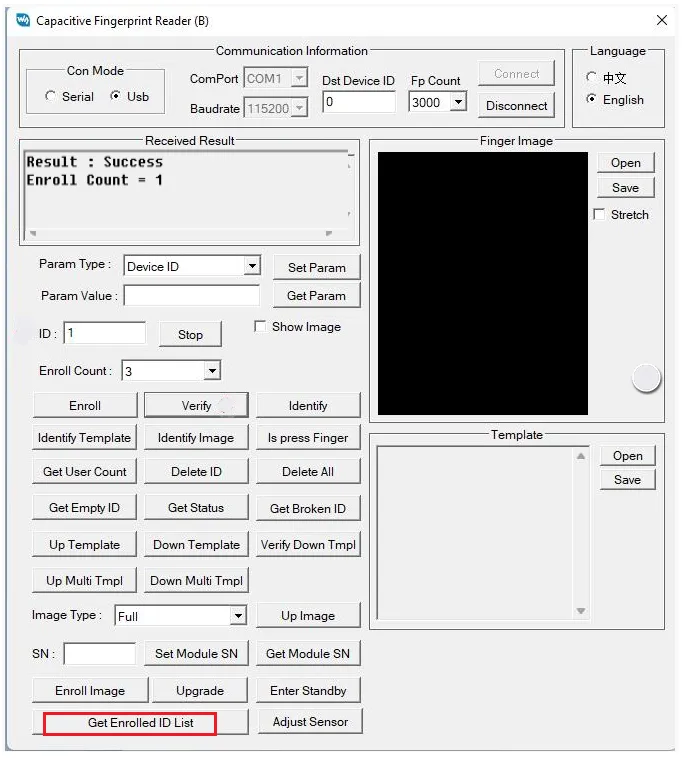
- Click Get Enrolled ID List to query the number of registered fingerprints; scroll the result area to view the registered fingerprint IDs.
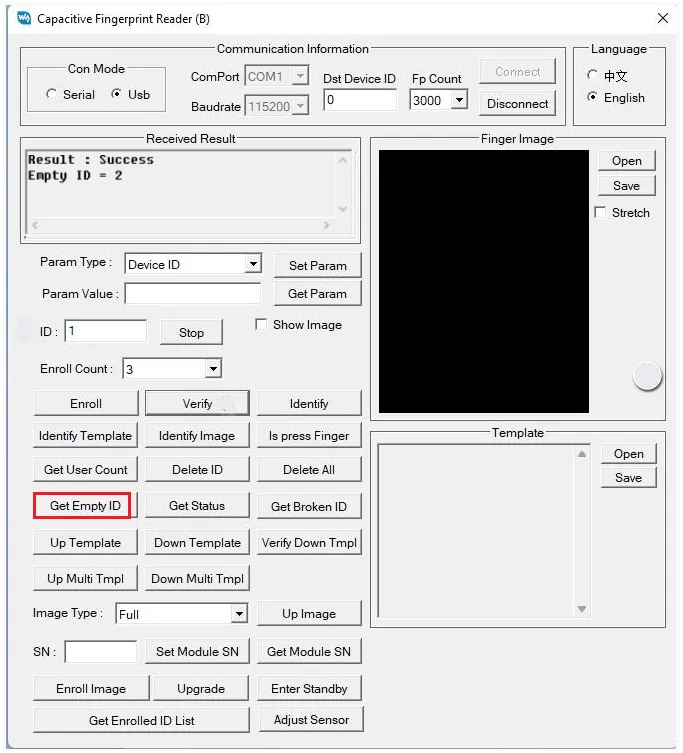
Get Empty ID
Click Get Empty ID to query, starting from ID 1, the first ID that has not been registered.
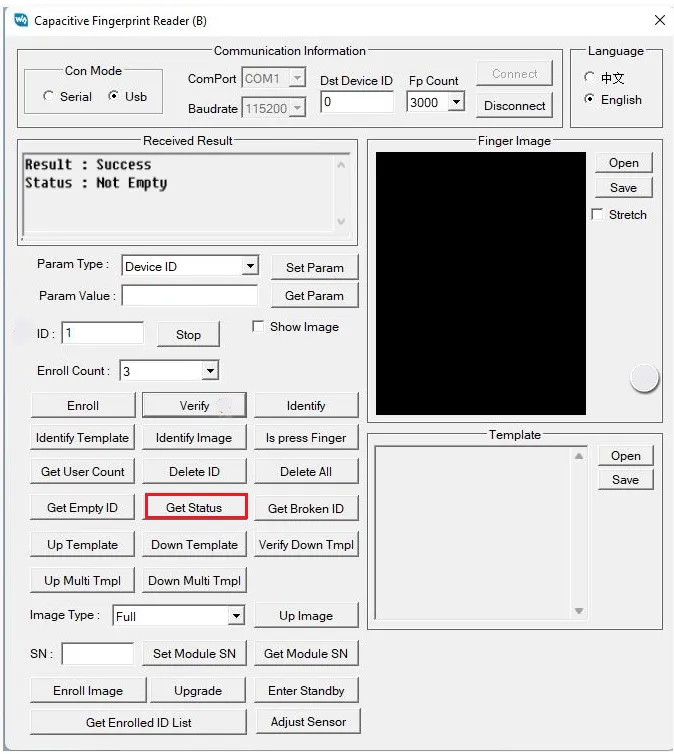
Get the Registration Status of the Current ID
Click Get Status to check whether the storage space for the current ID is empty.
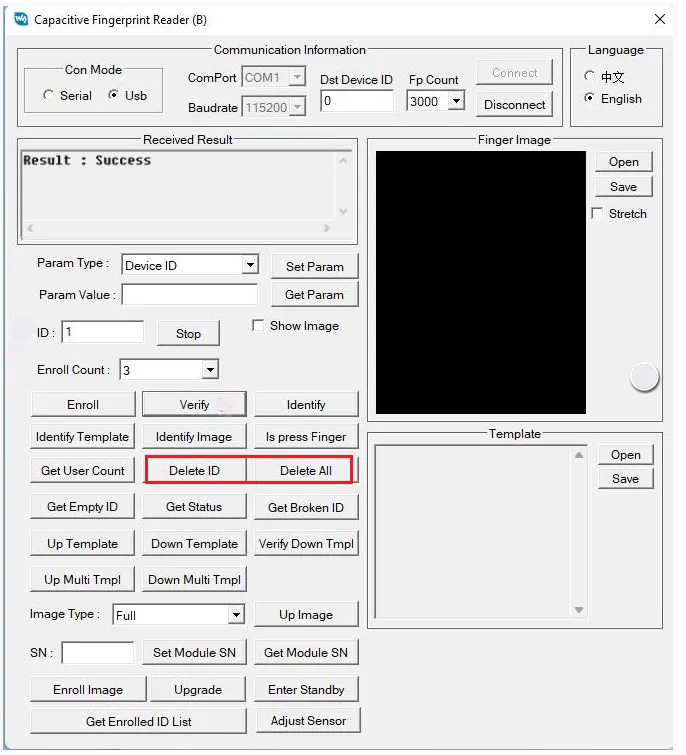
Delete Fingerprints
- Click Delete ID to delete the fingerprint for the current ID.
- Click Delete All to delete all fingerprints within the registered number range. Confirm that you no longer need to keep these fingerprints before clicking Delete All.
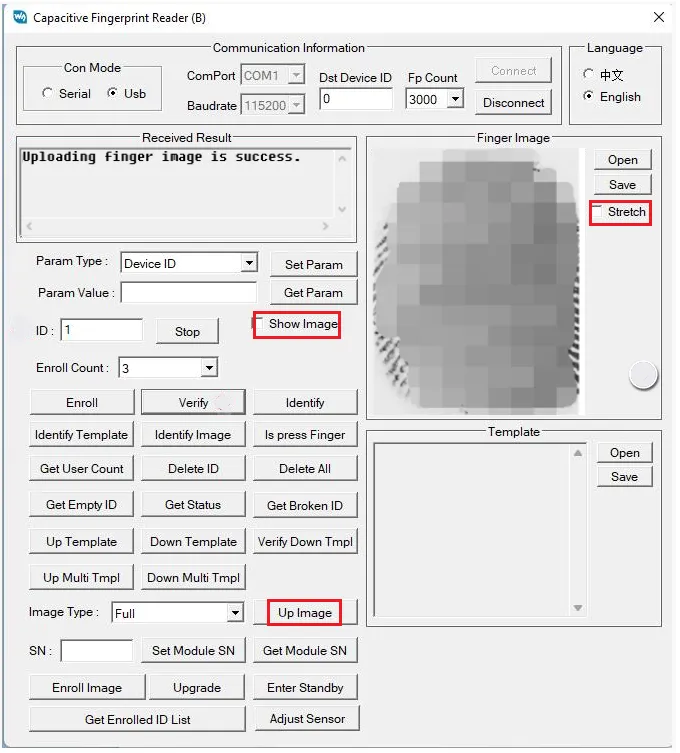
View Fingerprint Images
Click Up Image, then press a finger on the capture window to obtain the image. This method cannot be used to view already-saved fingerprints.
You can also check Show Image, and the fingerprint image will be displayed each time a fingerprint needs to be entered; in serial mode, transmitting image data takes about 6 s, so it is not recommended. Checking Stretch displays the fingerprint image across the full window.
View Fingerprint Templates
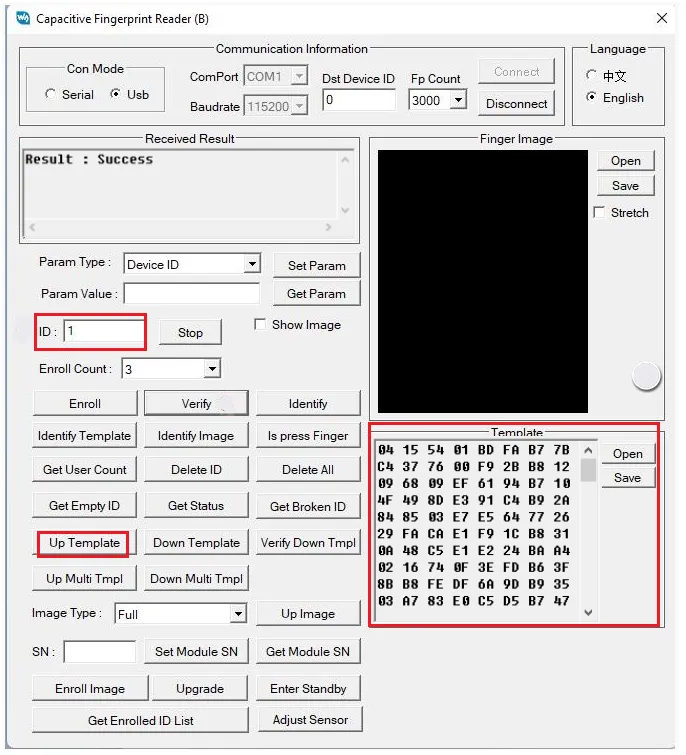
Select an ID for which a fingerprint has already been saved, and click Up Template to view the fingerprint template for that ID. This method can only be used to view already-saved fingerprints.
Click Up Multi Tmpl and select a folder to save the fingerprint data within the registered ID range to that folder in FPT format.
Enroll Users Using Fingerprint Images
First configure the ID and image count following the user enrollment steps, then click Enroll Image and select a fingerprint image file. The image size is 242 × 266.

Enroll Users Using Templates
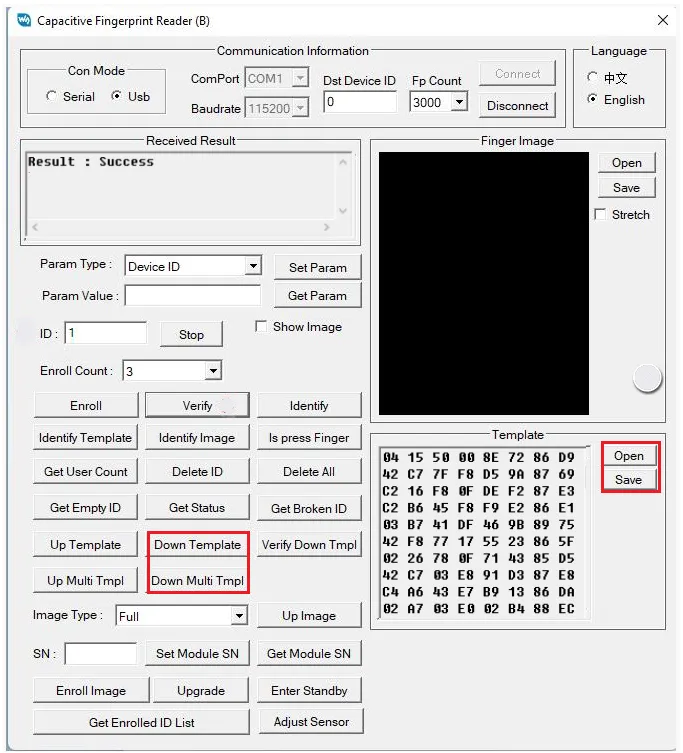
- Single download: Configure the ID, click Open to select an FPT format file, then click Download Template.
- Batch download: Click Down Multi Tmpl and select a folder; the FPT format files in the folder are downloaded to the module in sorted order, with ID numbers increasing sequentially.
Identify Using Fingerprint Images
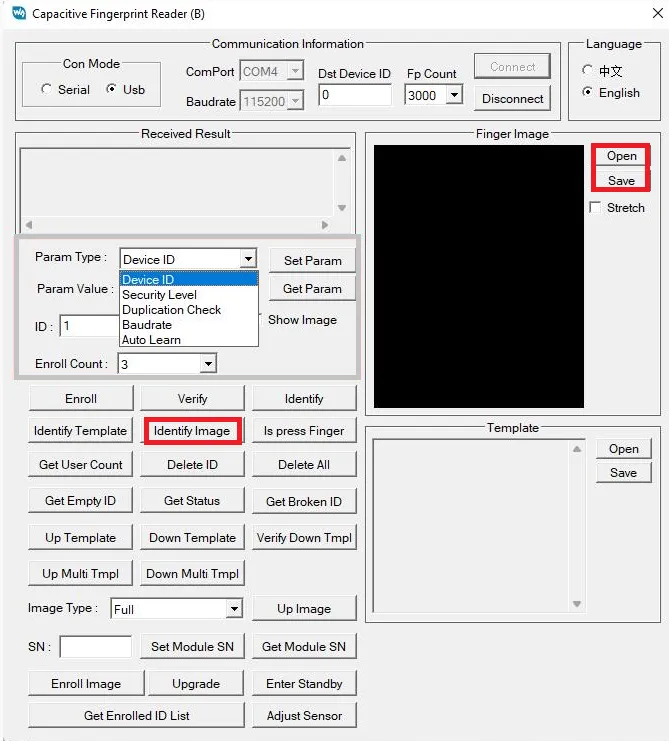
Click Open to select a fingerprint image, then click Identify Image.
Identify Using Templates
First configure the ID and image count following the user enrollment steps.
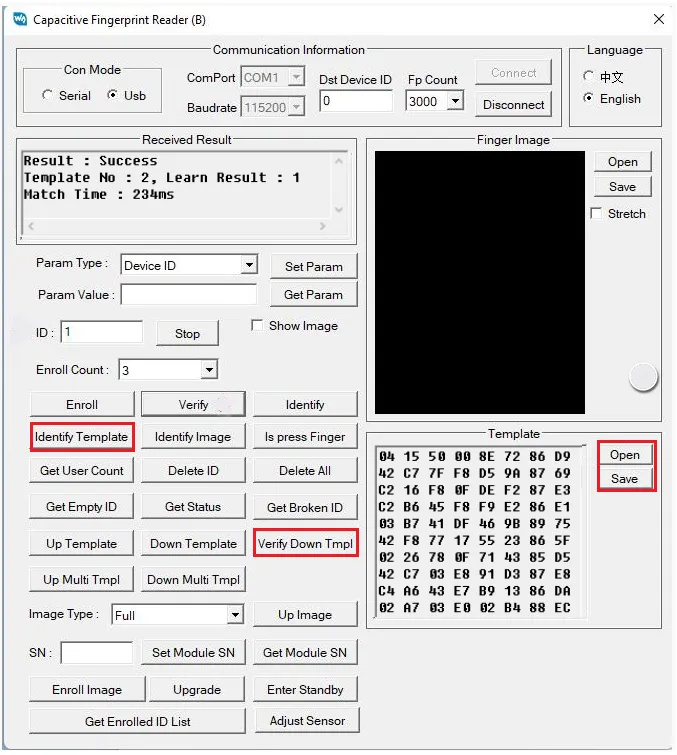
- Click Open to select an FPT format file, then click Identify Template to compare against the fingerprint template within the selected fingerprint ID.
- Click Verify Down Tmpl to compare against the pressed finger.
View Broken Templates
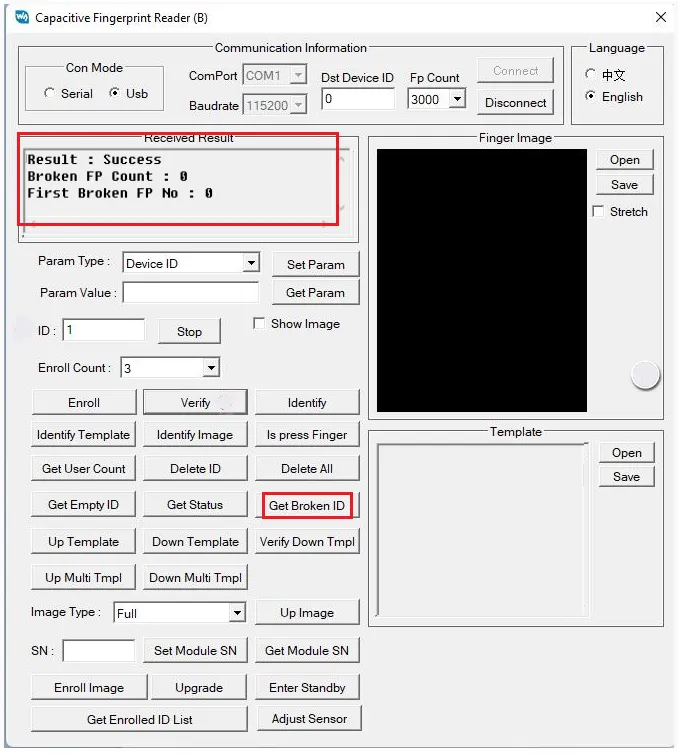
Click Get Broken ID, and the receive area displays the total number of broken templates and the ID of the first broken template.
Standby
After clicking Standby, the module enters standby mode. At this point, no operation responds, and it only recovers after being powered on again.