FAQ
Q: After downloading a program to the module, when trying to download again, sometimes it fails to connect to the serial port or the flashing fails?
- Press and hold the Reset button for more than 1 second, wait for the PC to re-recognize the device, then download again
- You can press and hold the
BOOTbutton, simultaneously pressRESET, then releaseRESET, and finally release theBOOTbutton. At this point, the module will enter download mode, which can resolve most download issues.
Q: The module keeps resetting continuously, and when checking in Device Manager, the recognition status flashes?
- This situation may be caused by an unstable USB port due to a blank Flash. You can press and hold the
BOOTbutton, simultaneously pressRESET, then releaseRESET, and finally release theBOOTbutton. At this point, the module will enter download mode to flash the firmware (program), which should resolve the issue.
Q: The first program compilation is extremely slow. How to handle it?
- The first compilation being slow is normal; just wait patiently
Q: Can't find the AppData folder. How to handle this?
- Some AppData folders are hidden by default. You can set your system to show them.
- English System: File Explorer -> View -> Check "Hidden items"
- Chinese System: File Explorer -> View -> Show -> Check "Hidden items"
Q: How to check which COM port I am using?
-
Windows System:
- ①Check via Device Manager: Press Windows + R to open the "Run" dialog box. Type
devmgmt.mscand press Enter to open Device Manager. Expand the "Ports (COM & LPT)" section. All COM ports and their current status will be listed here. - ②Check using Command Prompt: Open the Command Prompt (CMD), type the
modecommand, which will display status information for all COM ports. - ③Check Hardware Connection: If an external device is already connected to a COM port, the device typically occupies a port number. You can determine which port is being used by checking the connected hardware.
- ①Check via Device Manager: Press Windows + R to open the "Run" dialog box. Type
-
Linux System:
- ①Check using the
dmesgcommand: Open the terminal. - ②Check using the
lscommand: Typels /dev/ttyS*orls /dev/ttyUSB*to list all serial devices. - ③Check using the
setserialcommand: Typesetserial -g /dev/ttyS*to view configuration information for all serial devices.
- ①Check using the
Q: Program flashing fails when using a Mac device?
- Install the MAC driver and then flash again.
Q: What is the screen driver?
- GC9A01A
Q: Can the other six pins be used as RXTX?
- Yes, just specify the pins directly when initializing UART:

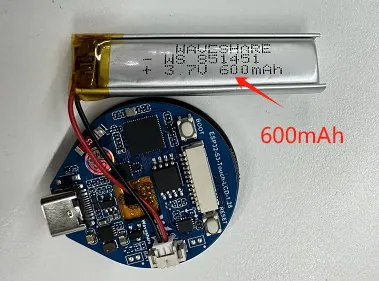
Q: What battery does the ESP32-S3-Touch-LCD-1.28 use for power?
- MX1.25 2P connector, which can be used to connect a 3.7V battery, supports charging and discharging, as shown in the figure: