FAQ
Q: After downloading the module program, if I try to download it again, sometimes I encounter issues such as inability to connect to the serial port or programming failure?
- You can hold down the BOOT button, press RESET, then release RESET, and finally release the BOOT button. This will put the module into download mode, which resolves most programming issues.
Q: Failed to set up the VSCode environment?
- First consider the network issue, try switching to another network.
Q: Error when compiling an Arduino program?
-
Check if the Arduino IDE -> Tools is properly configured.
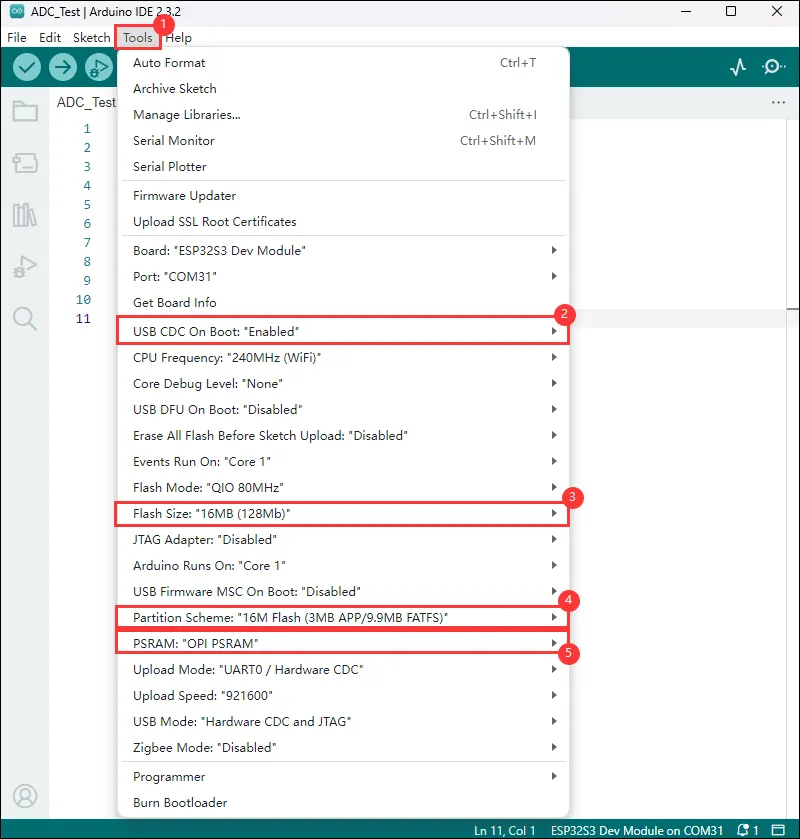
Q: The first program compilation is extremely slow. How to handle it?
- It's normal for the first compilation to be slow, just wait patiently.
Q: What should I do if I can't find the AppData folder?
- Some AppData folders are hidden by default and can be set to be displayed.
- English System: File Explorer -> View -> Check "Hidden items".
- Chinese System: File Explorer -> View -> Display -> Check "Hidden Items”.
Q: How can I check which COM port I am using?
Windows System:
- Through Device Manager: Press Windows + R to open the "Run" dialog box. Type
devmgmt.mscand press Enter to open Device Manager. Expand the "Ports (COM & LPT)" section. All COM ports and their current status will be listed here. - Using Command Prompt: Open the Command Prompt (CMD), enter the mode command, which will display status information for all COM ports.
- Check the hardware connection: If an external device is already connected to a COM port, the device typically occupies a port number. You can identify the port by checking the connected hardware.
Linux System:
- Check using the
dmesgcommand: Open the terminal. - Check using the
lscommand: Enterls /dev/ttyS*orls /dev/ttyUSB*to list all serial port devices. - Use the
setserialcommand: Entersetserial -g /dev/ttyS*to view the configuration information of all serial port devices.
Q: How to use SquareLine Studio to design interfaces?
- Please refer to SquareLine Studio Tutorial.