Working with Jetson Orin
This module is designed to fit the Jetson Orin form factor and can be directly mounted onto the Jetson Orin Nano/NX development kit.
Hardware Connection
|
|
|
-
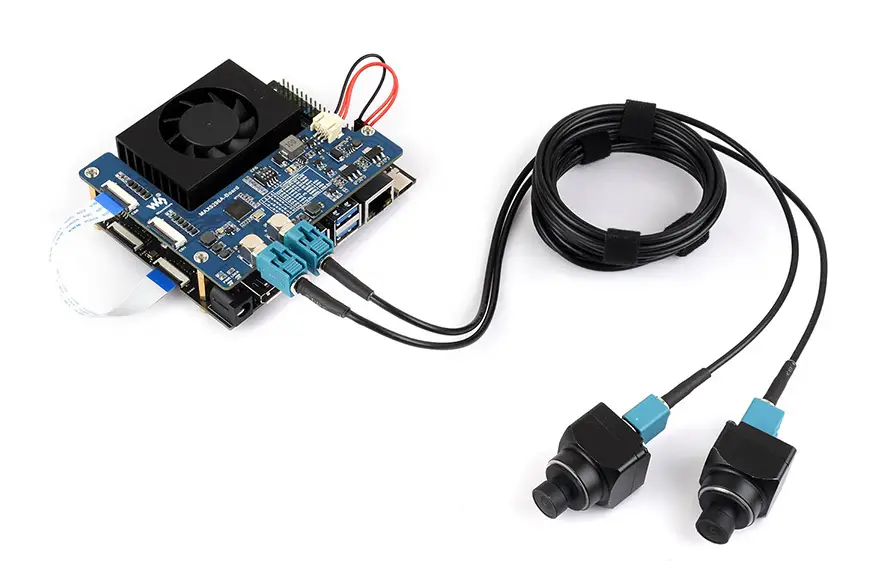
As shown in the figure, connect the CSI0 interface of the deserializer board to the CAM1 interface of the Jetson Orin mainboard using the included ribbon cable.
CSI Interface Compatibility- The CSI pin definitions of the CAM0 and CAM1 interfaces on the NVIDIA Jetson® Orin™ Nano kit are different. Currently, the deserializer board can only be connected to the CAM1 interface (official carrier board). Please refer to the relevant pin definitions and the CAM0/1 interface pinout in the Jetson® Orin™ kit schematic.
- The deserializer board only supports the 22PIN MIPI CSI (CAM1) interface of the NVIDIA Jetson® Orin™ Nano kit and Waveshare self-developed carrier boards. If using other third-party mainboards, please confirm that the camera interface is compatible with the NVIDIA official carrier board.
FPC Cable Length LimitationThe 22PIN FPC cable does not have precise impedance control. When using high-resolution cameras, the CSI data rate is high. It is recommended to use short FPC cables:
- Two 8MP cameras connected simultaneously: tested to work only with a 5 cm cable.
- Single-camera connection: 10 cm or 15 cm cables can be used.
-
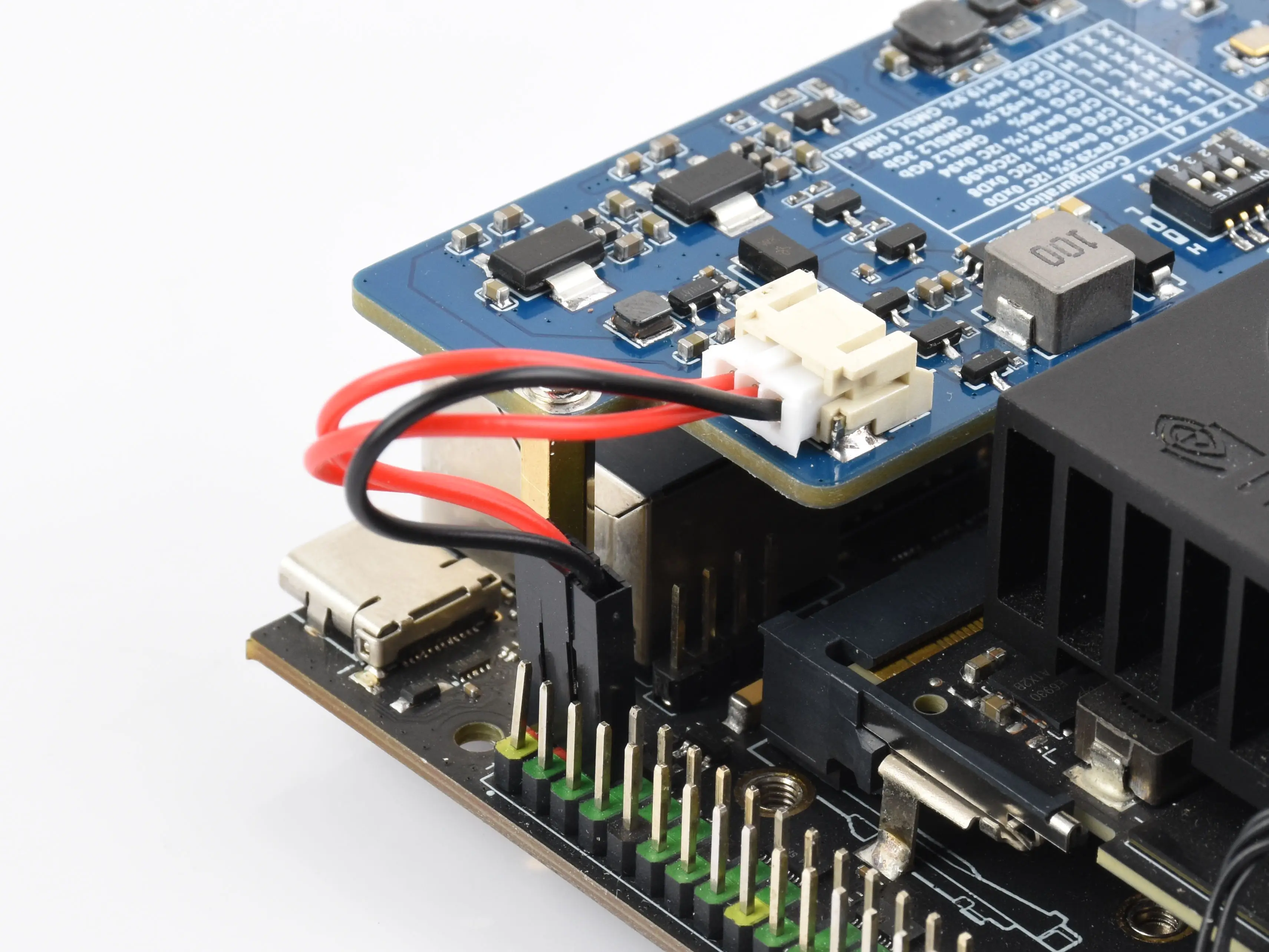
Connect the power cable to the power connector of the deserializer board and to the 5 V and GND pins on the 40PIN header of the Jetson Orin mainboard. To ensure the deserializer board receives sufficient power, please connect both 5V pins. External power supply can also be connected
-
Connect the GMSL camera to the camera interface on the deserializer board using a coaxial cable.
-
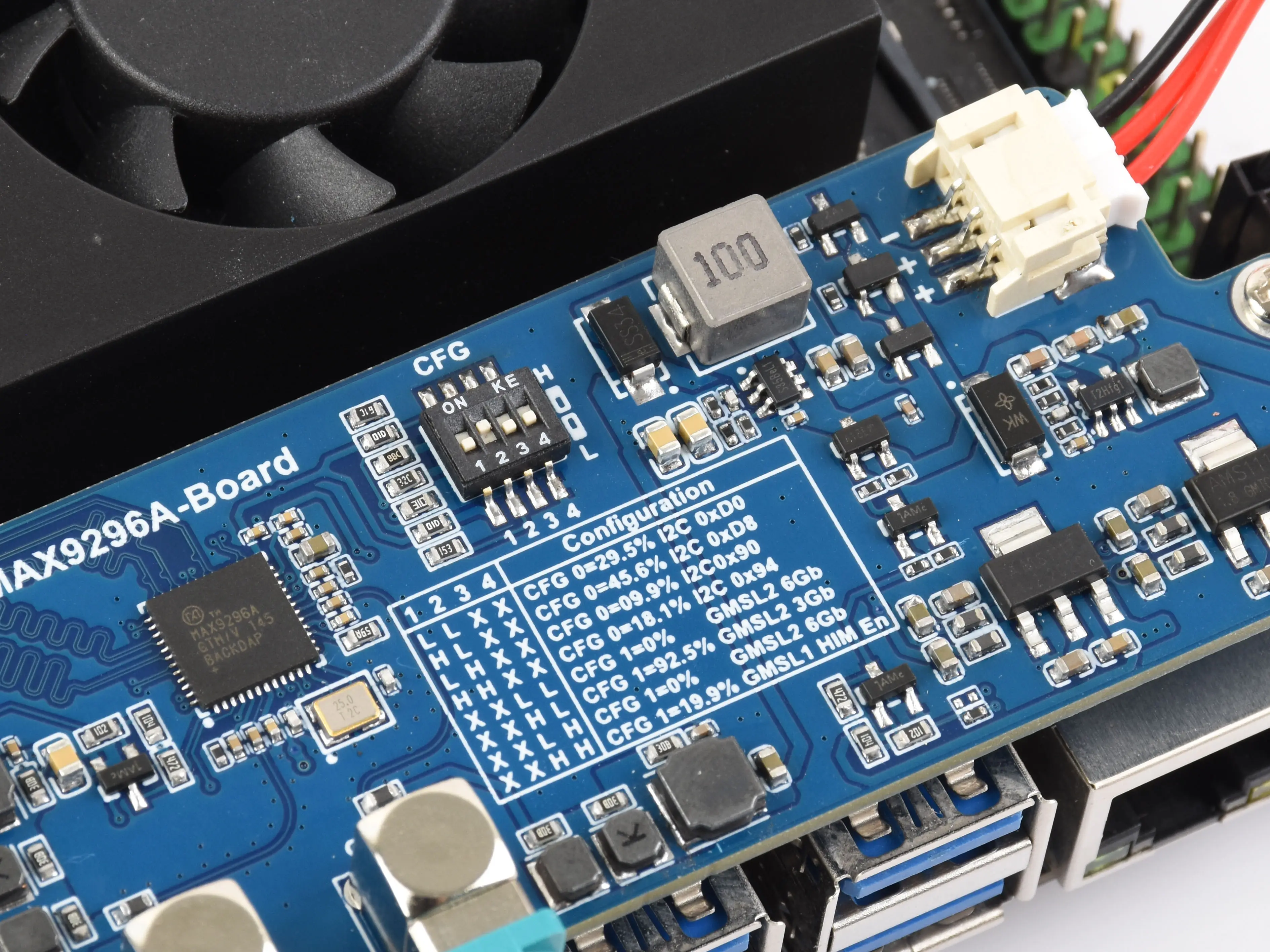
Set the CFG switch to the '0100' position as shown in the diagram (default configuration for ISX031 camera)
- The I2C address and CFG configuration after power-up will be overridden by the SerDes software configuration commands, so manual switch operation is not required.
Software Configuration
- The new driver supports R36.5.0 and R39.2 image versions. Currently, only Jetson Orin Nano and Jetson Orin NX are supported.
-
Check the current system version with the following command to ensure the image version is supported.
cat /etc/nv_tegra_release -
After powering on the mainboard, open a Terminal, download the driver package, and extract it:
wget https://files.waveshare.com/wiki/MAX9296-GMSL-Deser-Module/MAX9296-GMSL-DESER-MODULE.zipunzip MAX9296-GMSL-DESER-MODULE.zip -
Based on your kernel version, use
cdto enter the driver package directory and copy the driver files to the corresponding paths.cd MAX9296-GMSL-DESER-MODULE/R36.5/#cd MAX9296-GMSL-DESER-MODULE/R39.2/sudo cp dtbo/*.dtbo /boot/sudo cp ko/*.ko /usr/lib/modules/5.15.185-tegra/updates/drivers/media/i2c/#sudo cp ko/*.ko /usr/lib/modules/6.8.12-1021-tegra/updates/drivers/media/i2c/sudo depmod -
Configure the driver using the Jetson-IO tool:
sudo /opt/nvidia/jetson-io/jetson-io.py -
Select the corresponding camera driver based on the connected camera:
Jetson Expansion Header Tool└── Configure Jetson 22pin CSI Connector└── Configure for compatible hardware├── GMSL-1MP-Camera-A├── GMSL-2MP-Camera-A├── ISX031C-GMSL-Camera-A└── ISX031C-GMSL-Camera-B- ISX031C-GMSL-Camera-A corresponds to the ISX031C-GMSL-Camera-H100.
- ISX031C-GMSL-Camera-B corresponds to the ISX031-GMSL-Camera-H100 and ISX031-GMSL-Camera-H190.
-
Save the configuration and reboot the system.
Quick Test
Check if the Camera is Properly Recognized
sudo dmesg | grep connected
If it returns a message like /dev/video2 is connected, it indicates the camera has been properly detected.
Install gstreamer
sudo apt install \
    nvidia-l4t-gstreamer \
    gstreamer1.0-plugins-bad \
    gstreamer1.0-plugins-good \
    gstreamer1.0-plugins-base \
    gstreamer1.0-tools
Preview the Camera Feed
-
You can use the following command to perform a preview test of the camera.
- The preview test requires an HDMI or DP display to be connected. Please ensure the screen is properly connected and displaying.
- Note: Change the video device number to the one indicated in the previous detection step.
- Note: Modify the command parameters according to the resolution supported by the camera.
-
GMSL-1MP-Camera-A
gst-launch-1.0 v4l2src device=/dev/video0 ! "video/x-raw, format=(string)UYVY, width=(int)1280, height=(int)960" ! fpsdisplaysink video-sink=xvimagesink sync=falsegst-launch-1.0 v4l2src device=/dev/video1 ! "video/x-raw, format=(string)UYVY, width=(int)1280, height=(int)960" ! fpsdisplaysink video-sink=xvimagesink sync=false -
GMSL-2MP-Camera-A
gst-launch-1.0 v4l2src device=/dev/video0 ! "video/x-raw, format=(string)UYVY, width=(int)1920, height=(int)1080" ! fpsdisplaysink video-sink=xvimagesink sync=falsegst-launch-1.0 v4l2src device=/dev/video1 ! "video/x-raw, format=(string)UYVY, width=(int)1920, height=(int)1080" ! fpsdisplaysink video-sink=xvimagesink sync=false -
ISX031C-GMSL-Camera-A
gst-launch-1.0 v4l2src device=/dev/video0 ! "video/x-raw, format=(string)UYVY, width=(int)1920, height=(int)1536" ! fpsdisplaysink video-sink=xvimagesink sync=falsegst-launch-1.0 v4l2src device=/dev/video1 ! "video/x-raw, format=(string)UYVY, width=(int)1920, height=(int)1536" ! fpsdisplaysink video-sink=xvimagesink sync=false -
ISX031C-GMSL-Camera-B
gst-launch-1.0 v4l2src device=/dev/video0 ! "video/x-raw, format=(string)UYVY, width=(int)1920, height=(int)1536" ! fpsdisplaysink video-sink=xvimagesink sync=falsegst-launch-1.0 v4l2src device=/dev/video1 ! "video/x-raw, format=(string)UYVY, width=(int)1920, height=(int)1536" ! fpsdisplaysink video-sink=xvimagesink sync=false