Working with C/C++
This chapter contains the following sections. Please read as needed:
Setting Up Development Environment
Please refer to the Install and Configure Pico C/C++ Development Environment Tutorial to download and install the Pico VSCode.
Demo
The C/C++ demos are located in the examples\C directory of the demo package.
| Demo | Basic Program Description | Dependency Library |
|---|---|---|
| 01_GUI | LCD GUI display program | - |
| 02_ES8311 | Development board audio test program | - |
| 03_FatFs | FAT file system, TF card supports SPI/SDIO communication | - |
01_GUI
Demo Description
- Uses SPI to communicate with the LCD and implements functions like displaying text and images via GUI.
Hardware Connection
- Connect the board to the computer using a USB cable
Code Analysis
Underlying Hardware Interface
We have encapsulated the hardware operations at a low level. Due to differences in hardware platforms, the internal implementations vary. If you need to understand the internal implementation, you can check the corresponding directory. Many definitions can be seen in DEV_Config.c(.h) under the directory: lib\Config.
-
Module initialization and exit handling
void DEV_Module_Init(void);
void DEV_Module_Exit(void);tipThis handles GPIO operations before using the LCD and after finishing use.
-
GPIO read/write
void 	DEV_Digital_Write(uint_16 Pin, uint_8 Value);
uint_8 DEV_Digital_Read(uint_16 Pin); -
SPI write data
void DEV_SPI_WriteByte(uint_8 Value);
Upper Layer Applications
For the screen, what if you need to paint, display Chinese and English characters, display pictures, etc., these are all done by the upper layer applications. Many users have asked about graphical processing. We provide some basic functionalities in the GUI, located in the directory: lib\GUI\GUI_Paint.c(.h).

The character fonts that the GUI depends on are located in the directory: lib\Fonts.

-
Create Image Attribute: Create a new image attribute, which includes the name, width, height, rotation angle, and color of the image cache.
void Paint_NewImage(uint16_t *image, uint16_t Width, uint16_t Height, uint16_t Rotate, uint16_t Color)
Parameters:
    image:  The name of the image cache, which is essentially a pointer to the starting address of the image cache;
    Width:  The width of the image cache;
    Height: The height of image cache;
    Rotate: The rotation angle of the image;
Color: The initial color of the image; -
Select Image Cache: Selects an image cache. The purpose of this selection is to allow you to create multiple image attributes. Since multiple image caches can exist, you can select each image you have created.
void Paint_SelectImage(uint8_t *image)
Parameters:
image: The name of the image cache, which is essentially a pointer to the starting address of the image cache; -
Image Rotation: Set the rotation angle for the selected image. It is best to use this after
Paint_SelectImage(). You can choose rotation angles of 0, 90, 180, or 270 degrees.void Paint_SetRotate(uint16_t Rotate)
Parameters:
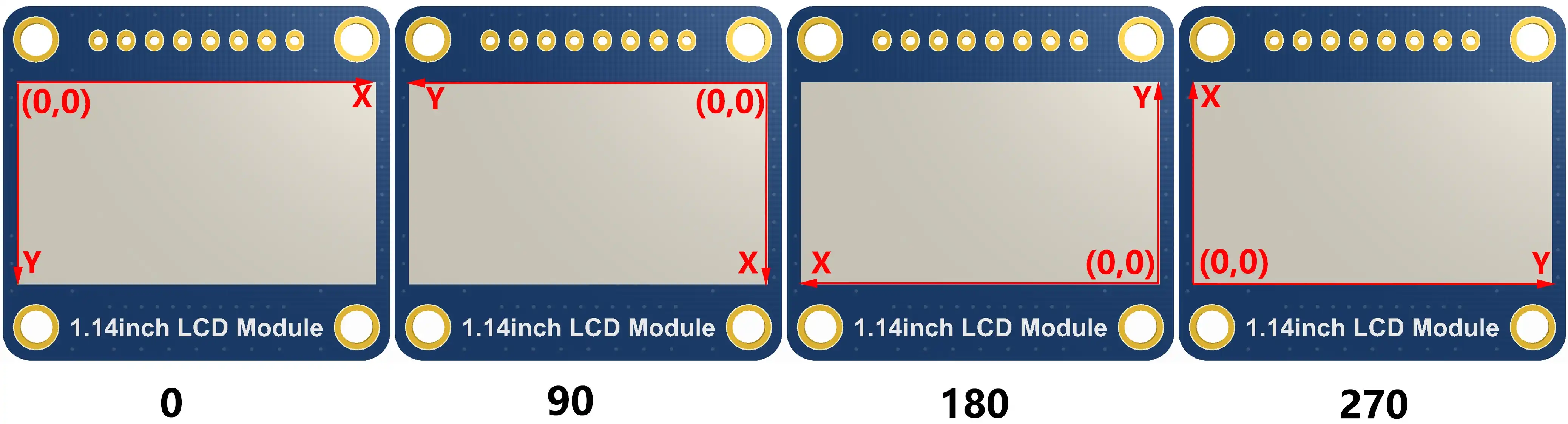
Rotate: The image rotation angle. You can choose ROTATE_0, ROTATE_90, ROTATE_180, ROTATE_270 corresponding to 0, 90, 180, 270 degrees respectively.tipThe starting pixel for coordinates differs under different rotation angles. Taking 1.14 as an example, the four images correspond to 0°, 90°, 180°, and 270° in order. This is for reference only.
-
Image Mirroring: Set mirroring for the selected image. You can choose no mirroring, horizontal mirroring, vertical mirroring, or mirroring about the image center.
void Paint_SetMirroring(uint8_t mirror)
Parameters:
mirror: The mirroring method for the image. You can choose MIRROR_NONE, MIRROR_HORIZONTAL, MIRROR_VERTICAL, MIRROR_ORIGIN corresponding to no mirroring, horizontal mirroring, vertical mirroring, and mirroring about the image center respectively. -
Set Pixel Display Position and Color in Cache: This is one of the core GUI functions, handling the display position and color of a pixel within the cache.
void Paint_SetPixel(uint16_t Xpoint, uint16_t Ypoint, uint16_t Color)
Parameters:
    Xpoint: The X-coordinate of the point within the image cache;
    Ypoint: The Y-coordinate of the point within the image cache;
Color: The display color of the point; -
Fill Image Cache with Color: Fills the image cache with a specific color, typically used to clear the screen to white.
void Paint_Clear(uint16_t Color)
Parameters:
Color: The filled color -
Fill Partial Window in Image Cache with Color: Fill a specific window area within the image cache with a color, often used to clear a window to white, such as when updating time displays to clear the previous second.
void Paint_ClearWindows(uint16_t Xstart, uint16_t Ystart, uint16_t Xend, uint16_t Yend, uint16_t Color)
Parameters:
    Xstart: The X starting coordinate of the window;
    Ystart: The Y starting coordinate of the window;
    Xend:   The X ending coordinate of the window;
    Yend:   The Y ending coordinate of the window;
Color: The filled color -
Draw Dot: Draw a dot at (Xpoint, Ypoint) in the image cache. You can choose the color, the size, and the style of the dot.
void Paint_DrawPoint(uint16_t Xpoint, uint16_t Ypoint, uint16_t Color, DOT_PIXEL Dot_Pixel, DOT_STYLE Dot_Style)
Parameters:
    Xpoint: The X-coordinate of the dot;
    Ypoint: The Y-coordinate of the dot;
    Color:  The filled color
    Dot_Pixel: The size of the dot, with 8 default sizes provided:
        typedef enum {
            DOT_PIXEL_1X1  = 1, 	// 1 x 1
            DOT_PIXEL_2X2  , 		// 2 X 2
            DOT_PIXEL_3X3  , 	 	// 3 X 3
            DOT_PIXEL_4X4  , 	 	// 4 X 4
            DOT_PIXEL_5X5  , 		// 5 X 5
            DOT_PIXEL_6X6  , 		// 6 X 6
            DOT_PIXEL_7X7  , 		// 7 X 7
            DOT_PIXEL_8X8  , 		// 8 X 8
        } DOT_PIXEL;
    Dot_Style: The style of the dot, defining the method to expand the size of the dot is that, whether to expand from the dot as the center or from the dot as the lower left corner to the upper right.
        typedef enum {
        DOT_FILL_AROUND  = 1,
        DOT_FILL_RIGHTUP,
} DOT_STYLE; -
Draw Line: Draw a line from (Xstart, Ystart) to (Xend, Yend) in the image cache. You can select the color, line width, and line style.
void Paint_DrawLine(uint16_t Xstart, uint16_t Ystart, uint16_t Xend, uint16_t Yend, uint16_t Color, LINE_STYLE Line_Style , LINE_STYLE Line_Style)
Parameters:
    Xstart: The X starting coordinate of the line;
    Ystart: The Y starting coordinate of the line;
    Xend:   The X ending coordinate of the line;
    Yend:   The Y ending coordinate of the line;
    Color:  The filled color
    Line_width: The width of the line, with 8 default widths provided:
        typedef enum {
            DOT_PIXEL_1X1  = 1, 	// 1 x 1
            DOT_PIXEL_2X2  , 		// 2 X 2
            DOT_PIXEL_3X3  ,		// 3 X 3
            DOT_PIXEL_4X4  ,		// 4 X 4
            DOT_PIXEL_5X5  , 		// 5 X 5
            DOT_PIXEL_6X6  , 		// 6 X 6
            DOT_PIXEL_7X7  , 		// 7 X 7
            DOT_PIXEL_8X8  , 		// 8 X 8
        } DOT_PIXEL;
    Line_Style: The line style, choosing between solid line connection or dotted line connection
        typedef enum {
            LINE_STYLE_SOLID = 0,
            LINE_STYLE_DOTTED,
} LINE_STYLE; -
Draw Rectangle: Draw a rectangle from (Xstart, Ystart) to (Xend, Yend) in the image cache. You can select the color, line width, and whether to fill the interior of the rectangle.
void Paint_DrawRectangle(uint16_t Xstart, uint16_t Ystart, uint16_t Xend, uint16_t Yend, uint16_t Color, DOT_PIXEL Line_width, DRAW_FILL Draw_Fill)
Parameters:
    Xstart: The X starting coordinate of the rectangle;
    Ystart: The Y starting coordinate of the rectangle;
    Xend:   The X ending coordinate of the rectangle;
    Yend:   The Y ending coordinate of the rectangle;
    Color:  The filled color
    Line_width: The width of the rectangle's four sides, with 8 default widths provided:
        typedef enum {
            DOT_PIXEL_1X1  = 1, 	// 1 x 1
            DOT_PIXEL_2X2  , 		// 2 X 2
            DOT_PIXEL_3X3  ,		// 3 X 3
            DOT_PIXEL_4X4  ,		// 4 X 4
            DOT_PIXEL_5X5  , 		// 5 X 5
            DOT_PIXEL_6X6  , 		// 6 X 6
            DOT_PIXEL_7X7  , 		// 7 X 7
            DOT_PIXEL_8X8  , 		// 8 X 8
        } DOT_PIXEL;
    Draw_Fill: Fill option, determining whether to fill the interior of the rectangle:
        typedef enum {
            DRAW_FILL_EMPTY = 0,
            DRAW_FILL_FULL,
} DRAW_FILL; -
Draw Circle: Draw a circle with center at (X_Center, Y_Center) and a radius of Radius in the image cache, and you can choose the color. You can select the color, line width, and whether to fill the interior of the circle.
void Paint_DrawCircle(uint16_t X_Center, uint16_t Y_Center, uint16_t Radius, uint16_t Color, DOT_PIXEL Line_width, DRAW_FILL Draw_Fill)
Parameters:
    X_Center: The X-coordinate of the circle's center;
    Y_Center: The Y-coordinate of the circle's center;
    Radius:  The radius of the circle;
    Color:    The filled color
    Line_width: The width of the circle's arc, with 8 default widths provided:
        typedef enum {
            DOT_PIXEL_1X1  = 1, 	// 1 x 1
            DOT_PIXEL_2X2  , 		// 2 X 2
            DOT_PIXEL_3X3  ,		// 3 X 3
            DOT_PIXEL_4X4  ,		// 4 X 4
            DOT_PIXEL_5X5  , 		// 5 X 5
            DOT_PIXEL_6X6  , 		// 6 X 6
            DOT_PIXEL_7X7  , 		// 7 X 7
            DOT_PIXEL_8X8  , 		// 8 X 8
        } DOT_PIXEL;
    Draw_Fill: Fill option, determining whether to fill the interior of the circle:
        typedef enum {
            DRAW_FILL_EMPTY = 0,
            DRAW_FILL_FULL,
} DRAW_FILL; -
Draw Ascii Character: Draw an Ascii character in the image cache with (Xstart, Ystart) as the top-left vertex. You can select the Ascii visible character font, foreground color, and background color.
void Paint_DrawChar(uint16_t Xstart, uint16_t Ystart, const uint8_t Ascii_Char, sFONT* Font, uint16_t Color_Foreground, uint16_t Color_Background)
Parameters:
    Xstart: The X-coordinate of the number's top-left vertex;
    Ystart: The Y-coordinate of the number's top-left vertex;
    Ascii_Char: The Ascii character;
    Font: The Ascii visible character font. The following fonts are provided in the Fonts folder:
        font8: 5*8 font
        font12: 7*12 font
        font16: 11*16 font
        font20: 14*20 font
        font24: 17*24 font
    Color_Foreground: The font color;
Color_Background: The background color; -
Draw English String: Draw a string of English characters in the image cache with (Xstart, Ystart) as the top-left vertex. You can select the Ascii visible character font, foreground color, and background color.
void Paint_DrawString_EN(uint16_t Xstart, uint16_t Ystart, const uint8_t * pString, sFONT* Font, uint16_t Color_Foreground, uint16_t Color_Background)
Parameters:
    Xstart:  The X-coordinate of the number's top-left vertex;
    Ystart:  The Y-coordinate of the number's top-left vertex;
    pString: The string, which is a pointer;
    Font: The Ascii visible character font. The following fonts are provided in the Fonts folder:
        font8: 5*8 font
        font12: 7*12 font
        font16: 11*16 font
        font20: 14*20 font
        font24: 17*24 font
    Color_Foreground: The font color;
Color_Background: The background color; -
Draw Chinese String: Draw a string of Chinese characters in the image cache with (Xstart, Ystart) as the top-left vertex. You can select the GB2312 encoded character font, foreground color, and background color.
void Paint_DrawString_CN(uint16_t Xstart, uint16_t Ystart, const uint8_t * pString, cFONT* font, uint16_t Color_Foreground, uint16_t Color_Background)
Parameters:
    Xstart:  The X-coordinate of the number's top-left vertex;
    Ystart:  The Y-coordinate of the number's top-left vertex;
    pString: The string, which is a pointer;
    Font: The GB2312 encoded character font. The following fonts are provided in the Fonts folder:
        font12CN: Ascii character 11*21 font, Chinese 16*21 font
        font24CN: Ascii character 24*41 font, Chinese 32*41 font
    Color_Foreground: The font color;
Color_Background: The background color; -
Draw Number: Draw a number string in the image cache with (Xstart, Ystart) as the top-left vertex. You can select the Ascii visible character font, foreground color, background color, and decimal places.
void Paint_DrawNum(uint16_t Xpoint, uint16_t Ypoint, uint32_t Nummber, sFONT* Font, uint16_t Digit,uint16_t Color_Foreground, uint16_t Color_Background);
Parameters:
    Xstart:  The X-coordinate of the number's top-left vertex;
    Ystart:  The Y-coordinate of the number's top-left vertex;
    Number: The displayed number, here is stored in a 32-bit long int type, which can be displayed up to 2147483647.
    Font: The Ascii visible character font. The following fonts are provided in the Fonts folder:
        font8: 5*8 font
        font12: 7*12 font
        font16: 11*16 font
        font20: 14*20 font
        font24: 17*24 font
        Digit: The number of decimal places to display
    Color_Foreground: The font color;
Color_Background: The background color; -
Display Time: Display a time period in the image cache with (Xstart, Ystart) as the top-left vertex. You can select the Ascii visible character font, foreground color, and background color.
void Paint_DrawTime(uint16_t Xstart, uint16_t Ystart, PAINT_TIME *pTime, sFONT* Font, uint16_t Color_Background, uint16_t Color_Foreground)
Parameters:
    Xstart: The X-coordinate of the number's top-left vertex;
    Ystart: The Y-coordinate of the number's top-left vertex;
    pTime:  The time to display, using a predefined time structure; simply pass the hour, minute, and second digits to the parameters;
    Font: The Ascii visible character font. The following fonts are provided in the Fonts folder:
        font8: 5*8 font
        font12: 7*12 font
        font16: 11*16 font
        font20: 14*20 font
        font24: 17*24 font
    Color_Foreground: The font color;
    Color_Background: The background color;
Operation Result
- Import and compile the 01_GUI project using VS Code. After compilation, flash the .uf2 file from the
builddirectory, or directly flash 01_GUI.uf2 from thefirmware\Cdirectory for quick verification.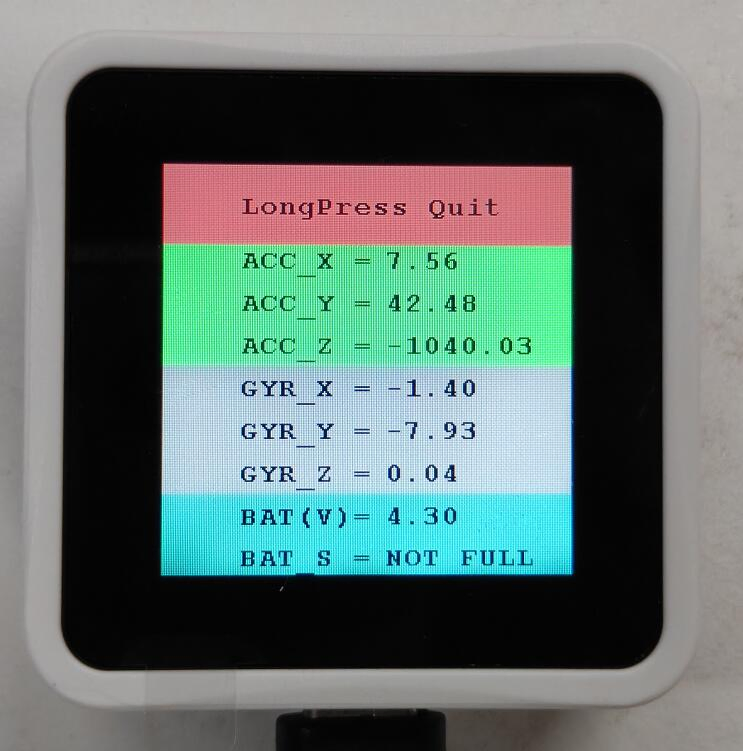
02_ES8311
Demo Description
- Uses PIO-emulated I2S to communicate with ES8311, enabling audio input and output.
Hardware Connection
- Connect the speaker
- Connect the board to the computer using a USB cable
Code Analysis
Es8311_Init(): Initializes ES8311.Es8311_Sample_Frequency_Config(): Configures sampling rate.Es8311_Microphone_Config(): Configures the microphone.Es8311_Microphone_Gain_Set(): Sets microphone gain.Es8311_Voice_Volume_Set(): Sets volume.Sine_440hz_Out(): Outputs a 440 Hz sine wave.Happy_Birthday_Out(): Outputs a 440 Hz sine wave.Loopback_Test(): Audio recording and playback test.Music_Out(): Plays music.
Operation Result
- Use VS Code to import and compile the 02_ES8311 project. After compilation is complete, flash the uf2 file in the
builddirectory, or directly flash the uf2 file in the02_ES8311\uf2directory for quick verification.
03_FatFs
Demo Description
- Uses SPI or PIO-emulated SDIO to communicate with the TF card, implementing a command-line interface similar to busybox or DOS.
Hardware Connection
- Insert a TF card
- Connect the board to the computer using a USB cable
Code Analysis
sd_init_driver(): Initializes the TF card driver.getchar_timeout_us(): Gets UART input.process_stdio(): Processes UART input.
Operation Result
-
Use a terminal tool like putty or mobaxterm to open the corresponding USB serial port of the development board.
-
Press the Enter key to start the command-line interface (CLI). You should see a prompt similar to this:
> -
Enter help command to get the available commands as follows
> help
setrtc <DD> <MM> <YY> <hh> <mm> <ss>:
Set Real Time Clock
Parameters: new date (DD MM YY) new time in 24-hour format (hh mm ss)
    e.g.:setrtc 16 3 21 0 4 0

date:
Print current date and time

lliot <drive#>:
!DESTRUCTIVE! Low Level I/O Driver Test
    e.g.: lliot 1

format [<drive#:>]:
Creates an FAT/exFAT volume on the logical drive.
    e.g.: format 0:

mount [<drive#:>]:
Register the work area of the volume
    e.g.: mount 0:

unmount <drive#:>:
Unregister the work area of the volume

chdrive <drive#:>:
Changes the current directory of the logical drive.
<path> Specifies the directory to be set as current directory.
    e.g.: chdrive 1:

getfree [<drive#:>]:
Print the free space on drive

cd <path>:
Changes the current directory of the logical drive.
<path> Specifies the directory to be set as current directory.
    e.g.: cd 1:/dir1

mkdir <path>:
Make a new directory.
<path> Specifies the name of the directory to be created.
    e.g.: mkdir /dir1

ls:
List directory

cat <filename>:
Type file contents

simple:
Run simple FS tests

big_file_test <pathname> <size in bytes> <seed>:
Writes random data to file <pathname>.
<size in bytes> must be multiple of 512.
    e.g.: big_file_test bf 1048576 1
    or: big_file_test big3G-3 0xC0000000 3

cdef:
Create Disk and Example Files
Expects card to be already formatted and mounted

start_logger:
Start Data Log Demo

stop_logger:
Stop Data Log Demo