FAQ
Q: The display/backlight is unstable?
- Is there a conductor (such as a hand) making large-area contact with the pin headers?
Q: After downloading a program to the module, when trying to download again, sometimes it fails to connect to the serial port or the flashing fails?
- You can hold down the BOOT button, press RESET, then release RESET, and finally release the BOOT button. This will put the module into download mode, which resolves most programming issues.
Q: VS Code (ESP-IDF) environment setup fails?
- Most environment configuration failures are caused by unstable network connections. It is recommended to try switching to a different network environment (e.g., mobile hotspot) and retry.
- Ensure the path does not contain Chinese characters or spaces, as these may cause the toolchain to run abnormally.
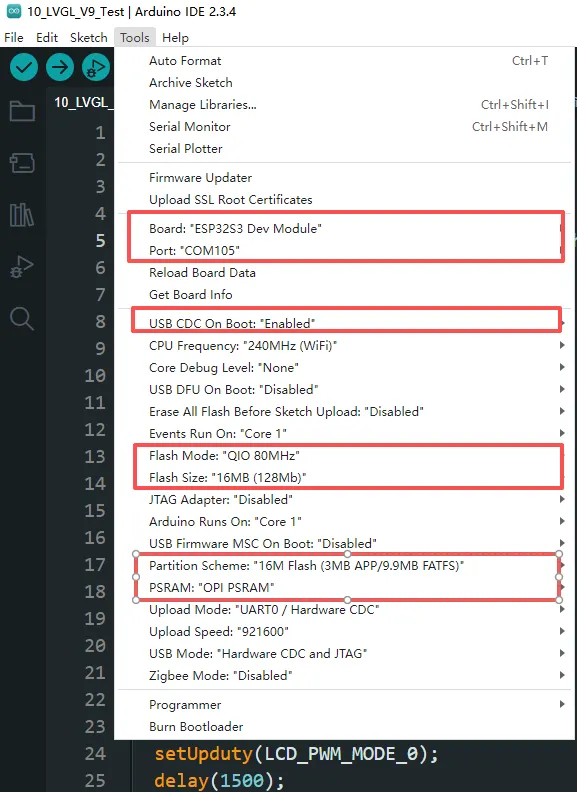
Q: Compilation error when using Arduino IDE?
-
Please refer to the product documentation and verify the settings under Arduino IDE -> Tools are correct (especially the chip model, Flash mode, PSRAM, etc.).
Q: The first compilation is very slow?
- The first compilation requires downloading dependencies and building a large amount of underlying architecture cache, which usually takes a long time. Please wait patiently for it to complete.
- After the first compilation, subsequent incremental compilations will be significantly faster.
Q: Cannot find the AppData folder?
- The
AppDatafolder is hidden by default in Windows. You can show it by the following steps: - Windows 10/11: File Explorer -> View -> Show -> Check "Hidden items".
Q: How to confirm the COM port number used by the device?
Windows System:
- Through Device Manager: Press Windows + R to open the "Run" dialog box. Type
devmgmt.mscand press Enter to open Device Manager. Expand the "Ports (COM & LPT)" section. All COM ports and their current status will be listed here. - Using Command Prompt: Open the Command Prompt (CMD), type the
modecommand, which will display status information for all COM ports. - Check the hardware connection: If an external device is already connected to a COM port, the device typically occupies a port number. You can determine which port is being used by checking the connected hardware.
Linux System:
- Check using the
dmesgcommand: Open the terminal. - Check using the
lscommand: Typels /dev/ttyS*orls /dev/ttyUSB*to list all serial devices. - Use the
setserialcommand: Typesetserial -g /dev/ttyS*to view configuration information for all serial devices.
Q: How to use SquareLine Studio to design interfaces?
- Please refer to SquareLine Studio Tutorial.