Working with Arduino
This chapter contains the following sections. Please read as needed:
Arduino Getting Started
New to Arduino ESP32 development and looking for a quick start? We have prepared a comprehensive Getting Started Tutorial for you.
- Section 0: Getting to Know ESP32
- Section 1: Installing and Configuring Arduino IDE
- Section 2: Arduino Basics
- Section 3: Digital Output/Input
- Section 4: Analog Input
- Section 5: Pulse Width Modulation (PWM)
- Section 6: Serial Communication (UART)
- Section 7: I2C Communication
- Section 8: SPI Communication
- Section 9: Wi-Fi Basics
- Section 10: Web Server
- Section 11: Bluetooth
- Section 12: LVGL GUI Development
- Section 13: Comprehensive Project
Note: This tutorial uses the ESP32-S3-Zero as a reference example, and all hardware code is based on its pinout. Before you start, we recommend checking the pinout of your development board to ensure the pin configuration is correct.
Setting Up the Development Environment
1. Installing and Configuring the Arduino IDE
Please refer to the tutorial Installing and Configuring Arduino IDE to download and install the Arduino IDE and add ESP32 support.
2. Additional Tips
-
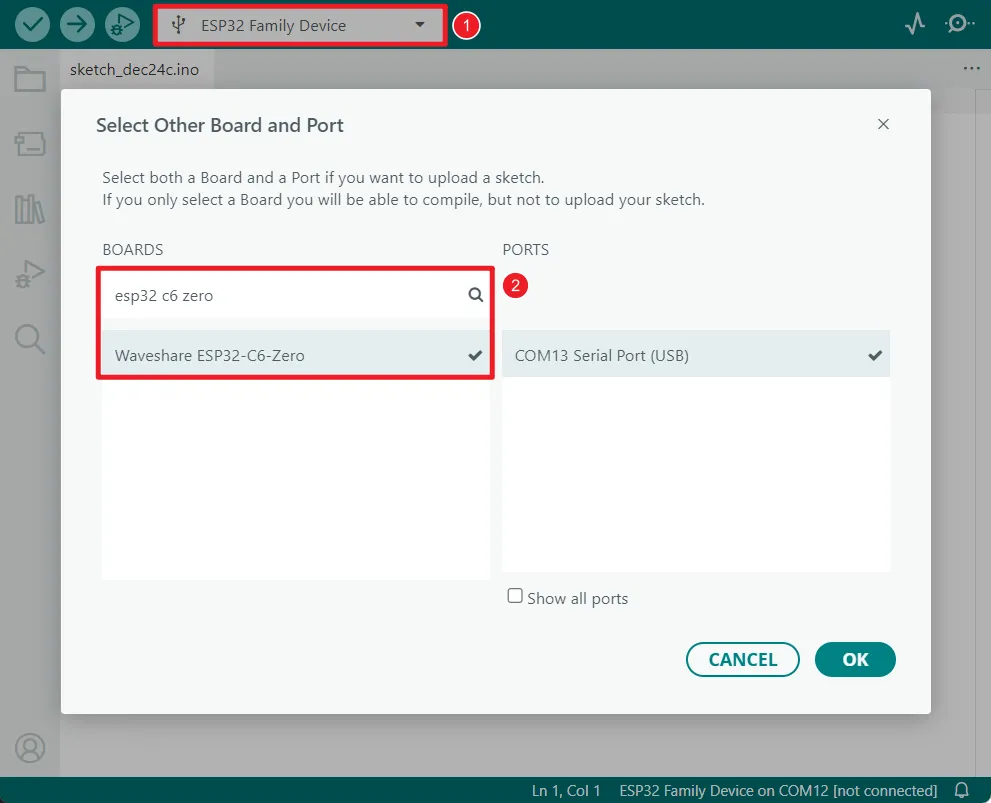
The ESP32-C6-Zero supports direct model selection in the Arduino IDE. Choose "Waveshare ESP32-C6-Zero".
-
The ESP32-C6-Zero uses the ESP32-C6 native USB port instead of UART to USB. For serial communication:
-
The
printf()function can be used directly; -
To use the
Serial.println()function, the USB CDC feature must be enabled. Please follow the steps below to verify your environment is configured correctly:-
Update the ESP32 Libraries: It is recommended to update the ESP32 board libraries in Arduino IDE to version 3.3.5 or later. Newer versions of the core have USB CDC enabled by default for this board.
-
Check Configuration Options: In the Arduino IDE "Tools" menu, check and confirm that the "USB CDC On Boot" option is set to "Enabled".
noteAs shown in the image below, the "USB CDC On Boot" option should be set to
Enabledwhen correctly configured.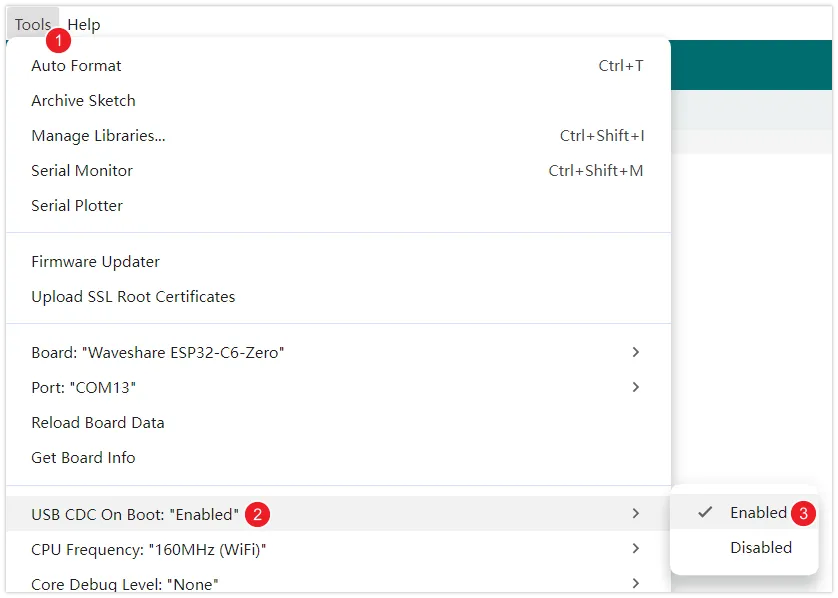
-
-