ESP-IDF
This chapter includes the following sections; please read as needed:
- ESP-IDF Getting Started Tutorial
- Setting up the Development Environment
- Running Espressif Official Examples
- Erasing Device Flash
ESP-IDF Getting Started Tutorial
New to ESP32 ESP-IDF development and looking to get started quickly? We have prepared a general Getting Started Tutorial for you.
- Section 1: Environment Setup
- Section 2: Running Examples
- Section 3: Creating a Project
- Section 4: Using Components
- Section 5: Debugging
- Section 6: FreeRTOS
- Section 7: Peripherals
- Section 8: Wi-Fi Programming
- Section 9: BLE Programming
Please Note: This tutorial uses the ESP32-S3-Zero as a teaching example, and all hardware code is based on its pinout. Before you start, it is recommended that you check the pinout of your development board to ensure the pin configuration is correct.
Setting up the Development Environment
For the ESP32-C6-Zero development board, you need to use ESP-IDF V5.1 or higher.
The following guide uses Windows as an example, demonstrating development using VS Code + the ESP-IDF extension. macOS and Linux users should refer to the official documentation.
Install the ESP-IDF Development Environment
-
Download the installation manager from the ESP-IDF Installation Manager page. This is Espressif's latest cross-platform installer. The following steps demonstrate how to use its offline installation feature.
Click the Offline Installer tab on the page, then select Windows as the operating system and choose your desired version from the filter bar.
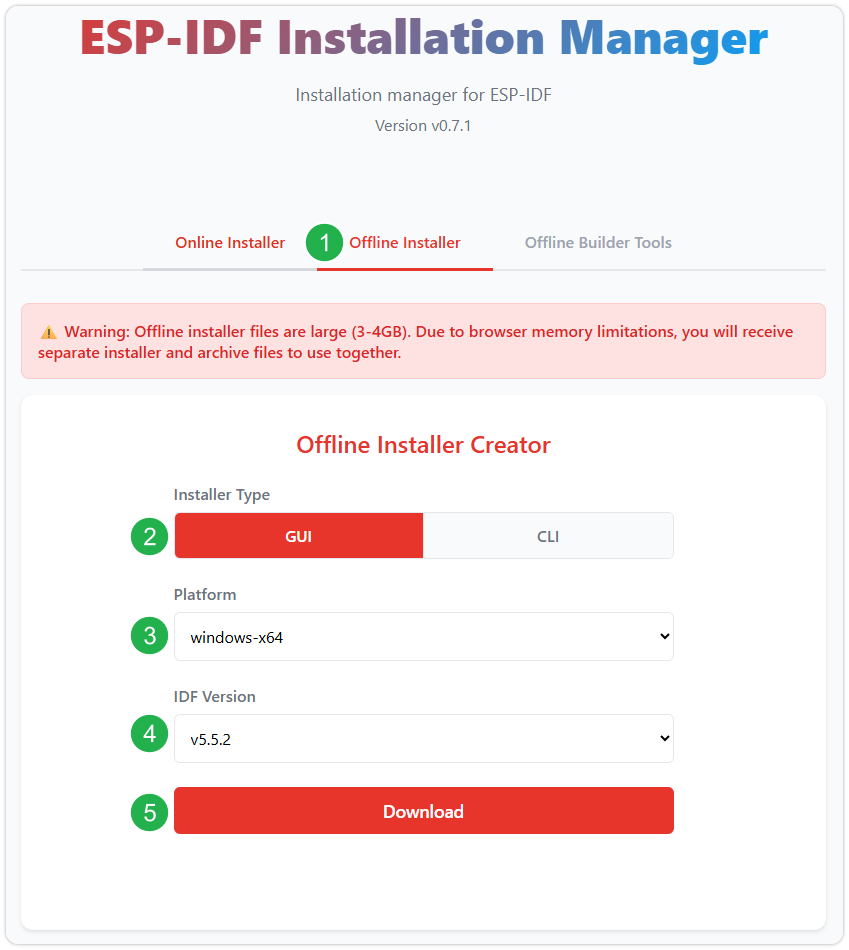
After confirming your selection, click the download button. The browser will automatically download two files: the ESP-IDF Offline Package (.zst) and the ESP-IDF Installer (.exe).
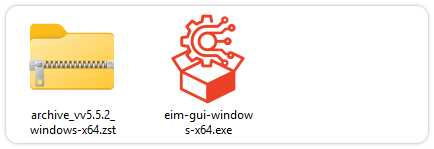
Please wait for both files to finish downloading.
-
Once the download is complete, double-click to run the ESP-IDF Installer (eim-gui-windows-x64.exe).
The installer will automatically detect if the offline package exists in the same directory. Click Install from archive.
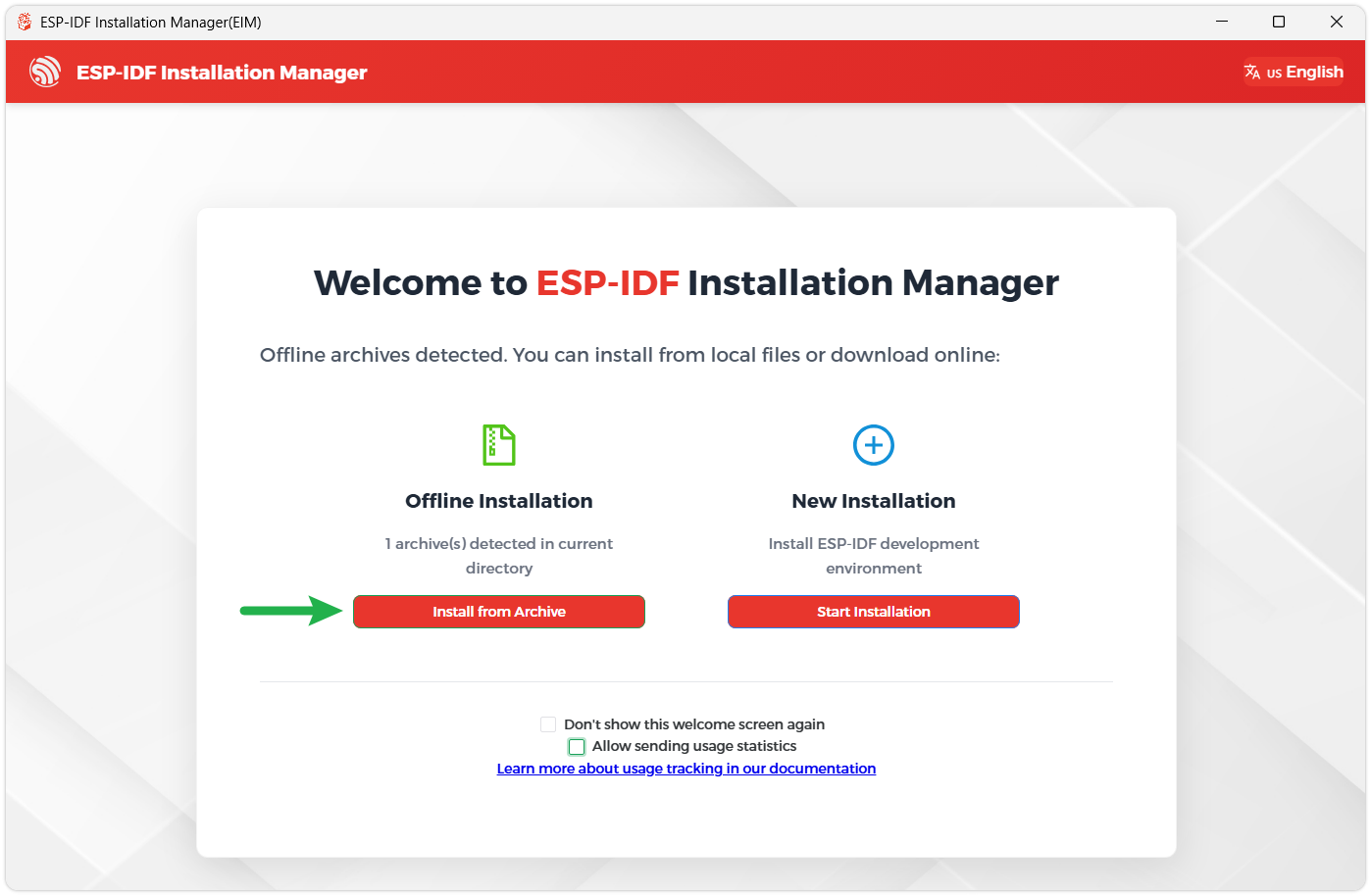
Next, select the installation path. We recommend using the default path. If you need to customize it, ensure the path does not contain Chinese characters or spaces. Click Start installation to proceed.
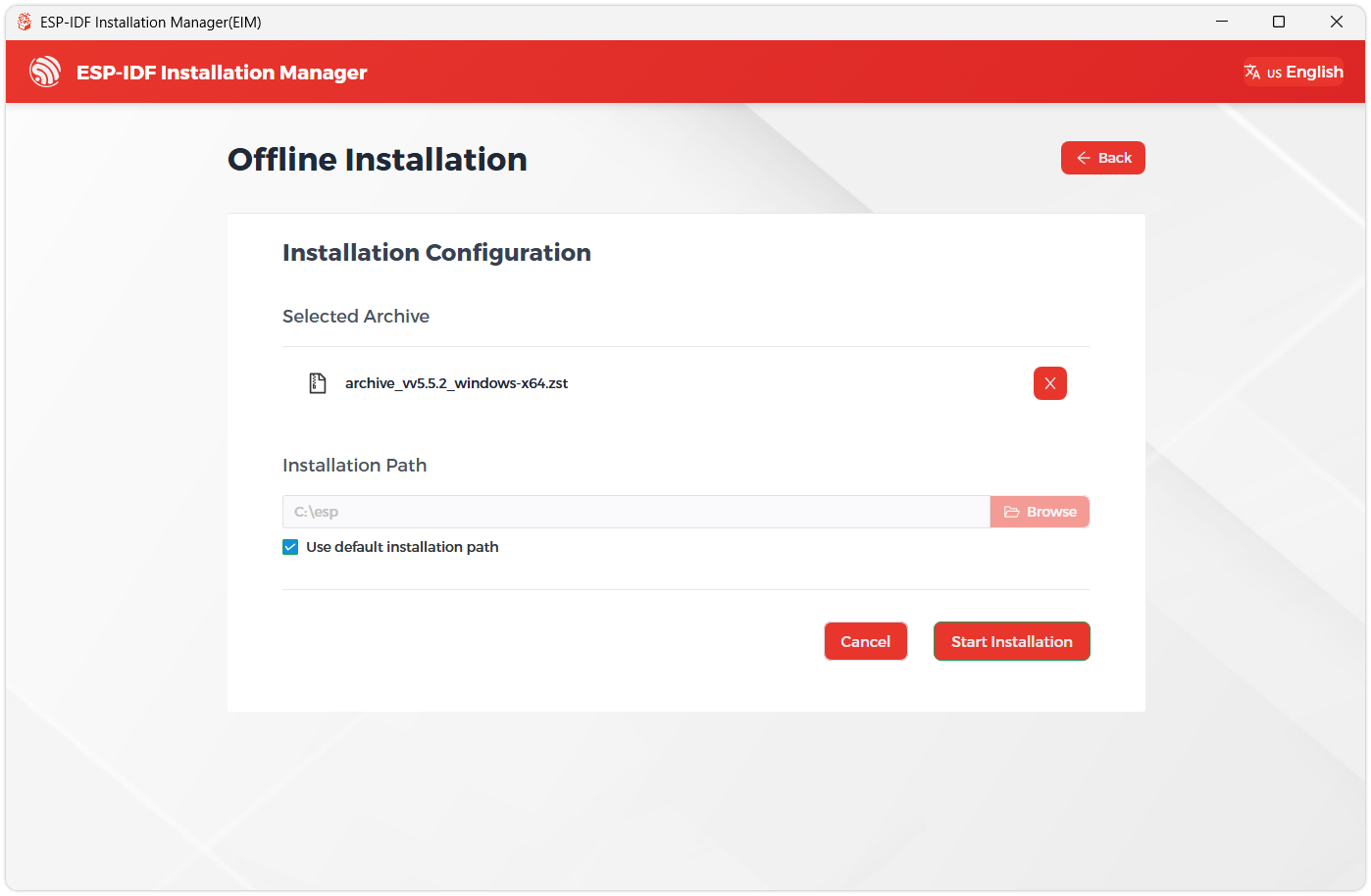
-
When you see the following screen, the ESP-IDF installation is successful.
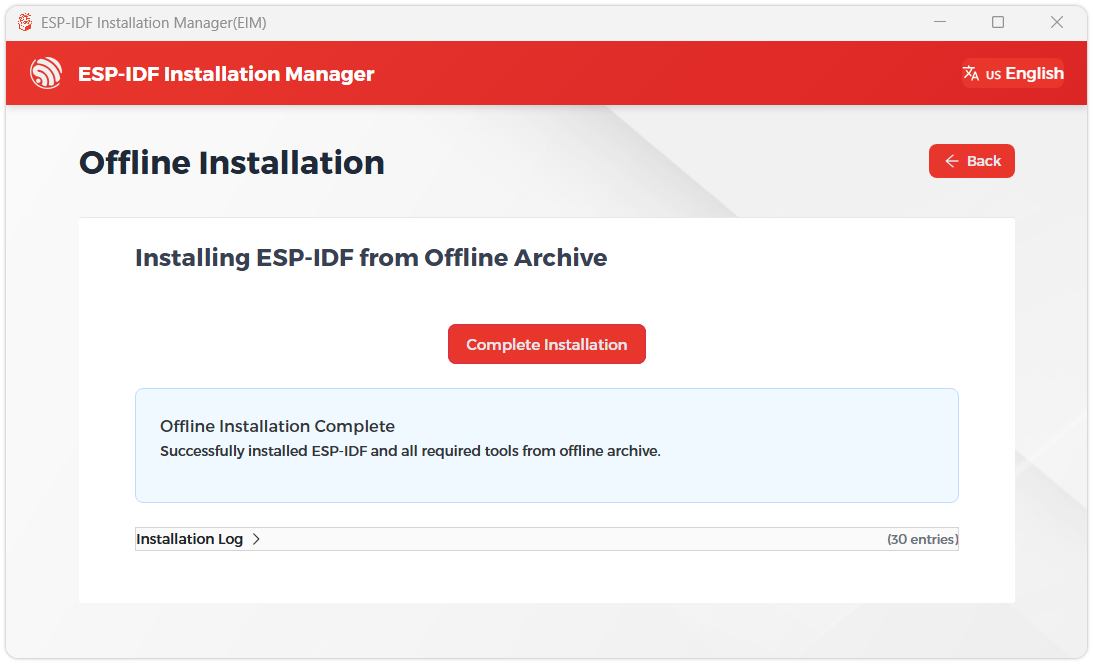
-
We recommend installing the drivers as well. Click Finish installation, then select Install driver.
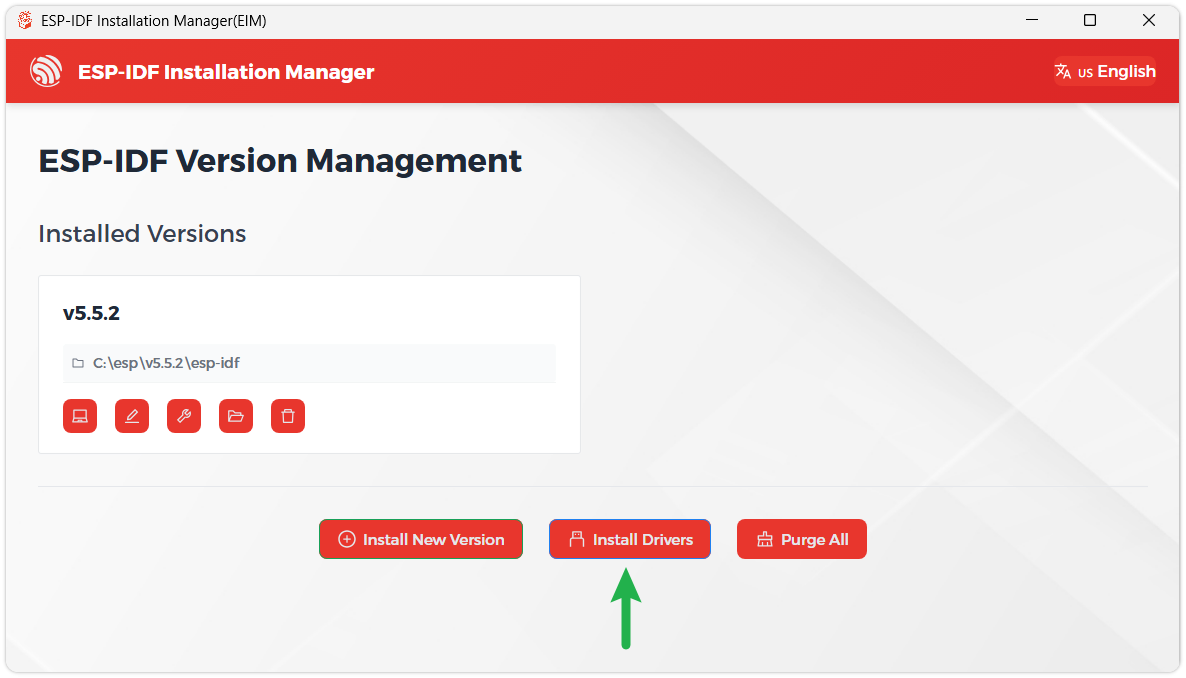
Install Visual Studio Code and the ESP-IDF Extension
-
Download and install Visual Studio Code.
-
During installation, it is recommended to check Add "Open with Code" action to Windows Explorer file context menu to facilitate opening project folders quickly.
-
In VS Code, click the Extensions icon
 in the Activity Bar on the side (or use the shortcut Ctrl + Shift + X) to open the Extensions view.
 -
Enter ESP-IDF in the search box, locate the ESP-IDF extension, and click Install.
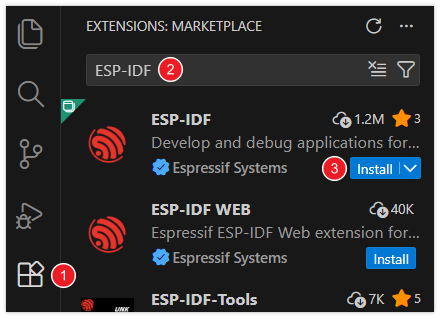
-
For ESP-IDF extension versions ≥ 2.0, the extension will automatically detect and recognize the ESP-IDF environment installed in the previous steps, requiring no manual configuration.
Running Espressif Official Examples
Official Examples Tutorial
Creating an Example
-
Use the shortcut key F1, and enter:
esp-idf:show examples projects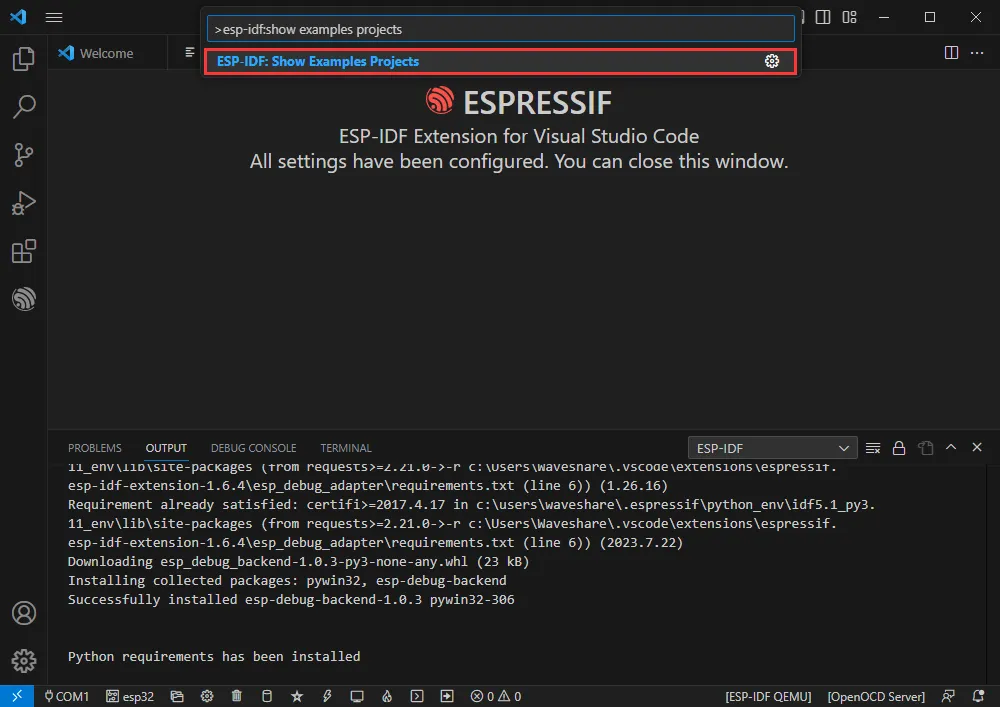
-
Select your current IDF version.
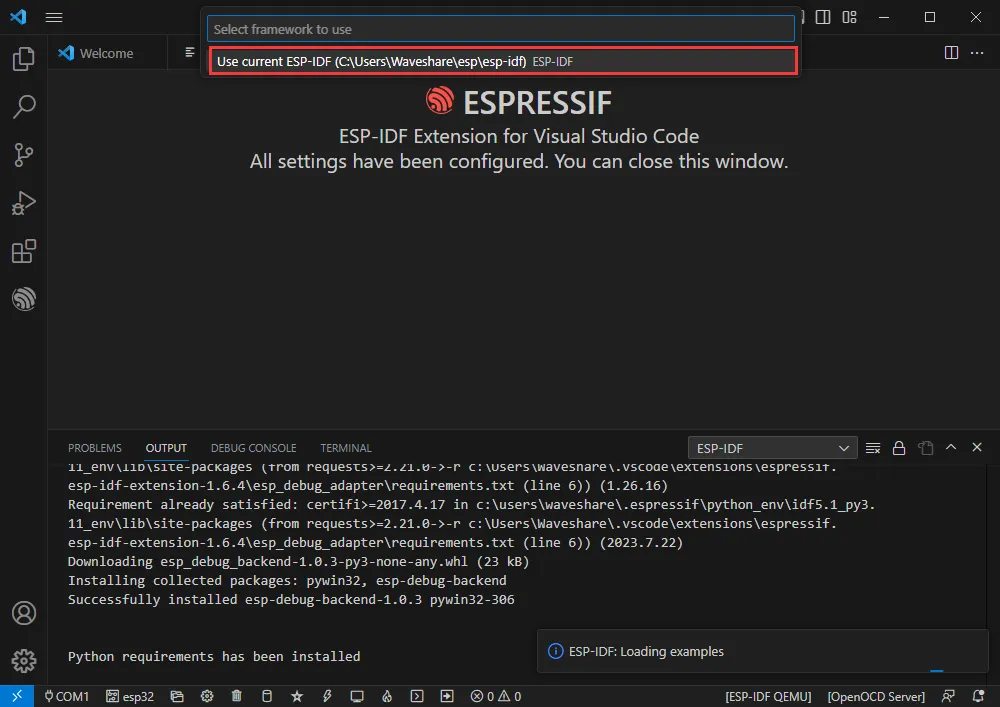
-
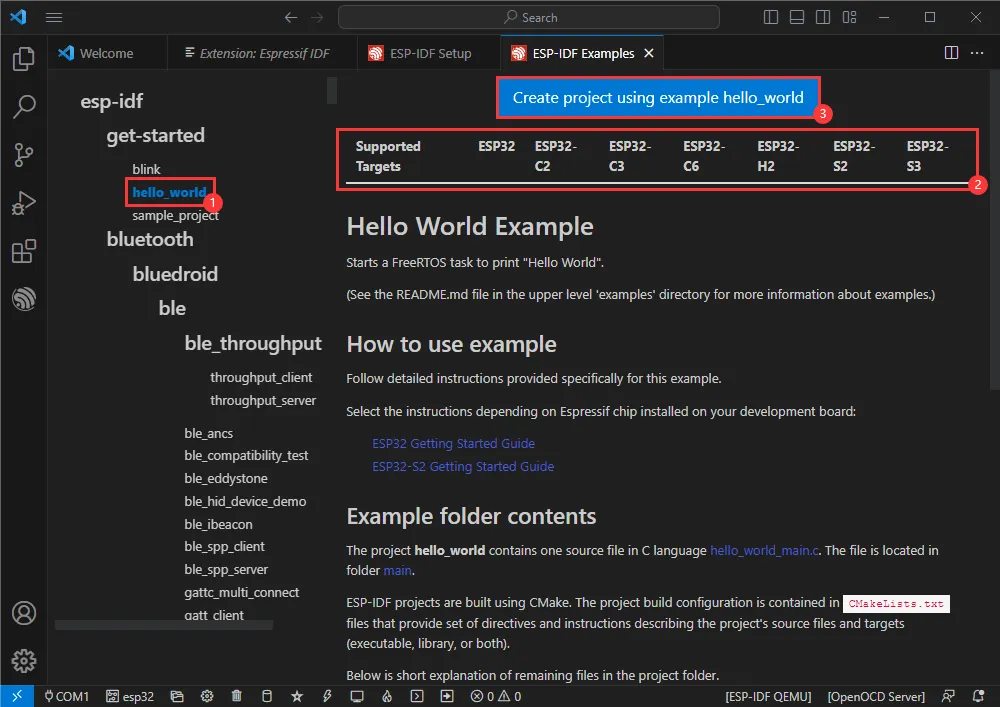
Taking the Hello World example as an instance:
- ① Select the corresponding example.
- ② Its readme will explain which chips the example applies to (how to use the example and the file structure are introduced below, so omitted here).
- ③ Click Create Example using project.
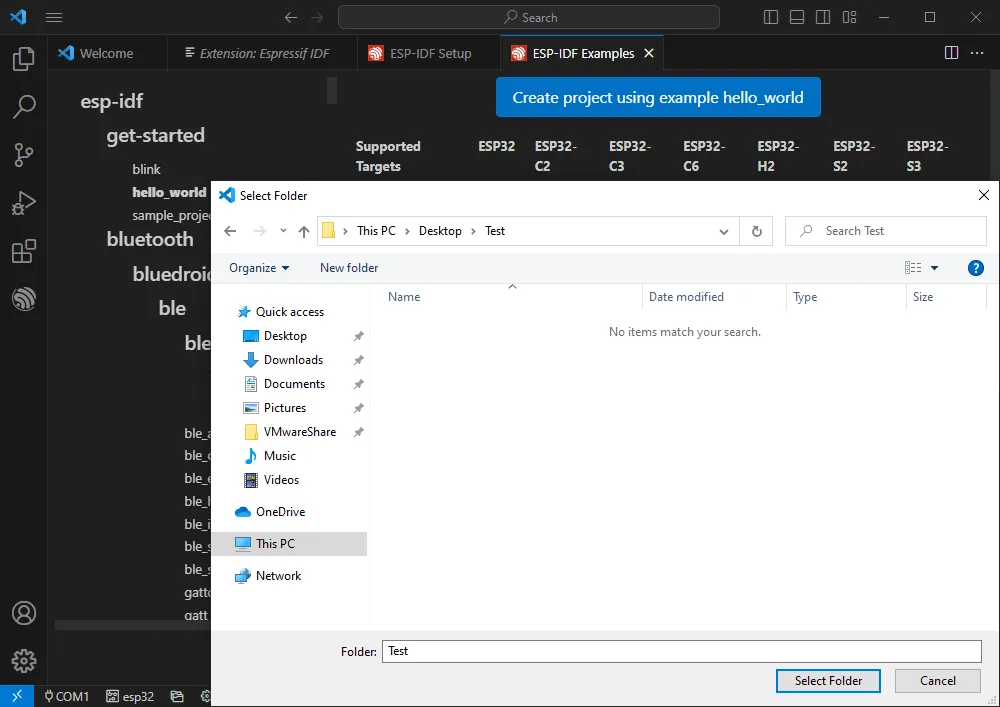
Select the path to place the example; ensure no folder with the same name exists.
Modifying COM Port
-
Here shows the corresponding COM port used; click to modify the corresponding COM port.
-
Please select based on the device's corresponding COM port. It is recommended to prioritize the COM port corresponding to the USB (check via Device Manager).
-
If the download fails, please press the reset button for more than 1 second, wait for the PC to re-recognize the device, and try downloading again.
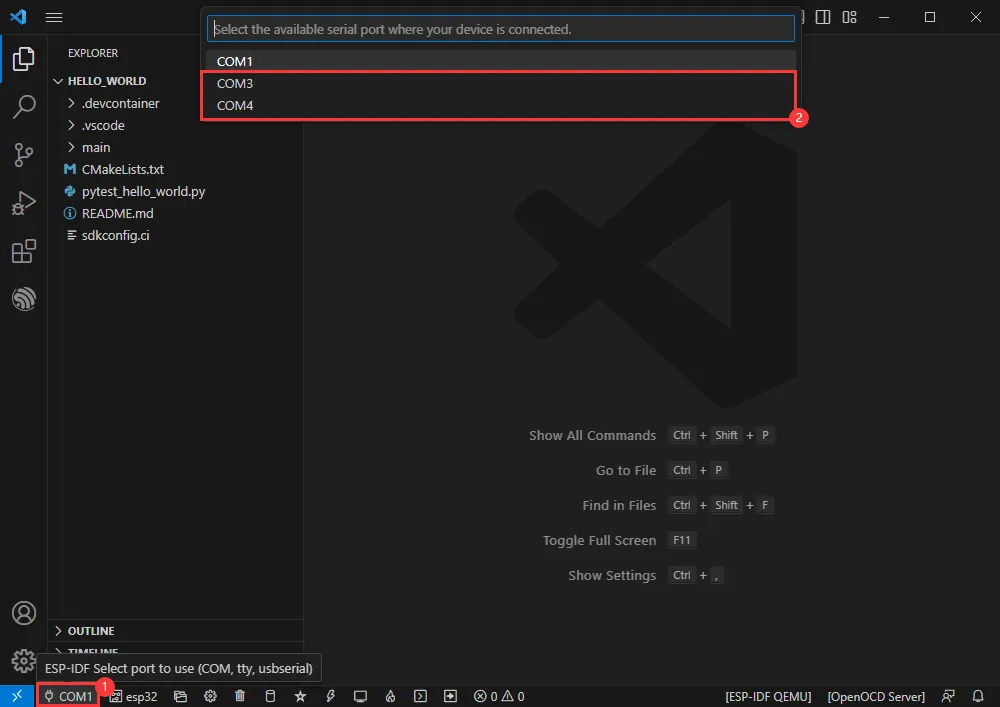
-
Select the project or example to use.
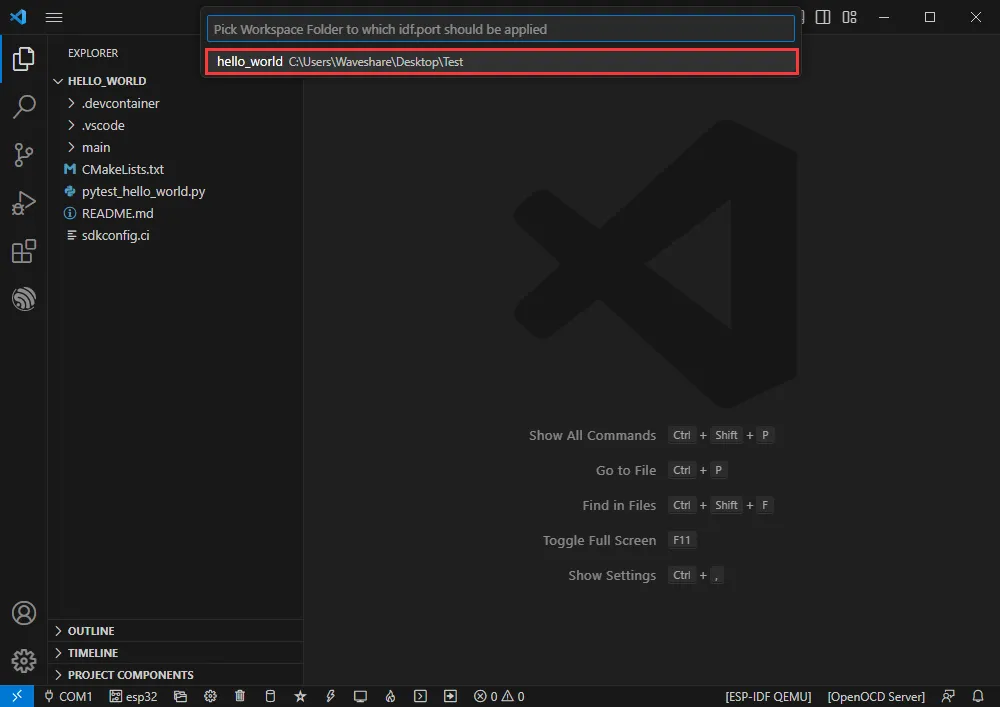
-
Now the COM port is modified.
Modifying Target Device
-
Here shows the target device (driver object) used; click to modify the corresponding target device.
-
Select the project or example to use.
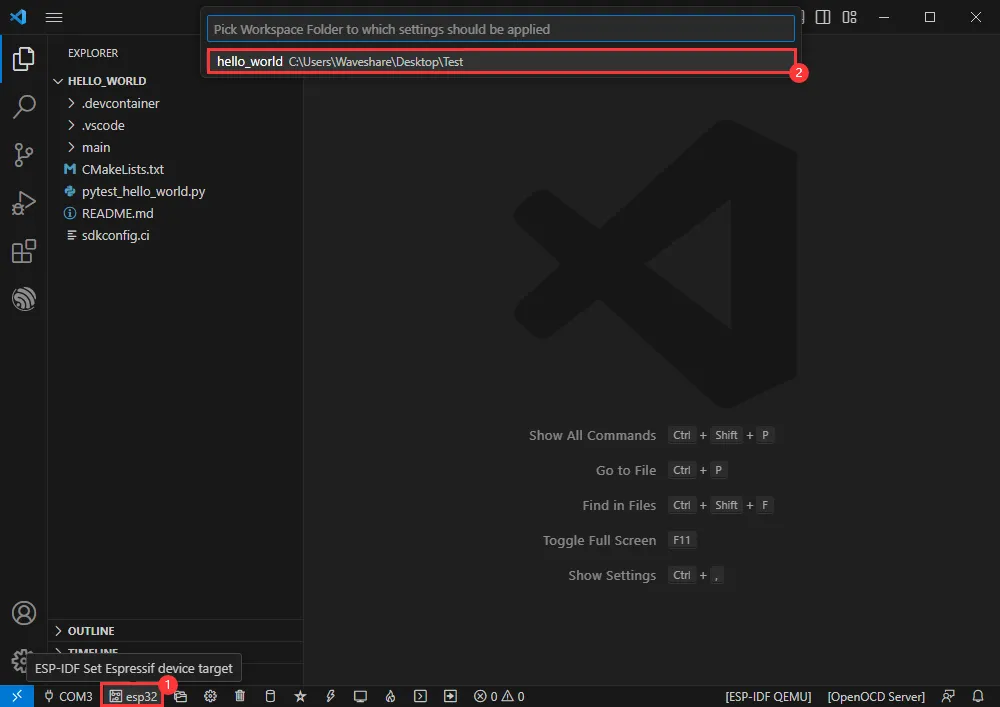
-
Wait for a moment after clicking.
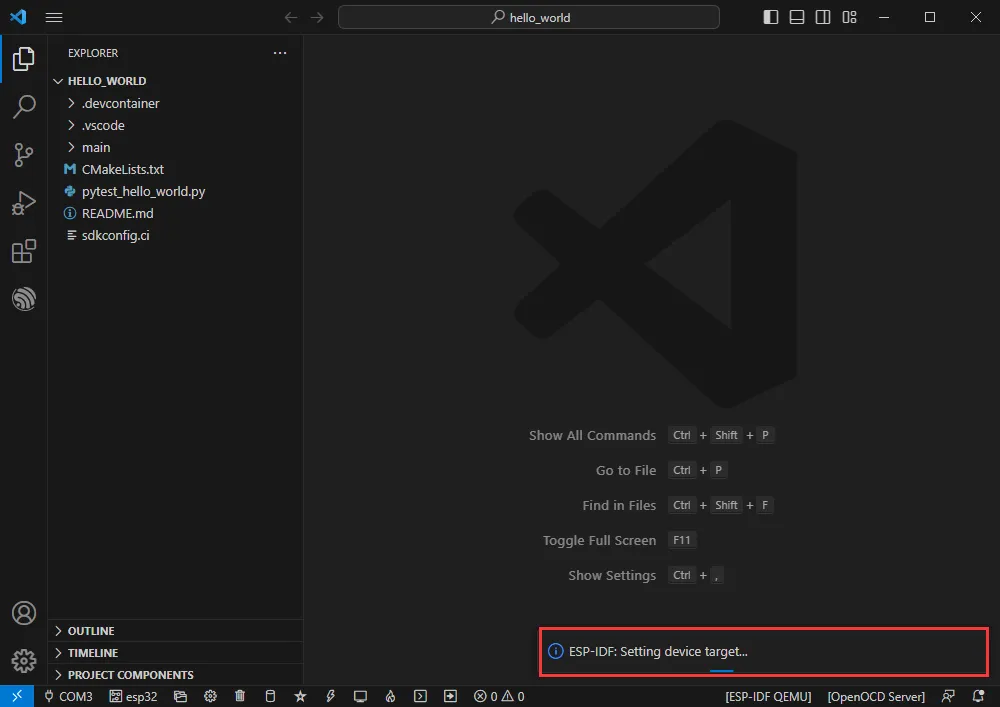
-
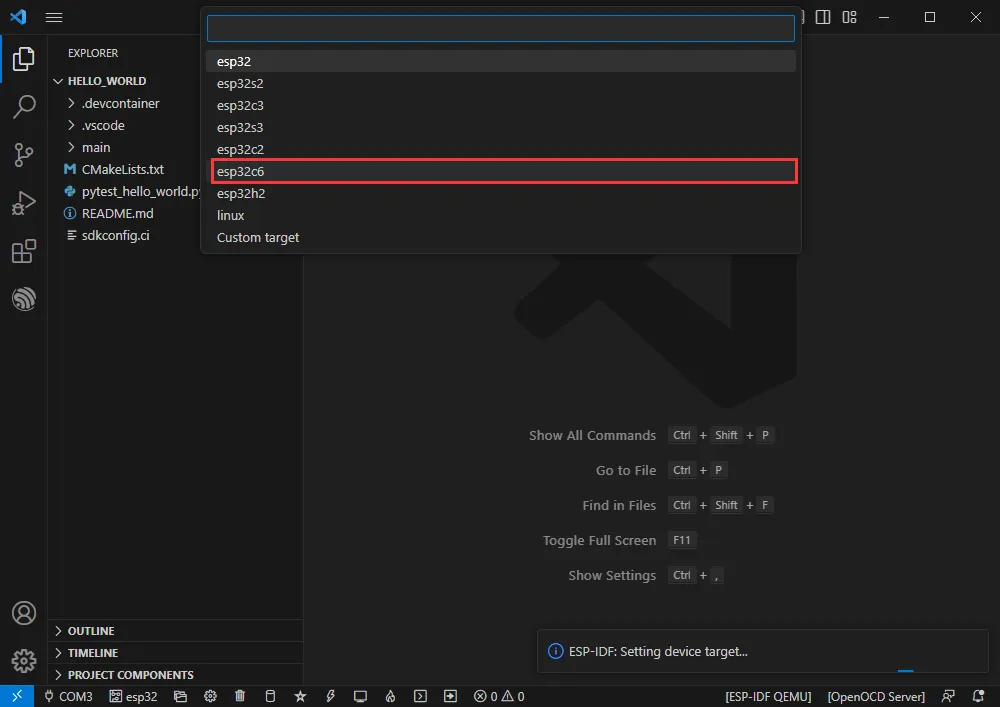
Select the object we need to drive, which is our main chip ESP32C6.
-
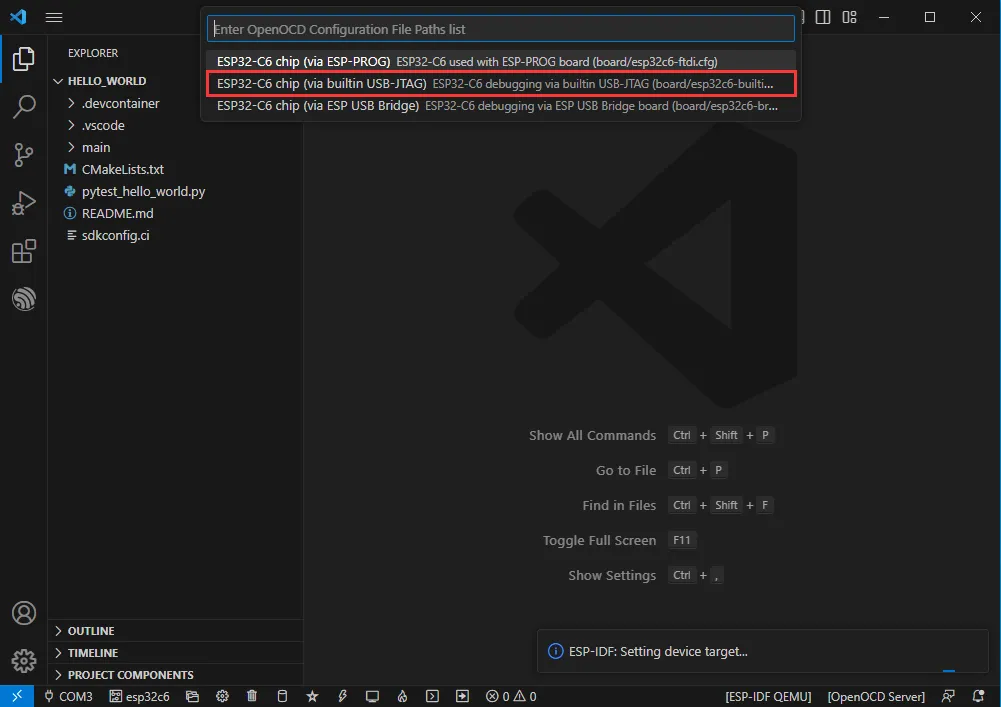
Select the OpenOCD path. This does not affect us here, so any selection will do.
Introduction to Other Status Bar Items
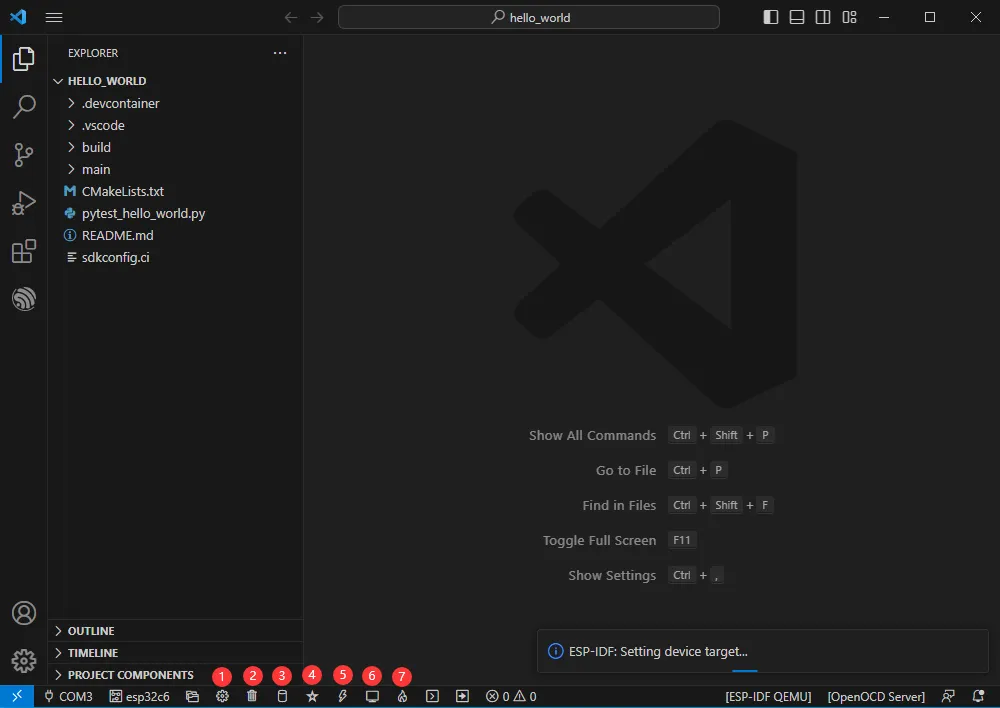
- ① SDK Configuration Editor: Many ESP-IDF functions and configurations can be modified here.
- ② Full Clean: Clears all compiled files.
- ③ Build.
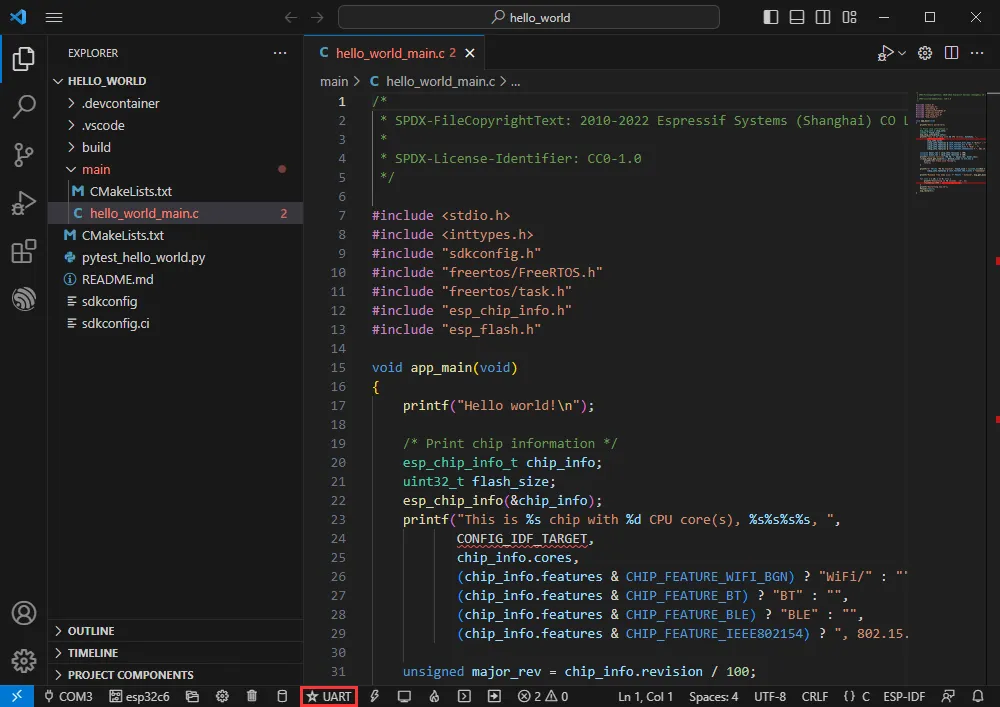
- ④ Current Flash Method: Defaults to UART.
- ⑤ Flash: Burn the current firmware (please do this after building).
- ⑥ Monitor: Open the Serial Monitor to view serial information.
- ⑦ Build, Flash, and Monitor: All-in-one button (most commonly used during debugging).
Build, Flash, and Monitor
-
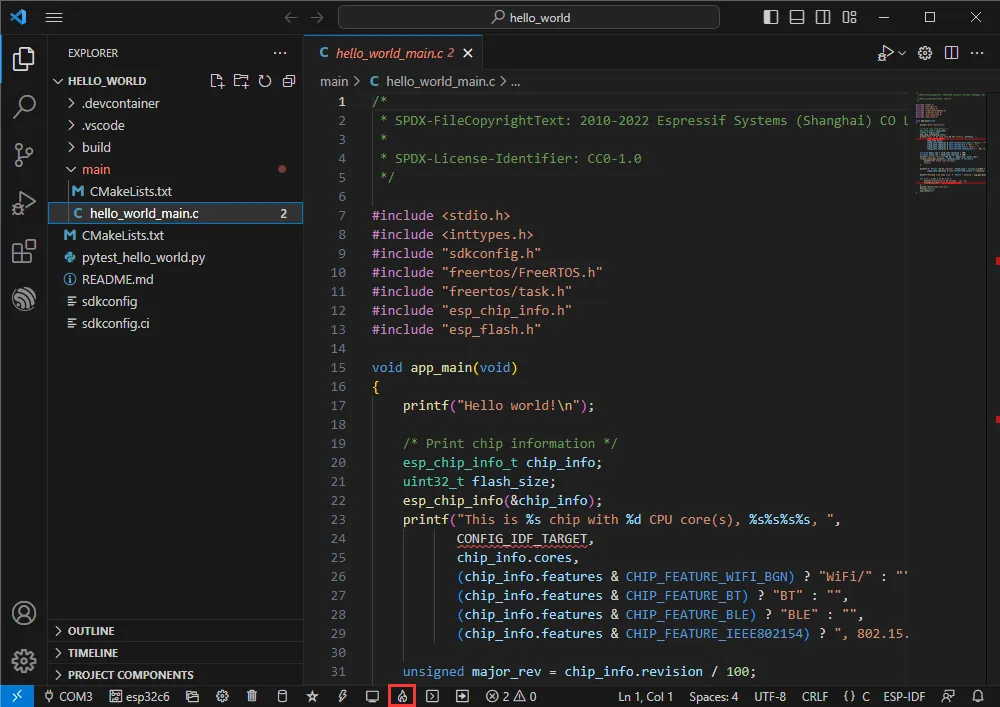
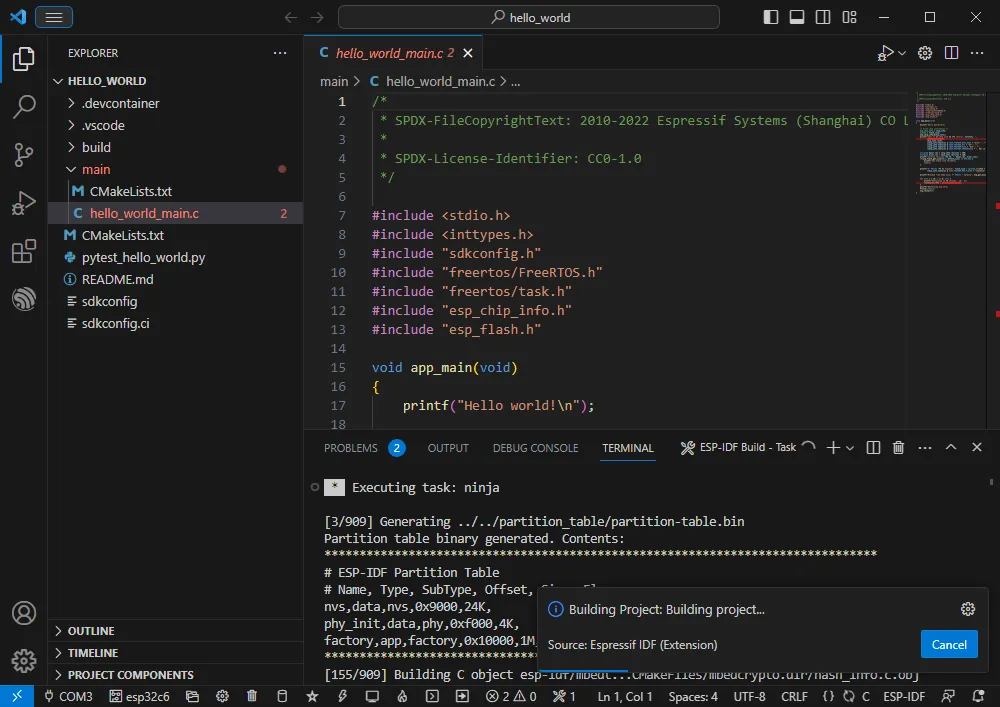
Click the Build, Flash, and Monitor button introduced earlier.
-
Compiling may take a long time to complete, especially the first time.
-
During this process, ESP-IDF may consume a large amount of CPU resources, which may cause system lag.
-
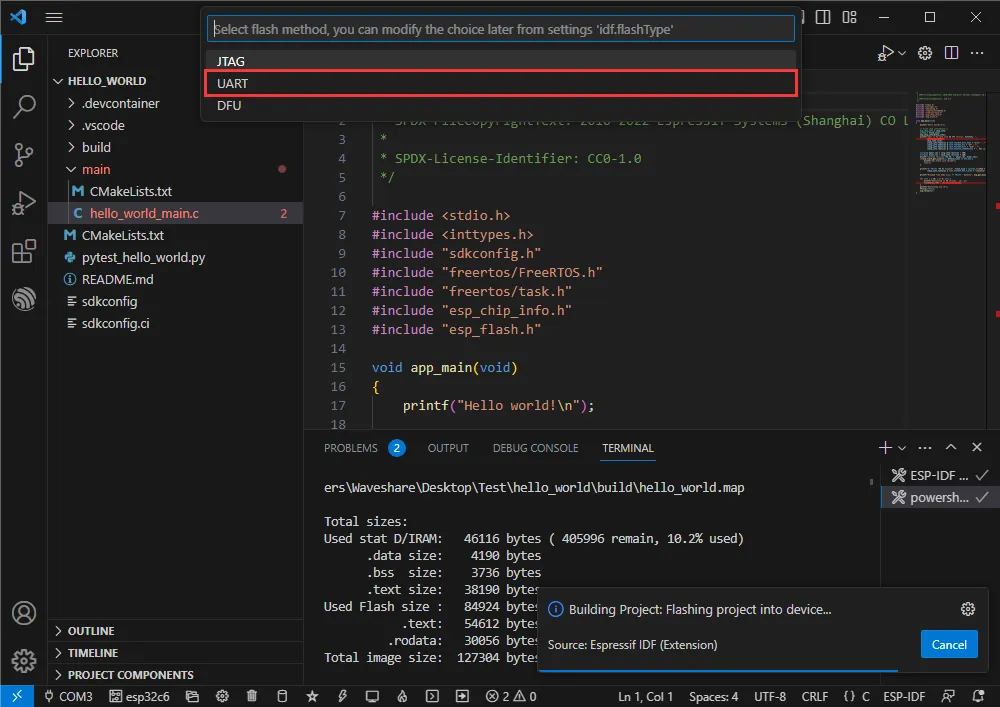
If flashing a new project for the first time, you will need to select the download method. Select UART.
-
You can also modify it later in the Flash Method section (click to pop up options).
-
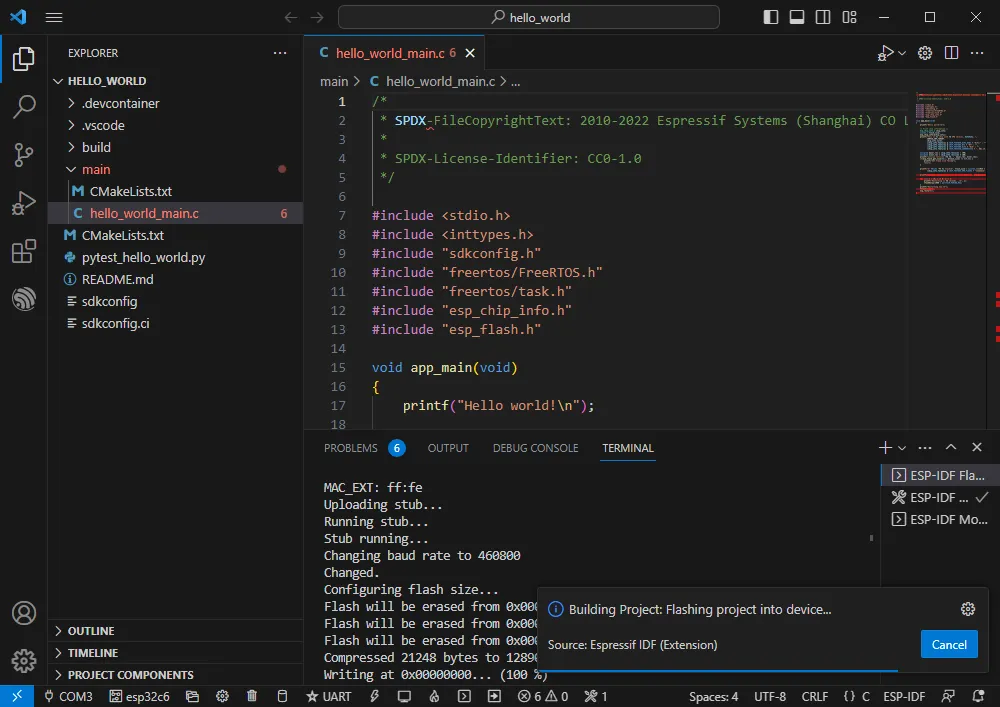
Because of the onboard automatic download circuit, no manual operation is required for automatic downloading.
-
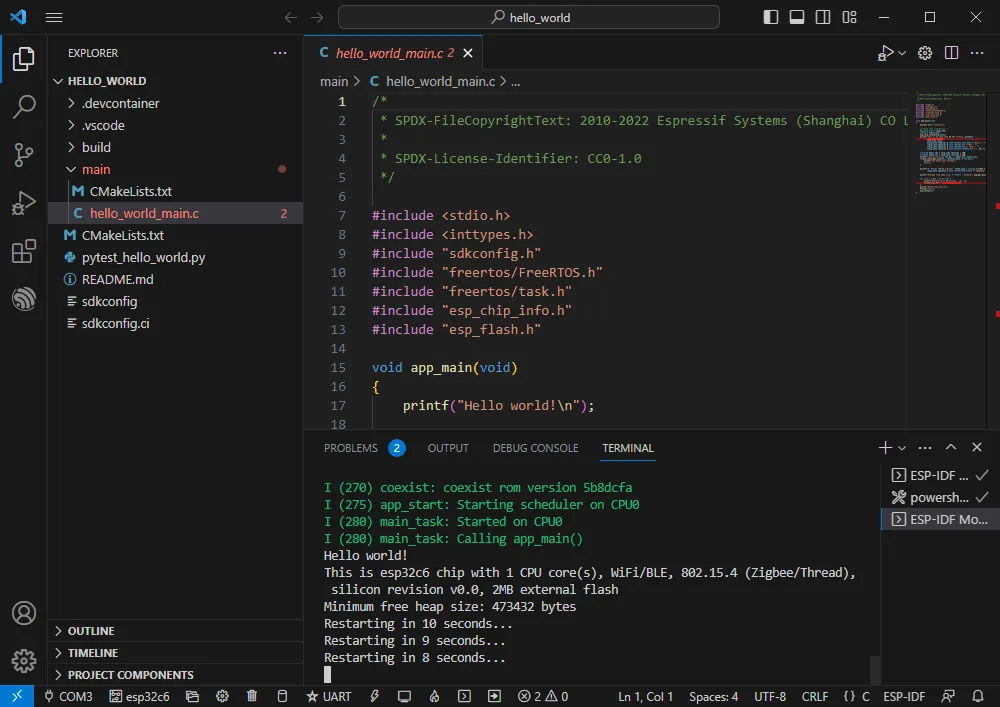
After successful downloading, it automatically enters the Serial Monitor, where you can see the chip outputting corresponding information and prompting a restart after 10 seconds.
Example Demonstration
Hello World
Official example path: get-started -> hello_world
Example effect: Output Hello world! in the TERMINAL window at 10-second intervals.
Software Operation
- Create the official example
hello_worldaccording to the tutorial above (Creating an Example). - The program is compatible with ESP32-C6; no modification to the code is needed.
- Modify the COM port and target device (It is recommended to prioritize the COM port corresponding to the USB, check via Device Manager), then click Build and Flash to run the program.
RGB
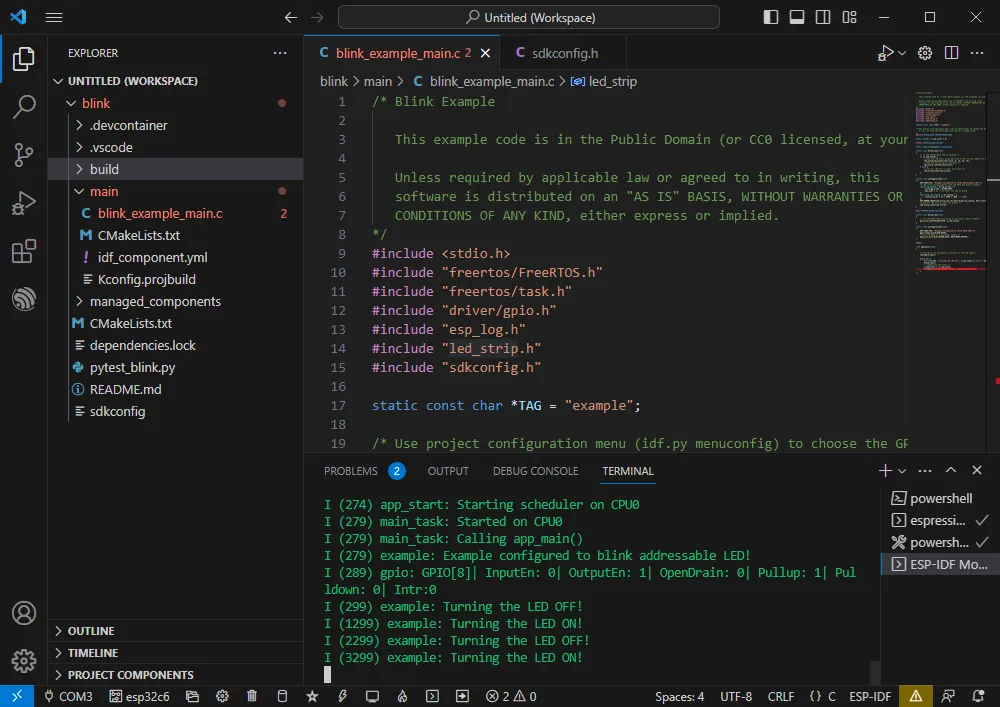
Official example path: get-started -> blink
Example effect: The onboard RGB LED blinks at 1-second intervals.
Software Operation
- Create the official example
blinkaccording to the tutorial above (Creating an Example). - The program is compatible with ESP32-C6; no modification to the code is needed.
- Modify the COM port and target device (It is recommended to prioritize the COM port corresponding to the USB, check via Device Manager), then click Build and Flash to run the program.
UART
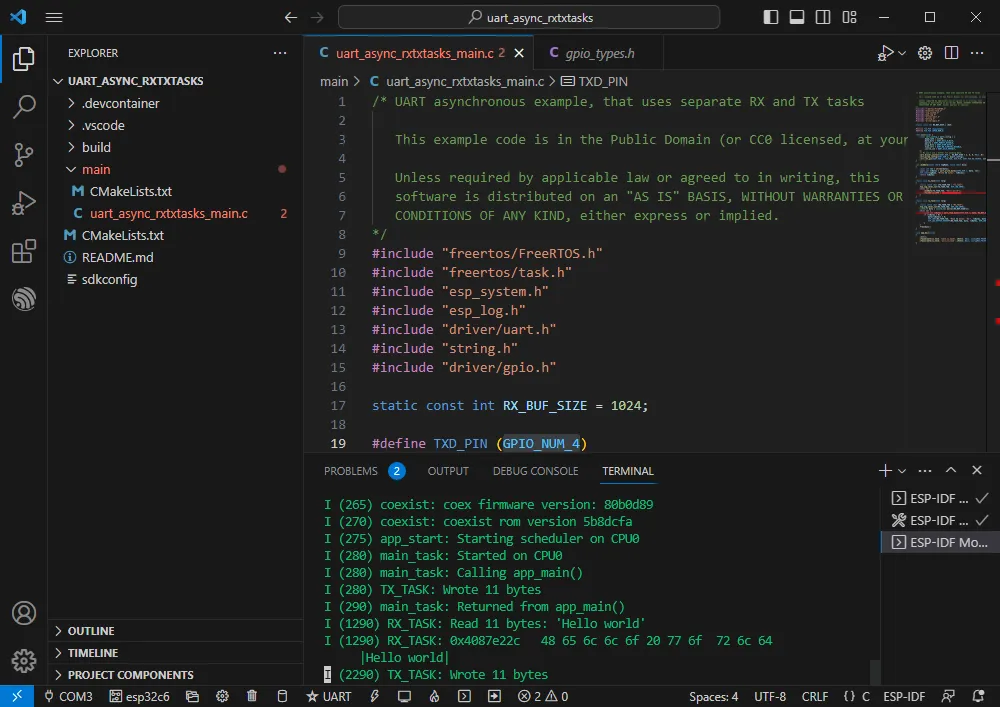
Official example path: peripherals -> uart -> uart_async_rxtxtasks
Example effect: Self-sending and receiving UART data with GPIO4 and GPIO5 shorted.
Hardware Connection
| ESP32-C6 | ESP32-C6 (Same Board) |
|---|---|
| GPIO4 | GPIO5 |
Software Operation
- Create the official example
uart_async_rxtxtasksaccording to the tutorial above (Creating an Example). - The program is compatible with ESP32-C6; no modification to the code is needed.
- Modify the COM port and target device (It is recommended to prioritize the COM port corresponding to the USB, check via Device Manager), then click Build and Flash to run the program.
-
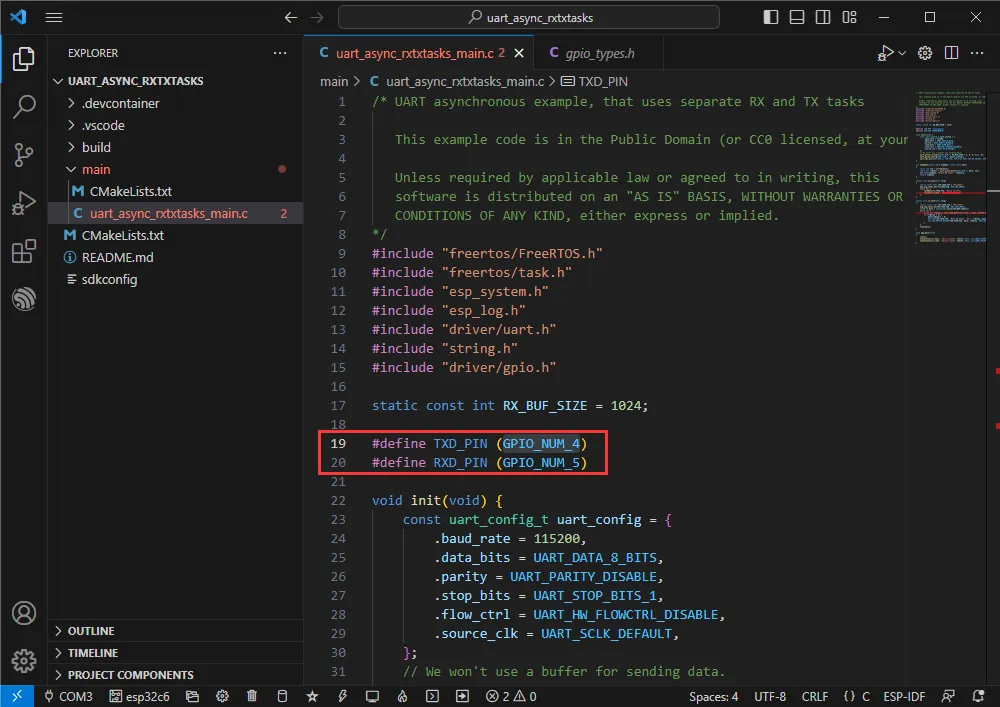
Make hardware connections according to the GPIOs used.
-
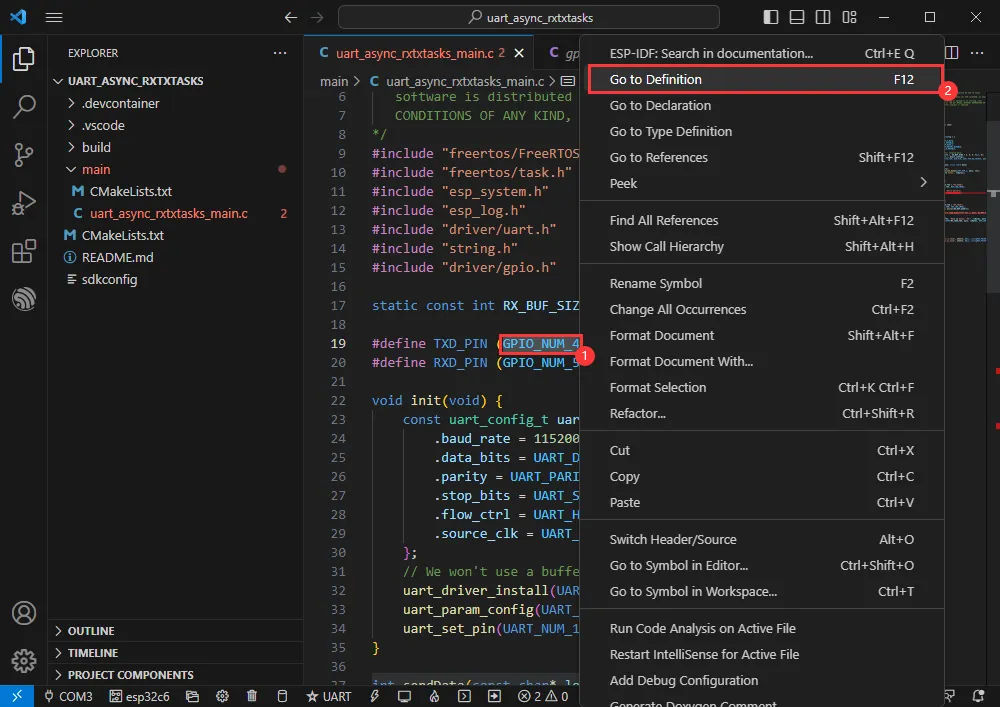
You can go to the definition file to view the actual GPIOs used (Select GPIO_NUM_4 -> Right-click -> Go to Definition).
Bluetooth
Official example path: bluetooth -> bluedroid -> ble -> gatt_server
Example effect: Data transmission between ESP32-C6 and a mobile Bluetooth debugging assistant.
Software Operation
- Install the Bluetooth Debugging Assistant on your mobile phone.
- Create the official example
gatt_serveraccording to the tutorial above (Creating an Example). - The program is compatible with ESP32-C6; no modification to the code is needed.
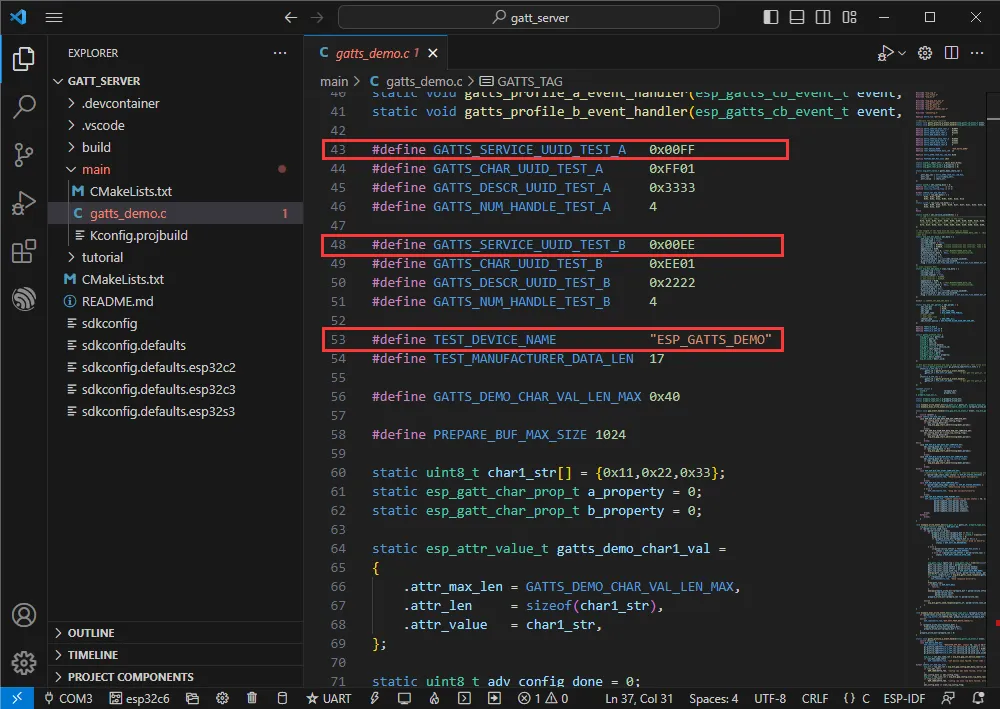
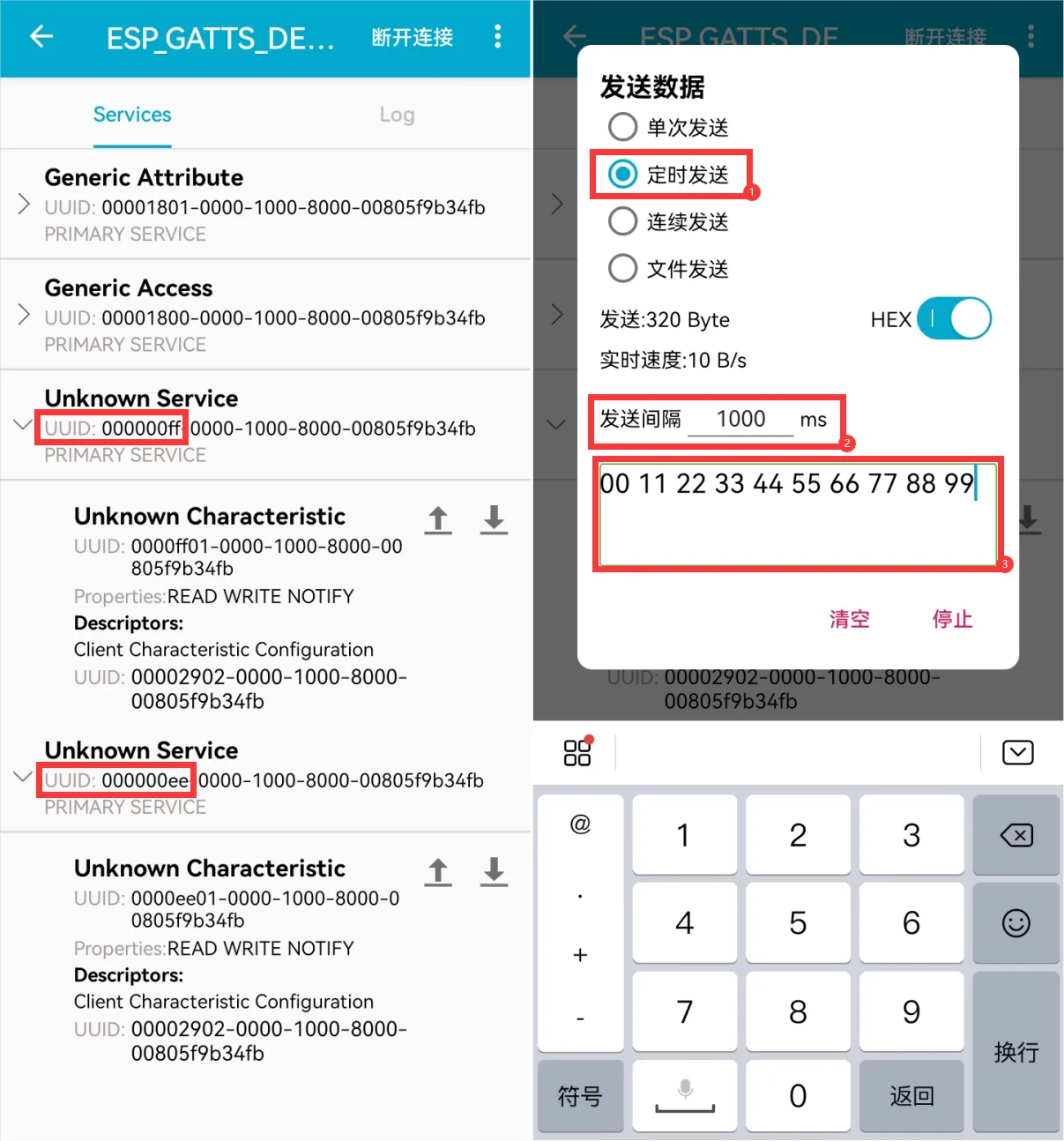
- Bluetooth name and UUID: The Bluetooth name is ESP_GATTS_DEMO.
-
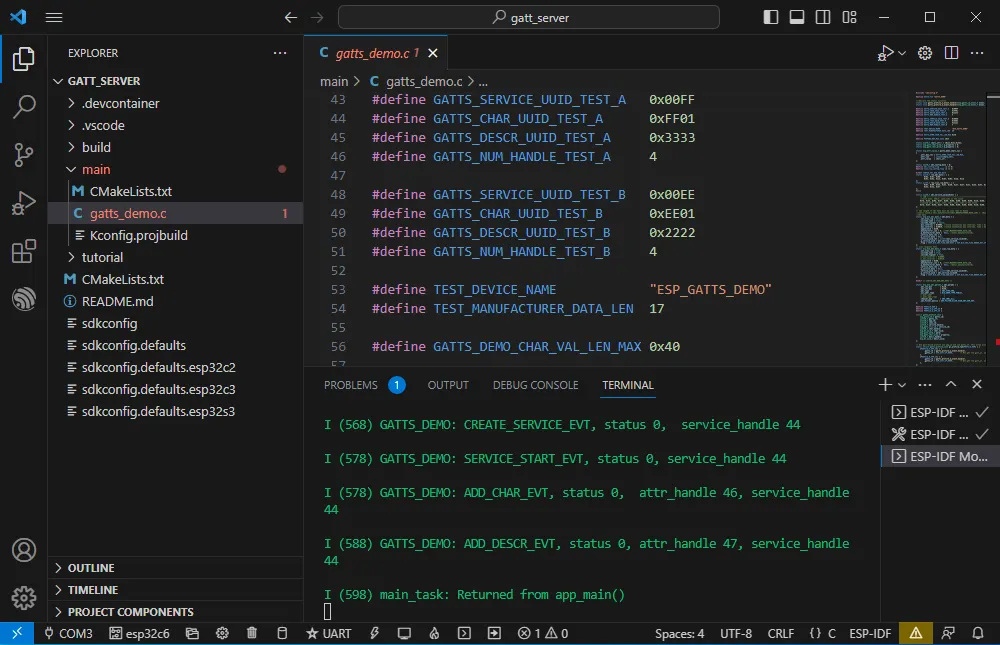
Modify the COM port and target device (It is recommended to prioritize the COM port corresponding to the USB, check via Device Manager), then click Build and Flash to run the program.
-
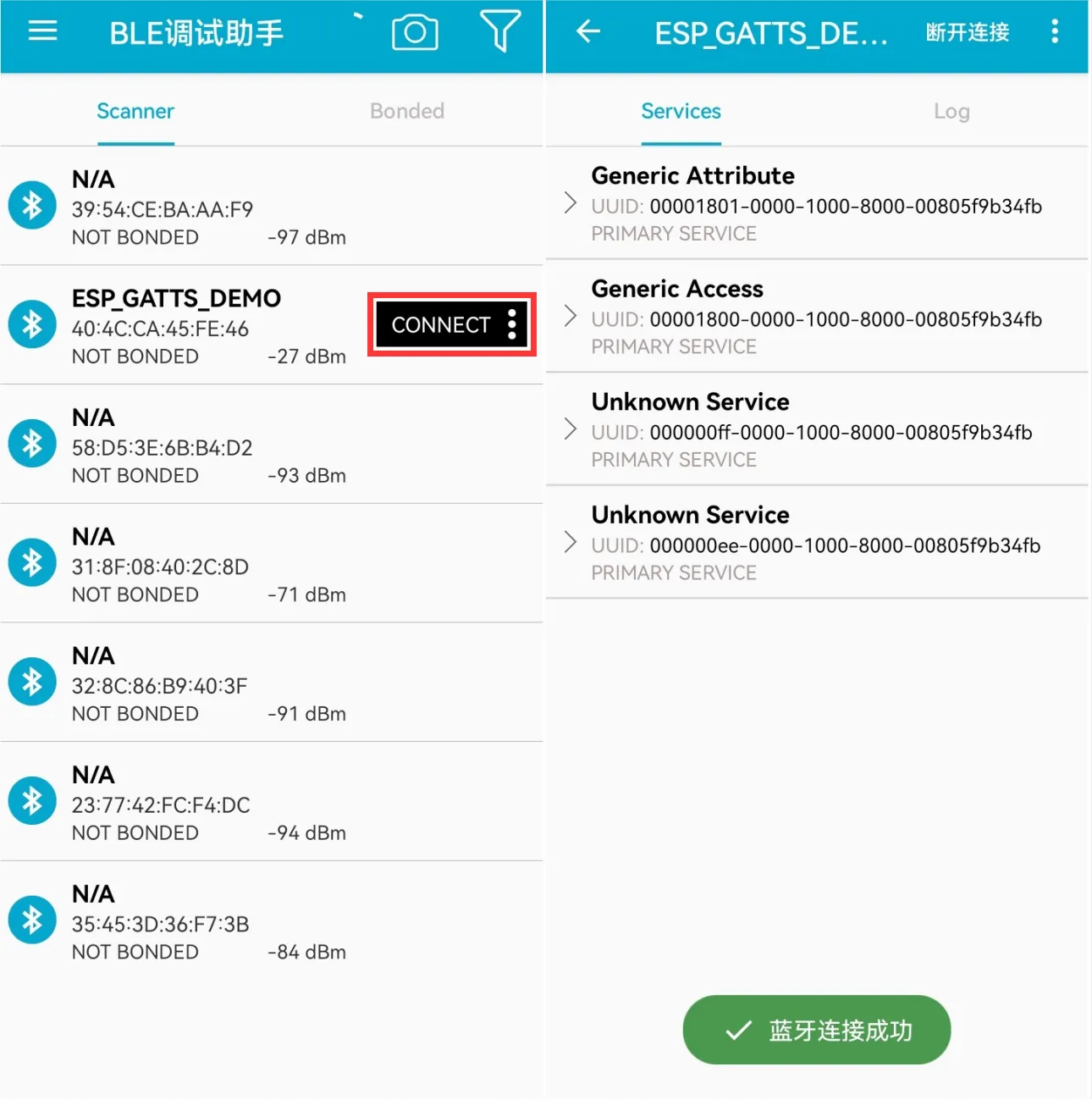
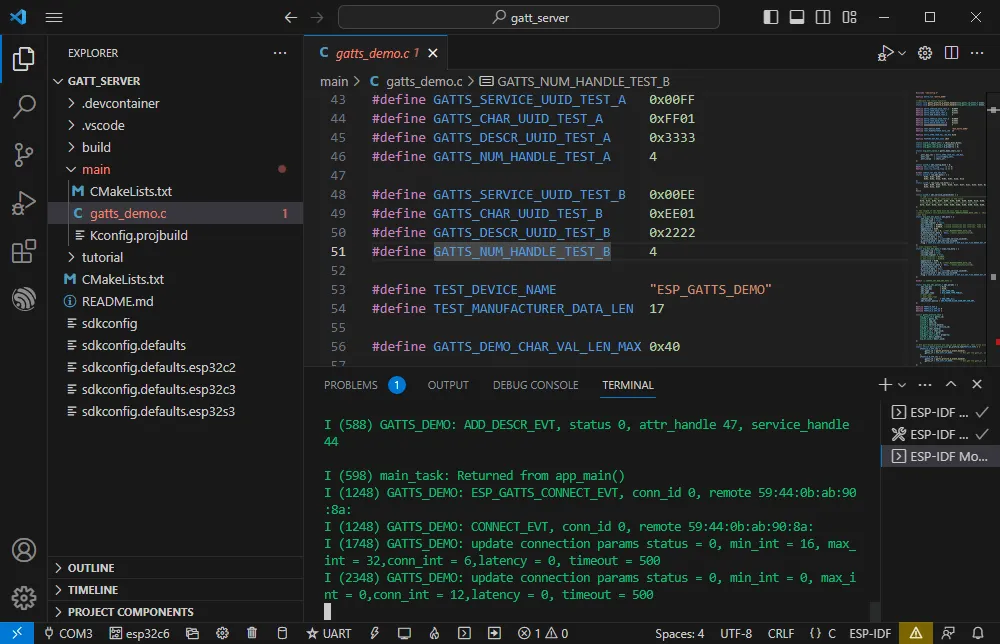
Connect to the ESP_GATTS_DEMO Bluetooth device on your phone.
-
The successful connection effect is as follows.
-
Based on the UUID values in the program, identify the two servers below and select one for uplink transmission.
-
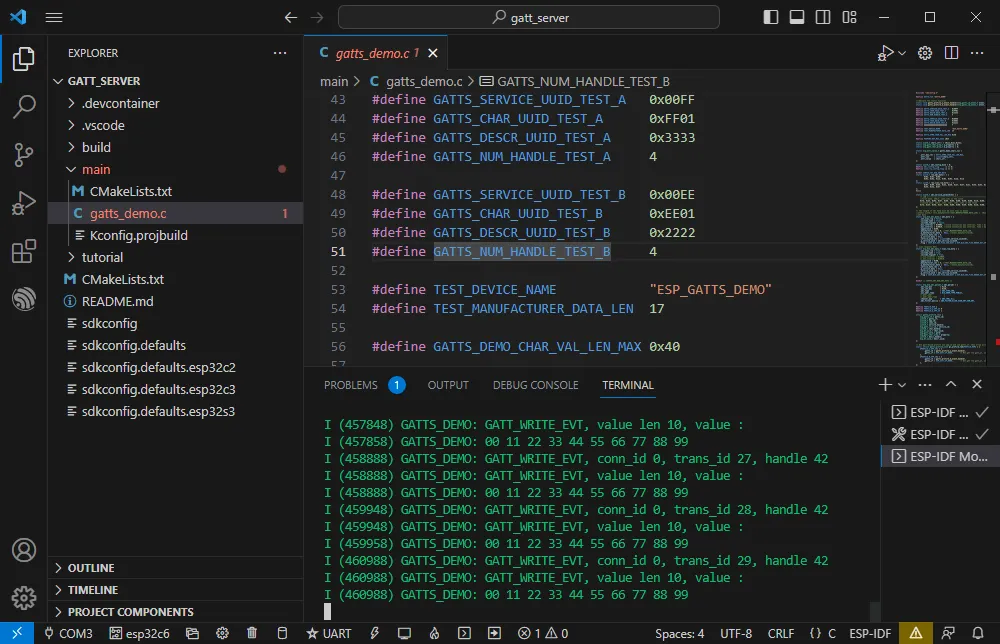
ESP32-C6 receives the data.
WIFI
Official example path: wifi -> getting_started -> station Example effect: ESP32-C6 connects to WiFi.
Software Operation
- Create the official example
stationaccording to the tutorial above (Creating an Example). - Modify the program content to connect to the required WiFi.
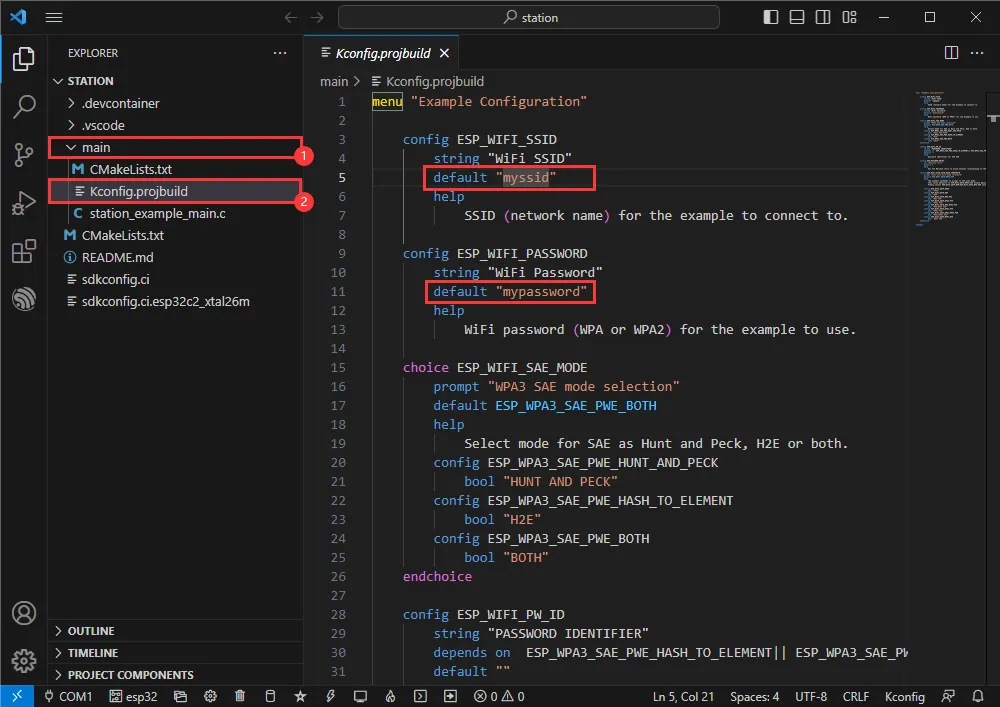
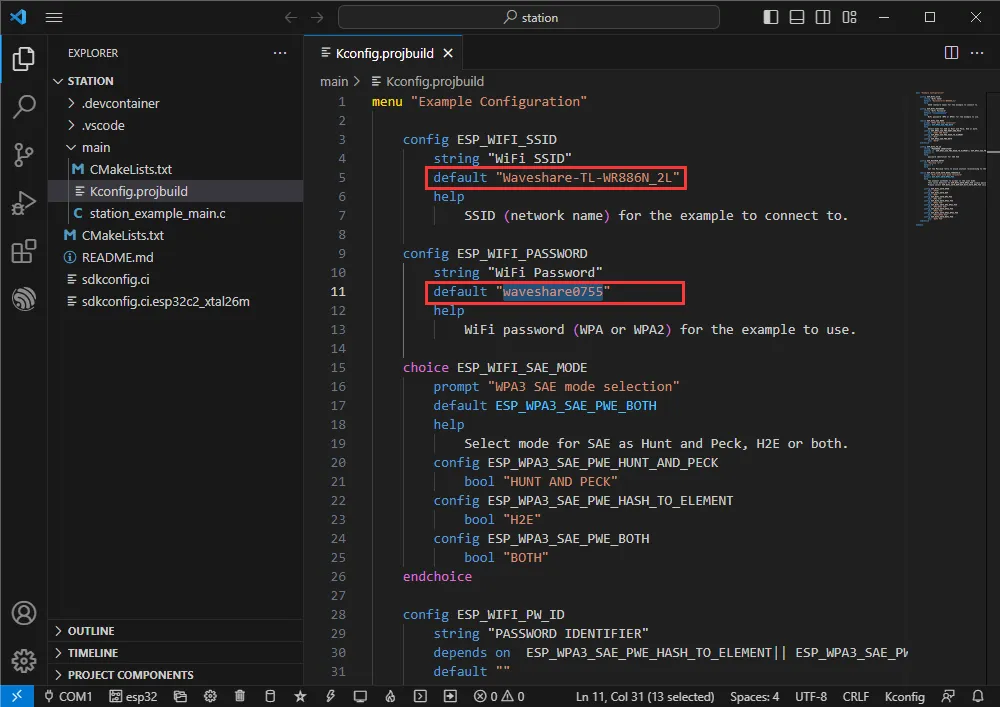
- Enter the Kconfig.projbuild file.
-
Change the original WiFi SSID and WiFi Password to the WiFi information you want to connect to.
-
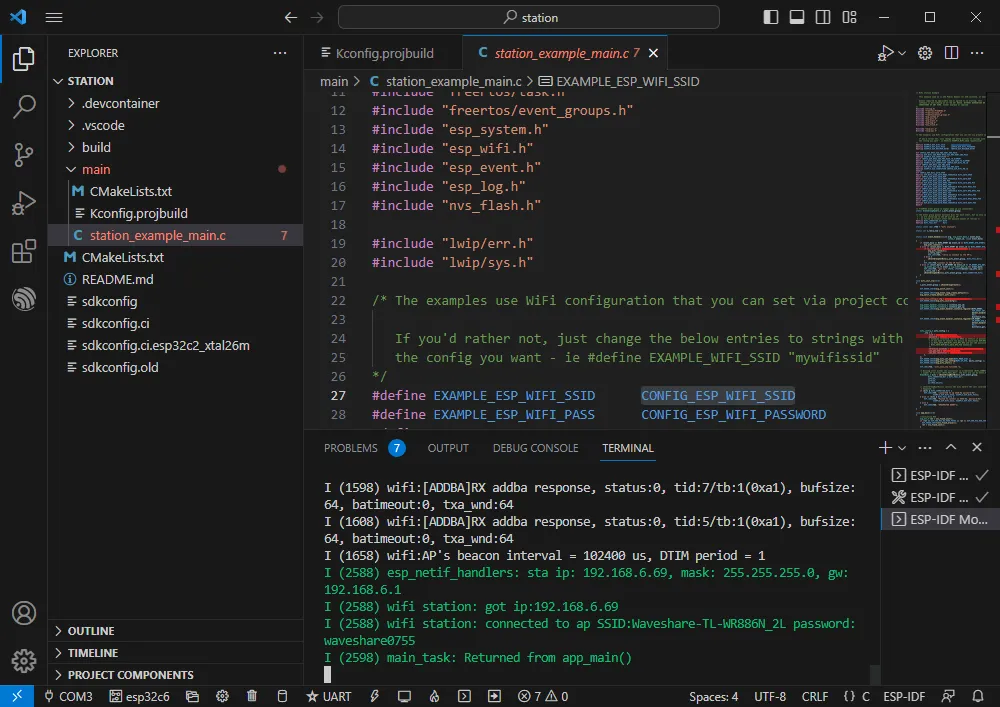
Modify the COM port and target device (It is recommended to prioritize the COM port corresponding to the USB, check via Device Manager), then click Build and Flash to run the program.
-
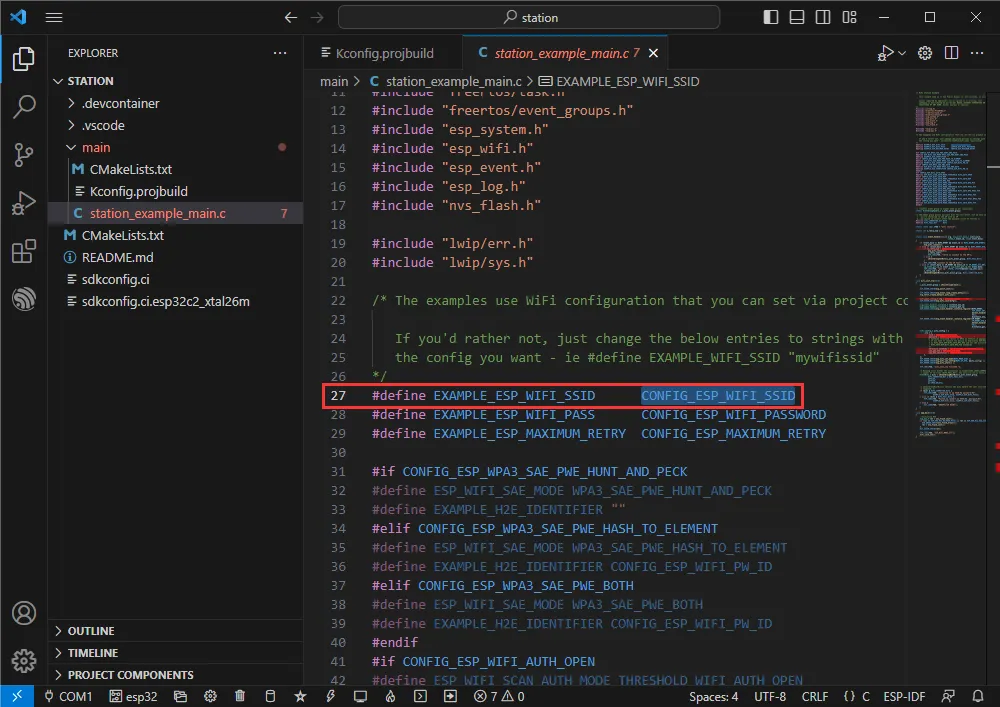
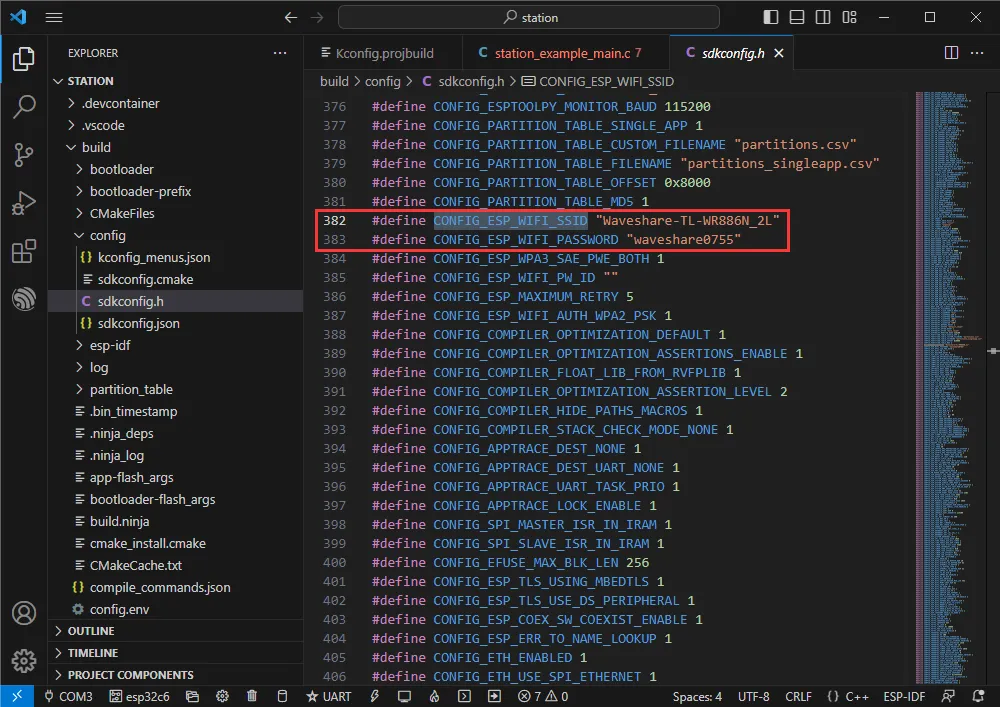
You can view the value of CONFIG_ESP_WIFI_SSID.
-
Enter the station example main.c file.
-
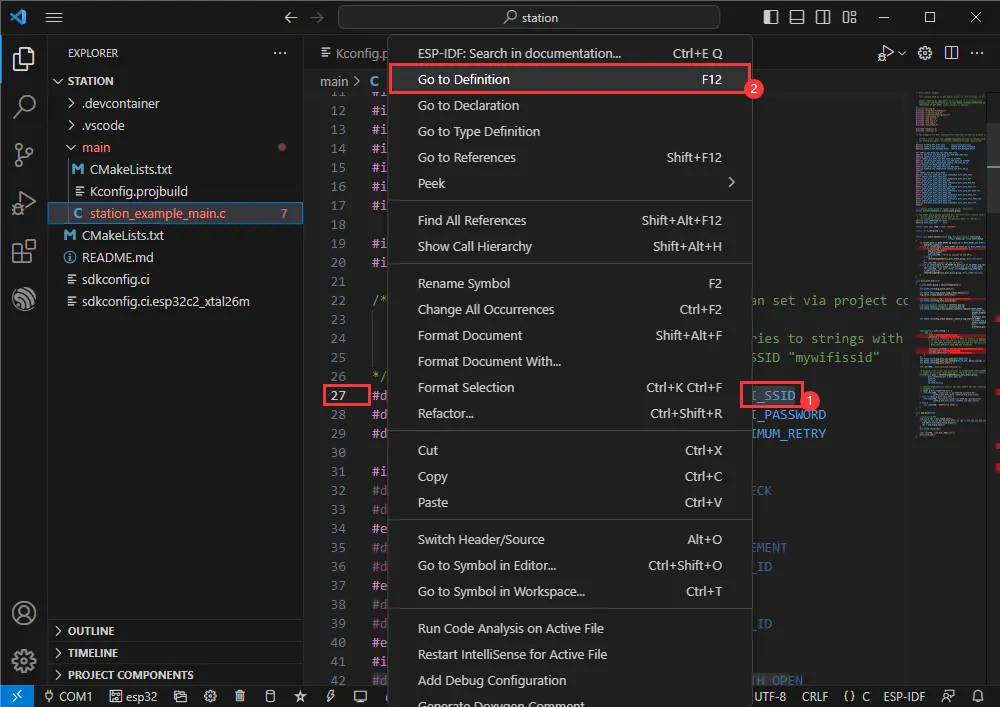
Right-click and Go to Definition.
-
You can see it is the value set previously.
Zigbee
Official Example 1 Path: Zigbee -> light_sample -> HA_on_off_switch
Official Example 2 Path: Zigbee -> light_sample -> HA_on_off_light
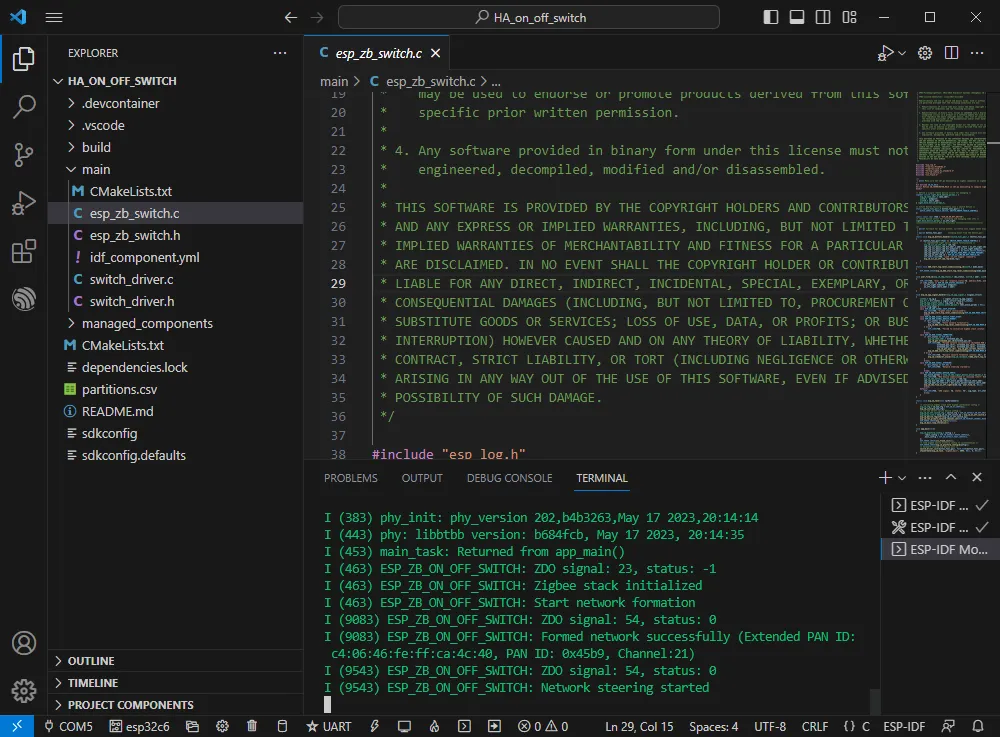
Example effect: Two ESP32-C6 boards. Use the BOOT button on one (flashed with HA_on_off_switch) to control the RGB LED on the other to turn on/off.
Note: Please flash the HA_on_off_switch program to one board first, then flash the HA_on_off_light program to the other.
Software Operation 1
- Create the official example
HA_on_off_switchaccording to the tutorial above (Creating an Example). - The program is compatible with ESP32-C6; no modification to the code is needed.
- Modify the COM port and target device (It is recommended to prioritize the COM port corresponding to the USB, check via Device Manager), then click Build and Flash to run the program.
Software Operation 2
-
Create the official example
HA_on_off_lightaccording to the tutorial above (Creating an Example). -
The program is compatible with ESP32-C6; no modification to the code is needed.
-
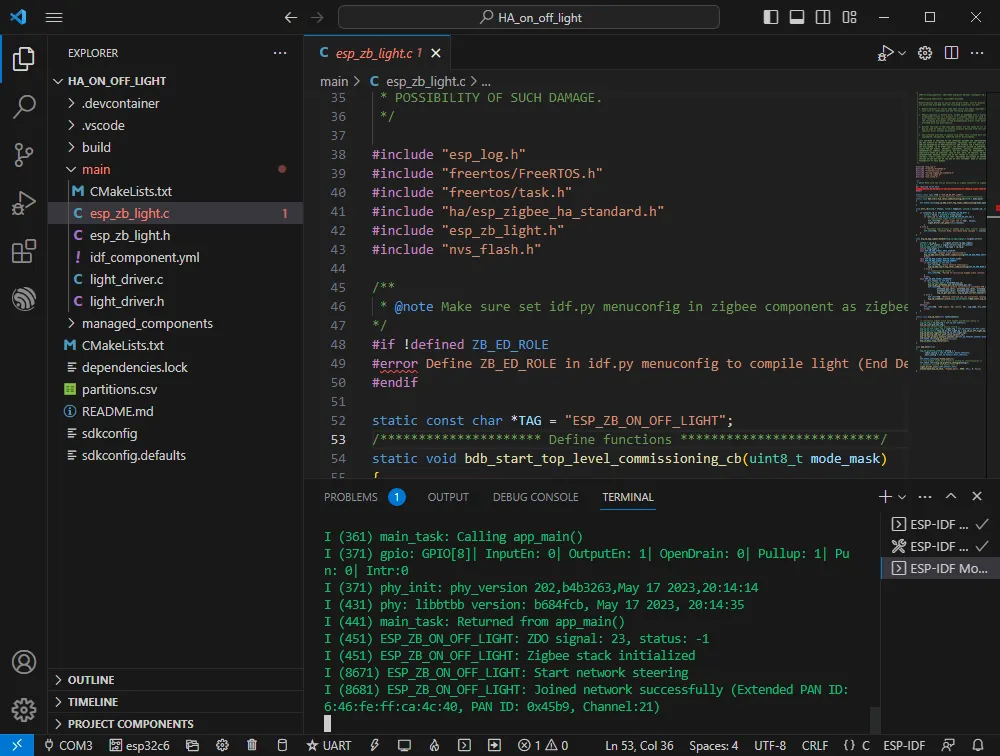
Modify the COM port and target device, then click Build and Flash to run the program (Wait for a moment for the two chips to establish a connection).
-
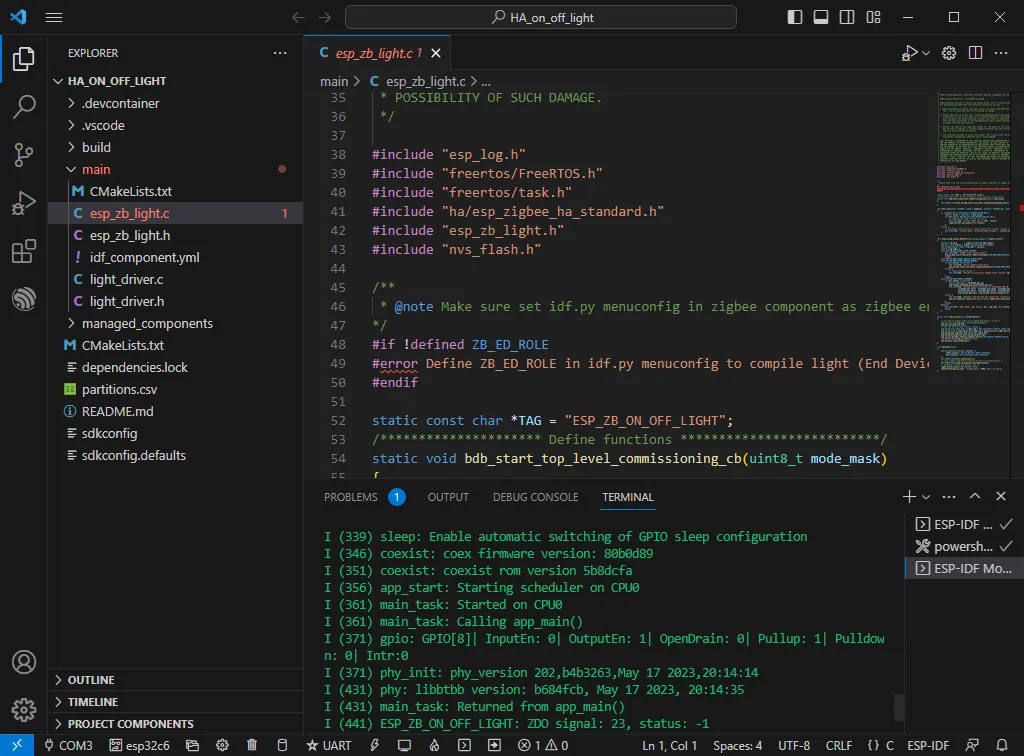
If it remains in the unconnected state shown below, it may be due to residual network information on the device. You can erase the device information (Erase Tutorial) and form the network again.
JTAG Debugging
Software Operation
-
Create the example to be debugged. This example uses the official
hello_world(Creating an Example). -
Modify the launch.json file.
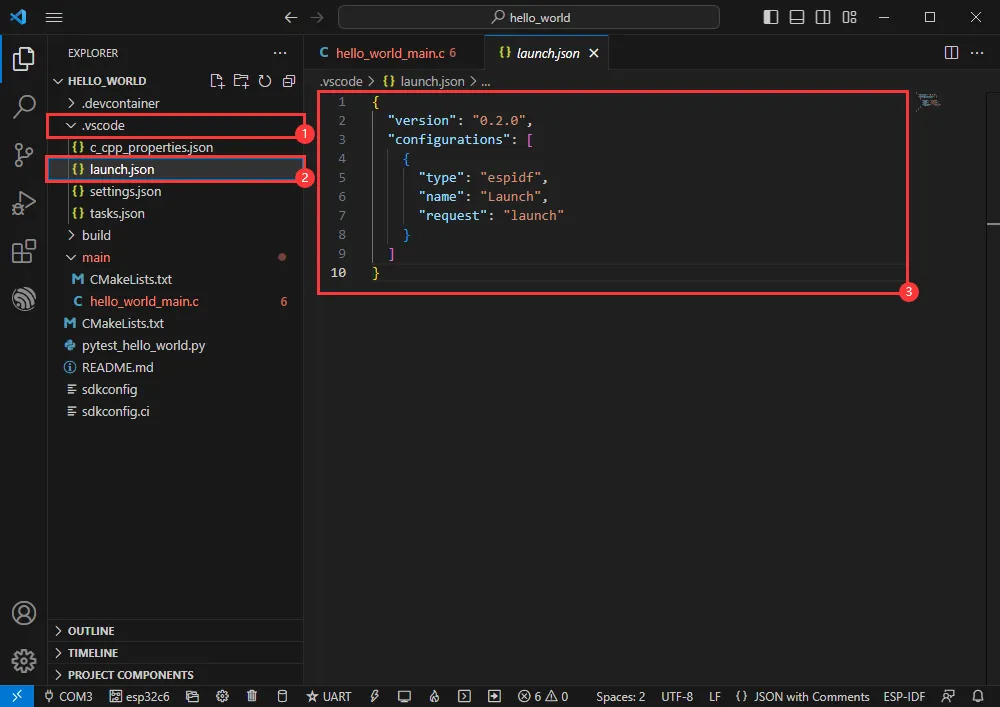
-
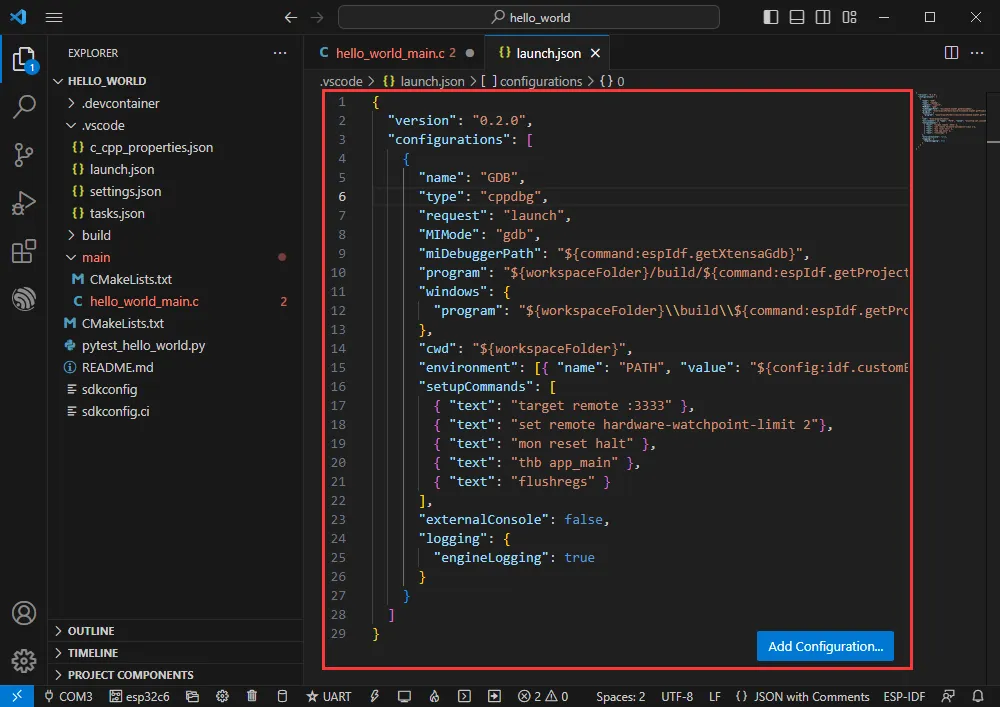
Enter the following content:
{"version": "0.2.0","configurations": [{"name": "GDB","type": "cppdbg","request": "launch","MIMode": "gdb","miDebuggerPath": "${command:espIdf.getXtensaGdb}","program": "${workspaceFolder}/build/${command:espIdf.getProjectName}.elf","windows": {"program": "${workspaceFolder}\\build\\${command:espIdf.getProjectName}.elf"},"cwd": "${workspaceFolder}","environment": [{ "name": "PATH", "value": "${config:idf.customExtraPaths}" }],"setupCommands": [{ "text": "target remote :3333" },{ "text": "set remote hardware-watchpoint-limit 2"},{ "text": "mon reset halt" },{ "text": "thb app_main" },{ "text": "flushregs" }],"externalConsole": false,"logging": {"engineLogging": true}}]}
- The program is compatible with ESP32-C6; no modification to the code is needed.
- Modify the COM port and target device (Please use the USB interface; the UART interface does not support JTAG debugging. Check the corresponding COM port via Device Manager), then click Build and Flash to run the program.
-
Press the shortcut key F1, and enter:
ESP-IDF:Device configuration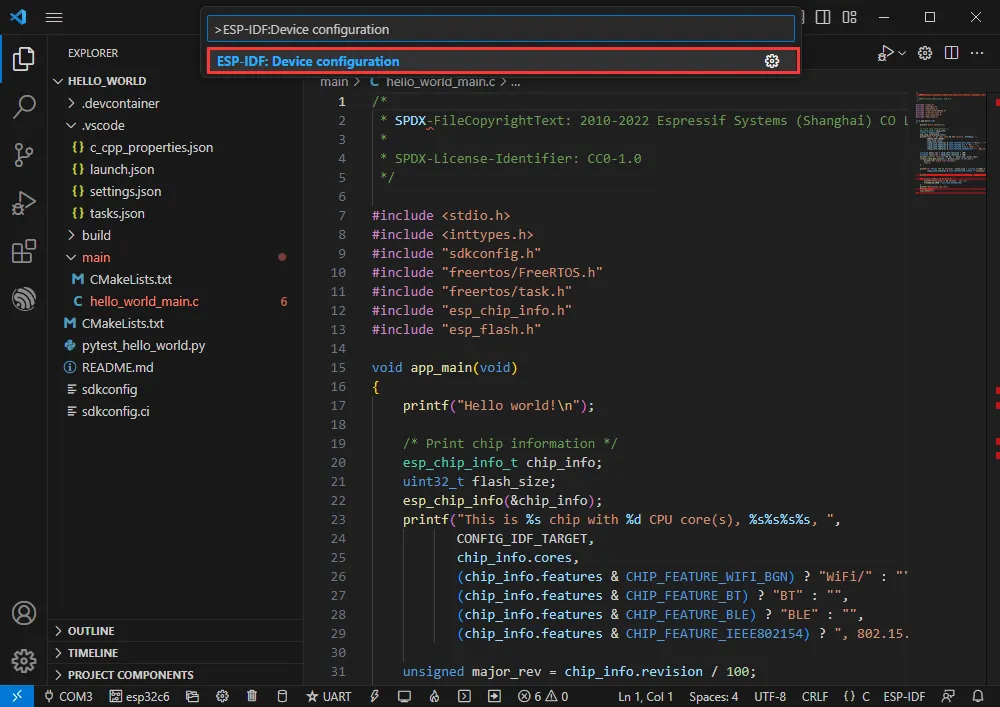
-
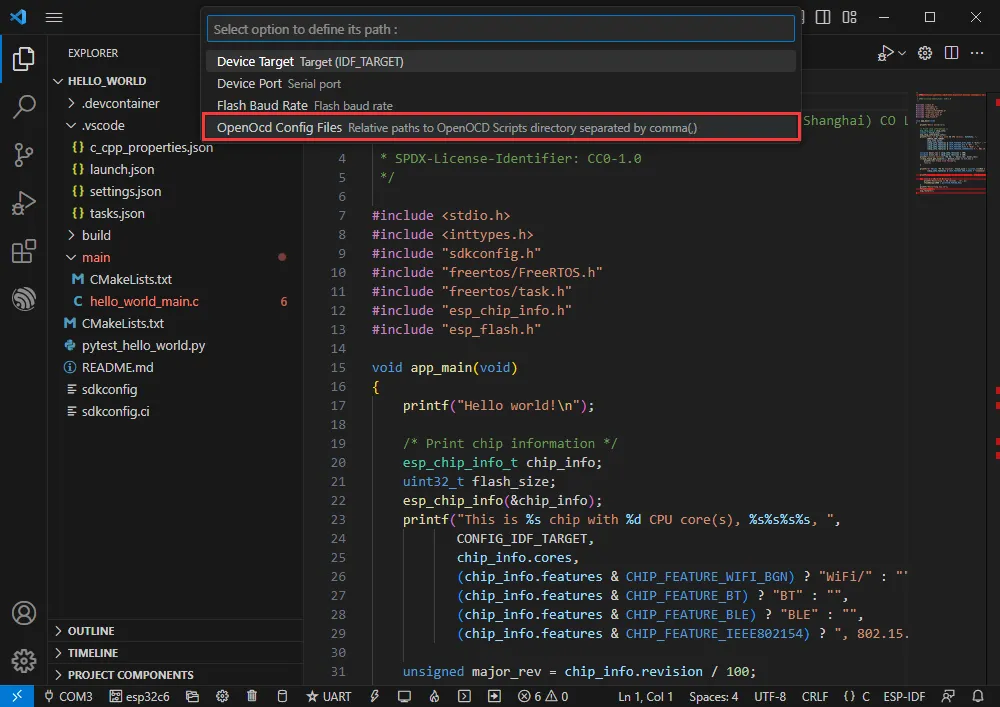
Select OpenOcd Config Files.
-
Enter board/esp32c6-builtin.cfg (if this is the default, just press Enter).
board/esp32c6-builtin.cfg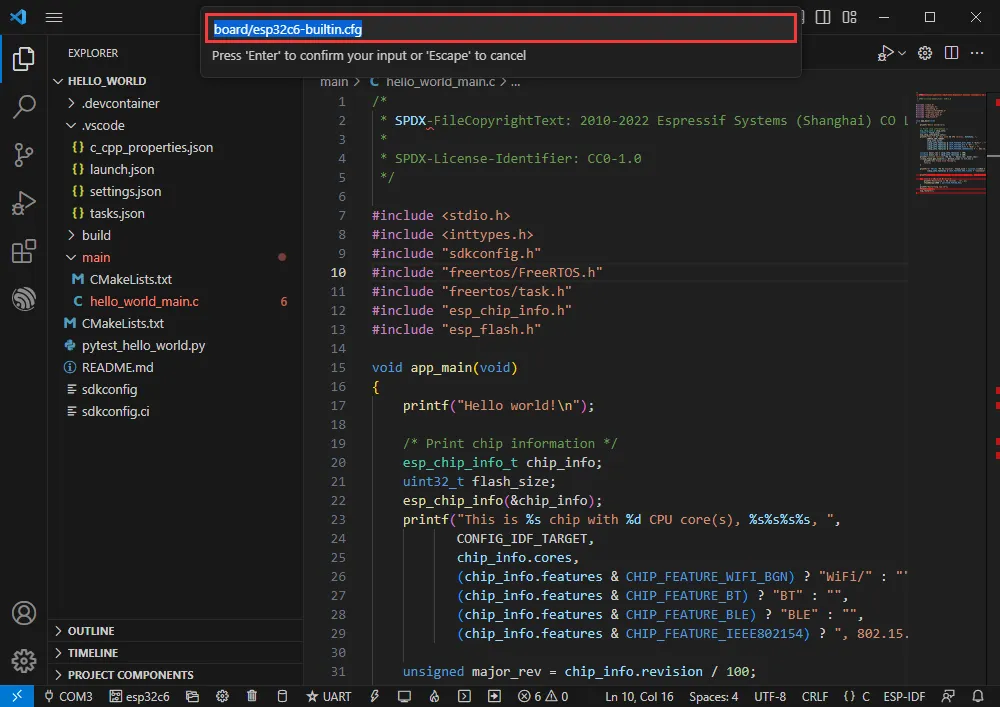
-
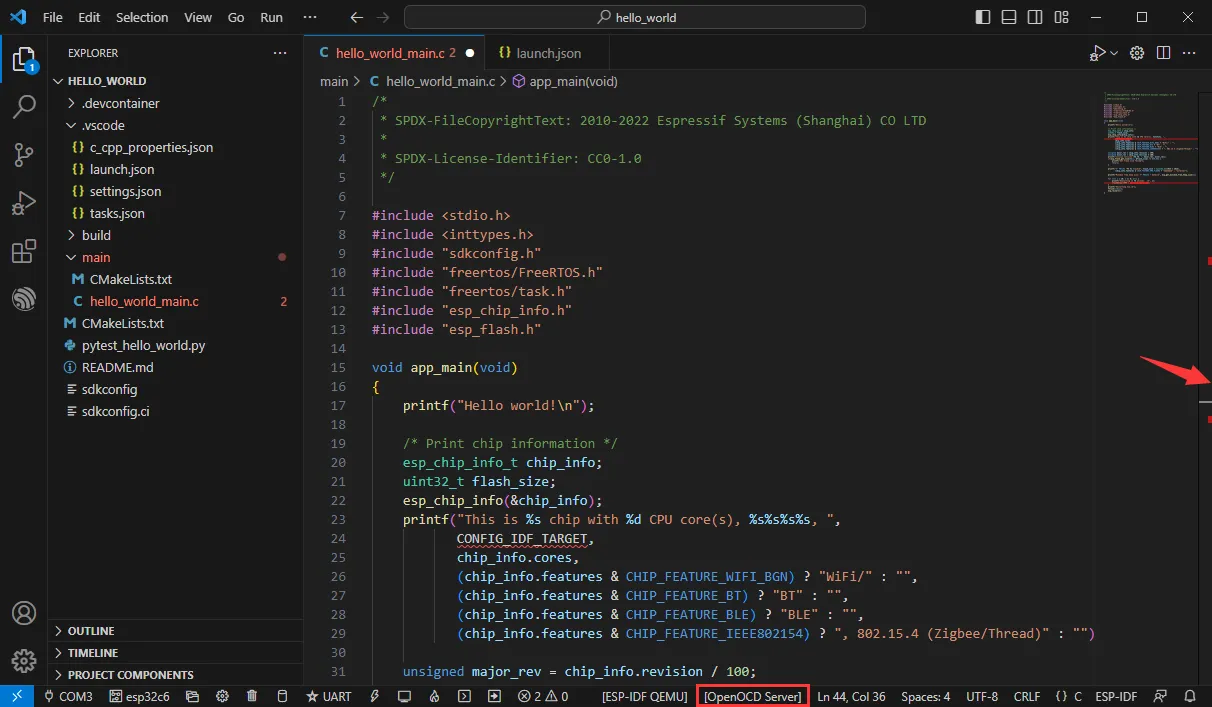
Stretch the window width until [OpenOCD Server] is displayed at the bottom.
-
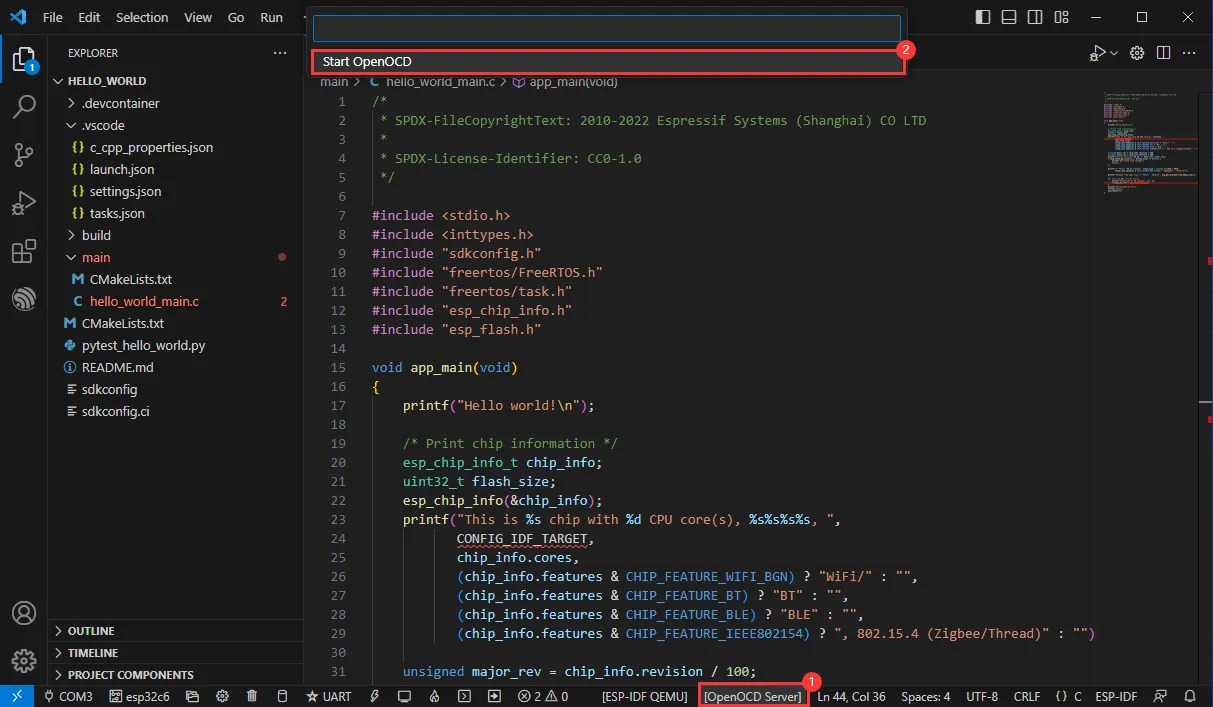
Click [OpenOCD Server], and select Start OpenOCD.
-
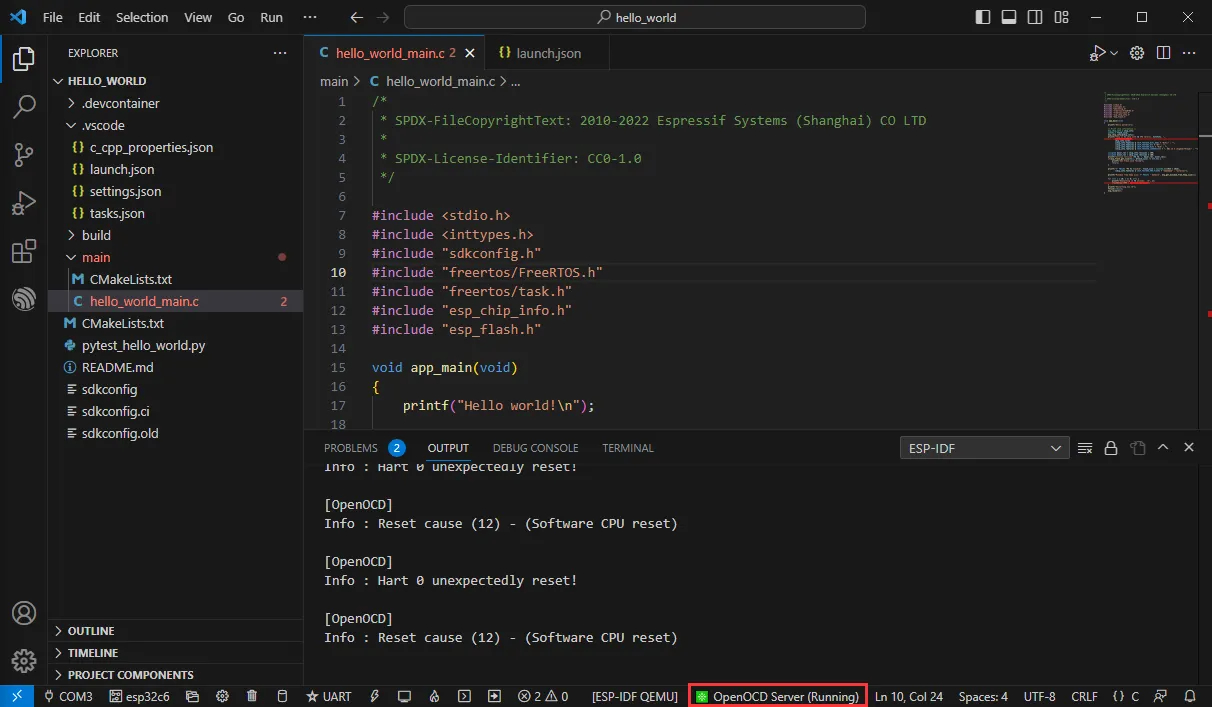
Successful startup is as follows.
-
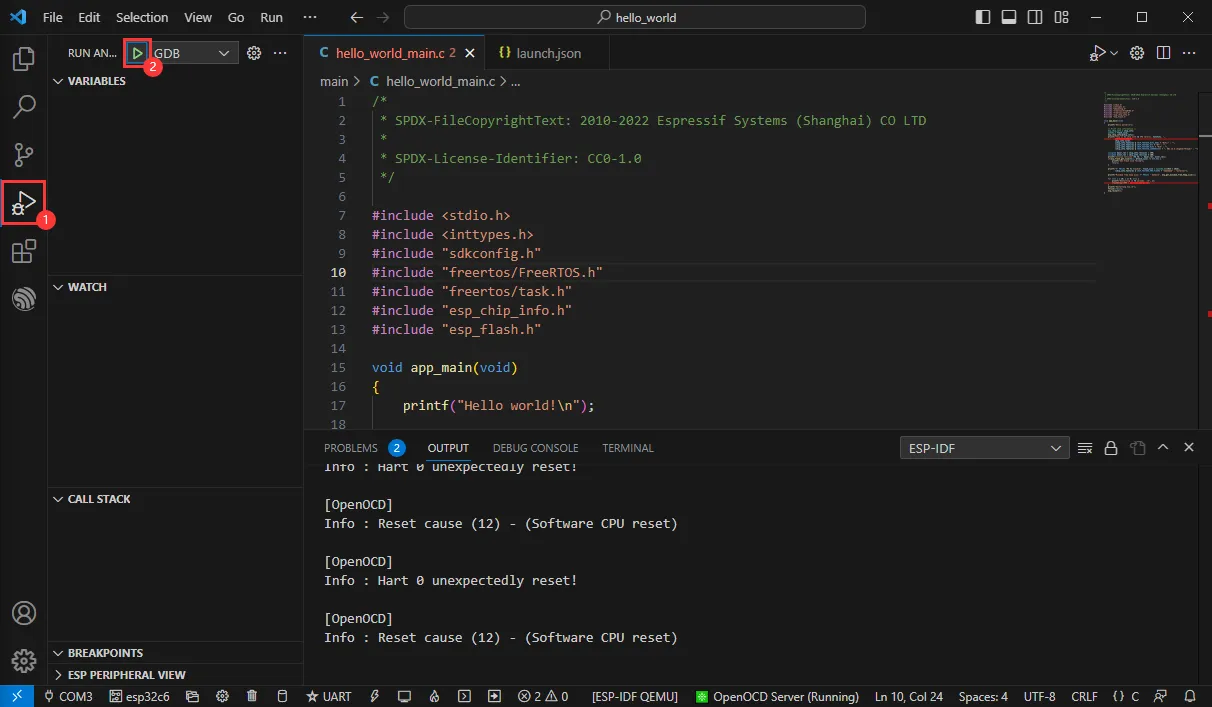
Enter the debugging function and click Debug.
-
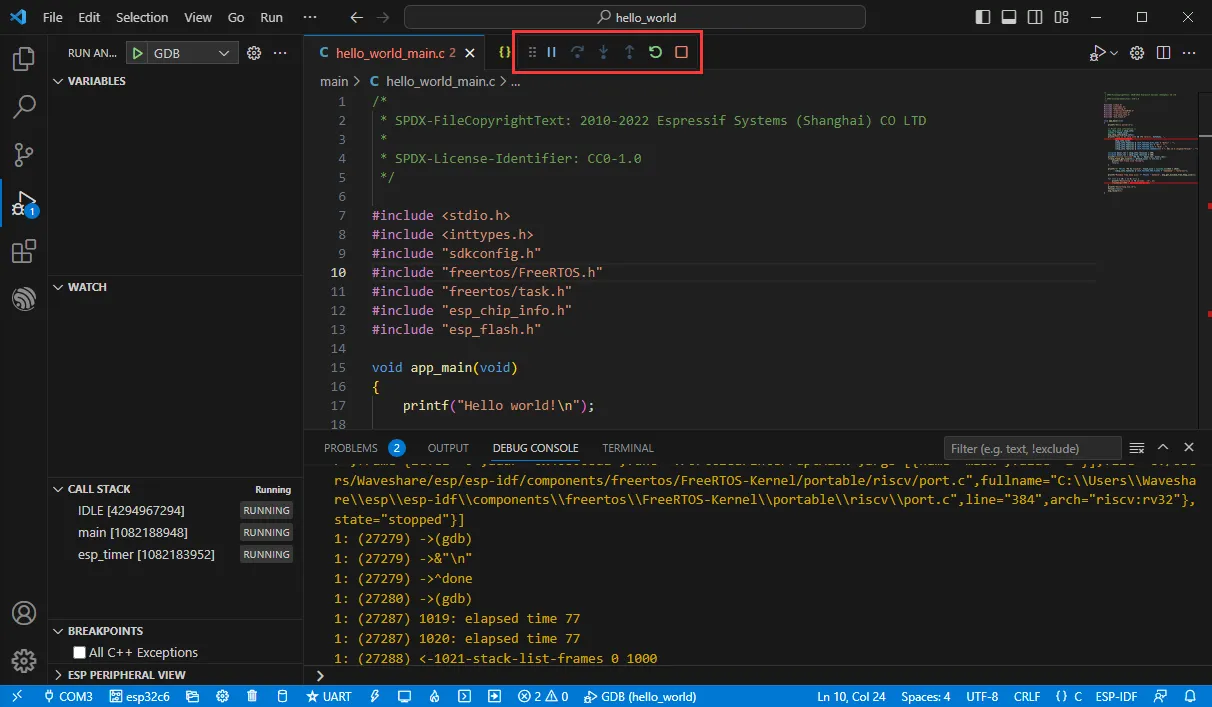
Successfully entered the debugging interface.
Erasing Device Flash
-
Unzip the software resource package (Flash Download Tool).
-
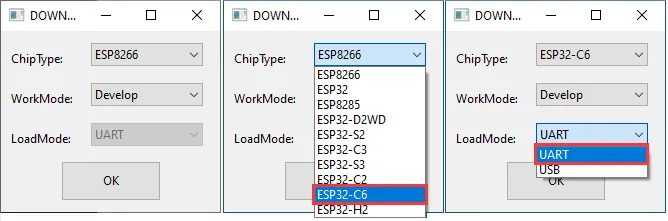
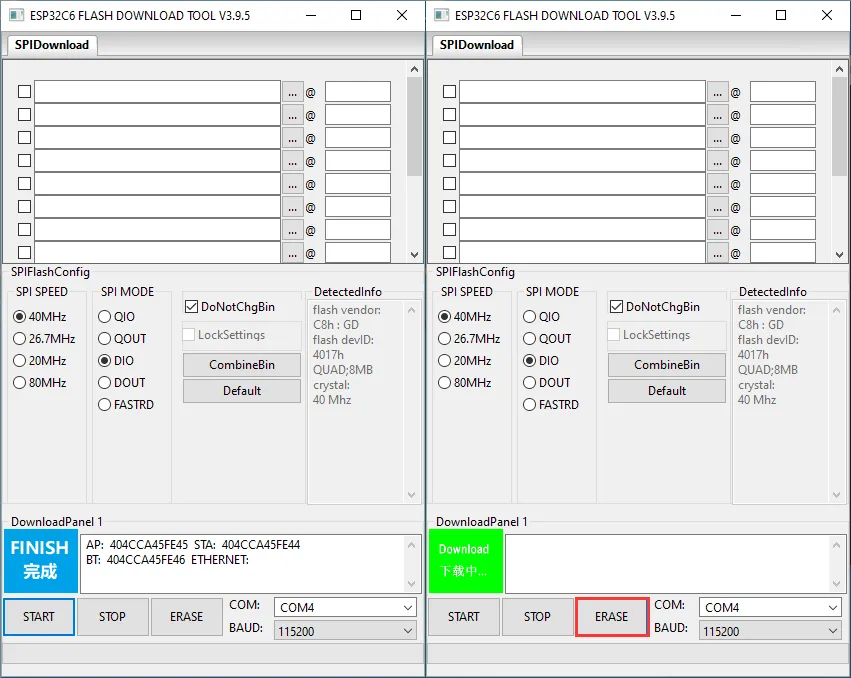
Open the flash_download_tool_3.9.5.exe software, select ESP32-C6 and UART.
-
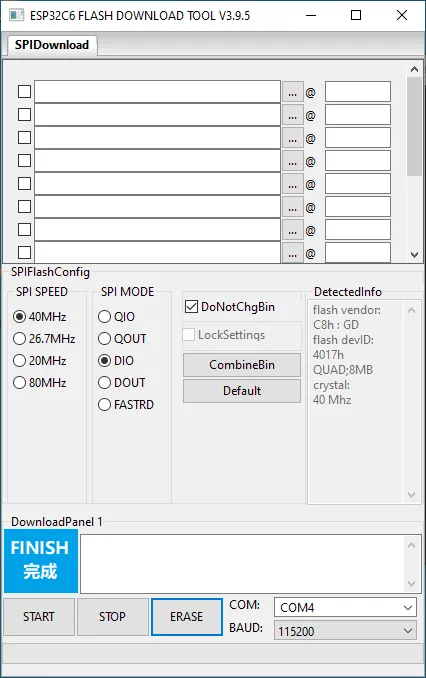
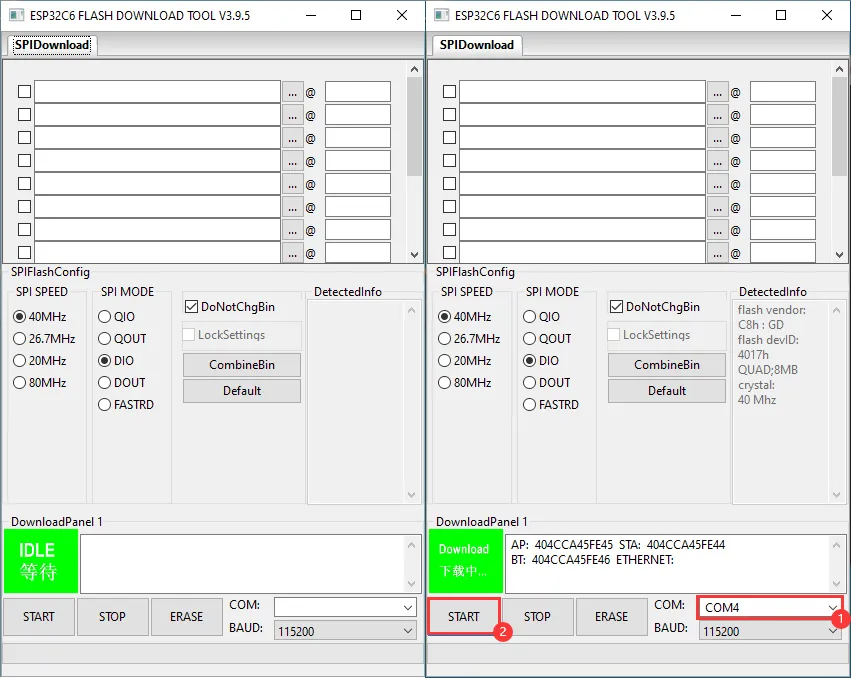
Select the UART port number and click START (Select no bin files).
-
Wait for the flashing to complete (sync), then click ERASE.
-
Wait for the erasure to complete.