Working with Arduino
This chapter includes the following sections, please read as needed:
Arduino Getting Started Tutorial
New to Arduino ESP32 development and looking for a quick start? We have prepared a comprehensive Getting Started Tutorial for you.
- Section 0: Getting to Know ESP32
- Section 1: Installing and Configuring Arduino IDE
- Section 2: Arduino Basics
- Section 3: Digital Output/Input
- Section 4: Analog Input
- Section 5: Pulse Width Modulation (PWM)
- Section 6: Serial Communication (UART)
- Section 7: I2C Communication
- Section 8: SPI Communication
- Section 9: Wi-Fi Basics
- Section 10: Web Server
- Section 11: Bluetooth
- Section 12: LVGL GUI Development
- Section 13: Comprehensive Project
Note: This tutorial uses the ESP32-S3-Zero as a reference example, and all hardware code is based on its pinout. Before you start, we recommend checking the pinout of your development board to ensure the pin configuration is correct.
Setting Up Development Environment
1. Installing and Configuring Arduino IDE
For the ESP32-S3-Touch-AMOLED-1.32 development board, the Arduino IDE requires the installation of arduino-esp32 core library version v3.3.0 or later.
Please refer to the tutorial Installing and Configuring Arduino IDE Tutorial to download and install the Arduino IDE and add ESP32 support.
2. Installing Libraries
- When installing Arduino libraries, there are typically two methods: Online Installation and Offline Installation. If the library installation requires offline installation, you must use the provided library file.
- For most libraries, users can easily search and install them through the online Library Manager in the Arduino software. However, some open-source libraries or custom libraries are not synchronized to the Arduino Library Manager, so they cannot be acquired through online searches. In this case, users can only manually install these libraries offline.
- The sample program package for the ESP32-S3-Touch-AMOLED-1.32 development board can be downloaded from here. The
Arduino\librariesdirectory within the package already includes all the library files required for this tutorial.
| Library/File Name | Description | Version | Installation Method |
|---|---|---|---|
| LVGL | Graphical library | v8.3.11/v9.3.0 |
There are strong dependencies between versions of LVGL and its driver libraries. For example, a driver written for LVGL v8 may not be compatible with LVGL v9. To ensure stable reproduction of the examples, it is recommended to use the specific versions listed in the table above. Mixing different library versions may cause compilation failures or runtime exceptions.
3. Arduino Project Parameter Settings
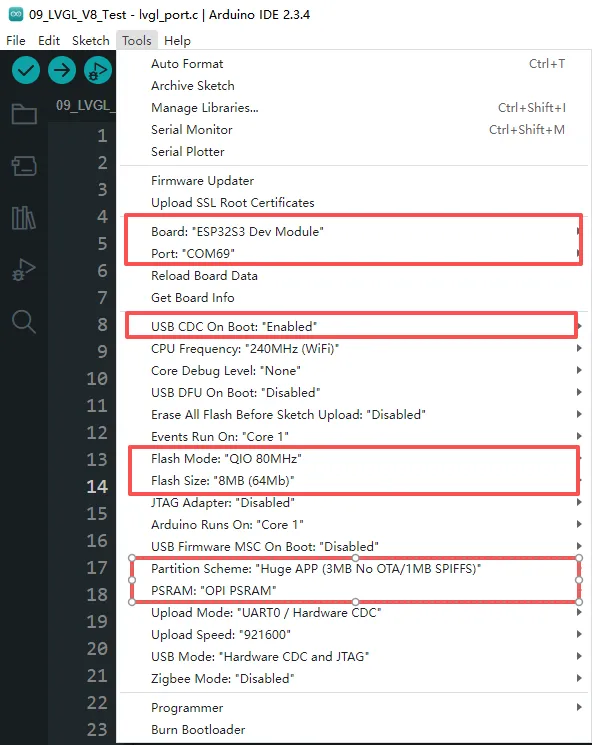
Example
The Arduino examples are located in the Arduino/examples directory of the example package.
| Demo | Basic Program Description | Dependency Library |
|---|---|---|
| 01_ADC_Test | Get the voltage value of the lithium battery | - |
| 02_WIFI_AP | Set to AP mode to obtain the IP address of the access device | - |
| 03_WIFI_STA | Set to STA mode to connect to WiFi and obtain an IP address | - |
| 04_BATT_PWR_Test | Control power via the PWR button when powered solely by the lithium battery | - |
| 05_Audio_Test | Play the sound recorded by the microphone through the speaker | LVGL V8.3.11 |
| 06_LVGL_V8_Test | LVGLV8 demo | LVGL V8.3.11 |
| 07_LVGL_V9_Test | LVGLV9 demo | LVGL V9.3.0 |
01_ADC_Test
Description
- The analog voltage connected through the GPIO is converted to digital by the ADC, and then the actual lithium battery voltage is calculated and printed to the terminal.
Hardware Connection
- Connect the board to the computer using a USB cable
Code Analysis
adc_bsp_init(void): Initializes ADC1, including creating an ADC one-shot trigger unit and configuring Channel 3 of ADC1.adc_get_value(float *value,int *data): Reads the value from Channel 3 of ADC1, calculates the corresponding voltage based on the reference voltage and resolution, and stores it at the location pointed to by the passed pointer. Stores 0 if the read fails.adc_example(void* parameter): After initializing ADC1, creates an ADC task. This task reads the ADC value every second and calculates the system voltage from the raw ADC reading.
Operation Result
-
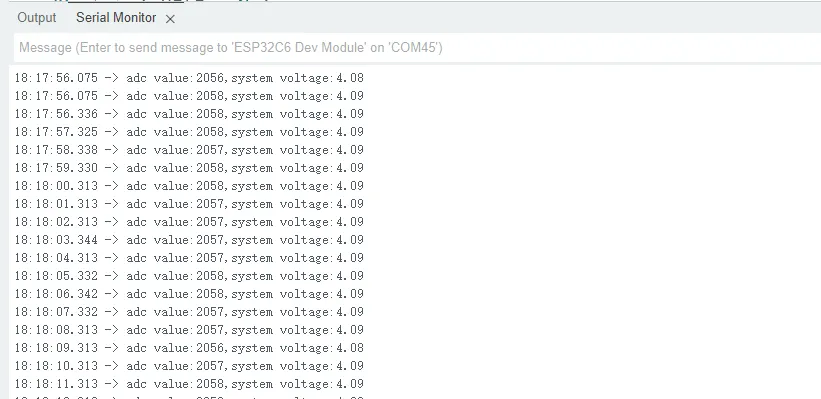
After flashing the program and opening the serial terminal, if the device successfully connects to the hotspot, it will output the MAC address of the device, as shown in the figure:
02_WIFI_AP
Description
- This demo can set the development board as a hotspot, allowing phones or other devices in STA mode to connect to the development board.
Hardware Connection
- Connect the board to the computer using a USB cable
Code Analysis
-
In the
02_WIFI_AP.inofile, locatessidandpassword. Phones or other STA mode devices can then connect to the board using this SSID and password.const char *ssid = "ESP32_AP";const char *password = "12345678";
Operation Result
-
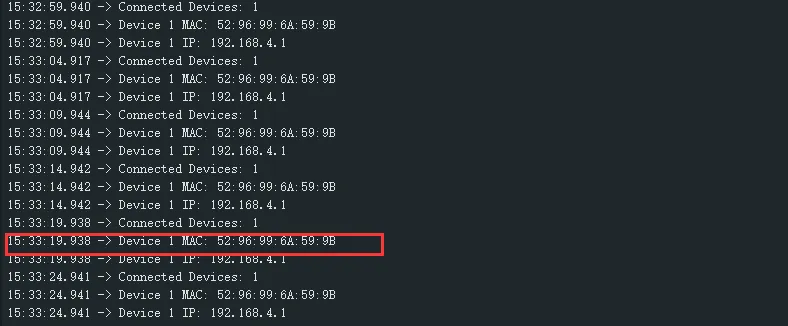
After the program is compiled and downloaded, you can view the printed ADC values and voltage output by opening the Serial Monitor, as shown in the following image:
03_WIFI_STA
Description
- This example can configure the development board as a STA device to connect to a router, thereby enabling access to the system network.
Hardware Connection
- Connect the board to the computer using a USB cable
Code Analysis
-
In the
03_WIFI_STA.inofile, locatessidandpassword, and modify them to match the SSID and Password of an available router in the current environment.const char *ssid = "you_ssid";const char *password = "you_password";
Operation Result
-
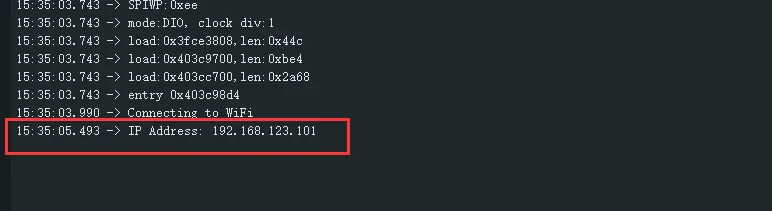
After flashing the program, open the serial terminal, if the device is successfully connected to the hotspot, the IP address obtained will be output, as shown in the figure:
04_BATT_PWR_Test
Description
- Demonstrates how to control the system power via the PWR button when powered by the lithium battery.
Hardware Connection
- Connect the board to the computer using a USB cable
Code Analysis
setup_ui(lv_ui *ui): Initializes the UI interface for visual control.BatteryMonitor batt_dev(ADC_CHANNEL_3,18,17): Initializes the control IO ports for the lithium battery.user_button_init(): Initializes the buttons and their trigger events.Custom_ButtonPWRLoopTask(void *arg): A task that waits for button event triggers.
Operation Result
-
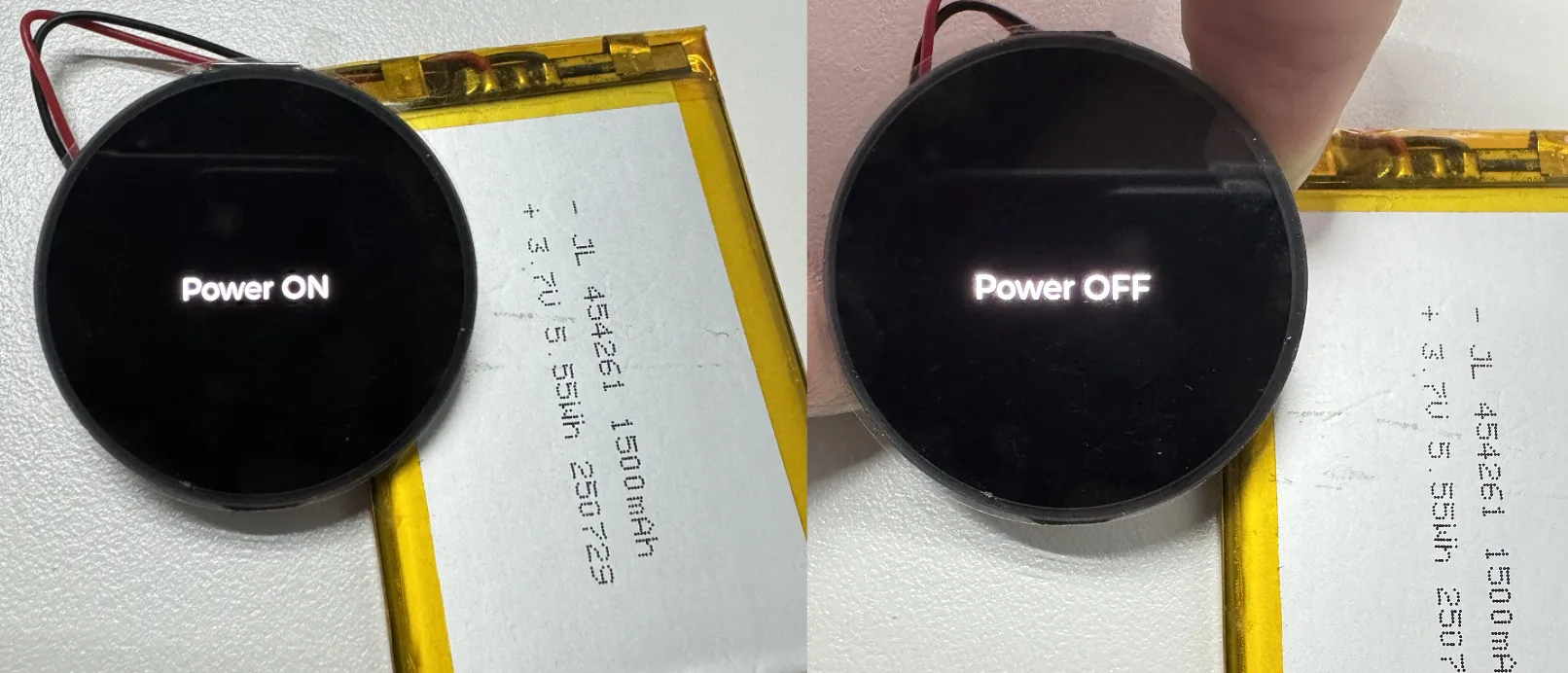
After the program is flashed, disconnect the USB power supply and connect the lithium battery. Power on by pressing and holding the PWR button, as shown in the figure:
tip- Press and hold the PWR button, wait for the screen to display "Power ON", which means that the startup is successful, and release the button
- Press and hold the PWR button again, wait for the screen to display "Power OFF", which means that the power is turned off successfully, and release the button
05_Audio_Test
Description
- Demonstrates how to capture microphone data, play sound, and other audio functions.
Hardware Connection
- Connect the board to the computer using a USB cable
Code Analysis
I2cMasterBus i2c_dev(ESP32_SCL_NUM,ESP32_SDA_NUM,0): Initializes the I2C bus.audio_dev = new I2sAudioCodec("S3_AMOLED_1_32"): Initializes the Audio Codec.audio_dev->I2sAudio_SetSpeakerVol(90): Sets the playback volume level.audio_dev->I2sAudio_SetMicGain(20): Sets the recording gain.
Operation Result
-
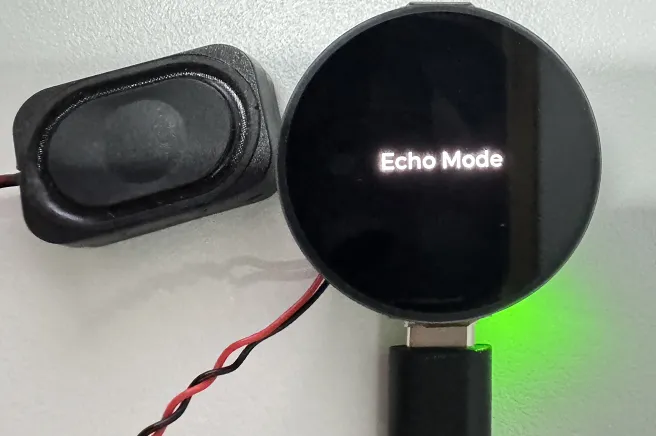
After the program is flashed, speak into the microphone. The speaker will automatically play the recorded sound. The screen display is as shown in the figure:
tip- If the playback volume seems low, first try increasing it using
audio_dev->I2sAudio_SetSpeakerVol(90). - If increasing the playback volume is insufficient, you can use
audio_dev->I2sAudio_SetMicGain(20)to increase the recording gain.
- If the playback volume seems low, first try increasing it using
06_LVGL_V8_Test
Description
- Implements various multifunctional GUI interfaces on the screen by porting LVGL V8.
Hardware Connection
- Connect the board to the computer using a USB cable
Code Analysis
-
To perform a backlight test, locate the macro definition
#define BacklightTestEN 0in theuser_config.hfile and change its value to 1.#define BacklightTestEN 0 //Backlight Test
Operation Result
-
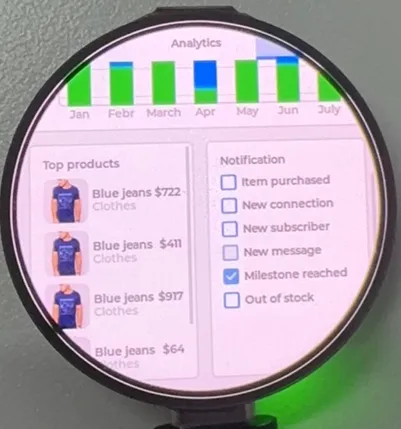
After the program is flashed, the device operation result is as follows:
07_LVGL_V9_Test
Description
- Implements various multifunctional GUI interfaces on the screen by porting LVGL V9.
Hardware Connection
- Connect the board to the computer using a USB cable
Code Analysis
-
To perform a backlight test, locate the macro definition
#define BacklightTestEN 0in theuser_config.hfile and change its value to 1.#define BacklightTestEN 0 //Backlight Test
Operation Result
-
After the program is flashed, the device operation result is as follows: