Weather Display
The core logic of this tutorial applies to all ESP32 boards, but all the operation steps are explained using the example of the Waveshare ESP32-S3-Zero mini development board. If you are using a development board of another model, please modify the corresponding settings according to the actual situation.
Project Introduction
This project demonstrates how to create a Network Weather Display using an ESP32. By connecting to a Wi-Fi network, the ESP32 will periodically fetch real-time weather data (weather conditions, temperature, and humidity) for a specified city from the OpenWeather API and display this information on a Waveshare 1.5inch OLED screen.
Hardware Connection
Components required:
- Waveshare 1.5inch OLED Module * 1
- Breadboard * 1
- Wires
- ESP32 development board
Connect the circuit according to the wiring diagram below:
ESP32-S3-Zero Pinout Diagram

The following uses the SPI interface to connect the OLED display. This screen also supports I2C, controlled via BS1 and BS2. If using I2C mode, please refer to the wiring method in Section 7 I2C Communication.
| ESP32 pin | OLED module | Description |
|---|---|---|
| GPIO 13 | SCK | SPI clock line |
| GPIO 11 | MOSI | SPI data output |
| GPIO 10 | CS | Chip select signal |
| GPIO 8 | DC | Data/command select |
| 3.3V | VCC | Power positive terminal |
| GND | GND | Power negative terminal |
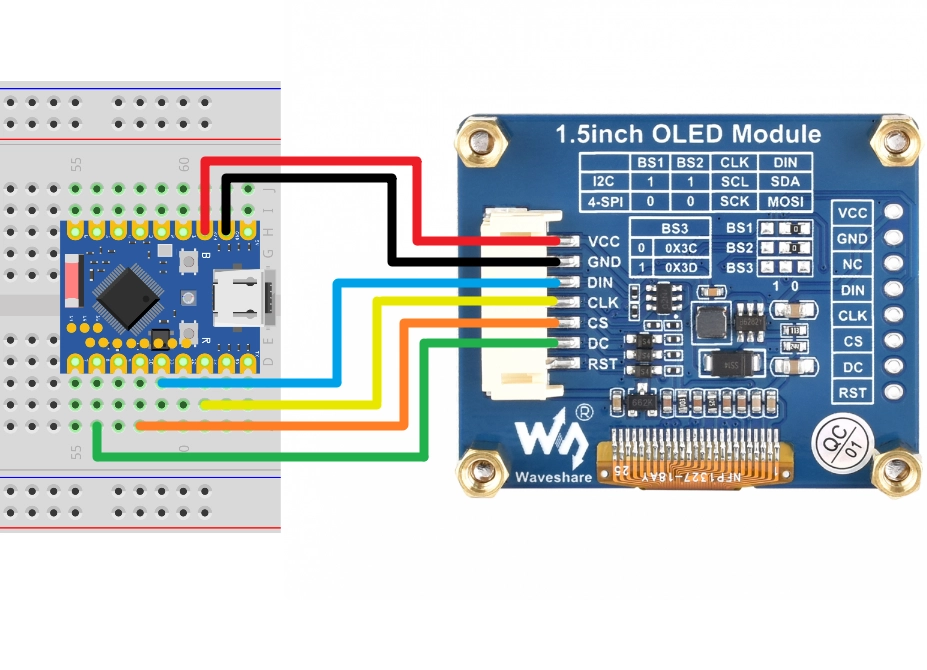
Getting an OpenWeather API Key
OpenWeather is an online service owned by OpenWeather Ltd that provides developer-friendly free tier access. Through its API, it delivers global weather data for any geographic location, including current weather conditions, forecasts, nowcasts, and historical weather data.
-
Visit OpenWeather to log in or create an account.
-
Copy the API Key from the API keys page. You can also find your key in the "OpenWeatherMap API Instruction" email sent to your inbox.
infoNewly generated keys typically take 10-60 minutes to become active. If you encounter a 401 error when running the code immediately, please wait a while before trying again.
Code Implementation
This code example requires the ssd1327.py driver library, which is based on the micropython-ssd1327 project by community developer mcauser.
Download link: micropython-ssd1327-master.zip
Please upload the ssd1327.py file from this library to the root directory of your development board.
import time
import network
import urequests
import json
from machine import Pin, SPI
import ssd1327

# Wi-Fi Configuration
WIFI_SSID = "Maker"
WIFI_PASSWORD = "12345678"

# OpenWeatherMap API Configuration (Please replace with your private key)
API_KEY = "your_api_key"

# City to query (e.g., "Shenzhen", "New%20York,US", "London", "Stockholm")
LOCATION = "Stockholm"

# API URL
API_URL = "http://api.openweathermap.org/data/2.5/weather?appid={}&q={}&units=metric"

# Update Interval (seconds)
UPDATE_INTERVAL = 1800  # 30 minutes

# Display Text Brightness (0-15)
TEXT_BRIGHTNESS = 8

# SPI Pin Configuration
SCK_PIN = 13
MOSI_PIN = 11
CS_PIN = 10
DC_PIN = 8
RST_PIN = 9
# Initialize hardware SPI, using id=1, set clock frequency to 10 MHz
spi = SPI(1, baudrate=10000000, sck=Pin(SCK_PIN), mosi=Pin(MOSI_PIN))

# Initialize the display
try:
    # Using SPI interface
    oled = ssd1327.SSD1327_SPI(128, 128, spi, dc=Pin(DC_PIN), res=Pin(RST_PIN), cs=Pin(CS_PIN))
    print("OLED display initialized successfully.")
except Exception as e:
    print(f"Error initializing display: {e}")
    # If the display initialization fails, the program cannot continue
    while True:
        time.sleep(1)

def connect_wifi():
    """Connect to the Wi-Fi network"""
    wlan = network.WLAN(network.STA_IF)
    wlan.active(True)
    if not wlan.isconnected():
        print(f"Connecting to network: {WIFI_SSID}...")
        oled.fill(0)
        oled.text("Connecting to", 5, 20, TEXT_BRIGHTNESS)
        oled.text("WiFi...", 5, 40, TEXT_BRIGHTNESS)
        oled.show()

        wlan.connect(WIFI_SSID, WIFI_PASSWORD)

        # Wait for the connection to succeed
        timeout = 15  # 15-second timeout
        start_time = time.time()
        while not wlan.isconnected() and (time.time() - start_time) < timeout:
            time.sleep(1)
            print(".", end="")

    if wlan.isconnected():
        print("\nNetwork connected!")
        print(f"IP Address: {wlan.ifconfig()[0]}")
        oled.fill(0)
        oled.text("WiFi Connected!", 5, 20, TEXT_BRIGHTNESS)
        oled.text("IP:", 5, 40, TEXT_BRIGHTNESS)
        oled.text(wlan.ifconfig()[0], 5, 55, TEXT_BRIGHTNESS)
        oled.show()
        time.sleep(2)
        return True
    else:
        print("\nFailed to connect to WiFi.")
        oled.fill(0)
        oled.text("WiFi Failed!", 5, 20, TEXT_BRIGHTNESS)
        oled.show()
        return False

def get_weather():
    """Fetch weather data from the OpenWeatherMap API"""
    url = API_URL.format(API_KEY, LOCATION)
    print(f"Fetching weather from: {url}")

    try:
        response = urequests.get(url)

        if response.status_code == 200:
            weather_data = response.json()
            print("API Response:", weather_data)

            # Extract required information from JSON data
            location_name = weather_data['name']
            weather_text = weather_data['weather'][0]['main']
            temperature = weather_data['main']['temp']
            humidity = weather_data['main']['humidity']

            return location_name, weather_text, temperature, humidity

        else:
            print(f"Error getting weather: HTTP Status {response.status_code}")
            return None, f"HTTP Err {response.status_code}", "", ""

    except Exception as e:
        print(f"Error during API request: {e}")
        return None, "Request Error", "", ""

def display_weather(city, weather, temp, hum):
    """Display weather information on the OLED"""
    oled.fill(0) # Clear the screen

    # City name
    oled.text(f"City: {city}", 5, 10, TEXT_BRIGHTNESS)

    # Weather condition
    oled.text(f"Weather:", 5, 40, TEXT_BRIGHTNESS)
    oled.text(str(weather), 5, 55, TEXT_BRIGHTNESS)

    # Temperature
    oled.text(f"Temp: {temp} C", 5, 80, TEXT_BRIGHTNESS)

    # Humidity
    oled.text(f"Hum:  {hum} %", 5, 100, TEXT_BRIGHTNESS)

    oled.show() # Update the display
    print(f"Display updated: {city}, {weather}, {temp} C, {hum}%")

def display_error(message, detail):
    """Display error information on the OLED"""
    oled.fill(0)
    oled.text(f"Error:", 5, 20, TEXT_BRIGHTNESS)
    oled.text(f"{message}", 5, 30, TEXT_BRIGHTNESS)
    oled.text(f"Detail: ", 5, 50, TEXT_BRIGHTNESS)
    oled.text(f"{detail}", 5, 60, TEXT_BRIGHTNESS)
    oled.show()
    print(f"Error displayed: {message}, {detail}")

# Main Program
def main():
    # First, connect to Wi-Fi
    if not connect_wifi():
        # If the connection fails, do not continue
        return

    while True:
        print("\n" + "="*20)
        oled.fill(0)
        oled.text("Fetching...", 5, 20, TEXT_BRIGHTNESS)
        oled.show()

        city, weather, temp, hum = get_weather()

        if city:
            display_weather(city, weather, temp, hum)
        else:
            # If fetching fails, display an error message
            display_error("API Error", weather)

        print(f"Waiting for {UPDATE_INTERVAL} seconds before next update...")
        time.sleep(UPDATE_INTERVAL)

# Run the main program
if __name__ == "__main__":
    main()
Code Analysis
-
Import Libraries:
network: For managing Wi-Fi connections.urequests: For sending HTTP requests to fetch data from the API.json: For parsing JSON-formatted data returned by the API.machine: For controlling hardware (SPI and GPIO).ssd1327: For driving the 1.5inch OLED display.time: For implementing delays and timing.
-
Configuration Parameters: The beginning of the program defines Wi-Fi information, API key, target city, and hardware pins. Centralizing these parameters makes it convenient for users to modify the configuration.
Important Note about the OpenWeather APIThis project uses the OpenWeather API. You need to register an account on OpenWeather (a free tier is available after registration) and copy the API key from the API keys page. Add your private key to the
API_KEYvariable.Switching to FahrenheitBy default, the API uses
units=metricwhich returns temperature in Celsius. To get Fahrenheit instead, change theAPI_URLparameter fromunits=metrictounits=imperial.# Wi-Fi ConfigurationWIFI_SSID = "Maker"WIFI_PASSWORD = "12345678"# OpenWeatherMap API Configuration (Please replace with your private key)API_KEY = "3f70090a4f8d27dc5ebe271907b0b4bf"# City to query (e.g., "Shenzhen", "New%20York,US", "London", "Stockholm")LOCATION = "Stockholm"# API URLAPI_URL = "http://api.openweathermap.org/data/2.5/weather?appid={}&q={}&units=metric" -
Hardware Initialization:
-
SPI Method (Default): Use
machine.SPI()to initialize the SPI bus, and usessd1327.SSD1327_SPI()to initialize the OLED display.spi = SPI(1, baudrate=10000000, sck=Pin(SCK_PIN), mosi=Pin(MOSI_PIN))oled = ssd1327.SSD1327_SPI(128, 128, spi, dc=Pin(DC_PIN), res=Pin(RST_PIN), cs=Pin(CS_PIN)) -
I2C Method: If using a screen with an I2C interface, you can uncomment the relevant code. Use
machine.I2C()to initialize the I2C bus and usessd1327.SSD1327_I2C()to initialize.# I2C Initialization Examplei2c = I2C(0, scl=Pin(SCL_PIN), sda=Pin(SDA_PIN), freq=400000)oled = ssd1327.SSD1327_I2C(128, 128, i2c, I2C_ADDR)
-
-
Network Connection Function
connect_wifi(): Responsible for connecting to the Wi-Fi network and displaying the connection status on the screen.- Use
network.WLAN(network.STA_IF)to create a station interface. - Call
wlan.connect()to initiate the connection. - Use a
whileloop to wait for a successful connection, with a 15-second timeout mechanism. - During the connection process, "Connecting..." is displayed on the OLED; upon success, the IP address is shown.
- Use
-
Weather Fetching Function
get_weather(): Fetches data from the OpenWeather API using the Current Weather Data interface to obtain current weather information for a specified city. Interface documentation: OpenWeather API - Current Weather Data-
Use
API_URL.format()to construct the complete request URL.API_URL = "http://api.openweathermap.org/data/2.5/weather?appid={}&q={}&units=metric"...url = API_URL.format(API_KEY, LOCATION) -
Use
urequests.get(url)to send an HTTP GET request. -
Check if the HTTP status code is 200 (success).
-
Use
response.json()to parse the returned data and extract the city name, weather condition, temperature, and humidity.# Extract required information from JSON datalocation_name = weather_data['name']weather_text = weather_data['weather'][0]['main']temperature = weather_data['main']['temp']humidity = weather_data['main']['humidity']
-
-
Error Display Function
display_error(): Handles error display on the OLED screen.- Takes two parameters:
message(error type) anddetail(specific error information). - Displays formatted error messages to help with debugging connection or API issues.
- Takes two parameters:
-
Display Function
display_weather(): Displays the fetched weather information on the OLED screen.oled.fill(0): Clears the screen.oled.text(): Displays the city, weather, temperature, and humidity at different positions.oled.show(): Refreshes the screen display.
-
Main Program Logic
main():- First, call
connect_wifi()to ensure the network is connected. - Enter an infinite loop
while True:- Display "Fetching..." to indicate data is being retrieved.
- Call
get_weather()to get the latest weather. - Call
display_weather()to update the screen display. - Use
time.sleep(UPDATE_INTERVAL)to go into sleep, waiting for the next update (default 30 minutes).
- First, call